
-
×
 Notes KDP interior Ready To Upload, Sizes 8.5x11 6x9 5x8 inch PDF FILE Used as Amazon KDP Paperback Low Content Book, journal, Notebook, Planner, COMMERCIAL Use
1 × $0.00
Notes KDP interior Ready To Upload, Sizes 8.5x11 6x9 5x8 inch PDF FILE Used as Amazon KDP Paperback Low Content Book, journal, Notebook, Planner, COMMERCIAL Use
1 × $0.00
Subtotal: $0.00
Okay so I just spent like three hours yesterday converting a bunch of EPUB files to PDF because a client needed their ebook formatted for print distribution and here’s what actually works…
First thing – Adobe doesn’t actually have a dedicated “EPUB to PDF converter” tool like you’d think. I know, super annoying. What you’re gonna use is Adobe InDesign or Acrobat, and honestly InDesign is where the magic happens if you want control over the final output. Acrobat can technically do it but it’s more limited and you’ll end up with weird formatting issues half the time.
I was testing this while watching that new Netflix show (got distracted like four times) but the main workflow goes through InDesign. You’ll need a Creative Cloud subscription which yeah, costs money, but if you’re serious about format conversion it’s worth it. I’ve tried the free alternatives and they just don’t handle complex layouts the same way.
So InDesign is basically the professional route. Open InDesign and go to File > Place, then select your EPUB file. Now here’s where it gets interesting – InDesign will actually import the EPUB and maintain most of your formatting, styles, images, all that stuff.
But wait I forgot to mention – before you even do this, make sure your EPUB is actually valid. I use the EPUB Checker tool first because I’ve wasted hours trying to convert broken EPUB files. If there’s corrupted code or missing elements, InDesign will either crash or give you garbage output.
Once you’ve placed the EPUB, you’re gonna see your content flow into the document. This is where you need to check:
The thing about InDesign is you can actually edit everything after import. So if your EPUB has weird spacing or the chapters don’t break right, you can fix it before exporting to PDF. I usually spend like 20 minutes just scrolling through to catch issues.
When you’re ready to export, go File > Export and choose Adobe PDF (Print). Don’t choose the interactive PDF option unless you specifically need form fields or buttons – that’s a different use case entirely.
The preset I always use is “PDF/X-4:2008” if it’s going to print. For digital distribution only, “High Quality Print” works fine. Here’s what I change in the export settings:
Compression – keep images at 300 PPI, don’t let InDesign downsample automatically because it’ll make your images look like crap. I learned this the hard way on a cookbook project where all the food photos came out blurry.
Marks and Bleeds – if you’re doing print, add 0.125 inch bleed on all sides. Printers need this or they’ll reject your file.
Output – this is gonna sound weird but I always convert colors to the destination profile. If you’re doing print, use CMYK. Digital only? RGB is fine and keeps file sizes smaller.
Okay so funny story – sometimes the EPUB is formatted so weirdly that InDesign just chokes on it. Happened to me last month with a client’s file that had custom CSS all over the place. In that case, I use Calibre first to clean up the EPUB, then bring it into Adobe.
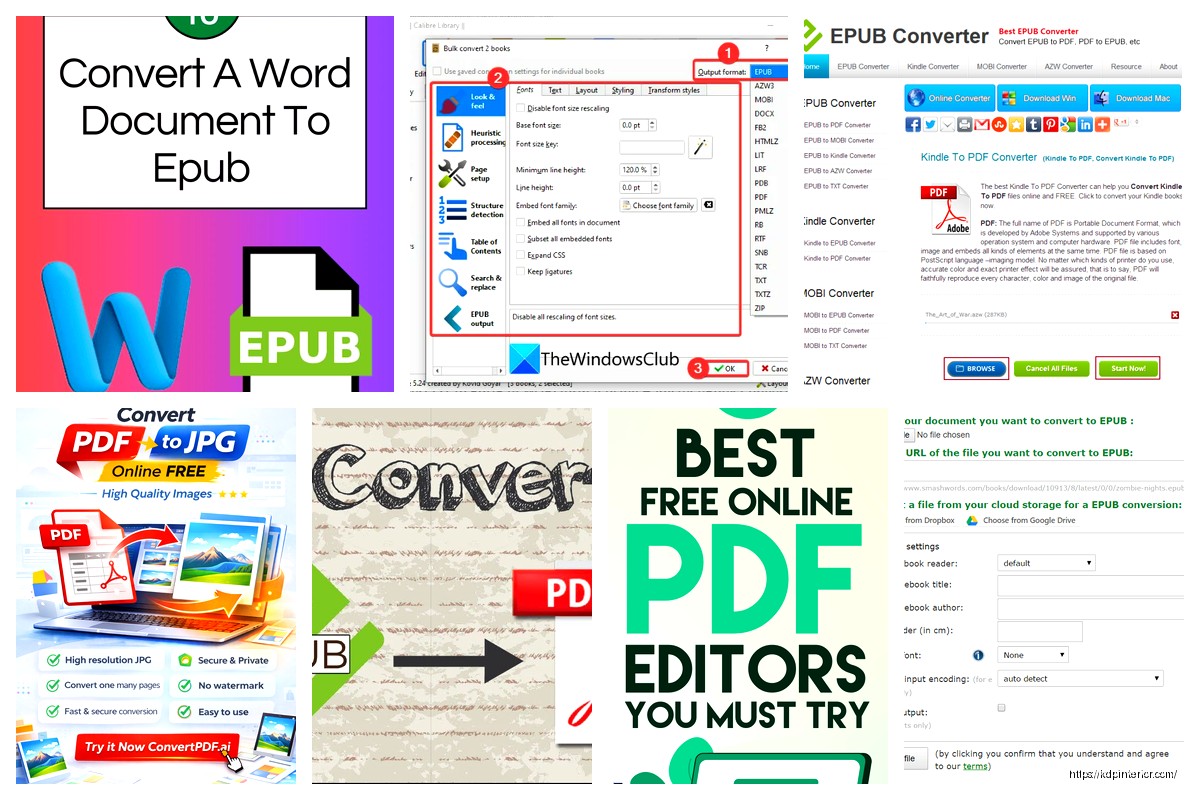
Calibre is free and it’s actually pretty powerful. Open your EPUB in Calibre, then convert it to EPUB again using their converter. I know that sounds redundant but Calibre will standardize a lot of the code and strip out problematic elements. Then you take that cleaned EPUB into InDesign.
The conversion settings in Calibre that help:
– Enable heuristic processing
– Remove spacing between paragraphs
– Insert page breaks before chapters
This creates a cleaner file structure that Adobe tools handle better. My dog was barking at the mailman the whole time I figured this workflow out so it took way longer than it should’ve.
If you don’t have InDesign or the EPUB is super simple (like text-only, no complex layouts), Acrobat DC can convert directly. Open Acrobat, go to Tools > Create PDF, then select your EPUB file.
But here’s the deal – this method is really hit or miss. Acrobat doesn’t understand reflowable content the same way InDesign does, so you might get:
I only use this method for quick conversions where quality doesn’t matter much. Like internal documents or drafts where you just need a PDF version to send someone.
The advantage is speed – takes like 30 seconds versus the 20-30 minutes you’d spend in InDesign. But yeah, quality suffers.
If you go the Acrobat route and need to fix stuff after, you can use the Edit PDF tool. Click on text blocks to reformat them, drag images to reposition, that kind of thing. It’s not as robust as InDesign but for minor adjustments it works.
Font issues are the worst though. If Acrobat substitutes fonts, you gotta go to File > Properties > Fonts to see what it used, then try to embed the correct fonts. Sometimes this just isn’t possible and you need to go back to InDesign anyway.
Wait I forgot to mention earlier – images are where most conversions fall apart. EPUBs usually have images optimized for screen viewing (72 DPI), but PDFs for print need 300 DPI minimum.
Before converting, I actually extract the images from the EPUB (it’s just a zipped file – rename .epub to .zip and unzip it), check their resolution, and upscale them if needed. I use Photoshop for this but there’s also free tools like GIMP.
If the original images are too low-res, upscaling only helps so much. You’re better off going back to the source files if possible. I had a client once who only had the EPUB and no source files… that was a nightmare. Ended up using AI upscaling tools which worked okay-ish but not great.
Oh and another thing – if your EPUB has SVG graphics (common in technical books or illustrated content), those need special handling. InDesign imports SVG files but sometimes they render incorrectly.
My workflow for SVG-heavy EPUBs:
1. Extract SVGs from the EPUB package
2. Open each in Illustrator and save as high-res PNG or keep as SVG
3. Replace in InDesign after import if needed
This is tedious but ensures graphics look sharp in the final PDF. I usually do this while listening to podcasts because it’s pretty mindless work.
Font licensing is super important here and people mess this up constantly. Just because a font displays correctly in your EPUB doesn’t mean you have the rights to embed it in a PDF, especially for commercial distribution.
Adobe Fonts (formerly Typekit) fonts are licensed for PDF embedding if you have an active Creative Cloud subscription. But custom fonts or fonts from other sources? Check the license. I’ve seen people get cease and desist letters over this stuff.
If you can’t embed a font legally, you gotta substitute it. InDesign will warn you about missing fonts and let you choose replacements. Pick something similar to maintain the design intent.
For body text, I usually go with:
– Garamond or Minion Pro for traditional/literary feel
– Myriad Pro for modern/clean look
– Times New Roman if nothing else works (boring but universally available)
This is where people get confused – EPUBs are reflowable, PDFs are fixed layout. You’re essentially converting from a flexible format to a rigid one, so you gotta decide on page dimensions.
Common sizes I use:
– 6×9 inches for standard books
– 8.5×11 inches for workbooks or manuals
– 5×8 inches for smaller pocket-sized books
– Custom sizes for specific print requirements
Set this up in InDesign before placing the EPUB. Go to File > Document Setup and enter your dimensions. Also set up master pages with headers, footers, page numbers – all that stuff that EPUBs don’t have but PDFs need.
The EPUB content will flow into whatever page size you’ve defined, but you’ll probably need to adjust spacing, chapter breaks, maybe reflow some paragraphs. This is the part that takes time and why automated conversion tools never look quite right.
For print PDFs, margins matter way more than digital. I use:
– 0.75 inch inside margin (gutter)
– 0.5 inch outside margin
– 0.5 inch top and bottom
Inside margin is larger because of binding. If you’re doing a thick book, increase the gutter even more or text disappears into the spine.
Digital-only PDFs can have smaller margins since there’s no physical binding. I go with 0.5 inches all around for those.
EPUBs often have hyperlinks for table of contents, footnotes, external URLs, all that. When converting to PDF, decide if you want these to remain interactive or become static text.
For print PDFs, I usually remove interactivity since it’s pointless on paper. In InDesign, you can find all hyperlinks and either delete them or convert to regular text formatting.
For digital PDFs, keep the links active. InDesign preserves hyperlinks when exporting to PDF if you check the “Hyperlinks” option in the export dialog.
Table of contents is special – EPUBs have built-in TOC that’s interactive. In InDesign, you need to create bookmarks manually or generate a TOC from your paragraph styles. I usually do both for digital PDFs so readers can navigate easily.
Before calling it done, always preflight your PDF. In Acrobat, go to Tools > Print Production > Preflight. This checks for issues like:
I’ve caught so many problems in preflight that would’ve caused issues later. It’s worth the extra five minutes.
Also manually flip through the entire PDF page by page. I know it’s tedious but automated checks miss stuff like weird line breaks, orphaned words, images slightly cut off. Your eyeballs are still the best quality control tool.
If you’re converting multiple EPUBs, InDesign has scripting capabilities but honestly it’s complicated to set up. I usually just do them one at a time unless I have like 20+ files, then I’ll invest time in automation.
For batch jobs, Calibre is actually better despite the quality trade-off. You can queue up multiple EPUB files and convert them all to PDF overnight. The quality won’t match InDesign but for volume work where perfection isn’t critical, it saves time.
There’s also online services like Zamzar or CloudConvert that do batch EPUB to PDF conversion but I don’t trust them with client files. Privacy concerns and also the quality is usually mediocre.
The reality is converting EPUB to PDF properly takes time if you care about the output quality. I charge clients accordingly because it’s not just clicking a button – it’s actual design work to make the PDF look professional and print-ready. Anyone telling you there’s a one-click perfect solution is lying or hasn’t done enough conversions to hit all the edge cases that come up.
DISCOVER OUR FREE BEST SELLING PRODUCTS
Editable Canva Lined Journal: Express Your Thoughts – KDP Template
Lined Pages Journal 120 pages Ready to Upload PDF Commercial Use KDP Template 6×9 8.5×11 5×8 for Notebooks, Diaries, Low Content
Lined Pages Journal 120 pages Ready to Upload PDF Commercial Use KDP Template 6×9 8.5×11 5×8 for Notebooks, Diaries, Low Content
Cute Dogs Coloring Book for Kids | Activity Book | KDP Ready-To-Upload
Daily Planner Diary : Diary Planners for Everyday Productivity, 120 pages, 6×9 Size | Amazon KDP Interior
Wolf Coloring KDP interior For Adults, Used as Low Content Book, PDF Template Ready To Upload COMMERCIAL Use 8.5×11"
Coloring Animals Head Book for Kids, Perfect for ages 2-4, 4-8 | 8.5×11 PDF
Printable Blank Comic Book Pages PDF : Create Your Own Comics – 3 Available Sizes
Notes KDP interior Ready To Upload, Sizes 8.5×11 6×9 5×8 inch PDF FILE Used as Amazon KDP Paperback Low Content Book, journal, Notebook, Planner, COMMERCIAL Use
Black Lined Journal: 120 Pages of Black Lined Paper Perfect for Journaling, KDP Notebook Template – 6×9
Student Planner Journal 120 pages Ready to Upload PDF Commercial Use KDP Template 6×9" 8.5×11" for Low Content book
Recipe Journal Template – Editable Recipe Book Template, 120 Pages – Amazon KDP Interior