
Amazon KDP guide, KDP book publishing
Amazon Book Cover Template: Free Downloads & Specifications
Mar
Okay so here’s the thing about Amazon book cover templates – you absolutely need to get the specs right or KDP will reject your upload and trust me I learned this the hard way back in 2018 when I spent an entire weekend reformatting covers because I was off by like 50 pixels.
The basic specs you need to know right now: for eBooks it’s pretty straightforward, you want 2560 x 1600 pixels minimum. That’s the sweet spot. KDP says the ideal ratio is 1.6:1 which yeah that’s what 2560 x 1600 gives you. I usually just work at 2700 x 1800 because it gives me more breathing room and the file size is still manageable.
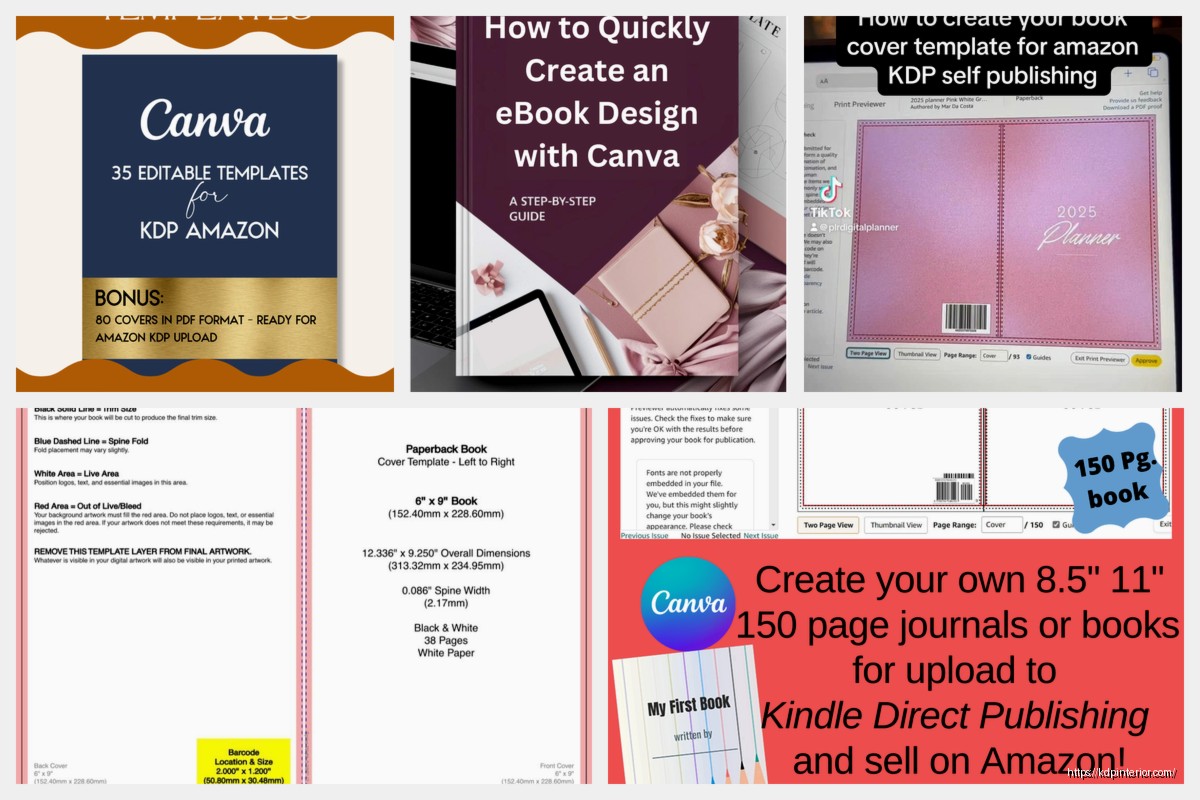
For paperbacks though… okay this is where it gets messy and I’m gonna walk you through it because the calculator on KDP is actually helpful for once. You can’t just slap any dimensions on there because the cover wraps around the book. So you need front cover + spine + back cover all as one image.
Paperback Cover Dimensions That Actually Work
The width calculation is: (2 x trim size width) + spine width + 0.25 inches for bleed. Height is just your trim size height + 0.125 inches top and bottom for bleed.
Most common trim sizes people use:
- 6″ x 9″ – this is like the standard novel size
- 8.5″ x 11″ – workbooks, journals, that sort of thing
- 8″ x 10″ – coffee table books, kids books
- 5″ x 8″ – smaller novels, fits in a purse
The spine width changes based on your page count and paper type. White paper is thinner than cream. I usually use the KDP cover calculator at kdp.amazon.com/cover-calculator because doing the math myself at 11pm never ends well.
Wait I forgot to mention – you NEED to add bleed. That’s the extra 0.125 inches around all edges. This is the part that gets trimmed off during printing. If you don’t include bleed and your cover has color that goes to the edge you’ll get white borders and it looks absolutely terrible.
Free Template Resources I Actually Use
KDP provides free templates once you enter your book specs but honestly they’re just basic guidelines. I still use them as a starting point though. You download them from your KDP bookshelf when you’re setting up a new title.
Canva has Amazon KDP templates built in now which is pretty convenient. I was watching The Bear last week and during a break I tested their new templates – they’re actually sized correctly for once. The free version has enough options if you’re just starting out. Their pro version is like $13/month or something and worth it if you’re doing multiple books.
BookBrush is another one I use sometimes. They have KDP-specific templates and the dimensions are pre-set. It’s around $10/month I think? They also do 3D mockups which is nice for marketing.
Design Software Options
Look you don’t need Photoshop. I mean I use it because I’ve had it forever but there are cheaper options that work just as well for book covers.
Canva – I mentioned this already but yeah it’s probably the easiest starting point. Drag and drop, templates are already sized right, huge image library.
GIMP – free Photoshop alternative. The interface is kinda clunky but it’s powerful and you can’t beat free. Downloaded it on my laptop when I was traveling last year and it handled everything I needed.
Affinity Photo or Designer – one time purchase around $70. I actually prefer this to Photoshop now for cover design. Cleaner interface, does everything you need.
BookBrush – already mentioned but listing it here too because it’s specifically for book covers.
The Bleed and Safe Zone Thing
Okay so this is gonna sound weird but I see people mess this up constantly. Your cover has three zones:
Bleed zone – the outer 0.125 inches on all sides. This gets trimmed. Put background colors here but nothing important.
Trim line – where the actual cut happens. This is your stated book dimensions.
Safe zone – 0.125 inches INSIDE the trim line. Keep all your text and important graphics inside this zone.
So basically you have a 0.25 inch buffer zone total where you don’t want text or faces or anything critical. I once had a cover where the author’s name got partially cut off because I put it too close to the edge and yeah… had to reprint 50 copies.
File Format Requirements
eBook covers: JPG or TIFF, RGB color mode, at least 72 DPI but I always do 300 DPI anyway. File size under 50MB but realistically you want it under 2MB for faster upload.
Paperback covers: PDF is what KDP wants. CMYK color mode for print – this is important because RGB looks different in print and you’ll get color shifts. 300 DPI minimum, no transparency.
Oh and another thing – flatten your layers before you export. KDP doesn’t like layered PDFs and it’ll cause upload errors.
Color Mode Confusion
RGB is for screens (eBooks, online marketing). CMYK is for print (paperbacks, hardcovers). If you design in RGB and then convert to CMYK your colors WILL shift. Blues get darker, bright greens get muddy, reds can look different.
What I do now is design in CMYK from the start if it’s a paperback. Saves the headache later. For eBooks I stay in RGB.
Typography Tips That Matter
Your title needs to be readable at thumbnail size. On Amazon people see your cover at like 160 pixels tall. If they can’t read the title you’re toast.
I test this by shrinking my cover down to 1 inch tall in my design program. Can you still read the title? If not make the text bigger or simplify the design.
Sans serif fonts usually read better at small sizes. I know everyone wants fancy script fonts but they disappear at thumbnail size. Save the decorative fonts for subtitles or author names if you must use them.
Contrast is everything. Light text on light backgrounds doesn’t work. Dark on dark doesn’t work. You need strong contrast especially for thumbnails.
Free Font Resources
Google Fonts – completely free, commercially licensed, huge selection. I probably use fonts from here on 60% of my covers.
DaFont – mix of free and paid fonts. Check the license before using for commercial projects.
Font Squirrel – only free commercial fonts. Everything here is safe to use for book covers you’re selling.
Creative Market – paid fonts but they have free goods every week. I got some great font bundles for free just by checking regularly.
Stock Images and Graphics
You can’t just google image search and grab stuff. That’ll get you sued or at minimum KDP will reject your cover. Use properly licensed images.
Unsplash, Pexels, Pixabay – all free stock photos with commercial licenses. Quality varies but there’s good stuff if you dig.
Depositphotos and Shutterstock – paid but huge libraries. Subscription models usually around $30-50/month depending on how many downloads you need.
Creative Fabrica – I use this for graphics and design elements. Like $10/month and they have tons of stuff.
My dog knocked over my coffee while I was working on a cover last month and I had to start over because I hadn’t saved… anyway always save your work files with layers in case you need to edit later. Export final covers as flattened files but keep the working file separate.
Common Rejection Reasons
Wrong dimensions – most common issue. Double check against the calculator.
Low resolution – anything under 300 DPI for print gets rejected usually.
Copyright issues – using images you don’t have rights to.
Text too close to trim line – they sometimes reject if important text is in the bleed zone.
Incorrect color mode – RGB file uploaded for paperback.
File corruption – happens more than you’d think. If PDF won’t upload try re-exporting.
Spine Text Placement
For paperbacks over 100 pages you’ll have room for spine text. Under that the spine is too narrow and text looks cramped.
The spine text needs to read from top to bottom when the book is standing upright spine out. This is standard in English language publishing.
Center your spine text both horizontally and vertically. Leave at least 0.0625 inches from top and bottom edges (safety margin).
I usually do spine text at 20-24pt depending on the font and spine width. Too small and it’s unreadable, too large and it looks weird.
Back Cover Layout
This is part of your full wrap cover for paperbacks. Standard elements:
Book description or blurb – usually 100-200 words
Author bio (optional)
Barcode placement – bottom right corner, leave about 2″ x 1.25″ of white space. Amazon adds the barcode automatically during printing but you need to leave room.
Reviews or endorsements (optional)
Author photo (optional)
Keep everything in the safe zone obviously. I put the barcode space at least 0.25 inches from edges to be safe.
KDP Cover Creator Tool
Amazon has a built-in cover creator that’s actually not terrible if you’re really on a budget. It’s free, templates are pre-sized correctly, and it works.
Limitations: pretty basic designs, everyone uses the same templates so your cover won’t be unique, limited customization.
I used it for my first few books back in 2017 when I was testing the platform. It works but you’re better off making custom covers if you want to compete in crowded genres.
Hardcover Specifications
These are different from paperbacks. The case laminate (dust jacket) wraps further around the book.
You need to add 3 inches to your total width calculation for the flaps that fold inside the front and back covers. So it’s: (2 x trim width) + spine width + 0.125 bleed + 6 inches for flaps.
Hardcover spines are also slightly different in calculation. Use the KDP calculator because doing this math manually is asking for errors.
I don’t do as many hardcovers because the minimum price point is higher but the specs are important to get right.
Proofing Your Cover
Always order a physical proof before you publish. What looks good on screen can look totally different in print. Colors shift, text might be smaller than you thought, the paper texture affects how images appear.
I’ve caught so many issues in the proof stage – typos I somehow missed, spine text that was slightly off-center, colors that looked muddy in print.
The proof costs like $5-10 depending on your book size and you can’t publish without approving it anyway so just order it. Takes about a week to arrive usually.
Check the spine alignment carefully when the proof arrives. Make sure text isn’t cut off anywhere. Look at color accuracy. Check that the cover wraps correctly and there’s no white edges showing.
Template Checklist Before Upload
Correct dimensions including bleed
300 DPI resolution minimum
CMYK color mode for print
All text in safe zone
Barcode space on back cover
Spine text reading direction correct
File flattened and exported as PDF
File size under 650MB (KDP limit but you should be way under this)
I keep this checklist in a Google doc and run through it every time because I’ve made basically every mistake possible at some point and it’s easier to just check everything than deal with rejections.
The whole template thing seems complicated at first but once you’ve done a few covers it becomes automatic. I can set up a new cover template in like 5 minutes now because I’ve done it so many times. Just take it step by step, use the calculator, and don’t skip the proof stage.
DISCOVER OUR FREE BEST SELLING PRODUCTS
Editable Canva Lined Journal: Express Your Thoughts – KDP Template
Lined Pages Journal 120 pages Ready to Upload PDF Commercial Use KDP Template 6×9 8.5×11 5×8 for Notebooks, Diaries, Low Content
Lined Pages Journal 120 pages Ready to Upload PDF Commercial Use KDP Template 6×9 8.5×11 5×8 for Notebooks, Diaries, Low Content
Cute Dogs Coloring Book for Kids | Activity Book | KDP Ready-To-Upload
Daily Planner Diary : Diary Planners for Everyday Productivity, 120 pages, 6×9 Size | Amazon KDP Interior
Wolf Coloring KDP interior For Adults, Used as Low Content Book, PDF Template Ready To Upload COMMERCIAL Use 8.5×11"
Coloring Animals Head Book for Kids, Perfect for ages 2-4, 4-8 | 8.5×11 PDF
Printable Blank Comic Book Pages PDF : Create Your Own Comics – 3 Available Sizes
Notes KDP interior Ready To Upload, Sizes 8.5×11 6×9 5×8 inch PDF FILE Used as Amazon KDP Paperback Low Content Book, journal, Notebook, Planner, COMMERCIAL Use
Black Lined Journal: 120 Pages of Black Lined Paper Perfect for Journaling, KDP Notebook Template – 6×9
Student Planner Journal 120 pages Ready to Upload PDF Commercial Use KDP Template 6×9" 8.5×11" for Low Content book
Recipe Journal Template – Editable Recipe Book Template, 120 Pages – Amazon KDP Interior