okay so here’s how you actually set up your KDP account without screwing it up
I was helping my brother-in-law with this last Tuesday and realized most people overthink the setup process. Look, I’m gonna walk you through this like I’m sitting next to you because the official Amazon tutorials make it sound way more complicated than it needs to be.
First thing – go to kdp.amazon.com and click that yellow “Sign up” button. You can use your regular Amazon shopping account, which is what I did back in 2017 and it’s been fine. Some people create separate accounts but honestly unless you’re running like a full publishing house, just use what you got.
The Tax Interview Part (don’t skip this or you’ll hate yourself later)
So after you sign in, Amazon‘s gonna immediately hit you with tax information forms. This is the W-9 if you’re in the US or W-8 if you’re international. I see people bail at this step all the time because it looks scary but it’s literally just:
- Your legal name (the one on your tax returns)
- Social Security Number or EIN if you have an LLC
- Your address
- Checking a box that says you’re not subject to backup withholding
Takes like 3 minutes. The system saves it automatically so you don’t gotta worry about doing it again. Oh and another thing – if you mess up your SSN or anything, you can update it later in Account Settings, but then Amazon has to review it again which can take a few days and delay your first payment.
Payment Information (how you actually get paid)
This part’s under “Getting Paid” in your account settings. You need to add:
- Bank account for direct deposit (routing number and account number)
- They’ll ask if you want EFT which is just electronic transfer – say yes obviously
One thing that bit me early on – make sure the name on your bank account matches the name on your KDP account exactly. I had a client last month whose account was under “Robert” legally but his bank said “Bob” and Amazon flagged it. Took two weeks to sort out.

Amazon pays about 60 days after the end of the month you earned royalties. So January sales get paid end of March. It’s slow but it’s reliable, I’ve been getting payments for 7 years now and never had one go missing.
wait I forgot to mention – your actual dashboard walkthrough
Okay so once you’re set up, you land on the KDP dashboard which honestly looks outdated like it’s from 2012 but whatever it works. Here’s what you’re looking at:
The Bookshelf
This is where all your published books live. It’s basically a list view with these columns:
- Book title and cover thumbnail
- Status (Live, In Review, Draft)
- ASIN (Amazon’s product ID – you’ll need this for everything)
- Publication date
- Actions button (where you edit or unpublish)
The search function at the top is terrible if you have like 200+ books like me. I actually keep a spreadsheet with all my ASINs because finding stuff in the dashboard takes forever. My dog literally fell asleep waiting for me to find a book last week, that’s how long it takes.
Reports Section (this is where the money info lives)
Click “Reports” in the left sidebar and you get a few options but the main ones you’ll use are:
Sales Dashboard: Shows units sold and royalties earned. Updates every 24 hours but it’s not real-time. You can filter by date range, marketplace (like amazon.com vs amazon.co.uk), and book title. The graphs are kinda useless tbh but the raw numbers are what matter.
Month-to-Date Unit Sales: This one updates hourly during US business hours. It shows estimated sales but doesn’t include returns or KDP Select page reads yet. I check this one obsessively during launches.
Prior Months’ Royalties: This is your finalized numbers after returns get processed. What shows here is what you’re actually getting paid.
This is gonna sound weird but I usually screenshot my Month-to-Date report at the end of each day during a launch and throw it in a folder. Helps me track patterns across different books.
KDP Select Enrollment Thing
You’ll see a KDP Select toggle when publishing. This is Amazon’s exclusivity program – you can’t sell your ebook anywhere else but you get:
- Access to Kindle Unlimited (people borrow your book, you get paid per page read)
- Free promo days (5 per 90-day enrollment period)
- Countdown deals
I put most of my low-content books in KDP Select because they don’t sell well on other platforms anyway. But my better-performing ebooks I keep wide (on multiple platforms). You can toggle in and out every 90 days so it’s not permanent.
Creating Your First Book Listing (the actual upload part)
Hit that “+ Create” button and choose Paperback, Hardcover, or Kindle eBook. The form’s split into three sections.
Section 1: Kindle eBook Details
Pretty straightforward:
- Book title (exactly how you want it on Amazon, capitals and all)
- Subtitle (optional but helps with keywords)
- Author name (use a consistent pen name, changing it later is annoying)
- Description (supports basic HTML which most people don’t know – you can use bold and italics)
- Keywords (7 boxes, use all of them, be specific not generic)
- Categories (pick 2, you can add more through support later)
Oh and another thing about keywords – don’t waste them on words already in your title. If your book’s called “Keto Diet Cookbook” don’t put “keto” as a keyword. Use those slots for related terms like “low carb recipes” or whatever.
Section 2: Content Upload
This is where you upload your actual book file. Amazon accepts:
- DOC or DOCX (Word files)
- EPUB (best for ebooks if formatted right)
- PDF (works but can look wonky on different devices)
I always use EPUB now after learning the hard way that Word docs can create weird formatting issues. There’s a preview button that shows how it’ll look on different Kindle devices – always check this because I’ve caught issues that would’ve looked terrible on actual Kindles.

For covers, upload a JPG or TIFF that’s at least 2560 pixels on the longest side. Amazon’s super picky about cover quality and will reject anything blurry.
Section 3: Pricing
You can choose 35% or 70% royalty rate. The 70% option has requirements:
- Price between $2.99 and $9.99
- Book has to be available in all territories where 70% is offered
- Amazon charges a small delivery fee based on file size
Most of my books are priced at $2.99 or $3.99 with 70% royalty. Below $2.99 you’re stuck with 35% which only makes sense for perma-free books or loss leaders.
You can set different prices for different marketplaces. I usually just let Amazon auto-convert but some people manually adjust for currency differences.
okay so funny story about the review process
After you hit “Publish” Amazon reviews your book. Usually takes 24-72 hours. I once published a planner at 11pm on a Friday and it didn’t go live until Tuesday because of the weekend. So timing matters if you’re doing a launch.
They’re checking for:
- Copyright violations
- Poor quality content (blank pages, gibberish)
- Cover issues
- Misleading descriptions
Most books get approved no problem. If they reject it, you’ll get an email with a vague reason and you just fix it and resubmit.
Dashboard Stuff You’ll Use All The Time
There’s this “Promote and Advertise” section that lets you create Amazon Ads directly from your dashboard. I run ads on maybe 30% of my catalog and manage them all from there. The interface is clunky compared to Facebook Ads but it works.
Under “Account Settings” (bottom left) you can update your:
- Payment info
- Tax information
- Email preferences (turn off the promotional emails, trust me)
- Author Central connection (links your books to an author page)
I spent like 3 hours last Thursday updating payment info across 4 different pen names because I switched banks. It’s tedious but gotta do it.
The Mobile App Situation
Amazon has a KDP app for iOS and Android. It’s basically just for checking sales numbers on the go. You can’t upload books or make major changes. I have it on my phone and check it way too much honestly, like first thing when I wake up.
One annoying thing – the app sometimes shows different numbers than the desktop dashboard for a few hours. They sync up eventually but it’s confusing when you’re watching a launch.
Common Mistakes I See People Make
Not filling out all 7 keyword boxes – every single one helps with discoverability
Using the same book description for Amazon that they use everywhere else – Amazon customers respond to different copy, test and optimize it
Picking bad categories that are too competitive – better to rank #1 in a small category than #5000 in a big one
Not connecting to Author Central – it’s free and gives you an actual author page with a bio and lets you see more detailed sales data
Freaking out over day-to-day sales fluctuations – look at weekly and monthly trends instead
My client last month was ready to unpublish her book after 3 days of zero sales but then it suddenly took off a week later when Amazon’s algorithm kicked in. Patience is annoying but necessary.
The Whole Print Book Side
If you’re doing paperbacks the setup is almost identical but you also need:
- Interior file (PDF with proper margins and bleed)
- ISBN (Amazon gives you free ones or you can buy your own)
- Trim size selection (6×9 is most common)
- Paper type (white or cream)
The preview process for print books is more important because you’re checking for formatting issues that could make the physical book look bad. Amazon sends you a digital proof and you can order a physical proof copy for like $5 plus shipping.
Print royalties are lower because of printing costs. A 200-page paperback at $9.99 might only net you $2-3 per sale after Amazon takes their cut and subtracts printing.
Anyway that’s basically everything you need to get started and navigate the dashboard without feeling lost. The interface is gonna feel overwhelming for like a week and then suddenly it’ll click and you’ll wonder why it seemed complicated. Just start with one book, go through the whole process, and then it’s easy to repeat for book #2, #3, etc.

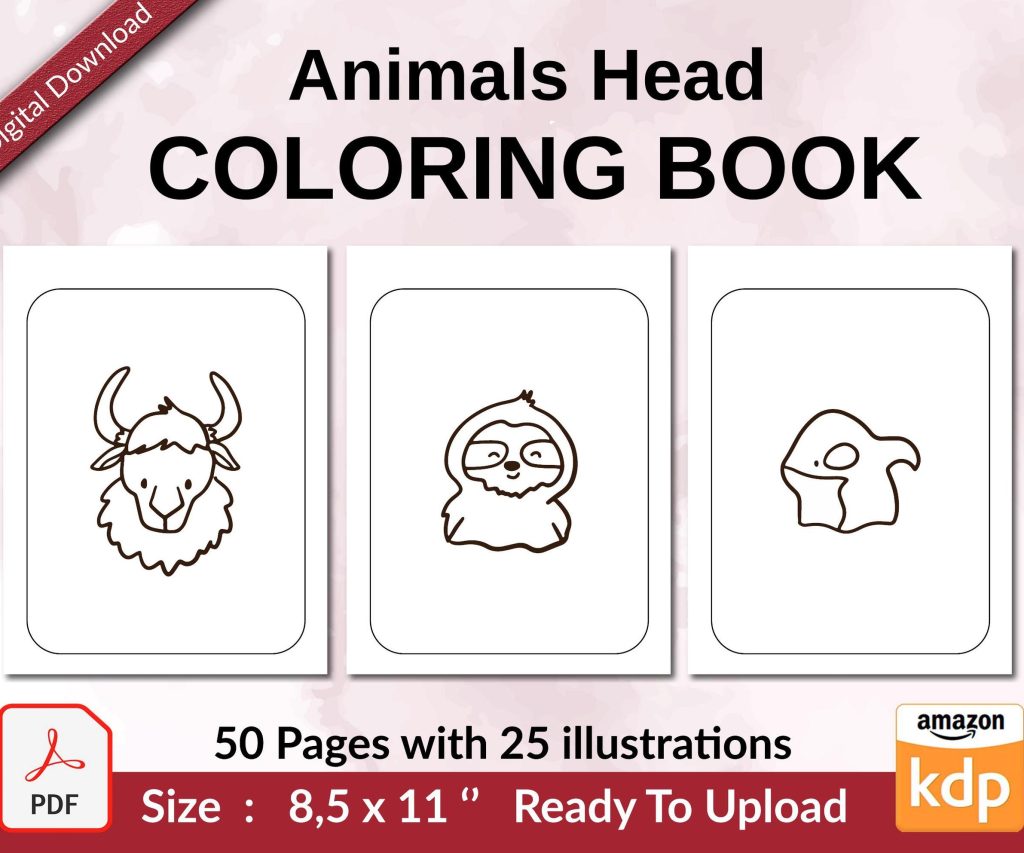 Coloring Animals Head Book for Kids, Perfect for ages 2-4, 4-8 | 8.5x11 PDF
1 × $0.00
Coloring Animals Head Book for Kids, Perfect for ages 2-4, 4-8 | 8.5x11 PDF
1 × $0.00 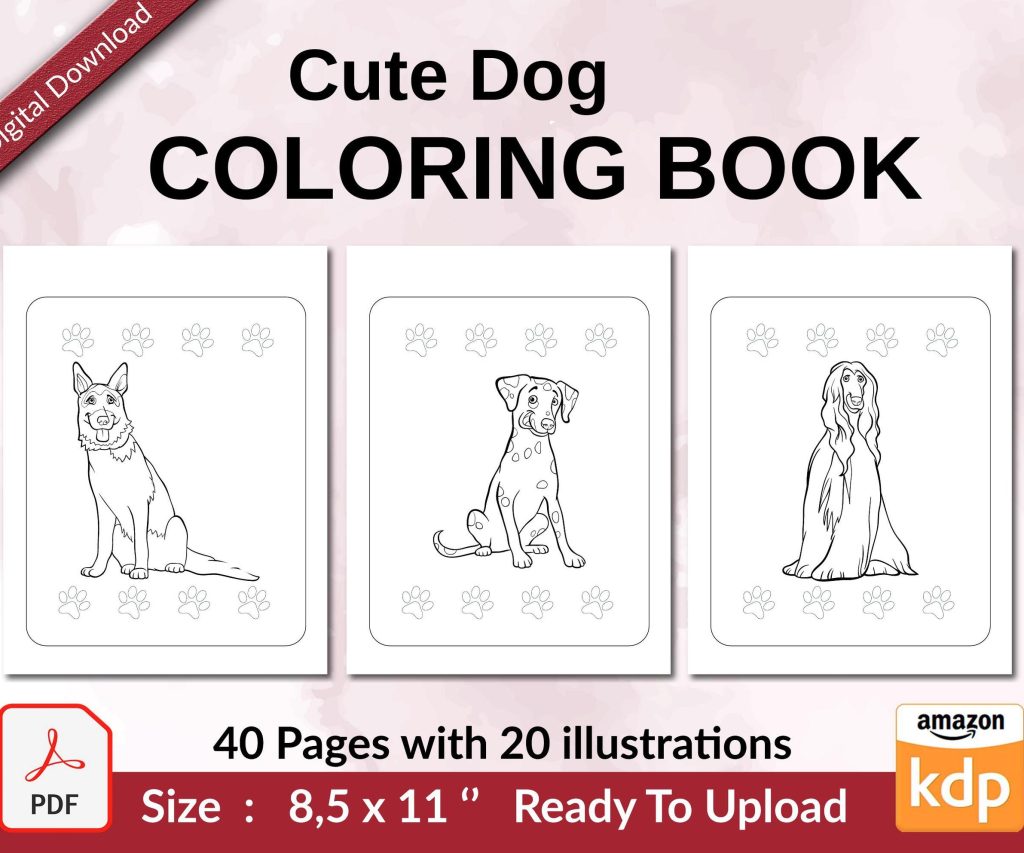 Cute Dogs Coloring Book for Kids | Activity Book | KDP Ready-To-Upload
1 × $0.00
Cute Dogs Coloring Book for Kids | Activity Book | KDP Ready-To-Upload
1 × $0.00 
DISCOVER OUR FREE BEST SELLING PRODUCTS
Editable Canva Lined Journal: Express Your Thoughts – KDP Template
Lined Pages Journal 120 pages Ready to Upload PDF Commercial Use KDP Template 6×9 8.5×11 5×8 for Notebooks, Diaries, Low Content
Lined Pages Journal 120 pages Ready to Upload PDF Commercial Use KDP Template 6×9 8.5×11 5×8 for Notebooks, Diaries, Low Content
Cute Dogs Coloring Book for Kids | Activity Book | KDP Ready-To-Upload
Daily Planner Diary : Diary Planners for Everyday Productivity, 120 pages, 6×9 Size | Amazon KDP Interior
Wolf Coloring KDP interior For Adults, Used as Low Content Book, PDF Template Ready To Upload COMMERCIAL Use 8.5×11"
Coloring Animals Head Book for Kids, Perfect for ages 2-4, 4-8 | 8.5×11 PDF
Printable Blank Comic Book Pages PDF : Create Your Own Comics – 3 Available Sizes
Notes KDP interior Ready To Upload, Sizes 8.5×11 6×9 5×8 inch PDF FILE Used as Amazon KDP Paperback Low Content Book, journal, Notebook, Planner, COMMERCIAL Use
Black Lined Journal: 120 Pages of Black Lined Paper Perfect for Journaling, KDP Notebook Template – 6×9
Student Planner Journal 120 pages Ready to Upload PDF Commercial Use KDP Template 6×9" 8.5×11" for Low Content book
Recipe Journal Template – Editable Recipe Book Template, 120 Pages – Amazon KDP Interior