-
×
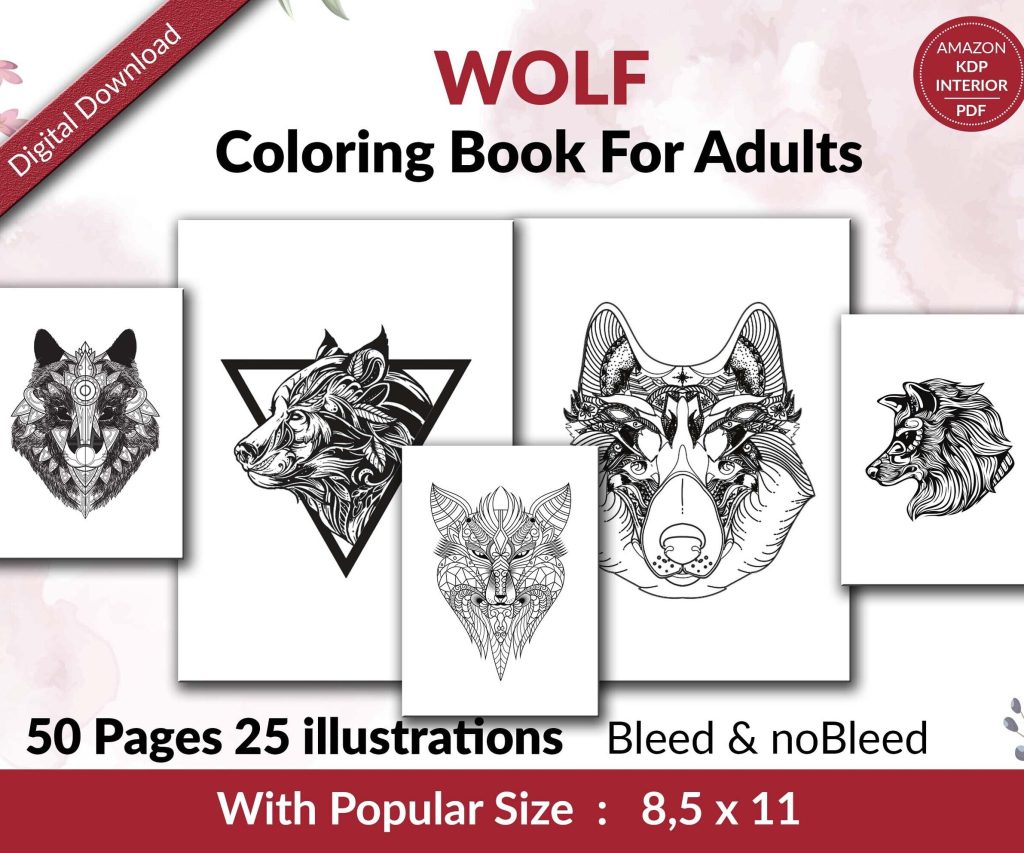 Wolf Coloring KDP interior For Adults, Used as Low Content Book, PDF Template Ready To Upload COMMERCIAL Use 8.5x11"
1 × $0.00
Wolf Coloring KDP interior For Adults, Used as Low Content Book, PDF Template Ready To Upload COMMERCIAL Use 8.5x11"
1 × $0.00
Subtotal: $0.00

I literally just walked someone through this last Tuesday and they got their book live in like 48 hours, so this is fresh in my head. You don’t need to drop money on ISBN numbers or fancy formatting software or any of that stuff everyone tries to sell you.
First off, Amazon gives you a free ISBN when you publish through KDP. It’s called an ASIN technically but it works the same way for distribution on their platform. Now some people are gonna tell you that you need to buy your own ISBN from Bowker for like $125, but honestly? If you’re only selling on Amazon, which is where 90% of ebook sales happen anyway, just use their free one. I’ve done this with probably 170 of my 200+ books and never had an issue.
So for ebooks you can literally use Microsoft Word or Google Docs. Amazon‘s system converts .doc and .docx files automatically. I spent my first year overthinking this and buying Vellum and other tools when I could’ve just… used Word. Here’s what actually matters:
Oh and another thing, if you’re doing a paperback with KDP Print, you can download their free templates. They’ve got them for every trim size. I usually go with 6×9 for non-fiction because it’s standard and their template has the margins already set up correctly. You just paste your content in.
This is gonna sound weird but Canva’s free version is honestly good enough for most books. I made my first 30 covers on there before I started outsourcing. They have book cover templates already sized correctly – 2560 x 1600 pixels for ebooks. For paperbacks it’s different because you need the spine width calculator from KDP, but Canva can handle those dimensions too.
Wait I forgot to mention – Amazon also has a free cover creator tool built into KDP. It’s super basic, like really basic, but if you’re publishing journals or low-content books where the cover is just text and a pattern? Totally fine. I’ve used it for notebook interiors where nobody really cares about fancy design.
The thing nobody tells you is that your cover just needs to be readable as a thumbnail. That’s it. When I finally understood this (probably after book number 40 or something), I stopped overcomplicating designs. Three elements max: title, subtitle if needed, one image or background.
Okay so funny story, I had a client cancel a consulting call last month and I spent those two hours just testing free promo methods for a new cookbook I’d published. Here’s what actually moved copies:
Amazon lets you change your book to free for 5 days out of every 90-day period if you’re enrolled in KDP Select. This is huge. When you make your book free, it can hit the free bestseller charts, and then when you switch it back to paid, sometimes Amazon’s algorithm keeps recommending it. I’ve had books go from 0 sales to 3-5 daily sales just from doing a free promo run.
So KDP Select means your ebook is exclusive to Amazon – you can’t sell it on Apple Books or anywhere else. In exchange you get:
For my first probably 150 books I did KDP Select because the KU money is real. I’ve had months where page reads brought in more than actual sales. But it’s a no-cost strategy either way – you’re just choosing how to distribute.
You get 7 keyword phrases and 2 categories when you publish. Most people waste these. I’m gonna give you the actual strategy: use all 7 keyword slots with long-tail phrases, not single words. Like instead of “recipes” you’d put “quick dinner recipes for busy families” or whatever actually matches your book.
For categories, pick the most specific ones you can. Don’t choose “Cookbooks” – choose “Cookbooks > Quick & Easy > 30-Minute Meals” because you’re competing with way fewer books. You can also email KDP support after publishing and ask them to add you to up to 10 total categories. This is free and I do it for every single book now.
My dog just knocked over my coffee but anyway – the category thing is probably responsible for like 30% of my organic sales because you can become a “#1 Bestseller” in a tiny niche category with just a handful of sales, and then that orange banner shows up on your book page.
Your book description is the sales page. Amazon lets you use basic HTML formatting in there which most people don’t know. You can add bold text, headers, and bullet points. Here’s my formula that I literally copy-paste and modify:
The HTML stuff you paste into the description editor: bold text for emphasis on key phrases. I usually bold words like “step-by-step” or “beginner-friendly” or whatever the main selling point is.
Amazon lets you price ebooks from $0.99 to $9.99 and still get 70% royalty (if you meet their requirements). Under $2.99 or over $9.99 you only get 35%. For a no-cost launch, I usually start at $2.99 because it looks more valuable than $0.99 but isn’t expensive enough to scare people off.
Paperbacks are different – you gotta price them high enough to cover Amazon’s printing cost plus leave you some profit. Their pricing calculator shows you the minimum. Usually for a 150-page paperback I end up around $8.99-$11.99 depending on page count.
Wait I forgot to mention – you can run a Countdown Deal (if you’re in KDP Select) where you temporarily discount your book and there’s a timer showing on the Amazon page. This is free to set up and I’ve seen it boost sales just because of the urgency factor.
This is tricky because Amazon’s terms are strict. You can’t offer people free copies in exchange for reviews anymore. What you CAN do:
I’m not gonna lie, getting those first 10 reviews is the hardest part. My strategy now is I publish, immediately tell my email list (which is free to build, just use Substack or something), and usually 2-3 people buy and review within the first week.
Okay so this requires Amazon Brand Registry which is technically free but you need a trademark. If you’re publishing under your own name or a pen name, you might not bother with this initially. But if you ever do get brand registered, A+ Content lets you add fancy graphics and comparison charts to your book description page. I started using this around book 120 and it definitely improved conversion rates.
To get brand registered without spending $500 on a trademark lawyer, I used LegalZoom’s basic trademark service for like $99 plus the government filing fee. But honestly for your first few books? Skip this. It’s not necessary.
Amazon automatically shows the first 10% of your book in the “Look Inside” preview. You want your table of contents and first chapter to be really strong here because this is what sells the book. I always front-load my best content now instead of having a long intro that nobody cares about.
For non-fiction, put your table of contents right after the title page. For fiction, make sure Chapter 1 starts on a hook. This seems obvious but I published like 30 books before I realized how many people preview before buying.
Oh and make sure your formatting looks good in the previewer before you hit publish. Amazon’s previewer tool shows you how it’ll look on different devices. I’ve caught typos and weird spacing issues in there that would’ve been embarrassing.
If you start with an ebook, adding a paperback version later is free and takes like 20 minutes. You use the same KDP account, click “Create Paperback” on your ebook’s dashboard, and it carries over all your metadata. You just need to upload a print-ready PDF and a print cover.
For the print cover, use KDP’s cover calculator to get the spine width, then design in Canva at the exact dimensions they give you. I’ve done this probably 80 times and it works every time as long as you follow their specs exactly.
The paperback usually starts selling a few copies even if you don’t promote it separately, just from people who prefer physical books. It’s basically passive income once it’s up there.
Anyway that’s pretty much the entire free publishing process I use. The only time I spend money now is on covers for books where I want something really professional, but even then I’m talking like $50 on Fiverr, not hundreds. Everything else Amazon provides for free and honestly their tools have gotten way better since I started in 2017.
DISCOVER OUR FREE BEST SELLING PRODUCTS
Editable Canva Lined Journal: Express Your Thoughts – KDP Template
Lined Pages Journal 120 pages Ready to Upload PDF Commercial Use KDP Template 6×9 8.5×11 5×8 for Notebooks, Diaries, Low Content
Lined Pages Journal 120 pages Ready to Upload PDF Commercial Use KDP Template 6×9 8.5×11 5×8 for Notebooks, Diaries, Low Content
Cute Dogs Coloring Book for Kids | Activity Book | KDP Ready-To-Upload
Daily Planner Diary : Diary Planners for Everyday Productivity, 120 pages, 6×9 Size | Amazon KDP Interior
Wolf Coloring KDP interior For Adults, Used as Low Content Book, PDF Template Ready To Upload COMMERCIAL Use 8.5×11"
Coloring Animals Head Book for Kids, Perfect for ages 2-4, 4-8 | 8.5×11 PDF
Printable Blank Comic Book Pages PDF : Create Your Own Comics – 3 Available Sizes
Notes KDP interior Ready To Upload, Sizes 8.5×11 6×9 5×8 inch PDF FILE Used as Amazon KDP Paperback Low Content Book, journal, Notebook, Planner, COMMERCIAL Use
Black Lined Journal: 120 Pages of Black Lined Paper Perfect for Journaling, KDP Notebook Template – 6×9
Student Planner Journal 120 pages Ready to Upload PDF Commercial Use KDP Template 6×9" 8.5×11" for Low Content book
Recipe Journal Template – Editable Recipe Book Template, 120 Pages – Amazon KDP Interior