okay so here’s what actually matters when you’re uploading to KDP
Look, I’ve had books rejected for the dumbest reasons and approved when I thought they’d get flagged, so let me walk you through what Amazon actually cares about versus what people stress over for no reason.
Interior formatting – this is where most people mess up
First thing – your margins. Amazon wants at least 0.25 inches on all sides but honestly I do 0.5 inches because trimming isn’t always perfect and I’ve had text cut off on a batch of notebooks once. Cost me like $200 in replacements, not fun.
The bleed is gonna be 0.125 inches if you’re doing anything with color or images that go to the edge. Most low-content books don’t need bleed though, so if you’re doing journals or planners with just black interiors, you can skip this. But if you DO use bleed, make sure nothing important is in that zone because it gets cut off.
Here’s what I check every single time:
- Page size matches what you selected in KDP (sounds obvious but I’ve uploaded the wrong size at 2am more times than I’ll admit)
- All pages are actually there – do a page count before you upload
- No weird artifacts or lines that shouldn’t be there
- Text isn’t too close to the gutter (that’s the middle binding area) – give it at least 0.375 inches extra
- Colors are CMYK not RGB if you’re doing color books
Cover files are weirdly specific
okay so the cover template calculator on KDP is your friend, use it every time. The spine width changes based on page count and paper type, so you can’t just reuse an old template for a different book unless everything matches exactly.
I download the template, I put guides on the trim lines and the safety lines in whatever software I’m using (usually Adobe Illustrator but Canva works too if you do it right). Oh and another thing – when you export, it HAS to be a single PDF file, front and back cover plus spine all together. Some people try to upload them separately and wonder why it doesn’t work.
Resolution needs to be 300 DPI minimum. I’ve gotten away with 250 once or twice but don’t risk it. Amazon‘s pretty clear about this one.
The barcode area on the back cover (usually bottom right) needs to stay clear. Don’t put important text or images there. Amazon slaps their barcode right over whatever you have, and I learned this the hard way when my author name got covered on my first cookbook.

Content quality standards that’ll get you rejected
This is gonna sound weird but I keep a rejection journal now because I’ve had some bizarre ones. Here’s what Amazon actually rejects:
Public domain content with no added value. You can’t just slap a new cover on Alice in Wonderland and call it a day. BUT if you add annotations, new illustrations, study guides, whatever – that’s transformative. I did a whole series of classic novels with discussion questions for book clubs and those all got approved.
Plagiarized or copyrighted stuff obviously. They run everything through some kind of checker and they’re pretty good at catching it. Don’t copy someone else’s journal prompts word-for-word, don’t use images you don’t have rights to.
Low quality interiors – this is subjective but basically if your book looks like you made zero effort, they might reject it. I had a planner rejected once because the lines were too faint (they said it provided “poor customer experience”). I darkened them from 20% gray to 40% gray and it was approved immediately.
wait I forgot to mention – manuscript specifications
PDFs are the safest bet for upload. Some people use Word docs but I’ve had formatting shift weirdly when KDP converts them, so I always export to PDF first.
Your PDF needs to be flattened (no layers) and all fonts need to be embedded. In Adobe products there’s literally a checkbox for this. In Canva it happens automatically when you download as PDF for print.
File size limit is 650 MB which sounds like a lot but if you’re doing a full-color photography book or something, you might need to compress. I use Adobe Acrobat’s reduce file size feature and it usually works fine without killing quality too much.
Oh and the page count – minimum is 24 pages for paperbacks, maximum is 828 pages. For hardcover it’s different, I think 75 minimum? I don’t do many hardcovers though so double-check that.
The metadata stuff people overthink
Your title can’t have “Amazon” or “Kindle” in it unless it’s like, a book ABOUT Amazon the company. No “bestseller” or “award-winning” in the title either unless it’s actually true and you can prove it.
Categories – you get to pick two browse categories when you upload but you can email KDP support and ask them to add you to up to 10 total. I do this with every single book now. Just open a support case, give them your ASIN, and list the categories you want. They usually do it within 24 hours.
Keywords are seven phrases, up to 50 characters each. Don’t waste these on single words, use full phrases people actually search. Like instead of “journal” use “daily journal for women with prompts” or whatever makes sense for your book.
Pricing and distribution settings
The 35% royalty option is only available for certain price ranges (I think $2.99-$9.99 for ebooks). For print books you get a fixed royalty based on printing costs, which you can see in the calculator before you publish.
Expanded distribution sounds good but honestly I never use it anymore. The royalty cut is way bigger and I haven’t seen meaningful sales from it. Most of my sales are from Amazon.com anyway.
You gotta price your book so you’re making at least a couple bucks per sale or it’s not worth it. My notebooks are usually priced at $6.99-$8.99 depending on page count. My cat just knocked over my coffee while I’m writing this, great.
The actual upload process checklist
Here’s literally what I do, in order, every time:
- Open KDP dashboard, click Create new title
- Fill out all the metadata fields (title, subtitle, author name, description)
- Select categories and add keywords
- Upload interior PDF (the manuscript file)
- Preview it using their online previewer – actually flip through every page
- Upload cover PDF
- Preview the cover
- Choose paper type (white or cream) and finish type (matte or glossy)
- Set pricing
- Click publish
Then it goes into review which usually takes 24-72 hours. Sometimes it’s approved in like 6 hours, sometimes it takes three days. I’ve never figured out a pattern to it.
Common rejection reasons I’ve actually gotten
Image quality too low – had this happen with a coloring book where I’d scaled up some images and they got pixelated
Margins too small – fixed by adjusting and reuploading
Cover template doesn’t match page count – happened when I changed my interior page count but forgot to download a new cover template
Prohibited content – once got flagged because I had a planner with a wine-tasting tracker and apparently alcohol-related content is sometimes flagged? I removed that page and it was fine.
Generic or undifferentiated content – this is their catch-all for “your book looks too similar to thousands of others and adds no value” basically
Testing your files before upload
okay so funny story, I once ordered a proof copy and the entire interior was blank because I’d uploaded the wrong PDF file. Since then I always do this:
Open your PDF in a reader and zoom to 100%, then flip through every single page. Yes every page. I usually do this while watching TV or something because it’s mindless but necessary.
Check the file properties to make sure it’s the right page size, the right number of pages, fonts embedded, etc.
For covers I actually print them out on regular paper at home just to see if anything looks off. Colors won’t match obviously but you can catch text that’s too small or design elements that don’t work.
The proof copy decision
For print books you can order a proof or just publish directly. I always order a proof for new designs or new formats. For books where I’m using a template I’ve already tested, I sometimes skip the proof and just publish.
The proof costs you just the printing cost plus shipping, no royalty. It takes about a week to arrive usually. You can’t sell your book until you approve the proof or skip it.
What I look for in a proof: text clarity, cover colors (they’re usually darker than on screen), binding quality, any trimming issues, overall feel of the book.
Last week my client canceled a meeting so I spent like three hours just comparing different paper types and finishes for journals and honestly cream paper with matte covers just looks more premium for that type of product.
Anyway that’s pretty much everything I check before and during upload. You’re gonna make mistakes, everyone does, but Amazon lets you update files after publishing so it’s not the end of the world if something slips through.

 Student Planner Journal 120 pages Ready to Upload PDF Commercial Use KDP Template 6x9" 8.5x11" for Low Content book
1 × $0.00
Student Planner Journal 120 pages Ready to Upload PDF Commercial Use KDP Template 6x9" 8.5x11" for Low Content book
1 × $0.00 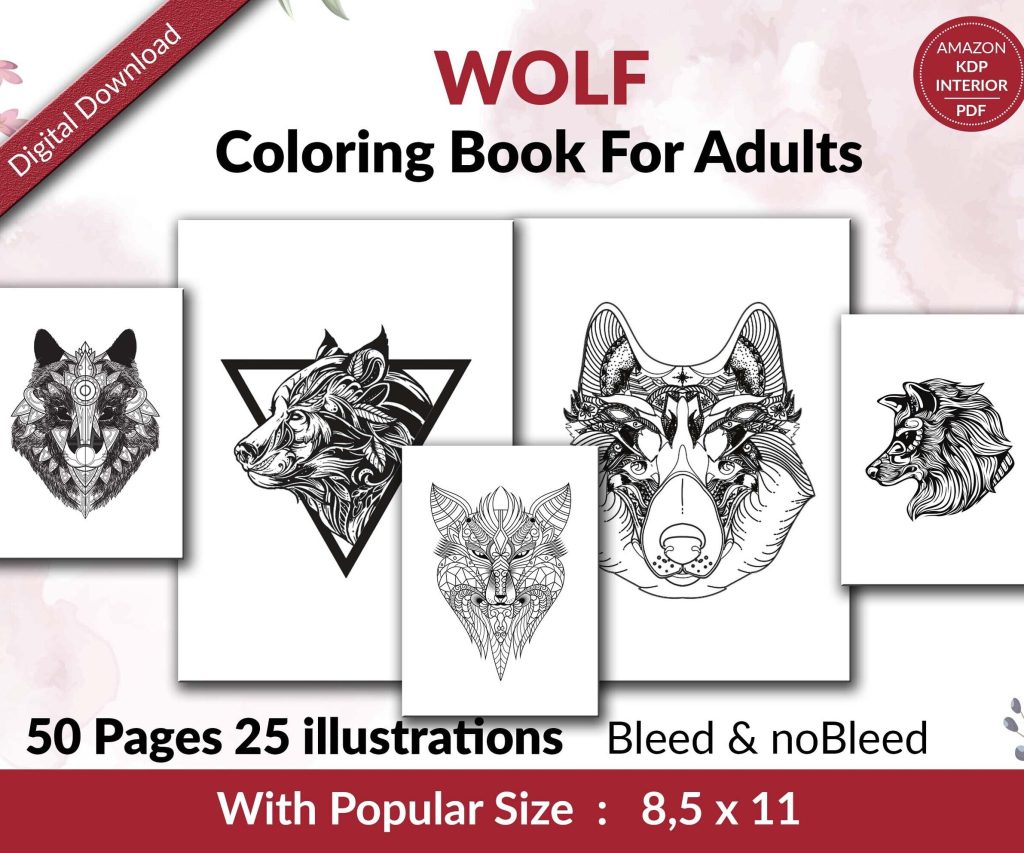 Wolf Coloring KDP interior For Adults, Used as Low Content Book, PDF Template Ready To Upload COMMERCIAL Use 8.5x11"
1 × $0.00
Wolf Coloring KDP interior For Adults, Used as Low Content Book, PDF Template Ready To Upload COMMERCIAL Use 8.5x11"
1 × $0.00 
DISCOVER OUR FREE BEST SELLING PRODUCTS
Editable Canva Lined Journal: Express Your Thoughts – KDP Template
Lined Pages Journal 120 pages Ready to Upload PDF Commercial Use KDP Template 6×9 8.5×11 5×8 for Notebooks, Diaries, Low Content
Lined Pages Journal 120 pages Ready to Upload PDF Commercial Use KDP Template 6×9 8.5×11 5×8 for Notebooks, Diaries, Low Content
Cute Dogs Coloring Book for Kids | Activity Book | KDP Ready-To-Upload
Daily Planner Diary : Diary Planners for Everyday Productivity, 120 pages, 6×9 Size | Amazon KDP Interior
Wolf Coloring KDP interior For Adults, Used as Low Content Book, PDF Template Ready To Upload COMMERCIAL Use 8.5×11"
Coloring Animals Head Book for Kids, Perfect for ages 2-4, 4-8 | 8.5×11 PDF
Printable Blank Comic Book Pages PDF : Create Your Own Comics – 3 Available Sizes
Notes KDP interior Ready To Upload, Sizes 8.5×11 6×9 5×8 inch PDF FILE Used as Amazon KDP Paperback Low Content Book, journal, Notebook, Planner, COMMERCIAL Use
Black Lined Journal: 120 Pages of Black Lined Paper Perfect for Journaling, KDP Notebook Template – 6×9
Student Planner Journal 120 pages Ready to Upload PDF Commercial Use KDP Template 6×9" 8.5×11" for Low Content book
Recipe Journal Template – Editable Recipe Book Template, 120 Pages – Amazon KDP Interior