
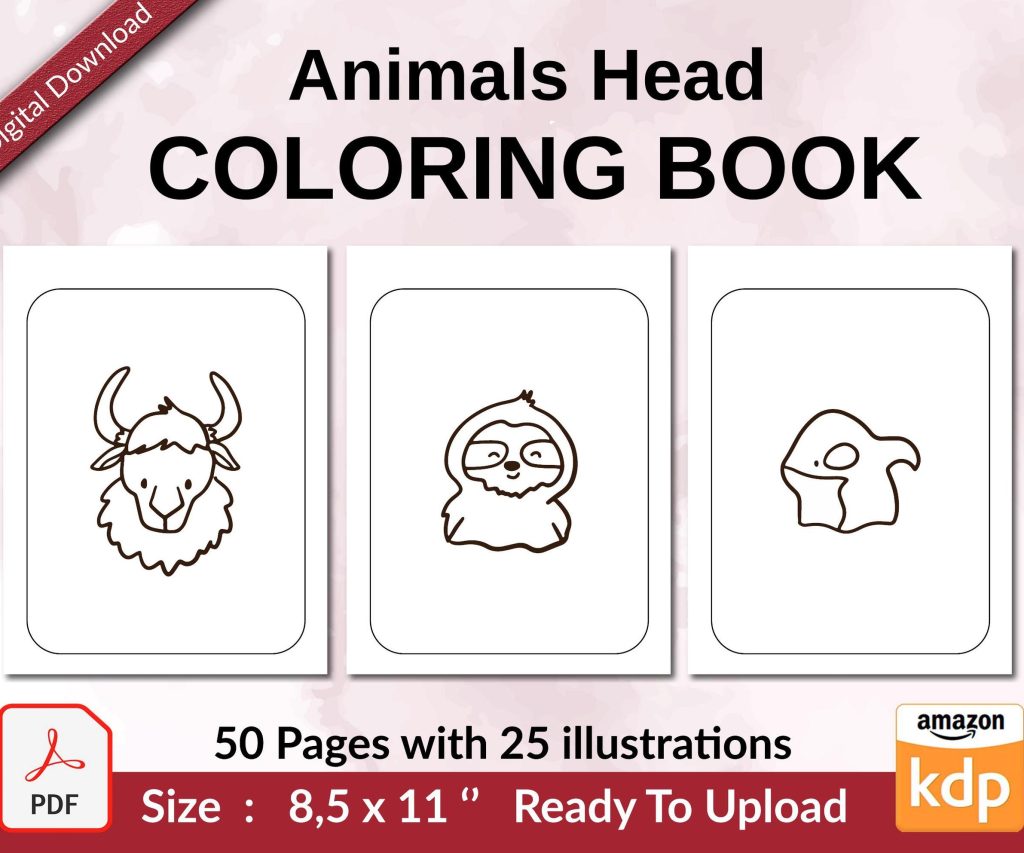
 Coloring Animals Head Book for Kids, Perfect for ages 2-4, 4-8 | 8.5x11 PDF
 Subtotal: $0.00
Amazon KDP guide, KDP book publishing
Amazon KDP Direct: Platform Access & Features

07
May
May
Okay so KDP Direct is basically just Amazon’s regular KDP platform, there’s not actually a separate “direct” version anymore but people still call it that from the old days when you had the choice between KDP and going through aggregators. Now it’s all just KDP and you access it straight at kdp.amazon.com with your regular Amazon account.
First thing you gotta know is the dashboard layout changed like three times in the past year and it still kinda bugs me. You log in and you’ll see your bookshelf which is where all your published books live. The main sections you’ll actually use are Create, Reports, and Marketing – honestly that’s like 90% of what you need.
Setting Up Your Account
So when you first sign up you need a regular Amazon customer account, then you go to kdp.amazon.com and click the sign up button. They’re gonna ask for tax information right away which freaked me out the first time but it’s normal. You’ll fill out either a W-9 if you’re in the US or a W-8BEN if you’re outside. This is super important because it determines your royalty rates and whether Amazon withholds taxes.
The tax interview thing walks you through it but basically you’re telling them if you’re a person or a business, your tax ID or SSN, and where you live. I set mine up as a sole proprietor initially then switched to an LLC later which was… a whole process I don’t recommend doing unless you’re making decent money already.
Payment info goes in next – you can choose direct deposit (way faster) or check or wire transfer. Direct deposit hits your account like 60 days after the end of the month you made sales in, so if you sell something in January you’ll see that money end of March basically. Oh and another thing, there’s a $100 minimum threshold for most payment methods except direct deposit which I think is like $10 or something.
The Actual Publishing Interface
When you click Create New Title you get two options – Kindle eBook or Paperback. If you want both you gotta create the ebook first then link the paperback to it later, which is annoying but that’s how their system works.
The ebook creation page has three main sections and they gotta be filled out in order. Section 1 is Kindle eBook Details where you put your title, subtitle if you have one, author name, description, and all that metadata stuff. The categories thing – you only get to pick two from their dropdown but here’s a trick I learned… you can email KDP support and ask them to add you to like 8 more categories and they usually will. My cat knocked over my coffee right when I was figuring this out the first time and I had to redo a whole book upload, still annoyed about that.
Keywords are in this section too and you get seven slots. Don’t waste them on obvious stuff – if your book is “Keto Recipes” don’t use “keto” as a keyword because it’s already in your title. Use longer phrases like “keto meal prep for beginners” or whatever actually describes your book.
Content Upload and Formatting
Section 2 is where you upload your actual manuscript file. KDP accepts DOC, DOCX, HTML, MOBI, EPUB, and a few others. I always use DOCX because it’s easiest and the conversion usually works fine. There’s a preview tool that shows you how it’ll look on different devices – Kindle, Fire tablet, phone, whatever.
The cover upload is here too and it needs to be a JPG or TIFF, at least 1000 pixels on the shortest side but honestly go with 2560 x 1600 for ebooks because that’s what looks good on their product pages. They have this Cover Creator tool built in that’s… okay for super basic stuff but if you’re serious at all just make your own in Canva or hire someone on Fiverr for like $20.
Wait I forgot to mention – before you upload anything use their Kindle Previewer app on your computer to check how your file actually looks. The online previewer is fine but the desktop app catches more formatting issues. I’ve caught so many weird page breaks and image placement problems this way.
Pricing and Rights
Section 3 is pricing and it’s where people mess up the most. You have to choose your territories – either worldwide rights or specific countries. I always go worldwide unless there’s a specific reason not to.
The royalty choice is 35% or 70%. Here’s the deal – 70% sounds way better obviously but there are catches. Your book has to be priced between $2.99 and $9.99 to qualify for 70%. Also Amazon charges delivery costs for 70% royalty which is based on your file size. For a text-heavy book it’s like 15 cents maybe but for something with lots of images it can eat into your royalty pretty bad.
I usually do 70% royalty at $2.99 or $3.99 for most of my books. The math works out better than 35% at a lower price in almost every scenario I’ve tested. Oh and KDP Select – this is where you give Amazon exclusivity for 90 days and in exchange you get access to KDP Select benefits like Kindle Unlimited and free promo days.
The KU thing is honestly where I make most of my money on some books because you get paid per page read. It’s like $0.004 per page right now but it fluctuates monthly. A 200 page book that gets fully read earns you about 80 cents which doesn’t sound like much but when you get thousands of reads it adds up fast.
Paperback Publishing Differences
Paperbacks are similar but more complicated because of the physical printing requirements. You choose your trim size first – 6×9 is the most common for non-fiction, 5×8 for novels usually. The interior type is black and white or color, and color is way more expensive to print which affects your royalty.
The manuscript file needs to be a PDF for paperbacks and the formatting is way pickier. Margins matter because of the binding, you need bleed if you have images going to the edge, page count has to be between 24 and 828 pages. There’s this whole thing with cream vs white paper too – cream is slightly cheaper and looks more traditional for fiction, white is better for images and non-fiction usually.
Cover creation for paperbacks is different because you need a full wraparound cover including the spine. KDP has a calculator that tells you the exact dimensions based on your page count and paper type. The spine width changes depending on how many pages you have which makes sense but it’s annoying to calculate. I just use their cover calculator template every time.
Dashboard Features You’ll Actually Use
The Reports section is where you check your sales and royalties. The Sales Dashboard updates every like 24 hours or so with your sales from different marketplaces – amazon.com, amazon.co.uk, amazon.de, all of them. You can see units sold, pages read from KU, and estimated royalties.
The actual payment reports are separate and show you what Amazon already paid you. There’s also this Advertising tab if you run Amazon ads which… that’s a whole separate thing but basically you can create campaigns right from KDP to promote your books on Amazon search results and product pages.
Marketing section has your free promo days if you’re in KDP Select – you get five days per 90-day enrollment period. I usually space mine out or do like a 3-day promo and save 2 days for later. Countdown Deals are here too which let you run a temporary price discount, but you can’t do those as often.
The ISBN Situation
This is gonna sound weird but the ISBN thing confuses everyone. For ebooks you don’t need one – Amazon assigns an ASIN which is their internal identifier. For paperbacks you can either buy your own ISBN or use a free Amazon ISBN.
The difference is if you use Amazon’s free ISBN, it lists Amazon as the publisher of record. If you buy your own ISBN from Bowker (like $125 for one or $295 for ten), you’re listed as the publisher. For most self-publishers it doesn’t matter, I used free ISBNs for years. But if you want to potentially sell your paperback through other retailers or bookstores, you need your own ISBN.
Features They Added Recently
Okay so funny story, I was watching The Last of Us when Amazon rolled out this new Series feature and I almost missed it. Basically if you have multiple books that are related – like a series or multiple editions – you can link them together so they show up as a series on Amazon. You submit it through Author Central not KDP which is confusing but whatever.
The Paperback Preview tool got way better too. It used to just show you flat page images but now it does this 3D preview where you can flip through pages and see what the physical book will actually look like. Super helpful for catching formatting issues before you publish.
They also added beta readers section where you can… honestly I haven’t used this much but supposedly you can recruit readers to review your book before launch. Seems like more work than just asking friends or running an ARC campaign yourself.
Common Platform Quirks
The matching system for linking ebooks and paperbacks is supposed to be automatic but sometimes it doesn’t work. You have to make sure the title, author name, and other details match exactly. I’ve had books that didn’t link for weeks until I contacted support and they fixed it manually.
Reviews don’t always sync between marketplaces either. A review on amazon.com won’t show up on amazon.co.uk automatically even though it’s the same book. Amazon says this is intentional for some reason.
The category browser is missing tons of actual categories that exist on Amazon. Like I said before, email support to get into better categories – I have a whole spreadsheet of category codes I’ve collected over the years that you can request.
Author Central Integration
Author Central is technically separate from KDP but you should definitely set it up. You go to authorcentral.amazon.com and claim your author page. This lets you add a bio, photos, blog feed, and track your book rankings across categories.
The sales tracker in Author Central is actually better than KDP’s reports for seeing trends over time. It shows you a graph of sales and also Bookscan data if your paperbacks sell in bookstores (spoiler: they probably won’t unless you do something special).
You can also add editorial reviews to your book pages through Author Central which is cool because you can’t do that from KDP. If you got a review from a blog or whatever you can paste it in there and it shows up under the product description.
Look, the platform itself is pretty straightforward once you publish a few books and figure out where everything is. The interface isn’t gonna win design awards but it works and the actual publishing process from upload to live on Amazon takes like 24-72 hours usually. Way faster than traditional publishing and you keep way more control over everything.
Just start with one book, go through the whole process, see what you mess up, then do it better next time. That’s basically how everyone learns this stuff.
DISCOVER OUR FREE BEST SELLING PRODUCTS
Editable Canva Lined Journal: Express Your Thoughts – KDP Template
Lined Pages Journal 120 pages Ready to Upload PDF Commercial Use KDP Template 6×9 8.5×11 5×8 for Notebooks, Diaries, Low Content
Lined Pages Journal 120 pages Ready to Upload PDF Commercial Use KDP Template 6×9 8.5×11 5×8 for Notebooks, Diaries, Low Content
Cute Dogs Coloring Book for Kids | Activity Book | KDP Ready-To-Upload
Daily Planner Diary : Diary Planners for Everyday Productivity, 120 pages, 6×9 Size | Amazon KDP Interior
Wolf Coloring KDP interior For Adults, Used as Low Content Book, PDF Template Ready To Upload COMMERCIAL Use 8.5×11"
Coloring Animals Head Book for Kids, Perfect for ages 2-4, 4-8 | 8.5×11 PDF
Printable Blank Comic Book Pages PDF : Create Your Own Comics – 3 Available Sizes
Notes KDP interior Ready To Upload, Sizes 8.5×11 6×9 5×8 inch PDF FILE Used as Amazon KDP Paperback Low Content Book, journal, Notebook, Planner, COMMERCIAL Use
Black Lined Journal: 120 Pages of Black Lined Paper Perfect for Journaling, KDP Notebook Template – 6×9
Student Planner Journal 120 pages Ready to Upload PDF Commercial Use KDP Template 6×9" 8.5×11" for Low Content book
Recipe Journal Template – Editable Recipe Book Template, 120 Pages – Amazon KDP Interior