okay so here’s how you actually download stuff from KDP without losing your mind
Look, I was literally just doing this last night while watching some Netflix show I can’t even remember the name of, and realized most people have no idea where half their reports are hiding in KDP. So let me walk you through this because I’ve downloaded probably thousands of files at this point and there’s definitely a system to it.
Getting to your reports dashboard
First thing – you gotta log into your KDP account obviously. Then click on “Reports” in the top navigation. Sounds simple but I’ve had clients who somehow never noticed that tab for like months. The main reports page shows you a bunch of different sections and this is where it gets a bit scattered because Amazon doesn’t exactly make it intuitive.
You’ve got your sales dashboard right there on the first screen. That’s showing you real-time data but here’s the thing… if you want to actually download anything useful, you need to scroll down to where it says “Month-to-Date Unit Sales” or click over to the other report types.
The different report types you can grab
Okay so there’s basically a few categories of downloads and I use different ones depending on what I’m trying to figure out:
- Sales reports – this is your bread and butter for tracking revenue
- Royalty reports – shows actual payments Amazon’s gonna send you
- Free book promotions reports – if you’re running KDP Select promos
- KENP reads reports – page reads from Kindle Unlimited
- Orders reports – more granular than sales, shows individual transactions
How to download sales reports (the ones I use most)
Go to Reports and then look for the section that says “Sales Dashboard.” There’s a little dropdown where you can select date ranges. I usually do custom date ranges because the preset ones are kind of limited? Like if I want to see Q4 performance specifically, I’m manually putting in October 1 through December 31.
Once you’ve got your date range set, there’s a “Download” button – sometimes it says “Export” depending on which page you’re on, Amazon loves being inconsistent. Click that and you’ll get options for CSV or Excel format. I always do CSV because it’s cleaner and doesn’t have formatting issues when you open it.
The file downloads to wherever your browser saves stuff. For me that’s my Downloads folder but I immediately move these to a organized folder system… which I should probably explain because my file management used to be a disaster.

wait I forgot to mention the prior period reports
So there’s also this “Prior Months’ Royalties” section under Reports. This is where you get your finalized monthly reports after Amazon processes everything. These are different from the real-time sales dashboard because Amazon takes a few days after month-end to reconcile returns, adjustments, all that stuff.
I download these religiously on like the 3rd or 4th of each month once they’re available. Click into “Prior Months’ Royalties” and you’ll see a list of all your past months. Each month has a “View Report” link – click that and then there’s another download button on the next page. It’s an extra click which is annoying but whatever.
These reports show you marketplace-by-marketplace breakdowns. So you can see exactly what you made from Amazon.com versus Amazon.co.uk versus Amazon.de and so on. Super important if you’re trying to figure out which markets are actually worth your time.
My file management system (took me forever to figure out)
Alright so downloading is one thing but if you don’t organize these files you’re gonna have like 47 files named “royalty_report_2024.csv” and no idea which is which. Trust me I learned this the hard way back in 2018 when I was trying to do my taxes and couldn’t find anything.
Here’s what I do now:
I have a main folder called “KDP Reports” in my Google Drive (backed up, not just on my computer after my laptop died once and I almost lost everything). Inside that I have folders by year: 2023, 2024, 2025, whatever.
Inside each year folder I have subfolders:
- Monthly Royalties
- Sales Data
- KENP Reads
- Promo Reports
- Tax Documents
When I download a file, I rename it immediately before moving it. So instead of “report_2024_03.csv” it becomes “2024-03_Royalties_AllMarkets.csv” – the date goes first so files sort chronologically, then what type of report it is, then any other relevant info.
oh and another thing about downloading order reports
If you need really detailed transaction-level data, you want the Order Reports. These are under a different section – go to Reports then click “Order Report” in the left sidebar (sometimes it’s hidden under “All Reports” depending on how Amazon’s feeling that day).
These reports can only be generated for 45-day periods max. So if you want a whole year you gotta do multiple downloads. I usually generate them quarterly – Q1, Q2, Q3, Q4. The reports take a few minutes to generate, especially if you have a lot of sales, and then you download them the same way as other reports.
Order reports show you stuff like ASIN, title, order date, units, royalty per unit… basically everything. It’s a lot of columns and honestly overwhelming at first but once you know what you’re looking for it’s super useful.
This is gonna sound weird but spreadsheet setup matters
Most people just open the CSV and call it done but I actually import these into a master tracking spreadsheet. I’ve got a Google Sheet that has tabs for each month and I copy relevant data over. Mainly total royalties, units sold, KENP reads, and then I track it over time.
My cat walked across my keyboard while I was setting this up once and created some formula that accidentally still works so I’m afraid to touch it. But anyway having a master sheet means I can see trends without having to dig through individual files every time.
I also use this to track expenses against income. So I’ll add rows for cover design costs, editing, ads, whatever. That way when tax time comes I’m not scrambling to remember what I spent.

Downloading your book files (different process entirely)
Okay totally different thing but people ask me this all the time – how do you download your actual book files back from KDP? Like your manuscript or cover files?
You gotta go to your Bookshelf, find the book, click the three dots next to it (or sometimes it’s an “Edit” button), and then… this is where it gets messy. For ebook content, you can download your manuscript file by going into “eBook Content” section. There’s usually a link that says “Download manuscript” or something similar.
For covers, you have to go into “eBook Cover” and there should be a download option there too. But here’s the annoying part – KDP doesn’t always keep your original files. Sometimes they convert them and you only get back their processed version which might have different formatting or compression.
That’s why I always, ALWAYS keep original copies of everything in a separate “Master Files” folder. Every manuscript before uploading, every cover design file, every description I write – all saved locally and backed up to cloud storage.
wait one more thing about accessing old data
KDP only keeps detailed reports available for a certain time period. I think it’s like 2 years for some reports? After that you can still see summary data but you can’t download the detailed CSVs anymore. So if you’re not regularly downloading and archiving reports, you might lose access to that granular data.
I learned this when I tried to pull sales data from my first year publishing (2017) and half of it was just… gone. Now I download everything monthly and store it properly.
Also Amazon can close your account at any time (not trying to scare you but it happens) and if that happens you lose access to all your historical reports immediately. Having your own copies means you still have records of your business even if something goes wrong with KDP.
Using filters and sorting in downloaded reports
Once you’ve got these CSV files downloaded, you’re probably gonna open them in Excel or Google Sheets. The raw data is usually pretty messy with a ton of columns you don’t need.
I always delete columns I’m not using – makes the file easier to work with. Like I don’t need the “Currency” column if everything’s in USD, so that goes. I don’t need separate columns for each marketplace if I’m just looking at totals.
Then I use filters (that little funnel icon in Excel) to sort by specific titles, date ranges, or whatever I’m analyzing. If I’m trying to figure out which of my books performed best last quarter, I’ll sort by royalty amount from highest to lowest. Takes like 30 seconds and suddenly the data is actually readable.
this might be overkill but tracking trends over time
Something I started doing maybe 3 years ago – I chart my monthly earnings in a simple line graph. Just month on the x-axis, earnings on the y-axis. Sounds basic but visually seeing the ups and downs helps me identify patterns.
Like I noticed my coloring book sales always spike in November-December (gift season) and tank in February. Knowing that means I can plan my advertising budget accordingly and not freak out when February numbers drop.
Same thing with KENP reads – they’ve been steadily declining industry-wide for certain niches but increasing in others. Having historical data lets me make smarter decisions about what types of books to publish next.
My client canceled a call last month so I spent like three hours just comparing trends across my different pen names and it was honestly super revealing. One pen name that I thought was doing okay was actually declining month-over-month for 6 months straight. Without the data I wouldn’t have noticed until it was too late.
Quick troubleshooting stuff
If your reports aren’t showing up or downloads are failing, try a different browser. I’ve had weird issues with Safari not downloading KDP reports properly but Chrome works fine. Also clear your cache sometimes – KDP’s interface gets glitchy if you’ve got too much cached data.
If you’re seeing zero sales in a report but you know you had sales, double-check your date range and marketplace filters. It’s usually user error (speaking from experience making this mistake probably 20 times).
If a report says “processing” for more than like 10 minutes, just refresh the page and try generating it again. Amazon’s servers hiccup sometimes.
And if you’re trying to download tax documents (1099 forms), those are in a completely different section under “Account Settings” then “Tax Information.” Because of course they are, why would Amazon make it simple?
Anyway that’s basically everything I know about downloading and managing KDP files. It’s not complicated once you do it a few times but Amazon definitely doesn’t make it obvious where everything is located.

 Notes KDP interior Ready To Upload, Sizes 8.5x11 6x9 5x8 inch PDF FILE Used as Amazon KDP Paperback Low Content Book, journal, Notebook, Planner, COMMERCIAL Use
1 × $0.00
Notes KDP interior Ready To Upload, Sizes 8.5x11 6x9 5x8 inch PDF FILE Used as Amazon KDP Paperback Low Content Book, journal, Notebook, Planner, COMMERCIAL Use
1 × $0.00 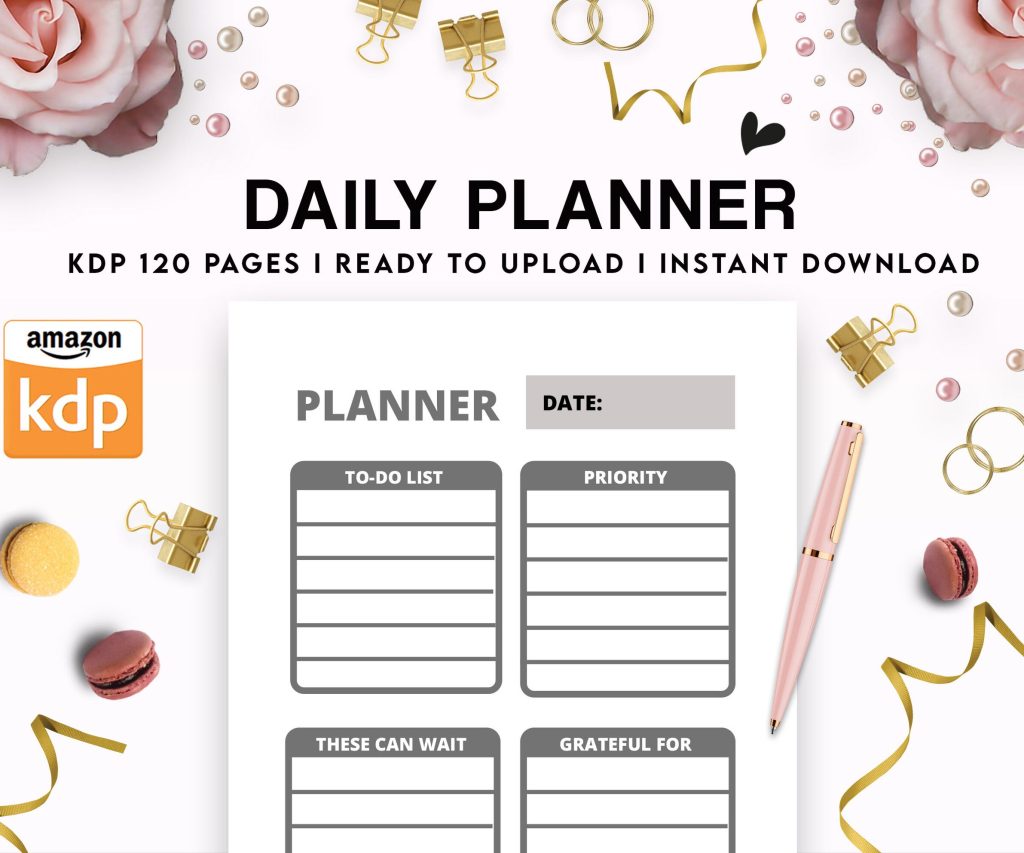 Daily Planner Diary : Diary Planners for Everyday Productivity, 120 pages, 6×9 Size | Amazon KDP Interior
1 × $0.00
Daily Planner Diary : Diary Planners for Everyday Productivity, 120 pages, 6×9 Size | Amazon KDP Interior
1 × $0.00 
DISCOVER OUR FREE BEST SELLING PRODUCTS
Editable Canva Lined Journal: Express Your Thoughts – KDP Template
Lined Pages Journal 120 pages Ready to Upload PDF Commercial Use KDP Template 6×9 8.5×11 5×8 for Notebooks, Diaries, Low Content
Lined Pages Journal 120 pages Ready to Upload PDF Commercial Use KDP Template 6×9 8.5×11 5×8 for Notebooks, Diaries, Low Content
Cute Dogs Coloring Book for Kids | Activity Book | KDP Ready-To-Upload
Daily Planner Diary : Diary Planners for Everyday Productivity, 120 pages, 6×9 Size | Amazon KDP Interior
Wolf Coloring KDP interior For Adults, Used as Low Content Book, PDF Template Ready To Upload COMMERCIAL Use 8.5×11"
Coloring Animals Head Book for Kids, Perfect for ages 2-4, 4-8 | 8.5×11 PDF
Printable Blank Comic Book Pages PDF : Create Your Own Comics – 3 Available Sizes
Notes KDP interior Ready To Upload, Sizes 8.5×11 6×9 5×8 inch PDF FILE Used as Amazon KDP Paperback Low Content Book, journal, Notebook, Planner, COMMERCIAL Use
Black Lined Journal: 120 Pages of Black Lined Paper Perfect for Journaling, KDP Notebook Template – 6×9
Student Planner Journal 120 pages Ready to Upload PDF Commercial Use KDP Template 6×9" 8.5×11" for Low Content book
Recipe Journal Template – Editable Recipe Book Template, 120 Pages – Amazon KDP Interior