-
×
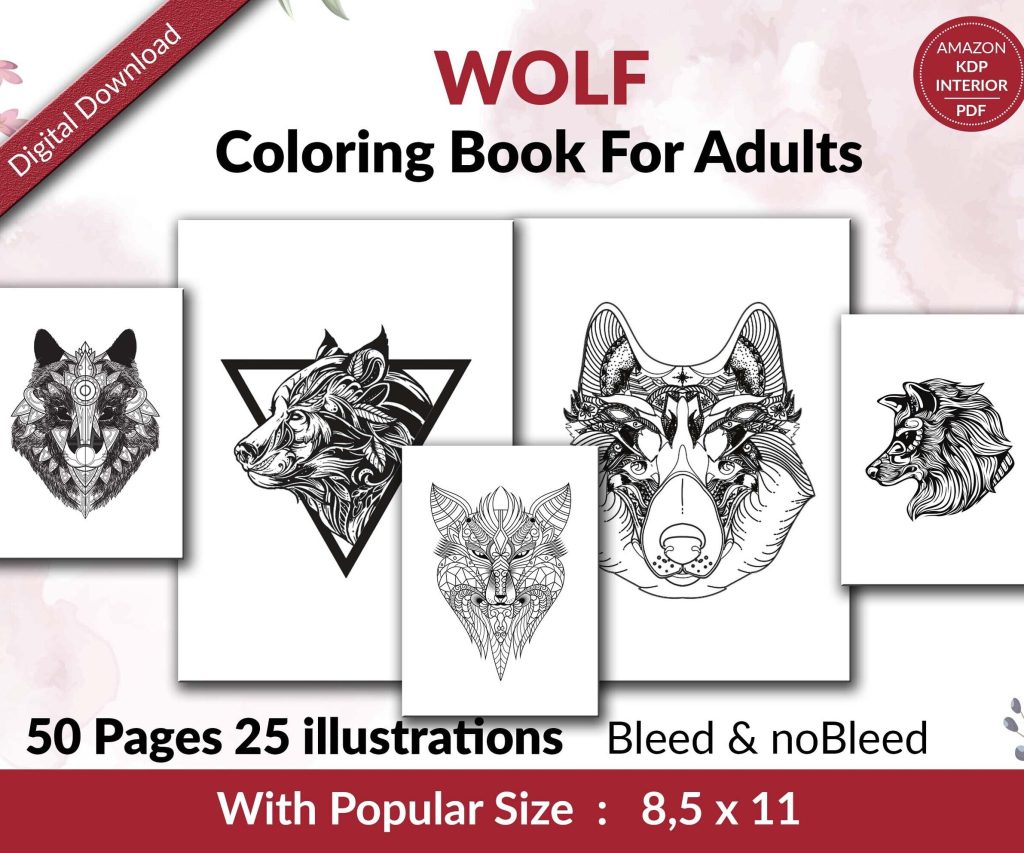 Wolf Coloring KDP interior For Adults, Used as Low Content Book, PDF Template Ready To Upload COMMERCIAL Use 8.5x11"
1 × $0.00
Wolf Coloring KDP interior For Adults, Used as Low Content Book, PDF Template Ready To Upload COMMERCIAL Use 8.5x11"
1 × $0.00
Subtotal: $0.00

Just uploaded like three client files last week and had to fix the same stupid mistakes, so this is fresh in my mind. The tech requirements aren’t complicated but Amazon’s gonna reject your file if you mess up even one thing, and trust me that’s annoying when you’re trying to launch.
So KDP accepts a bunch of formats but honestly just stick with these three. DOC or DOCX if you’re working in Word, EPUB if you know what you’re doing (most people don’t), or PDF but only as a last resort because PDFs are weird on different devices.
I use Word for like 90% of my books. It’s the path of least resistance and Amazon‘s conversion tool handles it pretty well. EPUB is technically better but you gotta make sure it’s properly coded and… yeah most people screw that up. Had a client send me an EPUB last month that looked perfect on her computer but was completely broken in KDP’s previewer.
Your margins need to be at least 0.5 inches on all sides. I usually go with 0.75 just to be safe because some devices crop things weird. Amazon doesn’t explicitly reject files for this but your book will look cramped and you’ll get reviews complaining about formatting.
Oh and another thing – don’t use headers and footers unless you really know what you’re doing. They mess with the conversion process. Page numbers are useless in ebooks anyway since the “pages” change based on font size.
Okay so if you have images, they need to be at least 300 DPI but honestly go higher if you can. Amazon recommends 72 DPI minimum for web viewing but that looks like garbage on tablets. I aim for 600 DPI on cover images and 300 for interior stuff.
File size limit is 650 MB but if you’re getting anywhere near that you’ve done something wrong. Most ebooks should be under 50 MB unless you’ve got tons of images. My cat knocked over my coffee onto my keyboard while I was compressing images yesterday and I almost lost a whole project, so uh… back up your files.
For image formats stick with JPEG or PNG. GIF works but why would you use that. Make sure images are RGB not CMYK – CMYK is for print and will look weird on screens.

You don’t need an ISBN for Kindle ebooks. Amazon assigns an ASIN automatically. Only buy an ISBN if you’re also doing print or want to distribute outside Amazon. I wasted $125 on an ISBN for my second book before I realized this… don’t be like 2017 me.
Amazon requires a functional TOC for books over a certain length. Don’t just type one out manually, use Word’s built-in TOC feature with proper heading styles. This is gonna sound weird but I’ve seen people literally type “Table of Contents” and then manually list chapters and Amazon’s converter just ignores it.
Use Heading 1 for chapter titles, Heading 2 for sections. Then Insert > Table of Contents in Word. The hyperlinks will carry over to the Kindle format. Takes like 2 minutes if you do it right.
Don’t get fancy with fonts. Amazon’s gonna convert everything to its own font system anyway since readers can change fonts. Just use Times New Roman, Arial, Georgia… something standard.
Font size doesn’t really matter because it’s all relative on Kindle but I use 12pt in Word just so it’s readable while I’m working on it. Amazon adjusts everything during conversion.
For paragraph formatting, either use first-line indent OR block paragraphs with spacing between. Not both. I see this all the time – people indent AND add space and it looks ridiculous. Pick one style and stick with it.
If you’re using special characters make sure they’re UTF-8 encoded. Curly quotes are fine, em dashes are fine, ellipses… all good. But if you’re copying from weird sources you might get strange characters that break the conversion.
Don’t use tabs to indent paragraphs. Use the Format Paragraph menu in Word and set first-line indent to 0.3 inches or whatever looks good. Tabs mess up on different screen sizes.
After you upload, Amazon has this online previewer tool. Use it. Download the preview file and check it on the Kindle app on your phone too. I caught a weird spacing issue last week that only showed up on mobile – looked fine everywhere else.
Check every chapter break, every image, the TOC links. Click through everything. My client canceled a meeting last Friday so I spent like two hours just clicking through preview files and found issues in three of them that would’ve gone live otherwise.
Your cover needs to be at least 1000 pixels on the shortest side but Amazon recommends 2560 x 1600 for best quality. I use exactly 2560 x 1600 for everything now. Keep the file under 50 MB.
RGB color mode, JPEG or TIFF format. The cover image is separate from your manuscript file – you upload it in a different step.
Amazon asks if you want DRM (digital rights management). I always say yes just because it makes it slightly harder for people to pirate your book. Some authors say no because they think it’s annoying for legitimate readers… honestly doesn’t matter much either way.
Name your files something simple without special characters. “My Amazing Book Manuscript.docx” is fine. “My Book (FINAL) – v2.3 [EDITED]!!!.docx” is gonna cause problems. Keep it clean.
If you’re using Word, the Smart Quotes feature usually helps but sometimes creates issues with conversion. I leave it on but if you’re having weird quote mark problems in your preview, turn it off and manually fix the quotes.
Three dots typed as periods sometimes don’t convert properly. Use the actual ellipsis character (Alt+0133 on Windows or just… let Word autocorrect it).
This doesn’t matter as much for ebooks but I still turn on widow/orphan control in Word under Paragraph settings. Makes the manuscript look better while you’re working and doesn’t hurt anything.
Upload can take anywhere from 5 minutes to 2 hours to process. I’ve had files sit in “processing” for like 90 minutes. Don’t panic, it’s normal. Was watching Succession while waiting for a file to process last night and got through two episodes before it finished.
If it fails, Amazon usually tells you why. Common errors are TOC issues, weird formatting codes, or images that are too large. Just fix it and reupload.
If you include hyperlinks (like for references or your website), make sure they’re actual hyperlinks not just text that looks like URLs. Right-click and Insert Hyperlink in Word. Amazon preserves these and they’ll be clickable in the Kindle book.
Also links should be HTTP or HTTPS, not just www. Use the full URL.
Okay so that’s the main stuff. There’s more advanced things you can do with HTML and CSS if you really wanna customize but for 95% of books just following these basics will get you through KDP’s technical requirements without any rejections. The previewer will catch most issues before you publish anyway, so don’t stress too much about it.
DISCOVER OUR FREE BEST SELLING PRODUCTS
Editable Canva Lined Journal: Express Your Thoughts – KDP Template
Lined Pages Journal 120 pages Ready to Upload PDF Commercial Use KDP Template 6×9 8.5×11 5×8 for Notebooks, Diaries, Low Content
Lined Pages Journal 120 pages Ready to Upload PDF Commercial Use KDP Template 6×9 8.5×11 5×8 for Notebooks, Diaries, Low Content
Cute Dogs Coloring Book for Kids | Activity Book | KDP Ready-To-Upload
Daily Planner Diary : Diary Planners for Everyday Productivity, 120 pages, 6×9 Size | Amazon KDP Interior
Wolf Coloring KDP interior For Adults, Used as Low Content Book, PDF Template Ready To Upload COMMERCIAL Use 8.5×11"
Coloring Animals Head Book for Kids, Perfect for ages 2-4, 4-8 | 8.5×11 PDF
Printable Blank Comic Book Pages PDF : Create Your Own Comics – 3 Available Sizes
Notes KDP interior Ready To Upload, Sizes 8.5×11 6×9 5×8 inch PDF FILE Used as Amazon KDP Paperback Low Content Book, journal, Notebook, Planner, COMMERCIAL Use
Black Lined Journal: 120 Pages of Black Lined Paper Perfect for Journaling, KDP Notebook Template – 6×9
Student Planner Journal 120 pages Ready to Upload PDF Commercial Use KDP Template 6×9" 8.5×11" for Low Content book
Recipe Journal Template – Editable Recipe Book Template, 120 Pages – Amazon KDP Interior