-
×
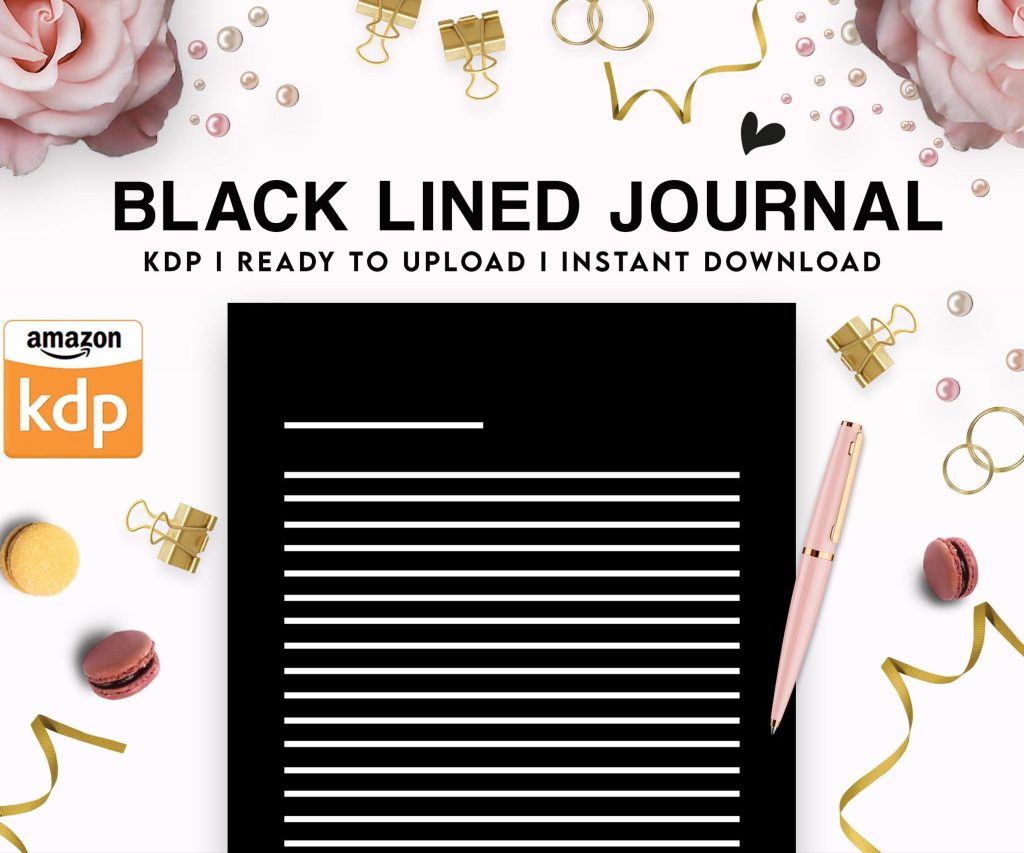 Black Lined Journal: 120 Pages of Black Lined Paper Perfect for Journaling, KDP Notebook Template - 6×9
1 × $0.00
Black Lined Journal: 120 Pages of Black Lined Paper Perfect for Journaling, KDP Notebook Template - 6×9
1 × $0.00
Subtotal: $0.00
 Black Lined Journal: 120 Pages of Black Lined Paper Perfect for Journaling, KDP Notebook Template - 6×9
1 × $0.00
Black Lined Journal: 120 Pages of Black Lined Paper Perfect for Journaling, KDP Notebook Template - 6×9
1 × $0.00 Subtotal: $0.00
I was literally up until 2am last night fixing a client’s epub file that kept breaking in Kindle Previewer and honestly most formatting issues come down to like three or four stupid things that nobody tells you about.
First thing – and I cannot stress this enough – start with a clean Word doc or use Vellum if you’ve got the budget. I spent my first year on KDP fighting with converted PDFs and it was absolute hell. PDF to ebook conversion is trash, just don’t do it. You’re gonna lose hours of your life.
Amazon accepts like a bunch of formats right – DOC, DOCX, HTML, EPUB, MOBI. But here’s what I actually use after publishing 200+ books: EPUB for anything over 50 pages, DOC for really simple stuff under 30 pages. That’s it.
MOBI is basically dead now, Amazon converts everything to KPF anyway on their end. I had this whole conversation with another publisher last month who was still manually creating MOBI files and I was like… why are you doing this to yourself?
So you want your ebook to not look like garbage on someone’s Kindle. Here’s the deal with styles:
Oh and another thing – never use tabs or multiple spaces to indent. It’s gonna break on different screen sizes. I learned this the hard way when someone left me a 2-star review because my “formatting was all over the place” on their old Kindle Keyboard.
Look, images in ebooks are weird. They need to be:
I was watching The Last of Us episode 3 while resizing like 40 images for a cookbook project last week and realized I’d been exporting everything at 300 DPI for no reason. Literally adding MB to file size for zero benefit on a screen.
Also – and this is gonna sound weird but – test your images on the black background setting in Kindle. White text or graphics with white backgrounds disappear completely. Had a client’s book go live with basically invisible diagrams because we only tested on white background.
Amazon requires a TOC. You can do the HTML NCX thing if you want to be technical about it, but honestly just use Word’s automatic TOC feature or let your epub software handle it.
The TOC needs to be linked – like actually hyperlinked to your chapters. When I first started I was just typing out a TOC manually with no links and wondering why Amazon kept rejecting my books. Yeah, I was an idiot.
Real talk – whatever font you embed gets overridden by the reader’s settings anyway most of the time. People choose their own fonts on Kindle. But if you wanna embed something, use:
Don’t embed weird custom fonts. File size bloat plus compatibility issues plus Amazon might reject it.
Okay so funny story, I published like 30 books before I realized you could add publisher info and series information directly in the epub metadata. This stuff helps with categorization and makes your book look more professional in the Kindle store.
Wait I forgot to mention – your epub needs these metadata fields filled out:
You edit this stuff in Calibre if you’re using that, or in Vellum, or in Sigil if you wanna get into the code.
Download Kindle Previewer from Amazon. It’s free. Test your file on:
My cat stepped on my keyboard and somehow changed the preview to landscape mode once and I discovered my chapter headings were wrapping weird. Fixed an issue I never would’ve caught otherwise.
Internal links to chapters – use bookmarks or anchor links. External links to websites – make sure they’re actual hyperlinks not just blue text. Amazon checks this.
I had a book rejected once because I had “visit mywebsite.com” without the actual hyperlink. They said it was bad user experience. Fair enough.
Use UTF-8 encoding always. If you’ve got special characters – em dashes, curly quotes, accented letters – UTF-8 handles them. I’ve seen books where all the apostrophes turned into question marks because someone used the wrong encoding.
Smart quotes are fine now, Amazon’s system handles them. Five years ago? Different story. But we’re good now.
Use page breaks before new chapters. Not section breaks, not just hitting Enter a bunch of times. Actual page breaks. In Word it’s Ctrl+Enter. This ensures chapters start on a new screen regardless of screen size.
My client canceled our call last Thursday so I spent like two hours comparing the rendering of different break types across devices and yeah, page breaks are the only thing that works consistently.
Amazon charges delivery fees based on file size for books enrolled in KDP Select at 70% royalty. Every MB costs you money per download. So:
I got a 12MB cookbook down to 6MB just by running images through TinyPNG first. Same visual quality, half the delivery fees.
When you upload to KDP, Amazon converts your file. You then preview it in their online previewer – DO THIS. Don’t just assume it worked. I’ve caught formatting issues at this stage that would’ve been embarrassing.
If something looks wrong, fix your source file and re-upload. Don’t try to fix things in Amazon’s previewer or anything, that’s not a thing you can do.
Sometimes Amazon’s conversion adds extra spacing or changes fonts slightly. If it’s minor, whatever. If it’s breaking your layout, you need to simplify your source file formatting. Less complexity = fewer conversion issues.
Amazon might flag:
Most of these are fixable in like 10 minutes once you know what you’re looking for. The error messages are usually pretty clear actually.
Oh and if you’re doing fixed-layout ebooks – like children’s books or comics – that’s a whole different thing with different specs. You need to set dimensions, use specific metadata, it’s more complex. But for regular reflowable text ebooks this stuff I mentioned covers like 95% of what you need.
DISCOVER OUR FREE BEST SELLING PRODUCTS
Editable Canva Lined Journal: Express Your Thoughts – KDP Template
Lined Pages Journal 120 pages Ready to Upload PDF Commercial Use KDP Template 6×9 8.5×11 5×8 for Notebooks, Diaries, Low Content
Lined Pages Journal 120 pages Ready to Upload PDF Commercial Use KDP Template 6×9 8.5×11 5×8 for Notebooks, Diaries, Low Content
Cute Dogs Coloring Book for Kids | Activity Book | KDP Ready-To-Upload
Daily Planner Diary : Diary Planners for Everyday Productivity, 120 pages, 6×9 Size | Amazon KDP Interior
Wolf Coloring KDP interior For Adults, Used as Low Content Book, PDF Template Ready To Upload COMMERCIAL Use 8.5×11"
Coloring Animals Head Book for Kids, Perfect for ages 2-4, 4-8 | 8.5×11 PDF
Printable Blank Comic Book Pages PDF : Create Your Own Comics – 3 Available Sizes
Notes KDP interior Ready To Upload, Sizes 8.5×11 6×9 5×8 inch PDF FILE Used as Amazon KDP Paperback Low Content Book, journal, Notebook, Planner, COMMERCIAL Use
Black Lined Journal: 120 Pages of Black Lined Paper Perfect for Journaling, KDP Notebook Template – 6×9
Student Planner Journal 120 pages Ready to Upload PDF Commercial Use KDP Template 6×9" 8.5×11" for Low Content book
Recipe Journal Template – Editable Recipe Book Template, 120 Pages – Amazon KDP Interior