-
×
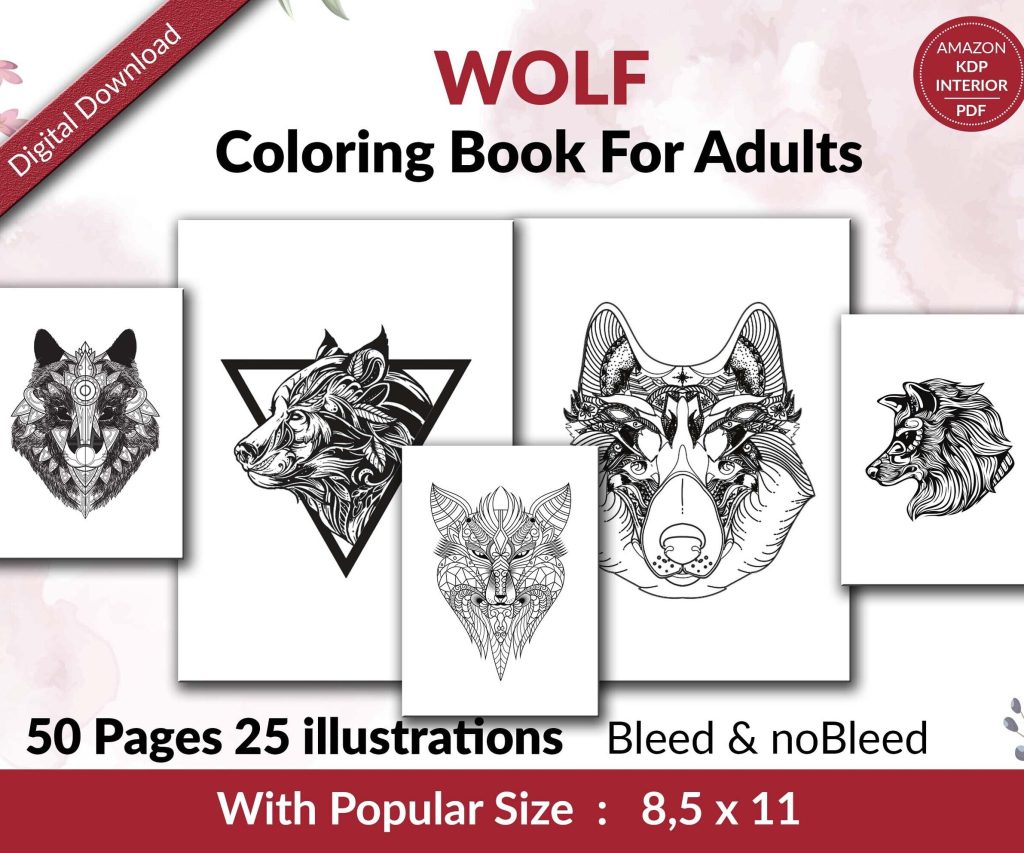 Wolf Coloring KDP interior For Adults, Used as Low Content Book, PDF Template Ready To Upload COMMERCIAL Use 8.5x11"
1 × $0.00
Wolf Coloring KDP interior For Adults, Used as Low Content Book, PDF Template Ready To Upload COMMERCIAL Use 8.5x11"
1 × $0.00
Subtotal: $0.00

Okay so here’s the deal with getting your first book up on Amazon KDP – it’s honestly way simpler than people make it sound but there’s some stuff you gotta know before you just throw something up there and hope for the best.
First thing, go to kdp.amazon.com and make an account. They’re gonna ask for tax info right away which is annoying but just have your SSN ready if you’re in the US or your tax ID if you’re elsewhere. The tax interview takes like 5 minutes and yeah you need to do it before you can publish anything or get paid. They also need bank info for deposits but you can add that later if you want, though why wait honestly.
One thing that tripped me up my first time – they ask if you’re publishing as an individual or a company. Just pick individual unless you actually have an LLC set up. You can always change this later and I did after like my 30th book when I finally got my business stuff sorted.
So you got three main options here – ebooks, paperbacks, or hardcovers. Most beginners start with ebooks because there’s zero upfront cost and you can fix typos after publishing which… trust me you’ll need to do that. I still find typos in books I published 3 years ago.
Paperbacks are through their print-on-demand system which means Amazon only prints copies when someone orders. No inventory sitting in your garage. The quality is actually pretty decent now, way better than it was in like 2018. Hardcovers are newer and honestly the margins aren’t great but they look professional if that matters for your book.
I usually do both ebook and paperback for everything now but when you’re starting just focus on getting ONE format up first. Don’t overcomplicate it.
This is where people get stuck for months but like… just format it in Word or Google Docs and move on. Amazon has templates you can download from the KDP site and honestly just use those. They’re under the “Resources” section I think? Or maybe “Help” – anyway they’re there.
For ebooks you want a .doc or .docx file. Use styles for your chapter headings (Heading 1, Heading 2, whatever). Don’t just make text bigger and bold, actually use the style dropdown. This matters for the automatic table of contents Amazon generates.
For paperbacks you need a PDF. Here’s what I do – design it in Word using their template, then export as PDF. Make sure you pick the right trim size first though because changing it later means reformatting everything. 6×9 is standard for most books. 8.5×11 for workbooks or planners.
Oh and another thing – margins matter for paperbacks. Amazon needs extra space on the inside edge for binding. Their calculator tool tells you exactly how much based on your page count. I usually just add like 0.3 inches to the inside margin and call it a day.
You need a cover. Obviously. For ebooks it’s just a front cover image. For paperbacks you need front, back, and spine all in one file.
The dimensions are specific and they change based on your page count and paper type. Use Amazon’s cover calculator – seriously don’t guess at this. I messed up my first 3 covers because I thought I could eyeball it. You can’t.
For actually making the cover, you got options:
My dog just knocked over my coffee while I’m writing this so now I’m distracted but anyway – the cover needs to be high resolution. Amazon wants at least 72 dpi but go with 300 dpi because it looks way better. RGB color mode for ebooks, CMYK for paperbacks technically but honestly RGB usually works fine.
Okay so you’re logged into KDP, you click the big yellow button that says “+ Create” and pick Kindle eBook or Paperback.
Language – pick English obviously or whatever language you wrote in
Book title – just put your actual title, don’t try to keyword stuff here
Subtitle – optional but useful for non-fiction, helps with searchability
Series info – leave blank unless this is part of a series
Edition number – just put 1
Author name – your name or pen name, whatever
Contributors – only if you had an editor or illustrator you want to credit
Description – this is your back cover copy basically. You get 4000 characters. Use HTML formatting to make it look decent (bold, italics, bullet points). There’s a preview button so you can see how it’ll look.
Publishing rights – you own the copyright unless you’re publishing someone else’s work with permission
Keywords – you get 7 boxes. Use all 7. Think about what people would search for. Don’t waste slots on words already in your title.
Categories – pick 2 that actually fit your book. You can email KDP support after publishing to get added to more categories which is a trick not enough people know about.
This is where you upload your actual manuscript file. For ebooks there’s a previewer tool that shows you what it’ll look like on different devices. Check this on Kindle, phone, and tablet views because sometimes formatting looks fine on one but weird on another.
For paperbacks you upload your PDF manuscript and cover separately. Or you can use their cover creator here if you didn’t make one yet.
ISBN – for ebooks you don’t need one. For paperbacks Amazon gives you a free ISBN or you can buy your own. The free one works fine unless you plan to sell the book outside Amazon later. I’ve used free ISBNs for probably 150 books and never had an issue.
Print options – pick black and white or color interior (color costs way more to print). Paper type is cream or white, cream looks more professional for novels, white is better if you have images.
Enrollment in KDP Select – this makes your ebook exclusive to Amazon for 90 days but you get access to Kindle Unlimited and some promo tools. Most beginners should probably enroll at first. You can opt out later.
Territories – usually just pick “All territories” unless you have a specific reason not to
Pricing – here’s where it gets interesting. You need to pick between 35% and 70% royalty for ebooks.
70% royalty requirements:
For your first book honestly just price it at $2.99 and take the 70%. You’ll make like $2 per sale which is decent.
For paperbacks your royalty is 60% of list price minus printing costs. Amazon shows you the printing cost right there. So if printing costs $3.50 and you price your book at $10, you make 60% of $10 minus $3.50 = $2.50 per sale.
Don’t underprice paperbacks trying to be competitive. You’ll make nothing. I usually aim for at least $3-4 profit per book.
The review process takes like 24-72 hours usually. Sometimes faster. Amazon checks that you didn’t upload something crazy or violate their content guidelines.
You’ll get an email when it’s live. Then your book has an ASIN (Amazon’s product ID) and it’s searchable on Amazon.
Wait I forgot to mention – before you publish, triple check these things:
I once published a book with “Journla” in the title instead of “Journal” and didn’t notice for 3 days. Had to unpublish and republish with corrections which messed up my launch momentum.
Amazon’s pretty strict about certain things. Don’t use trademarked terms in your title or keywords unless you have rights. Don’t use misleading covers that look like other popular books. Don’t upload public domain content without adding substantial value – they crack down on that hard now.
Also your cover can’t have Amazon’s logo on it or say stuff like “bestseller” if it’s not actually a bestseller. Seems obvious but people try it.
Okay so funny story – my first book sat at zero sales for 11 days after I published it. I thought uploading it was enough. It’s not.
Amazon doesn’t automatically show your book to anyone. You gotta drive traffic somehow. When you’re starting with no audience or email list, you got limited options.
KDP Select promo tools – if you enrolled, you get 5 free promo days every 90 days plus Kindle Countdown Deals. Free days can get you downloads and reviews. Run one like a week after launch.
Amazon ads – you can run ads right from your KDP dashboard. Start small, like $5 a day. Target competitor books in your genre. It’s complicated enough that I could write a whole other guide on this but basically you bid on keywords or products and pay when people click.
Social media – if you got any following anywhere, tell people. Obvious but yeah.
The reality is your first book probably won’t make much money. My first book made $87 total in the first 6 months. But you gotta start somewhere and each book you publish teaches you something.
You can update your book anytime. Just go to your Bookshelf in KDP, click the three dots next to your book, and pick “Edit book details” or “Edit book content.”
Content changes take another review cycle. Details like description or keywords update immediately usually.
For paperbacks you can’t change the ISBN if you update content, but you can change everything else. For ebooks there’s no ISBN anyway so update whenever.
Once your paperback is live you can order author copies at printing cost. These are great for checking quality before you tell anyone about the book. You can also order a proof copy BEFORE publishing which I recommend if it’s your first time.
The proof copy option is on that last pricing page. It delays your publishing but lets you see the physical book first. Costs the same as an author copy, just printing cost plus shipping.
Amazon has expanded distribution options for paperbacks where they make your book available to bookstores and libraries through wholesalers. The royalty is lower (40% instead of 60%) but it’s more reach. Most beginners should skip this at first though.
Your KDP dashboard shows sales usually within a few hours but it’s not real-time. There’s also a reports section with way more detailed data. You can see which keywords people found you through, what devices they read on, stuff like that.
KENP pages read if you’re in KDP Select – this is Kindle Unlimited. You get paid per page read, currently around $0.004 per page. It adds up if people actually read your book.
Okay I think that covers the main stuff you need to know to get your first book up. The whole process from account setup to published book can honestly be done in a day if you have your manuscript and cover ready. Don’t overthink it – your first book doesn’t have to be perfect, you just gotta get it out there and learn from it. I’m still learning stuff and I’m on book 200-something.
DISCOVER OUR FREE BEST SELLING PRODUCTS
Editable Canva Lined Journal: Express Your Thoughts – KDP Template
Lined Pages Journal 120 pages Ready to Upload PDF Commercial Use KDP Template 6×9 8.5×11 5×8 for Notebooks, Diaries, Low Content
Lined Pages Journal 120 pages Ready to Upload PDF Commercial Use KDP Template 6×9 8.5×11 5×8 for Notebooks, Diaries, Low Content
Cute Dogs Coloring Book for Kids | Activity Book | KDP Ready-To-Upload
Daily Planner Diary : Diary Planners for Everyday Productivity, 120 pages, 6×9 Size | Amazon KDP Interior
Wolf Coloring KDP interior For Adults, Used as Low Content Book, PDF Template Ready To Upload COMMERCIAL Use 8.5×11"
Coloring Animals Head Book for Kids, Perfect for ages 2-4, 4-8 | 8.5×11 PDF
Printable Blank Comic Book Pages PDF : Create Your Own Comics – 3 Available Sizes
Notes KDP interior Ready To Upload, Sizes 8.5×11 6×9 5×8 inch PDF FILE Used as Amazon KDP Paperback Low Content Book, journal, Notebook, Planner, COMMERCIAL Use
Black Lined Journal: 120 Pages of Black Lined Paper Perfect for Journaling, KDP Notebook Template – 6×9
Student Planner Journal 120 pages Ready to Upload PDF Commercial Use KDP Template 6×9" 8.5×11" for Low Content book
Recipe Journal Template – Editable Recipe Book Template, 120 Pages – Amazon KDP Interior