
 Printable Blank Comic Book Pages PDF : Create Your Own Comics - 3 Available Sizes
 Subtotal: $0.00
Amazon KDP guide, KDP book publishing
Amazon KDP How Does It Work: Platform Explained
29
May
May
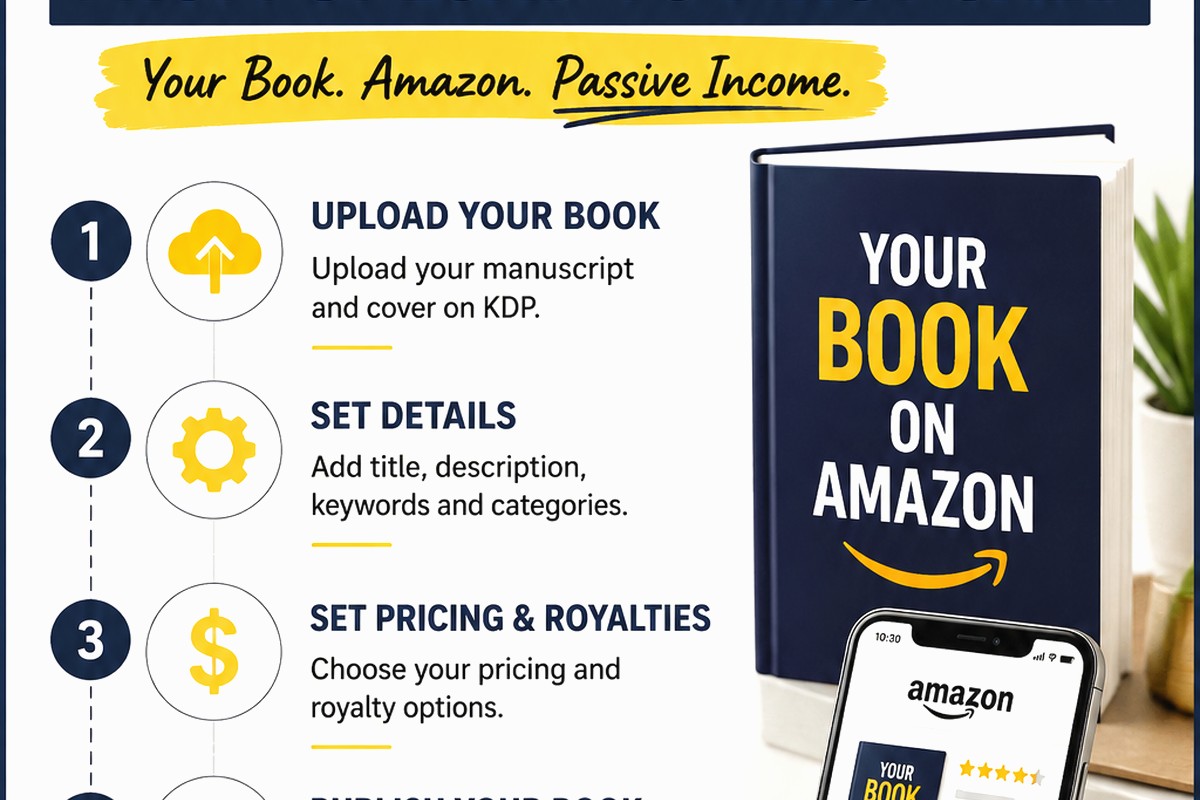
Okay so Amazon KDP is basically just Amazon’s self-publishing platform and honestly it’s way simpler than people make it sound. You upload a book, set a price, Amazon prints it when someone orders or delivers the ebook file, and you get paid royalties. That’s literally it at the core level.
Setting Up Your KDP Account
First thing you gotta do is go to kdp.amazon.com and sign up. They’ll ask for your regular Amazon login if you have one. Then comes the tax stuff which everyone freaks out about but it’s not that bad. You’ll fill out either a W-9 if you’re in the US or a W-8BEN if you’re international. This determines how much tax Amazon withholds from your royalties.
The bank info part is important because that’s where your money goes. Direct deposit usually hits around 60 days after the end of the month where you earned it. So like royalties from January sales come in late March or early April. I know it seems slow but that’s just how they do it.
The Dashboard Layout
Once you’re in, the dashboard shows your bookshelf where all your titles live. There’s a big yellow button that says “Create” and that’s where everything starts. You can create Kindle ebooks or paperbacks or hardcovers. Most people start with ebooks because there’s literally zero upfront cost.
The reports section is where you’ll spend way too much time refreshing to see if you made any sales. Trust me on that one. There’s also a marketing tab but we’ll get to that later because it’s kinda its own thing.
How the Upload Process Actually Works
When you click create you get three main sections to fill out. Paperback details, manuscript and cover, then pricing. Let’s break down each one because this is where people mess up.
Book Details Section
Language is obvious. Title and subtitle are straightforward but here’s something I learned the hard way – your subtitle is searchable so don’t waste it on something vague like “A Novel” when you could put keywords there. Like if it’s a recipe book maybe “50 Easy Weeknight Dinners” instead of just “Recipes.”
The description field supports HTML which most people don’t know. You can use basic tags like bold and italics and line breaks to make it look better. I usually write mine in a Google doc first then add the formatting.
Categories are huge for visibility. You get to pick two on upload but you can email KDP support and ask for up to ten total. More categories means more chances to hit a bestseller list. Oh and another thing – some categories you can only get through contacting support. They’re not available in the dropdown.
Keywords give you seven slots. Don’t repeat words from your title here because that’s wasted space. Think about what someone would actually type into Amazon search. “low carb meal prep” not just “recipes” you know?
Manuscript Upload
For ebooks you upload either a Word doc, ePub, or PDF. Word is easiest honestly. KDP converts it automatically and usually does an okay job. You’ll want to use styles in Word for your chapter headings so they convert properly to the table of contents.
The previewer tool lets you see how it’ll look on different devices. Always check this because sometimes formatting gets weird especially with images or tables. I published a planner once where all the tables broke and didn’t notice until someone left a review about it. Not fun.
Paperbacks need a PDF for the interior and the dimensions matter. You pick your trim size first – like 6×9 is standard for most books. Then your page count determines your spine width which affects the cover dimensions. KDP has templates you can download that show you exactly where to place everything.
Cover Design Requirements
Ebook covers are simple – just upload a JPG or PNG that’s at least 2560 pixels on the longest side. Keep text readable at thumbnail size because that’s how most people see it first.
Paperback covers are more complicated because you need the front, spine, and back all in one file. The cover calculator tool on KDP tells you the exact dimensions based on your page count and paper type. Cream paper is slightly thicker than white so it changes the spine width.
You can use KDP’s cover creator tool if you want but honestly it looks pretty basic. Most people use Canva or hire someone on Fiverr. I’ve done both depending on the project.
The Money Part – Royalties and Pricing
This is where it gets interesting because you have choices that affect how much you make.
Ebook Royalty Options
For ebooks you can choose 35% or 70% royalty. The 70% option requires your price to be between $2.99 and $9.99 and Amazon charges a small delivery fee based on file size. It’s like 15 cents per MB which adds up if you have a photo-heavy book.
The 35% option works for any price and no delivery fee. I use it for books I wanna price at 99 cents to get visibility or for larger files where the delivery fee would eat into profits anyway.
Here’s the weird part – Amazon has different marketplaces like amazon.com, amazon.co.uk, amazon.de etc. You can enroll your book in all of them and set different prices for each. The system auto-suggests prices based on exchange rates but you can override them.
Paperback Royalties
Paperbacks are simpler – you get 60% of list price minus printing costs. The printing cost depends on page count and whether you chose black/white or color interior. Color is way more expensive like several dollars per book.
There’s a pricing calculator right on the page that shows you exactly what you’ll make per sale at different price points. I usually price paperbacks so I make at least $3-4 per sale otherwise it doesn’t feel worth it.
Expanded distribution is an option that gets your book into bookstores and libraries theoretically but the royalty drops to 40% and honestly I’ve never seen meaningful sales from it. Most people skip it.
KDP Select and Kindle Unlimited
Okay so this is gonna sound weird but you can make your ebook exclusive to Amazon through KDP Select and earn money when people read it on Kindle Unlimited. The trade-off is you can’t sell that ebook anywhere else – no Apple Books, no Kobo, nothing.
You get paid from a global fund based on pages read. The rate changes monthly but it’s usually around half a cent per page. So someone reading your 200 page book gets you roughly a dollar. Sometimes that’s more than you’d make from a 99 cent sale after the 35% royalty.
Select also lets you run free promotions and Countdown Deals which are both good for visibility. Five free days every 90 days. I use those strategically to boost rankings then hopefully the algorithm picks it up.
You’re not locked in forever – it’s 90 day periods that auto-renew unless you opt out. I keep some books in Select and publish others wide depending on the niche.
The Page Count Thing
For KU payments Amazon uses KENPC which is Kindle Edition Normalized Page Count. It’s not the same as your actual pages. They have their own calculation based on font size and stuff. You can see your KENPC on your bookshelf after publishing.
This matters because more pages means more potential earnings from reads. But don’t just artificially inflate your book with nonsense because readers will notice and Amazon might flag it.
After You Hit Publish
The review process usually takes like 24-72 hours. Amazon checks that you’re not violating content guidelines or trademark issues. Sometimes it’s instant, sometimes it takes three days. I once had a book stuck in review for a week because their system flagged a word that was totally fine in context – had to contact support to get a human to look at it.
Once it’s live you’ll get an ASIN which is Amazon’s product identifier. That’s how you track it and share links. The book goes live on all the marketplaces you selected but sometimes there’s a delay for international ones.
Rankings start updating within hours usually. You have a main sales rank for the whole Kindle store or Books category, plus category ranks. Getting to #1 in a small category is way easier than it sounds and looks good for marketing.
Making Changes After Publishing
You can update basically anything except you can’t change an ebook to paperback or vice versa. Want to fix a typo or change your price? Just edit and republish. Changes go live within 72 hours usually, often faster.
Big changes to content might reset your reviews technically but I’ve updated books plenty of times without losing reviews. Small fixes definitely don’t cause issues.
Price changes are instant once approved. I test different price points sometimes to see what converts better. There’s no penalty for changing prices frequently unlike some platforms.
The Algorithm Stuff Nobody Really Understands
Amazon’s recommendation algorithm is kind of a black box but sales velocity definitely matters. Books that sell consistently get shown more. Also Bought and Recommended For You placements come from this.
Reviews help but probably not as much as people think. A book with 50 reviews doesn’t automatically outrank one with 10 if the other one is selling better. That said, getting to 10-20 reviews seems to be a threshold where things pick up.
Running ads through Amazon Ads (different from KDP) can feed the algorithm. Even if you barely break even on ad spend, the sales velocity boost can trigger organic visibility. Wait I forgot to mention – Amazon Ads is a separate system you access through a different login but it’s connected to your KDP account.
The Actual Publishing Formats
KDP supports ebooks, paperbacks, and hardcovers. You can link them together as different formats of the same title which is smart because then they share reviews and rankings.
Linking Formats
To link them you need matching title, author name, and ISBN or content. Amazon’s system usually auto-links them but sometimes it doesn’t and you have to contact support. I’ve had books where the paperback and ebook lived as separate listings for weeks before support fixed it.
Hardcovers are newer to KDP and honestly the printing cost makes them hard to price competitively unless it’s something premium. I only use hardcover for journals or special editions.
International Marketplaces
Your book can go live on like 12+ Amazon marketplaces worldwide. Some are English-speaking like UK, Canada, Australia. Others like Germany and Japan are foreign language markets but expats or English learners might buy.
You’ll make sales in different currencies. The dashboard converts everything to your default currency for reporting but the actual payments might come in the local currency depending on your bank.
Shipping times vary by marketplace. US orders from US warehouses are Prime eligible. UK orders print in UK. But sometimes a marketplace doesn’t have inventory and they fulfill from another region which slows it down.
Common Mistakes I See All the Time
Not checking the preview before publishing. Seriously like 80% of formatting issues would be caught if people just looked.
Pricing paperbacks too low. You need to cover printing costs plus make something. I’ve seen people price 200 page books at $5.99 and make like 30 cents per sale.
Ignoring keywords. Those seven slots are free marketing basically.
Using really generic titles that get lost in search. My dog just knocked over my coffee cup while I’m writing this but anyway – titles need to be specific enough to stand out.
Not building any kind of reader connection. Email lists matter if you’re gonna publish multiple books. Getting someone to buy book 2 is way easier than finding new readers.
The platform itself is honestly pretty straightforward once you do it once. Most of the strategy comes from what you publish, how you price it, and how you market it. But the actual mechanics of uploading and getting a book live? That’s the easy part that people overthink.
DISCOVER OUR FREE BEST SELLING PRODUCTS
Editable Canva Lined Journal: Express Your Thoughts – KDP Template
Lined Pages Journal 120 pages Ready to Upload PDF Commercial Use KDP Template 6×9 8.5×11 5×8 for Notebooks, Diaries, Low Content
Lined Pages Journal 120 pages Ready to Upload PDF Commercial Use KDP Template 6×9 8.5×11 5×8 for Notebooks, Diaries, Low Content
Cute Dogs Coloring Book for Kids | Activity Book | KDP Ready-To-Upload
Daily Planner Diary : Diary Planners for Everyday Productivity, 120 pages, 6×9 Size | Amazon KDP Interior
Wolf Coloring KDP interior For Adults, Used as Low Content Book, PDF Template Ready To Upload COMMERCIAL Use 8.5×11"
Coloring Animals Head Book for Kids, Perfect for ages 2-4, 4-8 | 8.5×11 PDF
Printable Blank Comic Book Pages PDF : Create Your Own Comics – 3 Available Sizes
Notes KDP interior Ready To Upload, Sizes 8.5×11 6×9 5×8 inch PDF FILE Used as Amazon KDP Paperback Low Content Book, journal, Notebook, Planner, COMMERCIAL Use
Black Lined Journal: 120 Pages of Black Lined Paper Perfect for Journaling, KDP Notebook Template – 6×9
Student Planner Journal 120 pages Ready to Upload PDF Commercial Use KDP Template 6×9" 8.5×11" for Low Content book
Recipe Journal Template – Editable Recipe Book Template, 120 Pages – Amazon KDP Interior