Okay so the KDP dashboard isn’t as intuitive as Amazon wants you to think
I was helping a client navigate this last Tuesday and realized even after 7 years I still click the wrong tabs sometimes because Amazon keeps moving stuff around. But let me walk you through the main sections you’re gonna actually use.
When you first log into kdp.amazon.com you land on the Bookshelf. This is your home base, your command center, whatever you wanna call it. Every book you’ve ever published or started publishing shows up here in a list format. You’ll see the title, author name, publication date, and those three dots on the right side… those three dots are actually super important because that’s your quick action menu.
The Bookshelf is where you live basically
So from the Bookshelf you can filter by Draft, Published, or Live in Kindle Store. I keep mine on Published most of the time because Draft just shows me all the abandoned projects from 2019 that I never finished and honestly it’s depressing. The search bar at the top right saves you when you have 200+ books like I do. You can search by title, ISBN, or ASIN.
Each book row shows you:
- Title and subtitle
- Publication status (this’ll say “Live” or “In Review” or “Draft”)
- Kindle/Paperback/Hardcover icons if you published in multiple formats
- Last updated date
- Those three dots I mentioned
Click those three dots and you get options like Edit eBook content, Edit paperback content, Promote and Advertise, View on Amazon, Unpublish. The Promote and Advertise link takes you straight to setting up KDP ads which is… okay we’ll get to that.
Creating a new book (the “+ Kindle eBook” or “+ Paperback” buttons)
Top left corner you’ve got these yellow buttons. Click one and you’re thrown into the three-page publishing process. Page 1 is Kindle eBook Details (or Paperback Details), Page 2 is Content, Page 3 is Pricing.
Page 1 is all your metadata – title, author, description, keywords, categories. This is where most people mess up their categories btw. You get to pick two browse categories but if you email KDP support you can actually get up to 10. I learned that in like year 3 and felt like an idiot.
Page 2 is where you upload your manuscript and cover. For low-content books this is super fast, for ebooks you gotta make sure your file doesn’t have weird formatting. The previewer tool here is… it works but it’s not perfect. I always order author copies or download the preview file to check on my actual Kindle device because the online previewer has lied to me before.
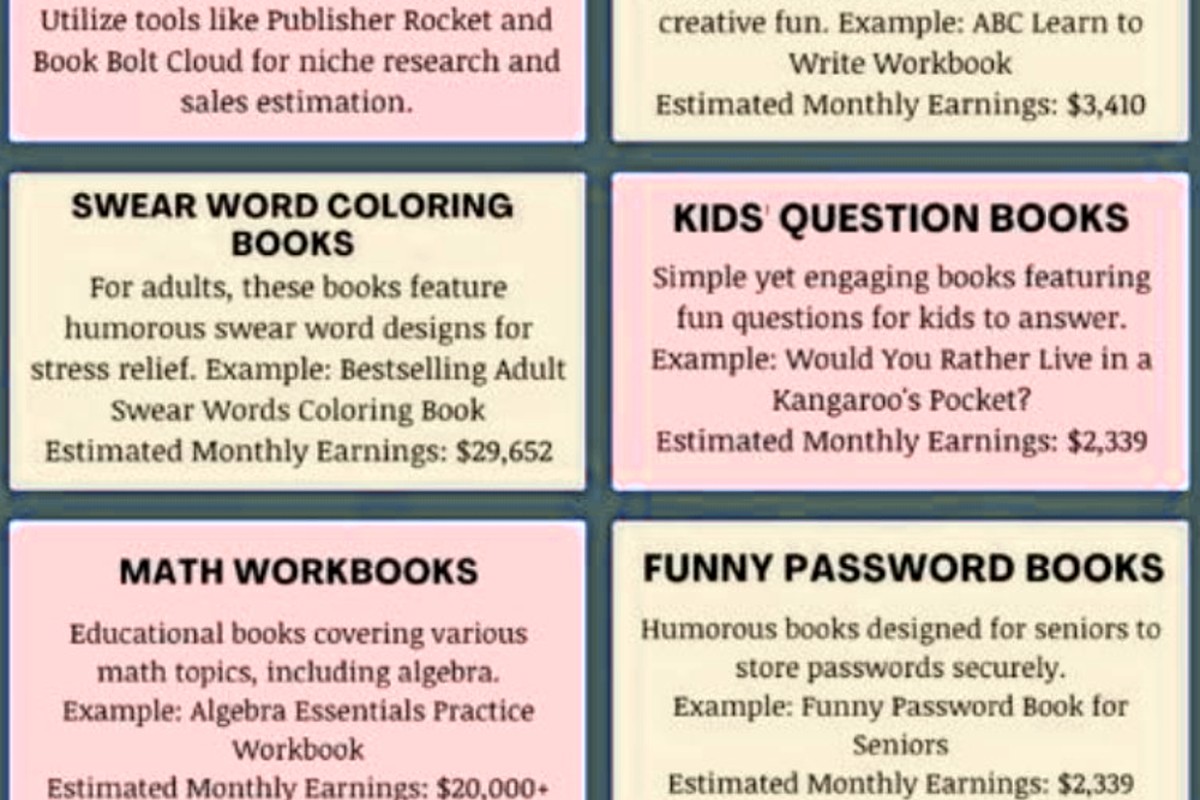
Page 3 is pricing and distribution. You pick your territories, set your price, choose between 35% and 70% royalty. Oh and another thing – the 70% royalty option has delivery costs deducted which people forget about. For a low-content book that’s nothing but for a big ebook with images it adds up.
Reports section is where the money info lives
Top navigation bar – you’ve got Reports right there. This opens up a whole submenu and honestly this is where I spend way too much time refreshing the page like it’s gonna change.
You’ve got:
- Sales Dashboard (this is the pretty one with graphs)
- Month-to-Date Unit Sales
- Prior Months’ Royalties
- Advertising (if you run ads)
Sales Dashboard
This shows you units sold and KENP (Kindle Edition Normalized Pages) read over time. You can filter by last 30 days, last 90 days, or custom date range. There’s a marketplace dropdown where you pick which Amazon store you wanna see – .com, .uk, .de, whatever.
The graph is nice for spotting trends but it doesn’t show you dollars, just units. So you gotta do math in your head or switch to the royalty reports. I usually have both tabs open if I’m being honest.
Wait I forgot to mention – below the graph there’s a table showing you each book’s performance. You can sort by title, units ordered, KENP read. Clicking a book title takes you to… nowhere helpful actually, it just highlights it. You gotta use the three dots again to do anything.
Month-to-Date and Prior Months
Month-to-Date shows you what you’re earning THIS month as it happens. Updates daily but there’s usually a 2-day lag. So on January 15th you’re seeing data through January 13th probably.
Prior Months’ Royalties is your historical view. This is where you see actual royalty amounts by marketplace, you can download reports as CSVs or Excel files. I download these every month for my bookkeeper because trying to track income across 12 different Amazon marketplaces without spreadsheets is insane.
The payment date shows up here too – usually 60 days after month end. So January sales get paid end of March. You gotta hit the minimum threshold though, $100 for most marketplaces.
Marketing tab is newer and kinda basic
They added this maybe 2 years ago? It’s got promotional tools but honestly it’s not as robust as going directly to Amazon Advertising. From here you can:
- Create Kindle Countdown Deals
- Set up Free Book Promotions (only if you’re in KDP Select)
- Access Amazon Ads
Countdown Deals let you run a temporary discount for up to 7 days. You schedule it in advance, set your discounted price, and it shows a countdown timer on your book’s Amazon page. Customers see “Deal ends in 2 days” or whatever. I use these when I’m trying to boost rank in a category.
Free promos are 5 days you can use per 90-day KDP Select enrollment period. Book goes free, you get no royalties obviously, but you can move thousands of copies if you promote it right. The downloads count toward your ranking which helps visibility after you go back to paid.
Amazon Ads dashboard
This is gonna sound weird but the ads dashboard is technically separate from KDP even though you access it through KDP. It’s ads.amazon.com but linked to your KDP account. You can run Sponsored Product ads for your books here.
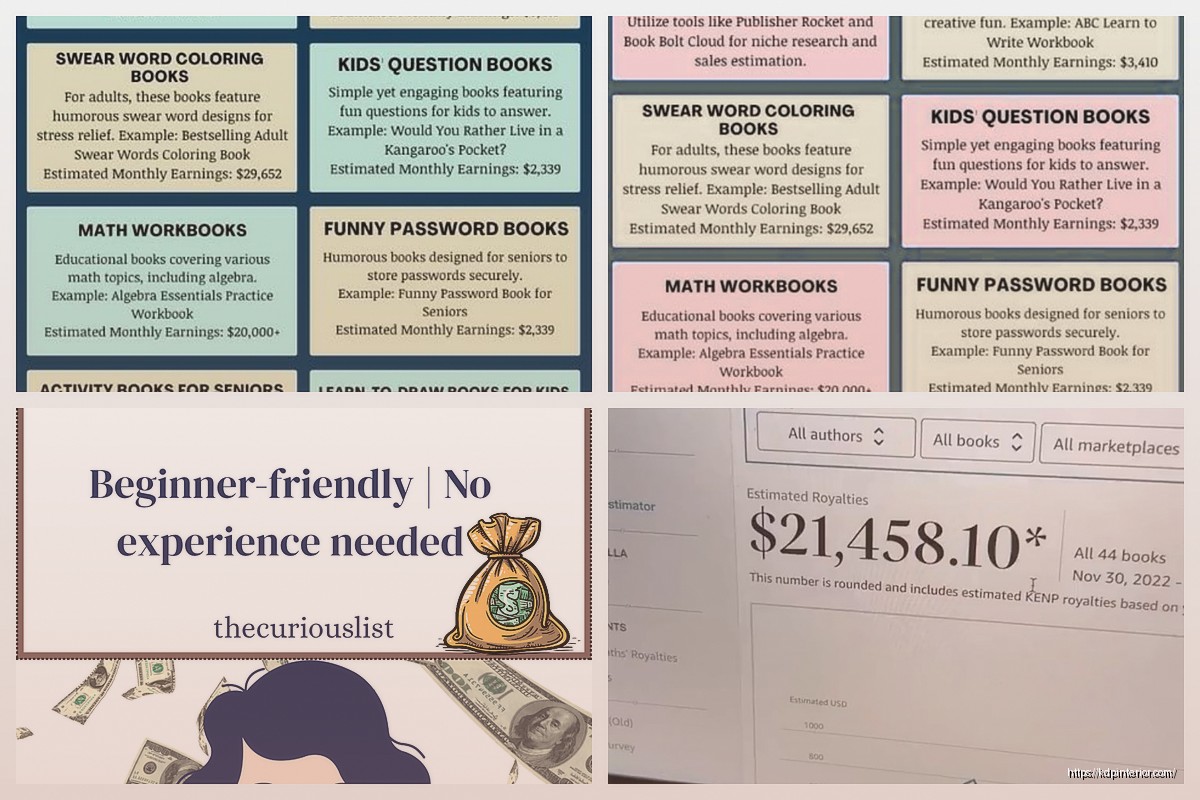
The campaign manager shows you:
- Active campaigns
- Impressions, clicks, spend
- ACOS (Advertising Cost of Sale)
- Sales attributed to ads
I had a campaign running last week that was showing 847 impressions but zero clicks which meant my cover probably sucked or my targeting was off. Ended up pausing it and redoing the keywords. My dog knocked over my coffee while I was adjusting bids at like 11pm, whole thing was a mess.
KDP Select management
Under your Bookshelf, each book enrolled in KDP Select has a little “KDP Select Info” link. Click that and you see:
- Current enrollment period dates
- Auto-renewal status
- How many free promo days you’ve used
- Countdown Deal eligibility
If you wanna opt out of KDP Select you gotta turn off auto-renew at least 5 days before your term ends. I’ve accidentally auto-renewed books I meant to go wide with because I forgot to check this. Set a calendar reminder, seriously.
Community and Help section
Top right corner there’s a Help link. Opens a sidebar with search functionality. The KDP Community forum link is in there too. Forums are actually pretty active, other publishers answer questions faster than KDP support usually.
The help articles are… okay? They’re very official and corporate-speak. Not always practical. Like they’ll tell you the rules but not the strategy. That’s why you end up watching YouTube videos or reading blog posts from people like me who actually tested this stuff.
Account settings buried in the dropdown
Your account name is top right – click it and you get a dropdown with:
- Account Settings
- Getting Paid (banking info)
- Tax Information
- Agreements
Getting Paid is where you add or update your bank account for royalty deposits. You need this set up obviously or you don’t get paid. Different bank info for each marketplace if you want, or one bank account for everything. I use one checking account for all marketplaces because managing multiple felt like overkill.
Tax Information is your W-9 or W-8BEN depending on if you’re US or international. Amazon withholds 30% if you don’t have this filled out correctly. I’ve seen people panic about missing money and it’s literally just sitting there waiting for tax forms.
Oh and another thing – if you move or change bank accounts, update this immediately. KDP will reject payments if your info is outdated and then you gotta contact support and it’s a whole annoying process.
The ISBN manager nobody talks about
Okay so funny story – I didn’t know KDP had a free ISBN option for like my first 30 books. I was buying them from Bowker like a chump spending $125 each.
When you’re creating a paperback, in the ISBN section you can choose “Get a free KDP ISBN” and Amazon assigns you one. Downside is it identifies Amazon as the publisher of record which matters if you care about that. For low-content books? Nobody cares. For your serious author brand? Maybe buy your own.
There’s no separate ISBN manager dashboard though. You see assigned ISBNs in your book’s details page under that three-dot menu, then Edit Paperback Details, then scroll to ISBN section.
Alright that’s the main stuff you’re gonna actually use. There’s other random links in the navigation but they’re either self-explanatory or you’ll never click them. The dashboard isn’t organized great but once you know where everything lives it’s muscle memory. Just gotta click around and break stuff to learn it honestly.

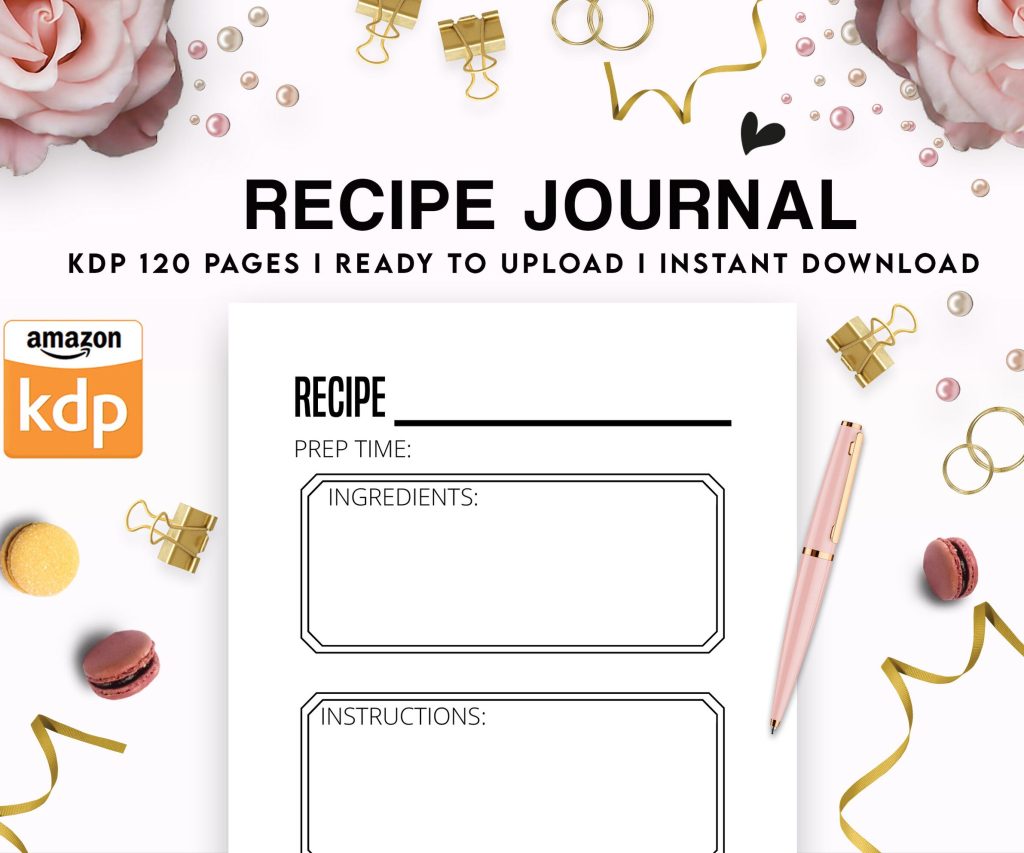 Recipe Journal Template - Editable Recipe Book Template, 120 Pages - Amazon KDP Interior
1 × $0.00
Recipe Journal Template - Editable Recipe Book Template, 120 Pages - Amazon KDP Interior
1 × $0.00 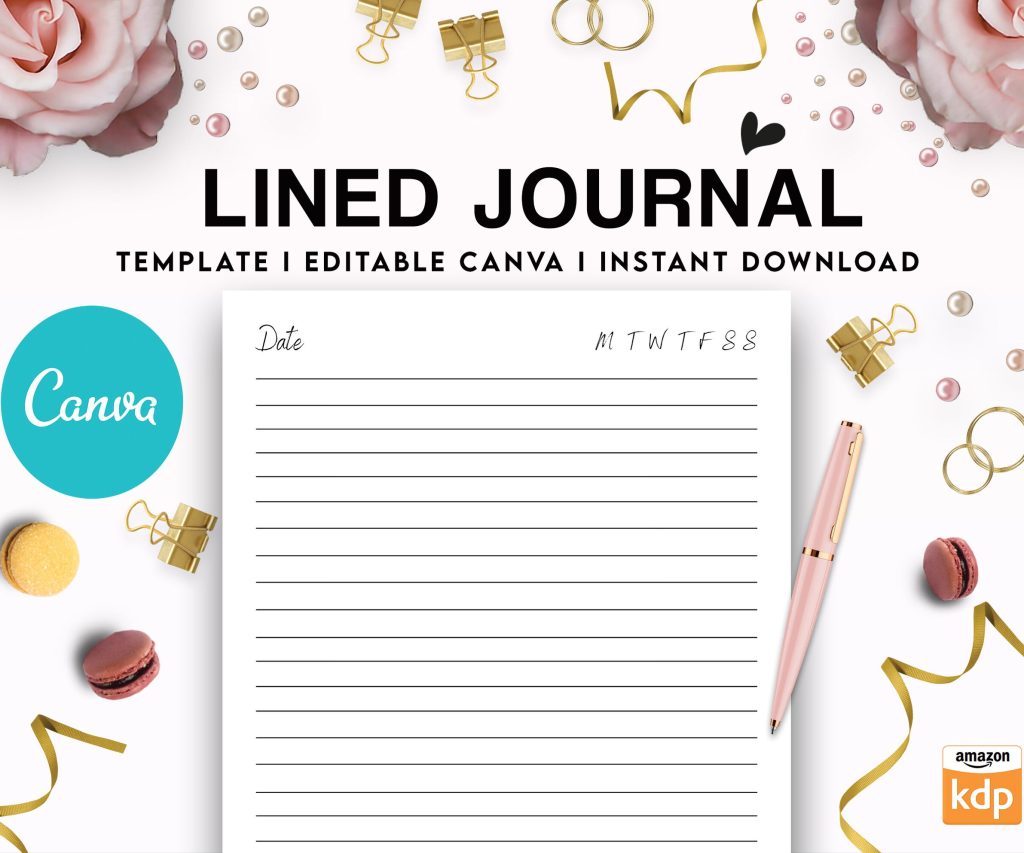 Editable Canva Lined Journal: Express Your Thoughts - KDP Template
1 × $0.00
Editable Canva Lined Journal: Express Your Thoughts - KDP Template
1 × $0.00  Wolf Coloring KDP interior For Adults, Used as Low Content Book, PDF Template Ready To Upload COMMERCIAL Use 8.5x11"
1 × $0.00
Wolf Coloring KDP interior For Adults, Used as Low Content Book, PDF Template Ready To Upload COMMERCIAL Use 8.5x11"
1 × $0.00 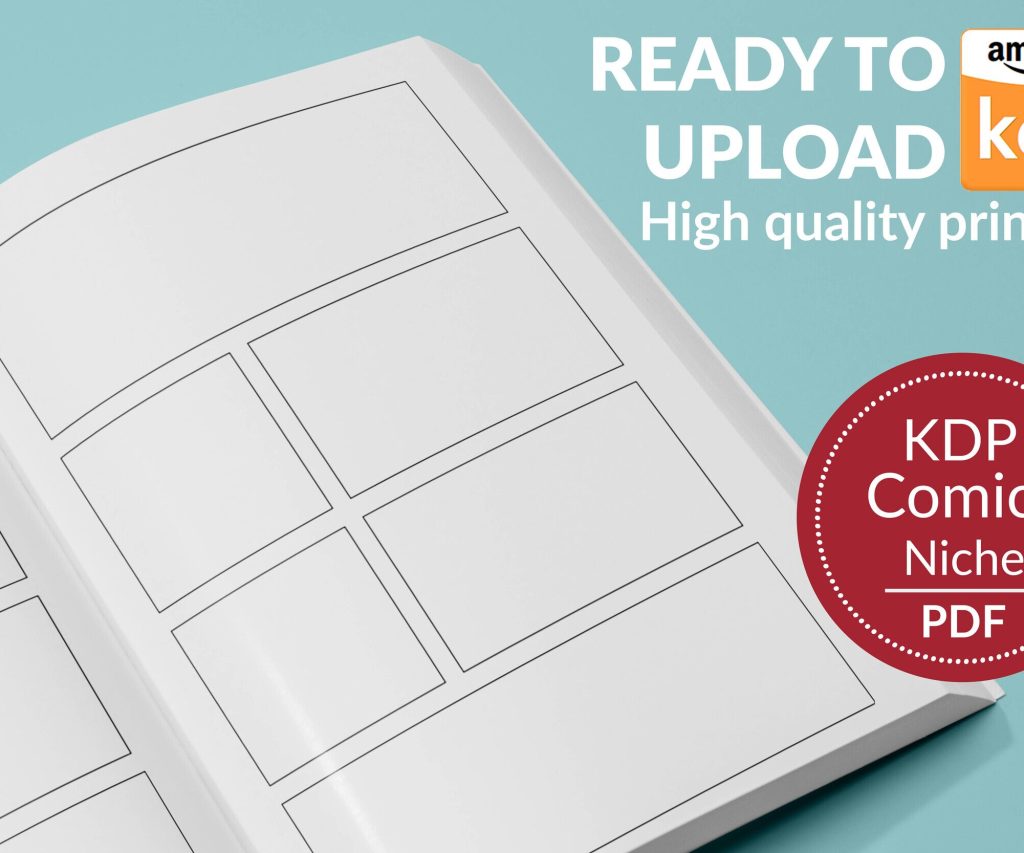 Printable Blank Comic Book Pages PDF : Create Your Own Comics - 3 Available Sizes
1 × $0.00
Printable Blank Comic Book Pages PDF : Create Your Own Comics - 3 Available Sizes
1 × $0.00 
DISCOVER OUR FREE BEST SELLING PRODUCTS
Editable Canva Lined Journal: Express Your Thoughts – KDP Template
Lined Pages Journal 120 pages Ready to Upload PDF Commercial Use KDP Template 6×9 8.5×11 5×8 for Notebooks, Diaries, Low Content
Lined Pages Journal 120 pages Ready to Upload PDF Commercial Use KDP Template 6×9 8.5×11 5×8 for Notebooks, Diaries, Low Content
Cute Dogs Coloring Book for Kids | Activity Book | KDP Ready-To-Upload
Daily Planner Diary : Diary Planners for Everyday Productivity, 120 pages, 6×9 Size | Amazon KDP Interior
Wolf Coloring KDP interior For Adults, Used as Low Content Book, PDF Template Ready To Upload COMMERCIAL Use 8.5×11"
Coloring Animals Head Book for Kids, Perfect for ages 2-4, 4-8 | 8.5×11 PDF
Printable Blank Comic Book Pages PDF : Create Your Own Comics – 3 Available Sizes
Notes KDP interior Ready To Upload, Sizes 8.5×11 6×9 5×8 inch PDF FILE Used as Amazon KDP Paperback Low Content Book, journal, Notebook, Planner, COMMERCIAL Use
Black Lined Journal: 120 Pages of Black Lined Paper Perfect for Journaling, KDP Notebook Template – 6×9
Student Planner Journal 120 pages Ready to Upload PDF Commercial Use KDP Template 6×9" 8.5×11" for Low Content book
Recipe Journal Template – Editable Recipe Book Template, 120 Pages – Amazon KDP Interior