-
×
 Student Planner Journal 120 pages Ready to Upload PDF Commercial Use KDP Template 6x9" 8.5x11" for Low Content book
1 × $0.00
Student Planner Journal 120 pages Ready to Upload PDF Commercial Use KDP Template 6x9" 8.5x11" for Low Content book
1 × $0.00
Subtotal: $0.00

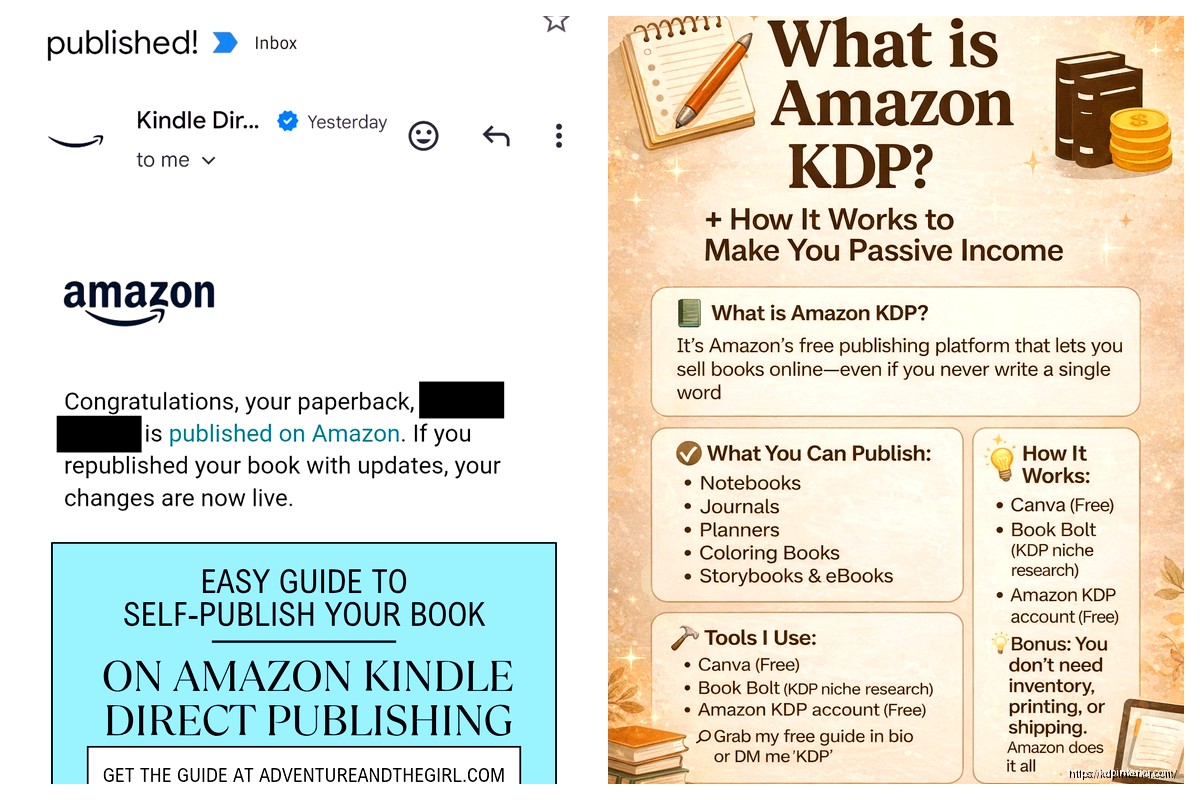
Okay so here’s the deal with KDP, I literally just helped someone set up their account last night while watching that new Netflix show and realized I need to explain this better because people keep making the same mistakes.
First thing – don’t overthink the account setup. You need an Amazon account obviously, then head to kdp.amazon.com and sign up. They’re gonna ask for tax info right away and this is where people freeze up. Just fill out the W-9 if you’re in the US or the W-8BEN if you’re international. Takes like 10 minutes max.
The tax interview thing looks scary but it’s basically asking if you’re a person or a company and where you live. I messed this up on my first account back in 2017 because I didn’t realize you could change your publishing name later, so I used my full legal name for everything and… yeah don’t do that. Use a pen name or publisher name that sounds professional.
So everyone’s gonna tell you to format in Word or use Vellum if you’re on Mac. But here’s what actually works after publishing 200+ books – keep it simple. Like really simple.
For ebooks your manuscript needs to be a Word doc or you can upload HTML if you’re fancy. I just stick with .doc files because KDP’s converter is pretty good now. Your formatting checklist should be:
Wait I forgot to mention – the table of contents thing is required for certain categories. KDP won’t tell you this upfront but if you’re publishing in like self-help or business, you gotta have clickable chapter links or your book looks amateur.
Your cover makes or breaks everything. I don’t care how good your content is, a bad cover means zero sales. Period.
I use Canva Pro for most of my low-content books and it works fine. For novels or serious non-fiction, I hire designers on Fiverr or 99designs. Budget like $50-150 for a decent cover. The KDP cover creator tool is… okay it exists but please don’t use it unless you’re doing a super basic journal.
Cover dimensions are 2560 x 1600 pixels for ebooks. For paperbacks it depends on your trim size but 6×9 is most common and you’ll need to use their cover calculator to get the exact spine width. This changes based on page count which is annoying.
Oh and another thing – your cover needs to look good as a thumbnail because that’s how 90% of people will see it. I literally squint at my screen from across the room to test this. My cat knocked over my coffee once while I was doing this and I had to redo three covers because the text was too small.
Okay so pricing is where everyone gets weird. They either price too low thinking it’ll sell more or too high because they “value their work.”
Here’s what works based on my actual data:
Ebooks: Price between $2.99 and $9.99 to get the 70% royalty rate. Below $2.99 you only get 35% which is terrible math. I usually go $3.99 for shorter books (under 100 pages) and $4.99-6.99 for full-length stuff.
Paperbacks: KDP sets a minimum price based on printing costs. A 200-page paperback usually costs like $3-4 to print, then you add your royalty on top. I typically price paperbacks at $12.99-16.99 depending on length. Nobody’s really making money on paperback sales anyway, it’s more for credibility.
Hardcovers: These are new-ish on KDP and honestly I don’t mess with them much. The printing costs are high and the market’s small. But if you want to offer them, price at least $24.99 or you’re losing money.
This is gonna sound weird but keyword research is more important than writing a good book. Like yeah quality matters but discoverability matters more.
You get 7 keyword boxes when you publish. Don’t waste them on obvious stuff like “fiction” or “cookbook.” Use Publisher Rocket if you wanna spend $97 (worth it) or just manually search Amazon and see what auto-completes.
My process is:
1. Type a broad term into Amazon search
2. See what phrases auto-complete
3. Check if those books have good sales ranks (under 100k is decent)
4. Use those exact phrases as keywords
For example, instead of “weight loss” I’d use “weight loss for women over 50” or “weight loss meal prep cookbook.” Specific beats generic every single time.
Also your subtitle is searchable now, so stuff keywords in there. Not like crazy obvious keyword stuffing but naturally. “A Practical Guide to Intermittent Fasting for Beginners Over 40” hits like four keyword phrases.
You can pick two categories when you upload. Pick the most specific ones possible. Don’t choose “Fiction > Literature” when you could choose “Fiction > Historical > Ancient Rome.”
Smaller categories = easier to hit bestseller status = more visibility. I’ve hit #1 in categories with like 50 sales just because I picked smart categories.
After you publish, email KDP support and ask to be added to more categories. They’ll usually add you to 8-10 total if you ask nicely. I have a template email I use:
“Hi, I recently published [book title] ASIN [your ASIN]. Could you please add it to these additional categories: [list them]. Thanks!”
They respond within 24 hours usually. This trick alone has probably made me an extra $10k over the years.
Okay so you’re actually ready to upload. Here’s the exact steps:
Log into KDP, click “Create New Title,” choose Kindle eBook or Paperback (do both separately).
Section 1 – Kindle eBook Details:
– Enter your title and subtitle
– Add contributors (you as author)
– Write your description (use HTML formatting for bold/italics)
– Pick your categories
– Enter 7 keywords
– Set age/grade range if relevant
Section 2 – Kindle eBook Content:
– Upload your manuscript file
– Upload your cover (or use their creator but again, don’t)
– Preview your book using the online previewer – seriously check every page
– Enable DRM if you want (I don’t, it’s annoying for readers)
Section 3 – Kindle eBook Pricing:
– Select territories (I choose worldwide)
– Set your price
– Enroll in KDP Select or go wide (more on this in a sec)
Then hit publish and wait 24-72 hours for review.
KDP Select means exclusive to Amazon for 90 days. You get:
– Kindle Unlimited page reads (this is where I make 60% of my income)
– Free promo days (5 per 90-day period)
– Countdown deals
Going wide means also publishing on Apple Books, Kobo, Google Play, etc through Draft2Digital or PublishDrive.
My strategy: Start with KDP Select for the first 90 days to build momentum with KU readers, then decide if you wanna go wide. For low-content books I stay exclusive forever because KU is too profitable. For novels, going wide after 6 months makes sense.
Everyone wants the magic marketing trick and there isn’t one, sorry. But here’s what works:
Amazon Ads: Start with automatic campaigns at $5/day. Let it run for a week, then check your search term report and add the good ones as exact match keywords. This is tedious but it’s how you scale. I spend about $500/month on ads across all my books and make back $2000-3000.
Launch Strategy: Price at $0.99 for the first week to get sales velocity, then raise to regular price. Or use your KDP Select free days right at launch to get downloads and reviews.
Getting Reviews: Put a link in the back of your book asking for reviews. Use BookSprout or similar services to send advance review copies. Never buy reviews, Amazon will catch you eventually.
Social media is honestly overrated unless you already have an audience. I’ve tried building Instagram and TikTok for books and it’s a time suck with minimal ROI.
Your KDP dashboard shows a million numbers but only watch these:
– KENP reads (Kindle Edition Normalized Pages) – this is your KU income
– Units sold
– Conversion rate from page views to sales
Sales rank is vanity unless you’re under 10k consistently. I’ve had books ranked 200k that still make $300/month because of KU reads.
The reports tab is your friend. Download the prior month royalty report and actually look at which books made what. I was shocked when a random coloring book I published in 2019 suddenly started making $400/month last year. No idea why but I made 5 more in that niche.
Real quick because I see these constantly:
– Not reading your book on actual Kindle device before publishing (formatting looks different)
– Ignoring the “Look Inside” feature setup – that’s your first impression
– Using the same keywords across all your books (diversify to capture more search traffic)
– Not updating books when you learn better strategies (I update covers and descriptions quarterly)
– Forgetting to set up your Author Central page (free marketing real estate)
Oh and if you’re doing paperbacks, order a proof copy before approving. Always. I once published 50 copies of a planner with the wrong year on the cover because I didn’t order a proof. Lost like $200.
One book won’t make you rich unless you get super lucky. The real money is in having 20, 50, 100+ books working for you.
I publish about 3-4 books per month now using a mix of ghostwriters for content books and templates for low-content. My system is:
– Research niche on Monday
– Outline or create template Tuesday
– Content creation Wednesday-Thursday
– Formatting and upload Friday
Then I let it sit and see what happens. Maybe 1 in 10 books becomes a consistent earner. But those winners subsidize the losers and then some.
The key is treating this like a publishing business not a one-book dream. Test different niches, formats, price points. What works for someone else might not work for you and vice versa.
Anyway that’s basically everything I wish someone told me when I started. KDP isn’t complicated once you do it a few times, it’s just got a learning curve upfront. Start with one book, get it live, then improve your process with each new title.

DISCOVER OUR FREE BEST SELLING PRODUCTS
Editable Canva Lined Journal: Express Your Thoughts – KDP Template
Lined Pages Journal 120 pages Ready to Upload PDF Commercial Use KDP Template 6×9 8.5×11 5×8 for Notebooks, Diaries, Low Content
Lined Pages Journal 120 pages Ready to Upload PDF Commercial Use KDP Template 6×9 8.5×11 5×8 for Notebooks, Diaries, Low Content
Cute Dogs Coloring Book for Kids | Activity Book | KDP Ready-To-Upload
Daily Planner Diary : Diary Planners for Everyday Productivity, 120 pages, 6×9 Size | Amazon KDP Interior
Wolf Coloring KDP interior For Adults, Used as Low Content Book, PDF Template Ready To Upload COMMERCIAL Use 8.5×11"
Coloring Animals Head Book for Kids, Perfect for ages 2-4, 4-8 | 8.5×11 PDF
Printable Blank Comic Book Pages PDF : Create Your Own Comics – 3 Available Sizes
Notes KDP interior Ready To Upload, Sizes 8.5×11 6×9 5×8 inch PDF FILE Used as Amazon KDP Paperback Low Content Book, journal, Notebook, Planner, COMMERCIAL Use
Black Lined Journal: 120 Pages of Black Lined Paper Perfect for Journaling, KDP Notebook Template – 6×9
Student Planner Journal 120 pages Ready to Upload PDF Commercial Use KDP Template 6×9" 8.5×11" for Low Content book
Recipe Journal Template – Editable Recipe Book Template, 120 Pages – Amazon KDP Interior