Okay so here’s what I actually do before hitting publish
Look, I just went through this with three books last week and caught some ridiculous mistakes that would’ve tanked my reviews. The quality assurance part is where most people get lazy because they’re so excited to publish, but this is literally where you make or break your book’s success.
First thing – and I cannot stress this enough – download your manuscript as a preview file from KDP before you publish. Not just looking at the previewer tool on their site. Actually download the .mobi or .azk file and send it to your Kindle device or app. I usually email it to my Kindle using my Send-to-Kindle email. The web previewer is helpful but it doesn’t catch everything, especially formatting issues that only show up on actual devices.
The formatting checklist I go through every single time
So I’ve got this system now after publishing 200+ books. I open the file on at least three different devices if possible – my Kindle Paperwhite, the iPhone app, and the desktop app. Different screen sizes show different problems. Last month I had a book that looked perfect on desktop but the images were cutting off weird on mobile devices.
Check your table of contents first. Click every single link. I know it’s tedious but I’ve published books where chapter 7 linked to chapter 3 and didn’t catch it until a reviewer mentioned it. That’s embarrassing and totally avoidable.
Page breaks – make sure they’re where they should be. Sometimes Word or whatever software you’re using adds random page breaks that look fine in your document but create weird blank pages in the Kindle file. I usually do a quick scroll through the entire book just looking for unexpected white space.
Images and graphics need special attention
If you’ve got images in your book, this is gonna sound weird but zoom in on every single one. The compression Amazon does sometimes makes images look muddy or pixelated. I had a coloring book last year where the lines were so compressed they were barely visible on E-ink displays. Had to reupload with higher quality images.
For low-content books especially – planners, journals, whatever – make sure your images are at least 300 DPI in the original file. Amazon recommends 72 DPI for reflowable content but honestly I go higher because the compression is unpredictable.
Oh and another thing about images – check that they’re not too large file-size wise. Amazon charges a delivery fee based on file size if you’re enrolled in KDP Select at 70% royalty. I’ve seen people lose like 30-40% of their royalty because they didn’t optimize their images. Use something like TinyPNG or just export at a reasonable quality level.
Text formatting issues that kill your professionalism
Okay so fonts. Kindle converts everything to its own fonts mostly, but you gotta make sure your original formatting is clean. No weird font mixing unless it’s intentional like for emphasis. I see a lot of books where someone copied and pasted from different sources and didn’t normalize the formatting first.
Italics and bold should actually work in your preview. If they don’t show up in the preview file, they won’t show up in the published version. Had a client last month who used underline for emphasis instead of italics and it just… didn’t convert properly. Looked terrible.
Paragraph spacing is another one. Some people have no spacing between paragraphs, some have too much. There’s no “right” way but be consistent. And please don’t use tab indents AND spacing between paragraphs – pick one style. The combo looks amateurish.
Front matter and back matter stuff everyone forgets
Your copyright page needs to be there. Even for low-content books, even for short ebooks. Just a simple “Copyright © 2024 Your Name. All rights reserved.” Amazon doesn’t require it technically but it’s professional and protects you.
Title page should match your cover and your metadata exactly. If your cover says “The Ultimate Guide to Whatever” but your title page says “Ultimate Guide to Whatever” that’s inconsistent and looks sloppy.
Back matter is where you can ask for reviews (nicely), mention your other books, include an author bio. I always put links to my other books at the end. Wait I forgot to mention – make sure those links are actual hyperlinks and they work. Click them in your preview file.
The actual QA reading process
I know you’re probably thinking you’ve already read this manuscript 47 times while writing it, but you gotta read it one more time in the actual Kindle format. Not the Word doc, not the PDF, the actual formatted Kindle file.
Read at least the first three chapters word for word. Then skip around and read random sections. You’re looking for formatting breaks, weird line spacing, orphaned words,章 any kind of encoding issues with special characters.
If it’s a book with any kind of functionality – like a planner with dates or a workbook with exercises – literally test the functionality. Can you write in the spaces provided if someone prints it? Do the dates make sense? My dog was barking like crazy while I was doing this last week and I almost missed that one of my planners had February listed twice. Would’ve been bad.
Typography and special character issues
Apostrophes and quotation marks sometimes convert to weird characters. Straight quotes vs curly quotes. Most word processors handle this okay now but double-check in your preview. I’ve seen books with question marks turned into little boxes or other encoding issues.
Em dashes (—) vs en dashes (–) vs hyphens (-). Make sure they’re consistent and displaying correctly. This sounds nitpicky but readers notice this stuff, especially in non-fiction.
If you’re using any non-English characters or special symbols, check them extra carefully. Currency symbols, accented letters, mathematical symbols – they can get messed up in conversion.
Testing on multiple platforms because consistency matters
So I mentioned this earlier but it’s worth expanding on. The reading experience is different on every device. I usually check:
- Kindle Paperwhite or another E-ink device
- iPhone Kindle app
- Android Kindle app if you have access to one
- Desktop Kindle app for Windows or Mac
You don’t need to read the whole thing on every device, just flip through and look for obvious problems. Change the font size on each one – go really big and really small. Sometimes formatting that looks fine at default size breaks when someone increases text size (which lots of readers do).
The metadata accuracy check
Before you hit publish, go back to your KDP dashboard and review all your metadata. Not just a glance – actually read through it.
Book title, subtitle, author name – all spelled correctly and matching your cover exactly? I’ve seen people publish books where the subtitle on the cover was different from the subtitle in the metadata. Amazon might flag that or customers might get confused.
Description should have proper HTML formatting if you’re using it. Bold, italics, line breaks – check that they’re displaying how you want. The preview function in KDP shows you what it’ll look like on the product page.
Keywords – this isn’t really QA but while you’re reviewing everything, make sure your seven keyword phrases are actually good. I use Publisher Rocket but there’s other tools. Don’t waste slots on keywords that are already in your title.
Categories matter too. Make sure you picked the most relevant ones. You get to pick two in the dashboard but you can email KDP support to get added to up to 10 total. I always do this for my books.
Price and enrollment settings double-check
This is gonna sound obvious but I’ve done it so I know others have too – make sure your price is what you intended. I once published a book at $0.99 when I meant to put $9.99. Didn’t catch it for three days and made like 40 sales at the wrong price.
If you’re enrolling in KDP Select, understand that you’re giving Amazon exclusivity for 90 days. Can’t sell that ebook anywhere else during that time. The trade-off is you get access to Kindle Unlimited and some promotional tools. I use KDP Select for most of my books but not all.
Royalty rate – 35% vs 70%. You need to price between $2.99 and $9.99 for the 70% rate. Under that you’re stuck at 35%. Over $9.99 you can choose but consider delivery fees on the 70% option.
The final final check before going live
Okay so you’ve done all this, you’re feeling good about the book. One last thing I do – I sleep on it. Seriously. If you can wait 24 hours between finishing your QA and actually clicking publish, do it. Come back with fresh eyes the next day and do a super quick flip-through of the preview file one more time.
I’ve caught typos in titles, wrong prices, forgot to add my author bio, all kinds of stuff during that final check. There’s something about the excitement of being “done” that makes you miss things.
Oh and funny story – I was watching The Office for like the millionth time while doing QA on a book last month and I realized I’d named a character in my example scenario “Jim” without even thinking about it. Had to change it because it felt too derivative. Sometimes stepping away and coming back helps you catch stuff like that.
After you publish – the 72-hour window
Once you hit publish, Amazon takes up to 72 hours to review your book, usually way faster though. Most of mine go live within 12 hours. But during that time you can still make changes if you catch something.
After it goes live, buy a copy of your own book or download it if you’re in KDP Select. Yes, even though you’ve previewed it to death. Sometimes the actual published file has different issues than the preview. It’s rare but it happens.
Read through it one more time on your device. If you find problems, you can update the manuscript in your KDP dashboard. Upload the new file and it’ll go through review again. Amazon notifies existing buyers about major updates, which is nice.
Check your book’s product page on Amazon. Does everything look right? Cover displaying properly? Description formatted how you want? “Look Inside” feature showing the right pages? That Look Inside thing is important because it’s often the first impression potential buyers get.
I usually also check how my book appears in its categories. Search for it using your title and your brand name if you have one. Make sure it’s actually findable. If it’s not showing up at all in the first few days, might be a metadata issue worth contacting KDP support about.
Last thing – set a reminder to check your book listing every few months. Amazon sometimes changes how things display, or other sellers might hijack your listing (rare but happens), or you might notice your keywords aren’t working anymore. Publishing isn’t really a “set it and forget it” thing if you wanna maximize sales, but that’s more marketing than QA I guess.

 Notes KDP interior Ready To Upload, Sizes 8.5x11 6x9 5x8 inch PDF FILE Used as Amazon KDP Paperback Low Content Book, journal, Notebook, Planner, COMMERCIAL Use
1 × $0.00
Notes KDP interior Ready To Upload, Sizes 8.5x11 6x9 5x8 inch PDF FILE Used as Amazon KDP Paperback Low Content Book, journal, Notebook, Planner, COMMERCIAL Use
1 × $0.00 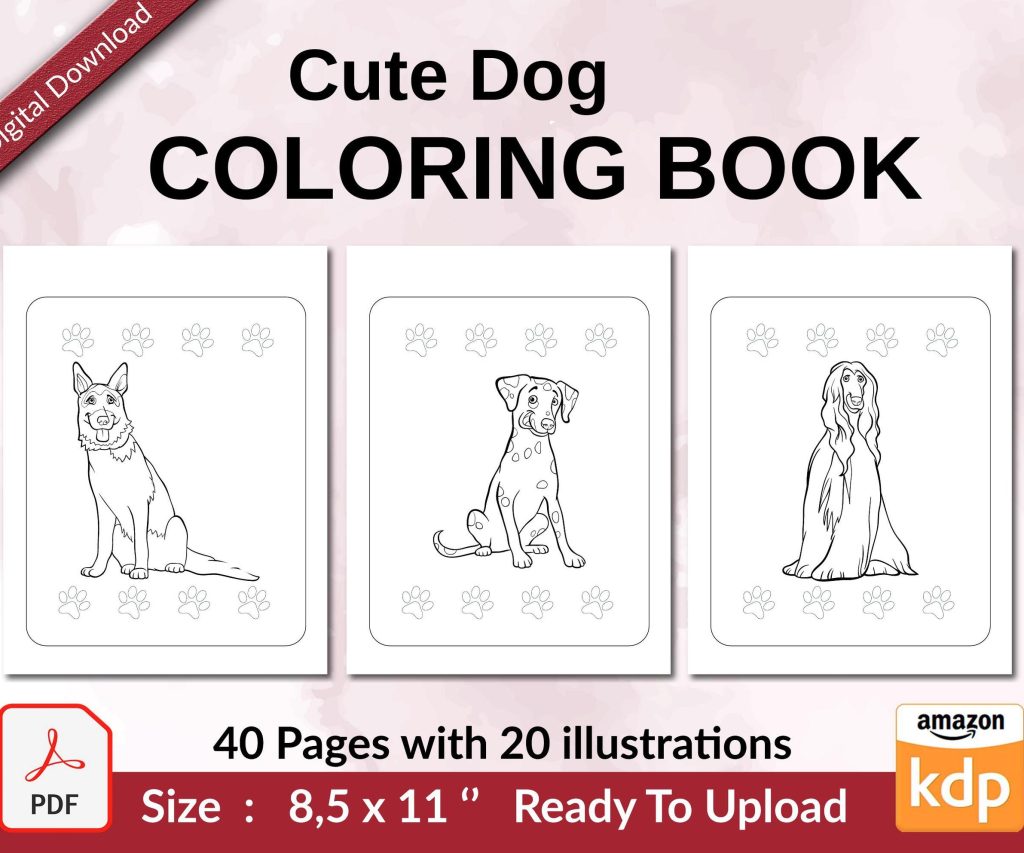 Cute Dogs Coloring Book for Kids | Activity Book | KDP Ready-To-Upload
1 × $0.00
Cute Dogs Coloring Book for Kids | Activity Book | KDP Ready-To-Upload
1 × $0.00 
DISCOVER OUR FREE BEST SELLING PRODUCTS
Editable Canva Lined Journal: Express Your Thoughts – KDP Template
Lined Pages Journal 120 pages Ready to Upload PDF Commercial Use KDP Template 6×9 8.5×11 5×8 for Notebooks, Diaries, Low Content
Lined Pages Journal 120 pages Ready to Upload PDF Commercial Use KDP Template 6×9 8.5×11 5×8 for Notebooks, Diaries, Low Content
Cute Dogs Coloring Book for Kids | Activity Book | KDP Ready-To-Upload
Daily Planner Diary : Diary Planners for Everyday Productivity, 120 pages, 6×9 Size | Amazon KDP Interior
Wolf Coloring KDP interior For Adults, Used as Low Content Book, PDF Template Ready To Upload COMMERCIAL Use 8.5×11"
Coloring Animals Head Book for Kids, Perfect for ages 2-4, 4-8 | 8.5×11 PDF
Printable Blank Comic Book Pages PDF : Create Your Own Comics – 3 Available Sizes
Notes KDP interior Ready To Upload, Sizes 8.5×11 6×9 5×8 inch PDF FILE Used as Amazon KDP Paperback Low Content Book, journal, Notebook, Planner, COMMERCIAL Use
Black Lined Journal: 120 Pages of Black Lined Paper Perfect for Journaling, KDP Notebook Template – 6×9
Student Planner Journal 120 pages Ready to Upload PDF Commercial Use KDP Template 6×9" 8.5×11" for Low Content book
Recipe Journal Template – Editable Recipe Book Template, 120 Pages – Amazon KDP Interior