
-
×
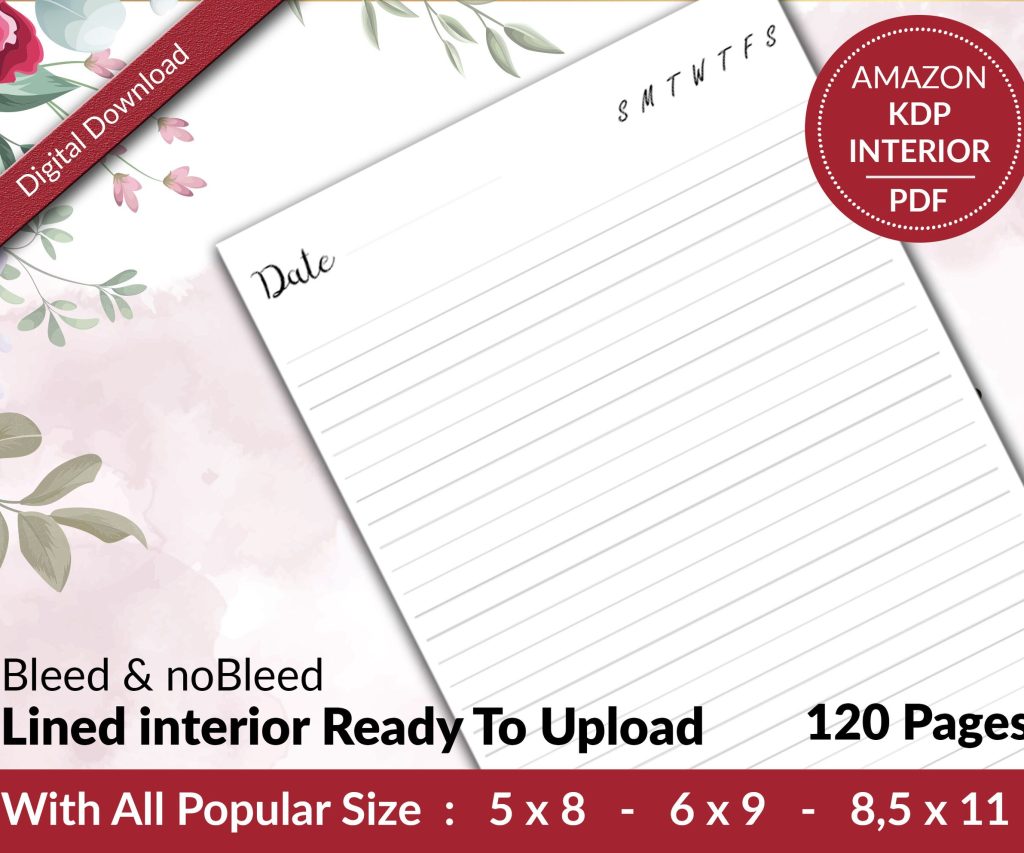 Lined Pages Journal 120 pages Ready to Upload PDF Commercial Use KDP Template 6x9 8.5x11 5x8 for Notebooks, Diaries, Low Content
2 × $0.00
Lined Pages Journal 120 pages Ready to Upload PDF Commercial Use KDP Template 6x9 8.5x11 5x8 for Notebooks, Diaries, Low Content
2 × $0.00
Subtotal: $0.00
Okay so here’s the thing about publishing on Amazon KDP – it’s not actually that complicated once you do it once, but that first time is gonna feel overwhelming because Amazon’s dashboard looks like it was designed by three different teams who never talked to each other.
Start with your Word doc or whatever you wrote in. Export it as a .doc or .docx file – don’t use PDF unless it’s a fixed-layout book like a children’s picture book. I learned this the hard way back in 2017 when I uploaded a PDF thinking I was being professional and the formatting was completely destroyed inside. Amazon’s conversion tool works way better with Word files.
For formatting, keep it simple. Use styles in Word – Heading 1 for chapter titles, Normal for body text. Don’t get fancy with fonts unless you’re doing something specific. Times New Roman or Garamond work fine for most books. 12pt font, standard margins. The thing people mess up most is they manually add spaces between paragraphs instead of using paragraph spacing settings, and then everything looks weird when it converts.
Oh and another thing – always start chapters on a new page using page breaks, not just hitting Enter a bunch of times. I still see people doing that and it creates chaos in the ebook conversion.
Go to kdp.amazon.com and sign up with your regular Amazon account. They’re gonna ask for tax information right away – have your SSN or EIN ready. If you’re in the US, you’ll fill out a W-9. International authors deal with W-8 forms which are more annoying but not impossible.
The tax interview freaks people out but just answer honestly. You’re gonna tell them if you’re an individual or a company, your legal name, address, all that basic stuff. This matters because it affects how you get paid and what tax forms Amazon sends you at year-end.
Click the big yellow “Create” button and choose Kindle eBook (or paperback if you’re doing print, but let’s start with ebook). Now you’re in the book setup which has three main sections.
Language – pick English or whatever language your book is in. Seems obvious but I’ve seen people mess this up.
Book title and subtitle – your title can be up to 200 characters but keep it reasonable. The subtitle is where you can add extra keywords without looking spammy. Like if your book is “Keto Meal Prep” the subtitle could be “50 Easy Low-Carb Recipes for Busy People” or whatever.
Series information – if this is book 2 in a series, add that here. Otherwise skip it.
Edition number – only matters if you’re republishing an existing book.
Author name – use your real name or a pen name, doesn’t matter. I use my real name because I was too lazy to think of something clever. Once you use a pen name on KDP you can reuse it across books which is convenient.
Contributors – if you had an editor or illustrator you want to credit, add them here.
Description – this is your book sales page text. You can use basic HTML here which most people don’t know. Use bold for emphasis, italics for book titles, and
for line breaks. Write this like back cover copy – hook them in the first sentence, explain what the book delivers, maybe add bullet points of what they’ll learn.
Publishing rights – you own the copyright, so click “I own the copyright” unless someone else wrote it and gave you rights.
Keywords – you get seven keyword phrases. Don’t waste these on single words. Use phrases people actually search like “weight loss for women over 40” not just “diet.” I spend probably too much time researching these but it matters for discoverability.
Categories – you pick two. Choose the most specific categories that fit your book, not the biggest ones. You want to be a big fish in a small pond. Like don’t choose “Fiction > Literature” when you could choose “Fiction > Historical > Victorian” or whatever.
Only fill this out if it’s a kids book. Skip it otherwise.
Pre-order – you can set this up but honestly for your first book just publish it immediately. Pre-orders add complexity you don’t need yet.
This is section two. You’ll upload your formatted Word doc here. Amazon’s gonna convert it to their format automatically.
DRM – Digital Rights Management. I always choose no DRM because it doesn’t really stop piracy anyway and just annoys legitimate readers. But some people feel strongly about this.
After you upload, use the previewer tool – this is super important. Click through and look at your book on different devices. Check that chapter breaks work, images display correctly if you have any, the table of contents links properly.
Wait I forgot to mention – if you want a clickable table of contents (and you should), you need to create it in Word using heading styles, then Word can auto-generate a TOC for you. Or you can use Amazon’s Kindle Create tool which is actually pretty decent now, though it wasn’t when they first launched it.
Your cover needs to be at least 1000 pixels on the shortest side, but I always do 1600 x 2560 which is their recommended size. JPEG or TIFF format.
If you can’t afford a designer, use Canva or get a premade cover from somewhere like Go On Write or The Book Cover Designer. A bad cover will kill your sales faster than anything else. I’m serious about this – I’ve had books with mediocre content and great covers outsell better books with amateur covers.
The cover shows up as a thumbnail most of the time so make sure the title is readable when it’s tiny. Busy covers with lots of small text don’t work.
For ebooks you don’t need one – Amazon assigns a free ASIN. For paperbacks you can get a free Amazon ISBN or buy your own. I use Amazon’s free ones because I’m cheap and it doesn’t actually matter for KDP-only distribution.
This is section three and it’s where money decisions happen.
KDP Select – this is the exclusive program. If you enroll, your book can only be sold on Amazon for 90 days (auto-renews). In exchange you get access to Kindle Unlimited where readers can borrow your book, and you get paid per page read. You also get promotional tools like free days and Countdown Deals.
I do KDP Select for most of my books because like 80% of ebook sales are Amazon anyway and the KU money is significant. But if you want to be on Apple Books, Kobo, etc., don’t check this box.
Territories – choose worldwide rights unless you have a specific reason not to.
Here’s where it gets interesting. You have two royalty options:
35% royalty – you can price between $0.99 and $200. You get 35% of the list price.
70% royalty – you can price between $2.99 and $9.99. You get 70% minus a small delivery fee (usually like 15 cents).
For most books, price in the 70% range. The sweet spot for a lot of genres is $2.99 to $4.99. I usually launch at $3.99 because it’s high enough to make decent money but low enough that people take a chance on an unknown author.
You can set different prices for different Amazon stores (US, UK, etc.). I usually just let Amazon auto-convert using their exchange rates because managing it manually is tedious.
Your book goes into review which takes like 24-72 hours usually. Sometimes faster – I’ve had books go live in 4 hours. They’re checking it’s not public domain content, doesn’t violate guidelines, the file isn’t corrupted, basic stuff.
Once it’s live you’ll get an email. Your book is now for sale on Amazon. Congrats I guess?
Paperback setup is similar but with more steps. You need to format for print which means dealing with trim sizes, margins, bleed, all that printing stuff.
Trim size – most novels are 6″ x 9″. Some people do 5″ x 8″. Just pick a standard size.
Interior – black and white or color. Color is way more expensive so only do it if you need it for photos or illustrations.
Paper type – white or cream. Cream looks more “book-like” for fiction, white is better for books with images.
Cover – this is more complex because you need a full wrap-around cover with spine. The spine width depends on page count. Amazon has a cover calculator and templates. Honestly this is where I’d most recommend hiring someone unless you’re comfortable with design software.
Proof copy – order one before you approve it for sale. I’ve caught so many issues this way. Margins too tight, images printing weird, covers not aligned properly. The proof costs like $5 plus shipping and saves you from embarrassment.
Your book probably won’t sell right away unless you have an audience already. That’s normal and not a reflection on your book necessarily.
Amazon’s algorithm needs data to recommend your book. Early sales and reviews help a lot. This is why launch strategy matters but that’s kinda a whole different conversation.
You can update your book anytime – fix typos, update the description, change the price, whatever. For content changes, upload a new manuscript file. Amazon will push the update to people who already bought it which is actually pretty cool.
Author Central – set this up at authorcentral.amazon.com. You can add your bio, photo, link your books together, and see more detailed sales data. It’s separate from KDP for some reason but worth doing.
Not proofreading – Amazon doesn’t edit your book, they just convert and sell it. If it’s full of typos, that’s on you. Get beta readers or hire an editor.
Keyword stuffing the title – titles like “Keto Diet: Keto Cookbook Keto Recipes Ketogenic Diet Low Carb” look spammy and might get you flagged. Put that stuff in keywords instead.
Wrong categories – fantasy romance goes in romance, not fantasy. Amazon is specific about this.
Pricing too high initially – unless you’re already famous, nobody’s paying $9.99 for your first book. Price competitively.
Not using A+ Content – wait actually this is only for vendors not KDP, never mind.
Giving up after a week – it takes time to gain traction. My first book sold 3 copies in month one (two were my mom). Now it’s one of my better sellers after I learned how to market properly.
Publishing is the easy part honestly. Marketing is where most people struggle including me sometimes. Amazon doesn’t automatically show your book to millions of people. You need to either run Amazon ads, build an email list, use social media, get reviews, or ideally all of that.
Amazon ads are their own beast – you can do Sponsored Products which show up in search results and on other book pages. Start with automatic campaigns to gather data, then create manual campaigns targeting specific keywords and competitor books. Budget like $5-10/day minimum to get meaningful data.
Oh and another thing – your book description can be edited anytime without going through review again. So test different versions. I’ve increased sales by 20% just by rewriting descriptions to be more compelling.
Reviews matter a ton. You can’t buy them or exchange them for anything per Amazon’s rules, but you can build an honest review team of readers who get advance copies. Just don’t tell them what to say.
Publisher Rocket – keyword research tool, worth the one-time cost
Atticus – formatting software that’s way better than Word for book layout
Vellum – Mac only but makes gorgeous ebook and print files
Grammarly – catches typos I miss after staring at text for hours
The cat just knocked over my coffee so that’s fun, but anyway those are the main tools I actually use versus the hundred others people recommend that are mostly unnecessary.
Look, KDP isn’t perfect – their dashboard is clunky, their support is hit or miss, and the algorithm is mysterious. But it’s still the easiest way to get your book in front of millions of potential readers without needing a traditional publisher’s approval. I’ve made literally thousands of books this way and while not all succeed, having them out there earning something is better than them sitting on my hard drive earning nothing.
Just start with one book, go through the process, see what happens. Your first one won’t be perfect and that’s completely fine. You learn by doing this stuff, not by reading about it forever and never pulling the trigger.
DISCOVER OUR FREE BEST SELLING PRODUCTS
Editable Canva Lined Journal: Express Your Thoughts – KDP Template
Lined Pages Journal 120 pages Ready to Upload PDF Commercial Use KDP Template 6×9 8.5×11 5×8 for Notebooks, Diaries, Low Content
Lined Pages Journal 120 pages Ready to Upload PDF Commercial Use KDP Template 6×9 8.5×11 5×8 for Notebooks, Diaries, Low Content
Cute Dogs Coloring Book for Kids | Activity Book | KDP Ready-To-Upload
Daily Planner Diary : Diary Planners for Everyday Productivity, 120 pages, 6×9 Size | Amazon KDP Interior
Wolf Coloring KDP interior For Adults, Used as Low Content Book, PDF Template Ready To Upload COMMERCIAL Use 8.5×11"
Coloring Animals Head Book for Kids, Perfect for ages 2-4, 4-8 | 8.5×11 PDF
Printable Blank Comic Book Pages PDF : Create Your Own Comics – 3 Available Sizes
Notes KDP interior Ready To Upload, Sizes 8.5×11 6×9 5×8 inch PDF FILE Used as Amazon KDP Paperback Low Content Book, journal, Notebook, Planner, COMMERCIAL Use
Black Lined Journal: 120 Pages of Black Lined Paper Perfect for Journaling, KDP Notebook Template – 6×9
Student Planner Journal 120 pages Ready to Upload PDF Commercial Use KDP Template 6×9" 8.5×11" for Low Content book
Recipe Journal Template – Editable Recipe Book Template, 120 Pages – Amazon KDP Interior