
-
×
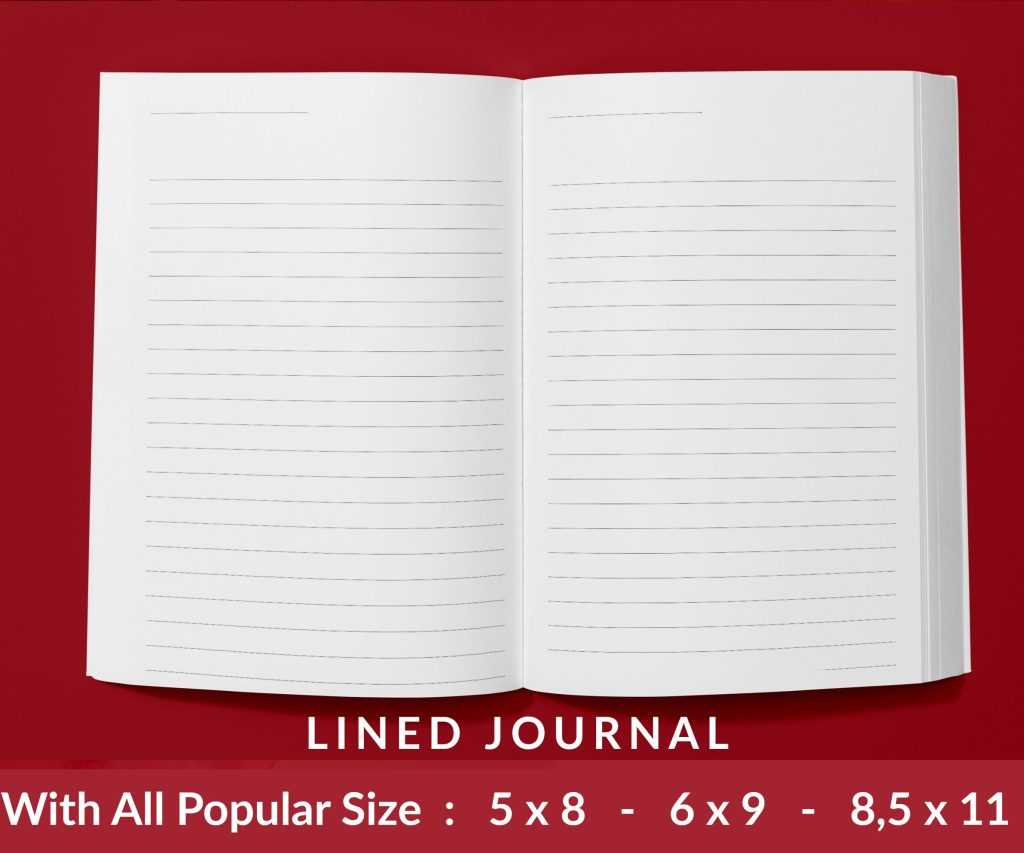 Lined Pages Journal 120 pages Ready to Upload PDF Commercial Use KDP Template 6x9 8.5x11 5x8 for Notebooks, Diaries, Low Content
1 × $0.00
Lined Pages Journal 120 pages Ready to Upload PDF Commercial Use KDP Template 6x9 8.5x11 5x8 for Notebooks, Diaries, Low Content
1 × $0.00
Subtotal: $0.00
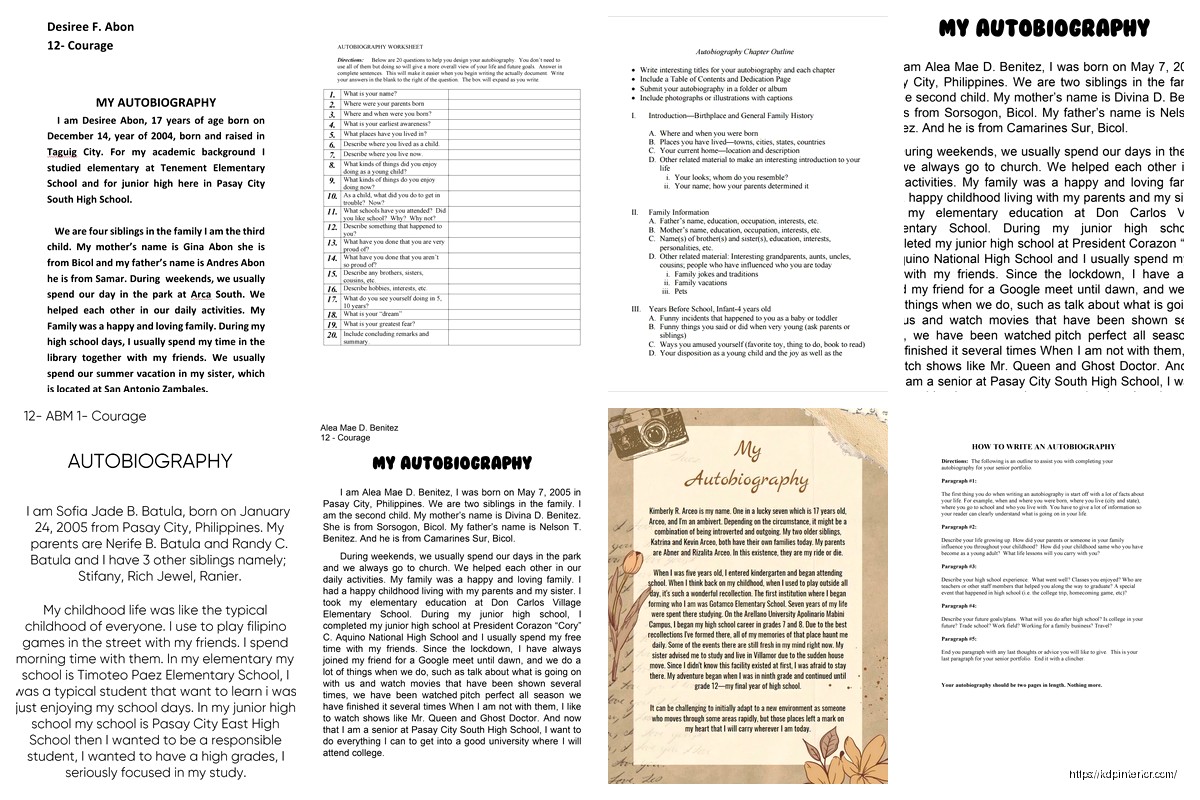
Okay so I was literally setting up an autobiography template in Word last Tuesday while my cat kept walking across the keyboard and here’s what actually works after formatting like 30+ memoir manuscripts for clients.
First thing – you’re gonna want to start with a blank document, not one of those pre-loaded Word templates. I know that sounds backwards but trust me, those memoir templates Microsoft includes are formatted for like… corporate reports or something. They’re useless.
Open Word, hit Ctrl+N for new document. Now immediately go to Layout tab and set your margins. This is where everyone screws up because they use default 1-inch margins and then wonder why their book looks weird when they upload to KDP or IngramSpark.
For a memoir you want:
The inside margin is bigger because of the gutter – that’s the part that gets eaten by the binding. I learned this the hard way on my third book when I didn’t account for it and the text disappeared into the spine. Not fun.
Everyone always asks me about fonts and look… just use Garamond or Palatino Linotype. Size 11 for Garamond, 10.5 for Palatino. I’ve tested probably 40 different font combinations and these two just work for memoir content. They’re readable, they’re traditional, they don’t call attention to themselves.
Line spacing needs to be exactly 1.15 or 1.2. Not single space, not double space – somewhere in between. You set this by going to Home tab, that little arrow in the Paragraph section, then Line Spacing Options. Type in the exact number.
Oh and another thing – turn on widow/orphan control. This prevents single lines of paragraphs from getting stranded at the top or bottom of pages. It’s under Paragraph settings, Line and Page Breaks tab. Check that box.
So for autobiography specifically you need several sections before Chapter 1 even starts. I usually set these up with section breaks, not just page breaks. Huge difference.
Your front matter order should be:
For section breaks, go to Layout > Breaks > Next Page. This lets you have different headers/footers and page numbering for different sections. The front matter usually gets lowercase Roman numerals (i, ii, iii) while the main text gets regular numbers.
Wait I forgot to mention – for chapter titles, use Heading 1 style but modify it. Don’t just slap Times New Roman 18pt bold and call it a day. Right-click Heading 1, select Modify, and set it to whatever font you’re using for body text but maybe 16-18pt, centered, with extra space before (like 72pt) and after (24pt).
This is gonna sound weird but page numbering in Word is where I see most people completely give up on DIY formatting. It’s not intuitive at all.
Here’s the process: Insert your section breaks between front matter and Chapter 1. Double-click in the footer area of your first chapter page. You’ll see “Header & Footer Tools” appear in the ribbon. Click “Link to Previous” to TURN IT OFF. This breaks the connection to the front matter.
Now you can insert page numbers that start at 1 for Chapter 1 even though it’s physically like page 8 of your document. Go to Insert > Page Number > Format Page Numbers, select “Start at: 1” and choose regular Arabic numerals.
For your front matter, go back to those pages, double-click the footer, make sure Link to Previous is off for that section too, then insert page numbers formatted as lowercase Roman numerals starting at i.
I literally had to watch three YouTube videos to figure this out the first time because Microsoft’s help docs are completely useless for this specific thing.
Most memoirs don’t use headers on chapter opening pages. They look cluttered. So you want headers that show up on regular pages but not chapter starts.
When you’re in Header view, check the box for “Different First Page” under Header & Footer Tools. This makes that first page of each chapter (or section) have no header. Then on the subsequent pages, add your header – usually author name on the left page (verso) and book title or chapter title on right page (recto).
To get different left/right headers, check “Different Odd & Even Pages” in that same area. Then you can edit odd and even page headers separately.
Okay so funny story – I was watching The Bear while formatting a client’s memoir last month and realized the chaos of that kitchen is basically how my brain works when I’m setting up paragraph styles. Anyway.
First paragraph of each chapter should NOT be indented. It looks cleaner. Every paragraph after that gets a 0.3 inch first-line indent. You set this in the Paragraph dialog box – set Special to “First line” and By to “0.3”.
Don’t use tab key for indents. Don’t use space bar. Use actual first-line indent formatting or I will personally come to your house and judge you. (Not really but it matters for ebook conversion later.)
Paragraph spacing: 0pt before, 0pt after. The line spacing handles your vertical rhythm. Adding paragraph spacing makes memoir text look too corporate-report-ish.
Create custom styles for these elements:
Body Text – Your main paragraph style with all those specs I just mentioned. Save it as a style so you can apply it consistently.
Chapter Title – Modified Heading 1 like I said earlier
Scene Break – For when you’re jumping time or location within a chapter. Usually just centered asterisks (* * *) or a blank line with a special character. Set this as its own style with extra space before/after.
Quotes or Letters – If you’re including letters, emails, or extended quotes in your memoir, format them differently. I usually do 0.5 inch left indent, maybe italics, slightly smaller font (10pt instead of 11pt).
Epigraphs – Those little quotes at chapter beginnings. Right-aligned or centered, italics, smaller font, extra space after.
To create a style, format a paragraph exactly how you want it, then go to Home > Styles > Create a Style. Name it something obvious. Now you can apply that formatting with one click throughout your entire document.
Do NOT manually type your table of contents. Just don’t. Use Word’s automatic TOC feature because if you change chapter titles or pages shift, it updates automatically.
This only works if you’ve been using Heading styles for your chapter titles though. Once you have, go to where you want the TOC, click References tab > Table of Contents > pick a style.
Mine usually looks pretty basic out of the box, so I modify it. Right-click the TOC, select Edit Field, then TOC Options. I usually show only Level 1 (chapter titles) for memoirs. Novels sometimes include Level 2 (section titles within chapters) but that’s rare.
The TOC will have those ugly dotted lines and page numbers. You can modify the TOC style to change fonts, spacing, whatever. It’s in the Styles pane under TOC 1, TOC 2, etc.
Most autobiographies include some photos, right? Word handles images… okay. Not great, but okay.
Insert images via Insert > Pictures. Then immediately right-click the image, select “Wrap Text” and choose “Top and Bottom” or “Square”. Never leave it as “In Line with Text” because that makes positioning a nightmare.
Center your images. Add a caption below using Insert > Caption. Format captions as a separate style – usually centered, italics, maybe 9pt font.
Keep images at 300 DPI minimum if you’re printing. Word doesn’t always maintain image quality when you save, so I usually compress carefully. Go to File > Options > Advanced, scroll to Image Size and Quality, make sure “Do not compress images in file” is checked.
Actually wait – if your file gets too huge, you’ll need to compress. But do it strategically. Click an image, Picture Format tab appears, Compress Pictures button. Choose “Print (220 ppi)” as a compromise between quality and file size.
Some memoirs put all photos in a middle section on glossy paper. Others integrate them throughout. If you’re doing a photo section, create it as its own section with different page settings – maybe no page numbers, different margins, whatever.
Use section breaks before and after this insert section. Then you can format it however without messing up your text flow.
I kinda mentioned this earlier but let me be more specific because I got sidetracked.
Standard memoir format puts page numbers in the footer, centered or on the outside edge (left on left pages, right on right pages). To get outside page numbers, use different odd/even pages like I said, then insert page number on the left for even pages, right for odd pages.
Headers typically show book metadata – author name on verso (left), book title or chapter title on recto (right). Use the same Different Odd & Even Pages setup.
Font size for headers/footers is usually 2pts smaller than body text. So if body is 11pt, headers are 9pt.
Once you’ve got everything set up – margins, fonts, styles, headers, the works – save this as a template file. Go to File > Save As, choose location, but in the “Save as type” dropdown select “Word Template (*.dotx)”.
Name it something like “Memoir_Template_6x9” if it’s formatted for 6×9 trim size. Store it somewhere you’ll remember.
Next time you start a memoir project, just open this template and you’ve got all your formatting ready to go. Just gotta add content.
Oh and make templates for different trim sizes. 6×9 is standard for memoir but some people want 5.5×8.5 or 5×8. The margins and overall feel change with trim size.
When you’re done writing and ready to upload to KDP or wherever, export as PDF. File > Save As > PDF. But click Options first and make sure “ISO 19005-1 compliant (PDF/A)” is NOT checked – that setting can cause issues with print files.
Also in Options, choose “Optimize for: Standard” not “Minimum size”. You want quality here.
Before you export, do a final proofread in Print Preview mode (File > Print, but don’t actually print). This shows you exactly how pages will look including where chapter breaks fall, whether you have weird widows/orphans despite your settings, etc.
Look I’m not gonna lie, Word isn’t the absolute best tool for book formatting. InDesign is better. Vellum is easier. But Word is what most people already have and know, and honestly for memoir it works fine if you set it up right. I’ve formatted probably 50+ memoirs in Word and they look professional enough that readers can’t tell the difference between my Word-formatted books and InDesign ones.
Just gotta know these specific settings and actually use styles instead of manual formatting everything. That’s the key really – styles, section breaks, and understanding how headers/footers work across sections. Master those three things and you’re like 80% of the way there.
DISCOVER OUR FREE BEST SELLING PRODUCTS
Editable Canva Lined Journal: Express Your Thoughts – KDP Template
Lined Pages Journal 120 pages Ready to Upload PDF Commercial Use KDP Template 6×9 8.5×11 5×8 for Notebooks, Diaries, Low Content
Lined Pages Journal 120 pages Ready to Upload PDF Commercial Use KDP Template 6×9 8.5×11 5×8 for Notebooks, Diaries, Low Content
Cute Dogs Coloring Book for Kids | Activity Book | KDP Ready-To-Upload
Daily Planner Diary : Diary Planners for Everyday Productivity, 120 pages, 6×9 Size | Amazon KDP Interior
Wolf Coloring KDP interior For Adults, Used as Low Content Book, PDF Template Ready To Upload COMMERCIAL Use 8.5×11"
Coloring Animals Head Book for Kids, Perfect for ages 2-4, 4-8 | 8.5×11 PDF
Printable Blank Comic Book Pages PDF : Create Your Own Comics – 3 Available Sizes
Notes KDP interior Ready To Upload, Sizes 8.5×11 6×9 5×8 inch PDF FILE Used as Amazon KDP Paperback Low Content Book, journal, Notebook, Planner, COMMERCIAL Use
Black Lined Journal: 120 Pages of Black Lined Paper Perfect for Journaling, KDP Notebook Template – 6×9
Student Planner Journal 120 pages Ready to Upload PDF Commercial Use KDP Template 6×9" 8.5×11" for Low Content book
Recipe Journal Template – Editable Recipe Book Template, 120 Pages – Amazon KDP Interior