Okay so I just spent last Tuesday reformatting like eight client ebooks and honestly the format question still trips people up after all these years. Here’s what actually matters in 2024.
EPUB is Your Main Format Period
Look EPUB3 is the industry standard and if you’re only gonna master one format make it this one. Amazon converts it to their proprietary format anyway so you’re basically creating one file that works everywhere. Barnes & Noble uses it, Kobo uses it, Apple Books uses it, Google Play uses it.
The thing is EPUB is basically just HTML and CSS zipped up with some XML files. That sounds scary but it’s actually way more forgiving than people think. I was watching The Last of Us while formatting an ebook last week and accidentally left a div tag unclosed… the file still validated fine because EPUB readers are pretty lenient.
Why EPUB3 Specifically
EPUB2 is dead or dying depending on who you ask. EPUB3 gives you:
- Better font embedding
- Fixed layout options if you need them
- Actual video and audio support (rarely used but nice to have)
- Way better accessibility features
- MathML support for technical books
Most of my clients don’t need the fancy stuff but the improved CSS support alone makes EPUB3 worth it. You can actually control typography in ways that EPUB2 just couldn’t handle.
Reflowable vs Fixed Layout
This is where people get confused right out the gate. Reflowable means the text adjusts to whatever screen size the reader has. Fixed layout means every page looks exactly like you designed it.
For 95% of ebooks you want reflowable. Novels, nonfiction, memoirs, business books… all reflowable. The reader can change font size, line spacing, margins. That’s the whole point of ebooks.
Fixed layout is ONLY for:
- Children’s picture books where text placement matters
- Cookbooks with specific image-text relationships
- Coffee table books
- Comics and manga
- Some technical manuals where diagrams need exact placement
I made the mistake of doing fixed layout for a client’s photography book in 2019 and the file size was massive. Like 85MB for a 60-page book. Amazon‘s delivery fees ate into their royalties so much they had to reprice the whole thing.
The Amazon KDP Situation
Okay so funny story… Amazon accepts EPUB now but they convert it to KPF (Kindle Package Format) on their end. For years they wanted you to upload MOBI files but that’s basically deprecated. Don’t use MOBI anymore unless you’re targeting ancient Kindles from like 2012.
What I actually do: I create one EPUB3 file and upload it everywhere including Amazon. Amazon’s conversion is pretty good these days. BUT if you want maximum control over the Kindle experience you can use Kindle Create or export directly from Vellum.
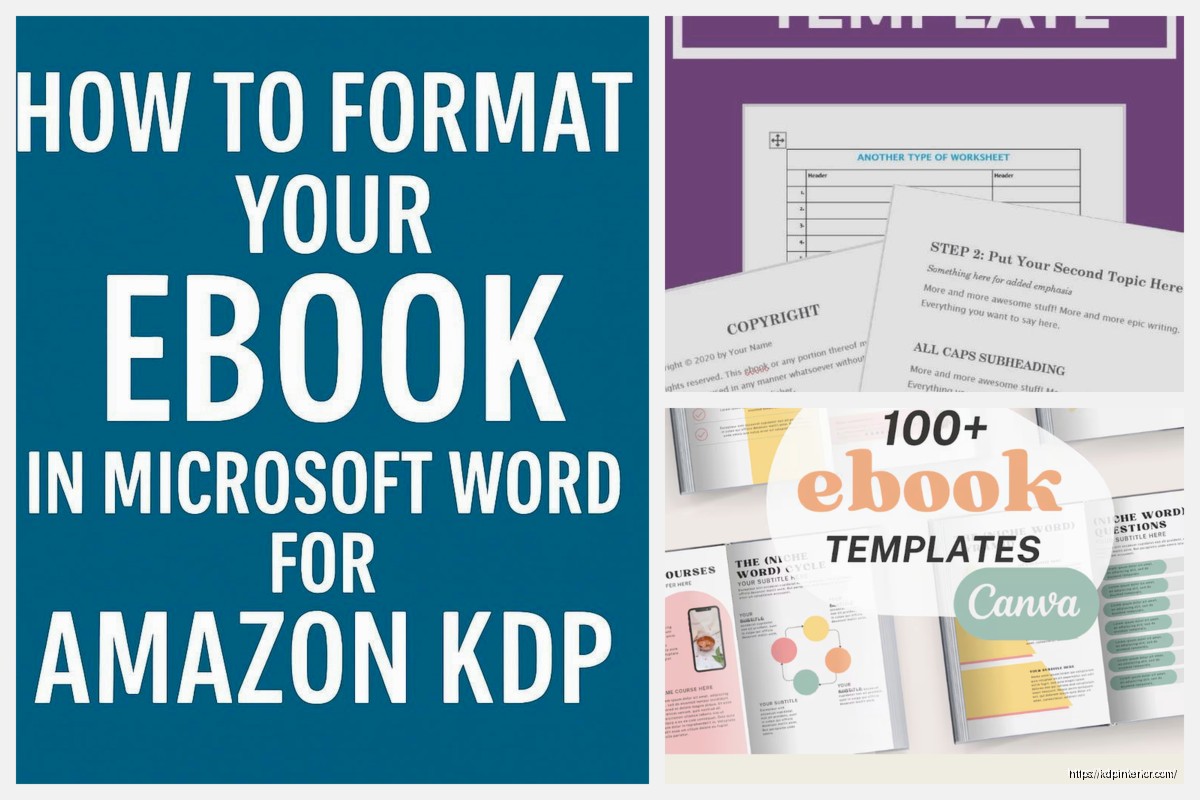
Amazon’s KDP system accepts:
- EPUB (converts to KPF automatically)
- DOC/DOCX (converts but with less control)
- HTML (zipped)
- MOBI (deprecated, don’t use)
- PDF (only for fixed layout, avoid for reflowable)
The DOCX route is tempting because it’s easy but you lose so much formatting control. I only recommend it for super simple text-only novels with zero special formatting.
Creating the Actual EPUB File
You’ve got options here depending on your budget and technical comfort level.
Software Options That Actually Work
Vellum is what I use for probably 60% of my projects now. It’s Mac-only which sucks if you’re on Windows but the output is clean and professional. Costs $250 for ebooks or $350 for ebooks plus print. Sounds steep but it pays for itself after like ten books if you’re doing this professionally.
The interface is dead simple. You import your Word doc, choose a style template, tweak some settings, export. Takes maybe 20 minutes for a straightforward book.
Atticus is the newer alternative that works on Windows and Mac. I tested it for three months last year and it’s solid. $147 one-time payment. Does both ebook and print formatting. The learning curve is slightly steeper than Vellum but still pretty intuitive.
Calibre is free and powerful but the interface looks like it’s from 2003. My cat walked across my keyboard while I was using Calibre once and somehow changed all the metadata… took me 30 minutes to figure out how to undo it. But for free software it’s impressive. You can edit EPUB files directly, convert between formats, manage your entire library.
Scrivener can compile directly to EPUB and if you’re already using it for writing that’s convenient. The output is acceptable but not as polished as Vellum. You’ll probably need to do some manual cleanup.
InDesign can export to EPUB but honestly it’s overkill unless you’re doing complex layouts. The learning curve is brutal and the subscription cost isn’t worth it just for ebooks.
The DIY Hand-Coding Route
Wait I forgot to mention… if you’re technical you can hand-code EPUBs using just a text editor. I still do this sometimes for simple projects because I have complete control.
An EPUB file is literally just a ZIP file with a different extension containing:
- HTML files for your content
- CSS files for styling
- An OPF file (metadata and manifest)
- An NCX file (table of contents for older readers)
- A mimetype file
- Images folder if you have illustrations
You can unzip any EPUB and poke around to see how it’s structured. That’s actually how I learned. Downloaded a professionally formatted ebook from Tor and just examined the code.
Typography and Style Standards
This is gonna sound weird but typography in ebooks is both super important and completely out of your control. Readers can override almost everything you specify. But you still wanna set good defaults.
Font embedding: You CAN embed custom fonts but keep the file size in mind. Amazon charges delivery fees based on file size so a book with multiple embedded fonts might cost you 15-20 cents per sale in delivery fees. For novels I usually just specify a generic serif or sans-serif and let the reader’s device handle it.
Line spacing and margins: Don’t set these in absolute units. Use relative units like em or percentages. Let the reader’s preferences win.
Paragraph styling: The big debate is first-line indent vs block paragraphs with space between. Industry standard for fiction is first-line indent with no space. Nonfiction can go either way. Whatever you choose, be consistent.
Drop caps are possible in EPUB3 but they’re finicky across different reading devices. I usually skip them unless the client really insists.
Images and Graphics
Keep images under 500KB each if possible. Amazon recommends 127KB for optimal file size but that’s pretty aggressive compression. I usually aim for 200-300KB for full-page images.
Use JPG for photographs and PNG for graphics with transparency or text. RGB color space, 72 DPI is fine despite what print people will tell you. These are screens not paper.
Maximum dimensions: I use 1600 pixels on the longest side. That’s enough for high-res tablets without bloating file size unnecessarily.
Alt text for every image. This is for accessibility and it’s honestly just good practice. Screen readers need this to describe images to visually impaired readers.
Front Matter and Back Matter
The order matters more than you’d think for Amazon’s Look Inside feature and reader experience.
Standard front matter order:
- Title page
- Copyright page
- Dedication (optional)
- Table of contents
- Foreword/Preface (if applicable)
- Start of actual content
Your table of contents needs to be both a visual HTML page AND the navigation document (the NCX/nav file). Good ebook software handles this automatically. If you’re hand-coding you gotta create both.
Back matter is where you put author bio, other books, newsletter signup, acknowledgments. I always put a “Dear Reader” page at the end asking for reviews because that actually works. One client saw their review rate jump from 1% to 3.5% just by adding a polite request at the end.
Validation and Testing
Oh and another thing… you absolutely must validate your EPUB before uploading it anywhere. Use the EPUB Checker tool at github.com/w3c/epubcheck. It’s free and catches most errors.
Common validation errors I see constantly:
- Missing alt text on images
- Broken internal links
- Invalid HTML tags left over from Word conversions
- Incorrect metadata in the OPF file
- Missing files referenced in the manifest
Testing across devices is tedious but necessary. At minimum check your ebook on:
- Kindle app (phone and tablet)
- Apple Books (iPad if possible)
- Adobe Digital Editions (desktop)
- One Android e-reader app
I keep an old Kindle Paperwhite specifically for testing because e-ink displays show different issues than LCD screens.
Metadata That Actually Matters
The metadata embedded in your EPUB file affects discoverability and display across retailers. Don’t skip this part.
Essential metadata fields:
- Title and subtitle (exact as they appear on cover)
- Author name (consistent across all your books)
- Language code (en for English, en-US for American English specifically)
- ISBN if you have one (optional for ebooks but helpful for library distribution)
- Publication date
- Publisher name
- Description/synopsis
- Category/subject codes (BISAC codes for US market)
The cover image goes in the metadata too. It needs to be exactly 2560×1600 pixels for optimal display on Amazon and other retailers. That’s a 1.6:1 ratio. Smaller dimensions work but might look fuzzy on high-res displays.
Special Formatting Considerations
Poetry and verse: Use specific CSS to preserve line breaks and indentation. Don’t just hit enter a bunch of times because that breaks on different screen sizes.
Footnotes vs endnotes: EPUB3 supports popup footnotes which are way better for reader experience than forcing them to jump to the end of the book. If your software supports it use popup footnotes.
Tables are tricky in reflowable ebooks. They work fine on tablets but can be unreadable on phones. For complex tables consider making them images or restructuring the information as lists.
Sidebars and callout boxes: These need special CSS to display correctly. They should flow with the text on small screens but can be positioned on larger screens.
Distribution Format Requirements
Different retailers have slightly different requirements even though they all use EPUB.
Amazon KDP converts everything so your EPUB just needs to be valid. Maximum file size is 650MB but if you’re anywhere near that something’s wrong. My biggest file ever was a photography book at 45MB and that was pushing it.
Apple Books is picky about validation. They’ll reject files that other retailers accept. Use their Preview app on Mac to check before submitting.
Kobo and Barnes & Noble are pretty forgiving with standard EPUBs.
Google Play Books wants EPUB3 specifically and they’re strict about accessibility features.
Draft2Digital and other aggregators will tell you exactly what’s wrong with your file before you publish which is honestly really helpful.
The PDF Question
People ask me about PDFs constantly. Here’s the truth: PDFs are not ebook format. They’re digital print files. Every page is fixed. Text doesn’t reflow. Font size can’t be changed easily. Searching is limited.
Only use PDF when:
- You’re distributing directly and want to prevent easy editing
- The layout absolutely must be preserved exactly
- You’re selling printable workbooks or planners
For actual reading on ereaders and tablets PDF is a terrible experience. I’ve had clients insist on PDF-only and then wonder why their sales are lower than comparable EPUB books. Format matters.
Future-Proofing Your Files
Keep your source files organized. I maintain a folder structure for every book with the original Word doc, the final EPUB, the cover files, and any custom fonts or images. When you need to update something five years from now you’ll thank yourself.
EPUB3 will probably be the standard for another decade at least. EPUB4 is in development but adoption will be slow. Anything you create in EPUB3 now will work fine for years.
The only thing changing is Amazon’s backend formats but since they handle conversion you don’t need to worry about it. Just keep uploading valid EPUB3 files and let them do their thing.

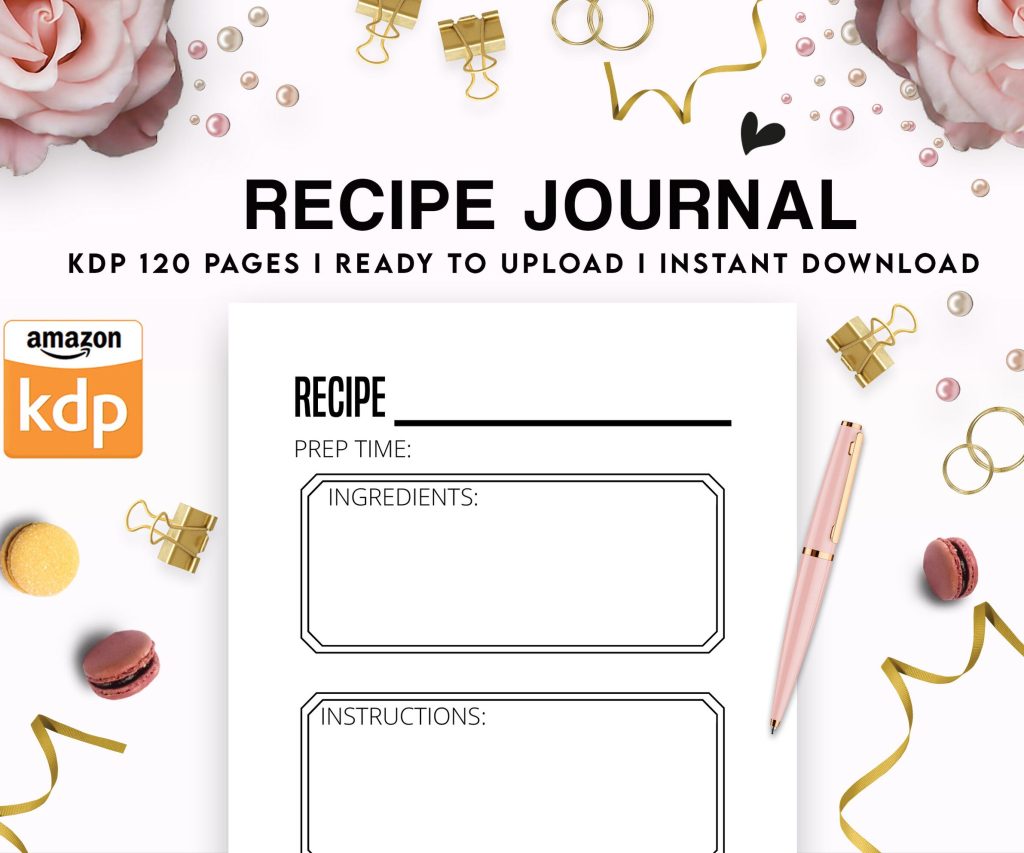 Recipe Journal Template - Editable Recipe Book Template, 120 Pages - Amazon KDP Interior
1 × $0.00
Recipe Journal Template - Editable Recipe Book Template, 120 Pages - Amazon KDP Interior
1 × $0.00 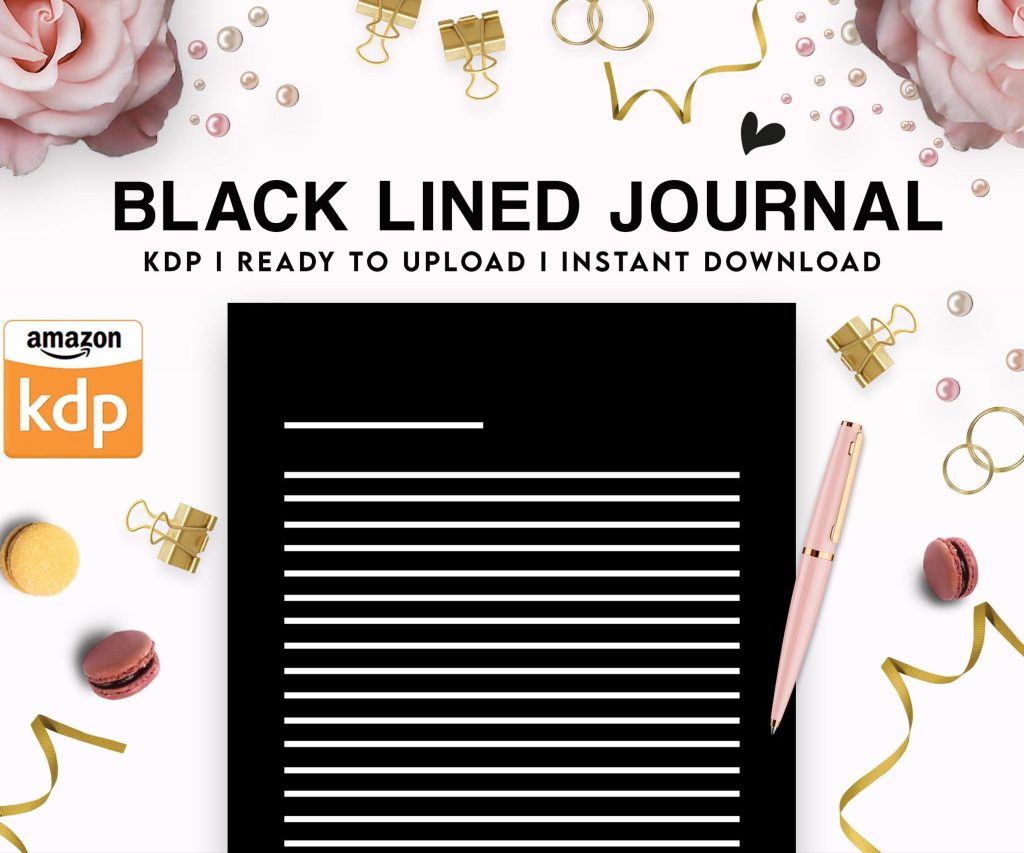 Black Lined Journal: 120 Pages of Black Lined Paper Perfect for Journaling, KDP Notebook Template - 6×9
1 × $0.00
Black Lined Journal: 120 Pages of Black Lined Paper Perfect for Journaling, KDP Notebook Template - 6×9
1 × $0.00 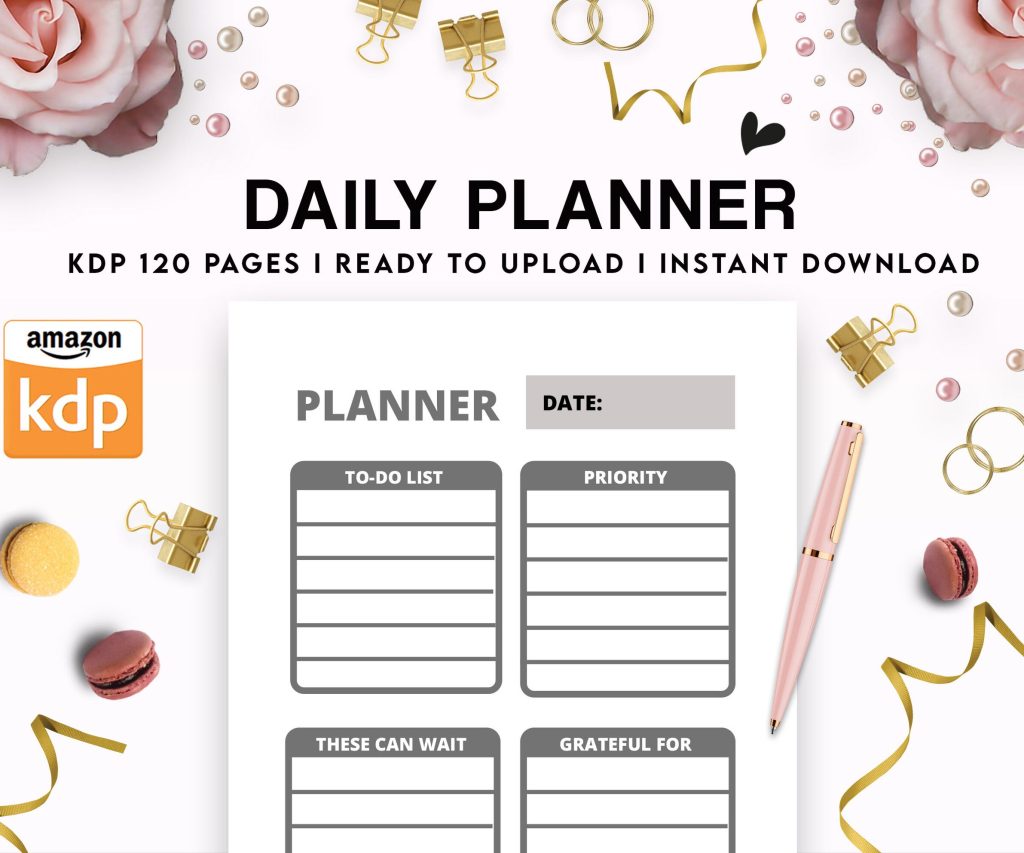 Daily Planner Diary : Diary Planners for Everyday Productivity, 120 pages, 6×9 Size | Amazon KDP Interior
1 × $0.00
Daily Planner Diary : Diary Planners for Everyday Productivity, 120 pages, 6×9 Size | Amazon KDP Interior
1 × $0.00 
DISCOVER OUR FREE BEST SELLING PRODUCTS
Editable Canva Lined Journal: Express Your Thoughts – KDP Template
Lined Pages Journal 120 pages Ready to Upload PDF Commercial Use KDP Template 6×9 8.5×11 5×8 for Notebooks, Diaries, Low Content
Lined Pages Journal 120 pages Ready to Upload PDF Commercial Use KDP Template 6×9 8.5×11 5×8 for Notebooks, Diaries, Low Content
Cute Dogs Coloring Book for Kids | Activity Book | KDP Ready-To-Upload
Daily Planner Diary : Diary Planners for Everyday Productivity, 120 pages, 6×9 Size | Amazon KDP Interior
Wolf Coloring KDP interior For Adults, Used as Low Content Book, PDF Template Ready To Upload COMMERCIAL Use 8.5×11"
Coloring Animals Head Book for Kids, Perfect for ages 2-4, 4-8 | 8.5×11 PDF
Printable Blank Comic Book Pages PDF : Create Your Own Comics – 3 Available Sizes
Notes KDP interior Ready To Upload, Sizes 8.5×11 6×9 5×8 inch PDF FILE Used as Amazon KDP Paperback Low Content Book, journal, Notebook, Planner, COMMERCIAL Use
Black Lined Journal: 120 Pages of Black Lined Paper Perfect for Journaling, KDP Notebook Template – 6×9
Student Planner Journal 120 pages Ready to Upload PDF Commercial Use KDP Template 6×9" 8.5×11" for Low Content book
Recipe Journal Template – Editable Recipe Book Template, 120 Pages – Amazon KDP Interior