
 Cute Dogs Coloring Book for Kids | Activity Book | KDP Ready-To-Upload
 Subtotal: $0.00
Amazon KDP guide, KDP book publishing
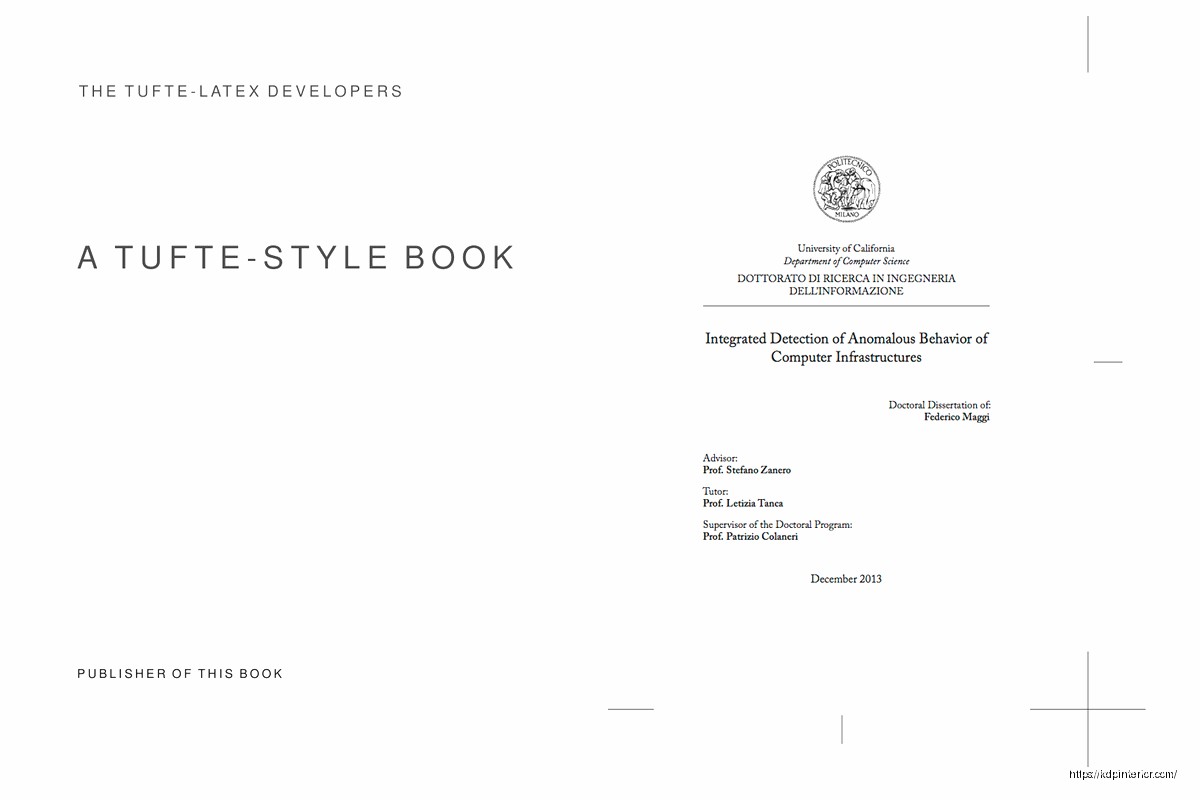
Book LaTeX Template: Academic Publishing Format
22
Apr
Apr
Okay so LaTeX for academic books is honestly way less scary than people make it out to be, and I’ve been messing with this stuff for like three years now because half my KDP clients eventually want to publish “serious” academic stuff and regular Word templates just don’t cut it.
First thing you gotta know is that LaTeX isn’t one template, it’s more like… a whole system? The most common book class you’ll use is literally called book which sounds too simple but that’s what it is. Start with this basic structure and I swear it’ll make sense:
Getting Your Environment Set Up
You need either Overleaf (online, super easy) or install TeX Live on your computer. I use both depending on if I’m at my desk or my coffee shop pretending to be productive. Overleaf is honestly the move if you’re starting out because you don’t have to install anything and it just works.
The basic document starts with \documentclass{book} at the very top. Then you’ve got your preamble where all the packages live, then \begin{document} and \end{document} wrapping everything. It’s like HTML but somehow more annoying and more powerful at the same time.
Essential Packages You Actually Need
So here’s where I wasted like two weeks when I first started, trying every package under the sun. You really only need these core ones for academic publishing:
- geometry – controls your margins and page size
- fontenc and inputenc – makes text encoding not weird
- babel – language stuff, usually just english
- graphicx – if you have any images or figures
- amsmath, amssymb, amsthm – math stuff even if you think you don’t need it
- biblatex or natbib – citations and bibliography
- hyperref – clickable links in PDF, always load this LAST
Your preamble looks something like this with geometry package setting up standard academic book margins. I usually go with 1 inch margins all around because most academic presses want that, but you can tweak it. The geometry package lets you set like inner=1.25in, outer=1in if you want different margins for binding.
The Front Matter Stuff
Academic books have all this front matter that needs roman numerals for page numbers. You use \frontmatter command right after \begin{document}. This includes your title page, copyright page, dedication, table of contents, preface, all that.
Oh and another thing, the title page in LaTeX is kinda ugly by default so most people customize it. You can use \maketitle for basic stuff or just design your own title page with \begin{titlepage} environment. I usually do custom because publishers are picky about title page layouts.
For table of contents just drop \tableofcontents where you want it and LaTeX automatically generates it from your chapter and section headings. Same with \listoffigures and \listoftables if your book needs those.
Main Matter and Chapter Structure
After front matter you use \mainmatter which switches page numbering to regular arabic numerals and resets to 1. This is where your actual content starts.
Chapters are super straightforward: \chapter{Your Chapter Title}. Sections within chapters are \section{Section Name}, then \subsection{} and \subsubsection{} if you need to go deeper. LaTeX handles all the numbering automatically which is honestly magical compared to fighting with Word’s heading styles.
Wait I forgot to mention, if you want unnumbered chapters like for introduction or conclusion, use the asterisk version: \chapter*{Introduction}. But then you gotta manually add it to table of contents with \addcontentsline{toc}{chapter}{Introduction}.
Typography Details That Matter
Academic publishers are weirdly picky about typography. LaTeX defaults are actually pretty good but here’s stuff I always adjust:
Line spacing with \usepackage{setspace} then \onehalfspacing or \doublespacing in preamble. Most academic books use 1.5 spacing for readability.
Fonts are a whole thing. Default Computer Modern is fine but kinda dated looking. I usually switch to Times-like font with \usepackage{mathptmx} or if you’re using XeLaTeX you can use system fonts with fontspec package. Just make sure your chosen font has all the special characters you need.
Paragraph indentation is automatic in LaTeX which is correct for books. First paragraph after headings isn’t indented by default which is proper style. If publishers want different behavior you can mess with \parindent and \parskip values.
Handling References and Citations
This is honestly where LaTeX shines for academic work. I use biblatex with biber backend because it’s more modern than natbib. Your bibliography goes in a separate .bib file with all your references in BibTeX format.
In your preamble you need \usepackage[style=authoryear,backend=biber]{biblatex} or whatever citation style your field uses. Then \addbibresource{yourbibfile.bib} to point to your bibliography file.
Citations in text are just \cite{key} or \parencite{key} for parenthetical citations. At the end of your book use \printbibliography to generate the full reference list. LaTeX handles all the formatting automatically based on your chosen style.
Google Scholar has a BibTeX export option for most papers which saves so much time. You just click the quote icon, select BibTeX, copy paste into your .bib file. My cat walked across my keyboard while I was doing this last week and corrupted like 20 entries which was fun to debug.
Figures Tables and Floats
Okay so figures and tables in LaTeX can be frustrating because they “float” to where LaTeX thinks they fit best. You use environments like this:
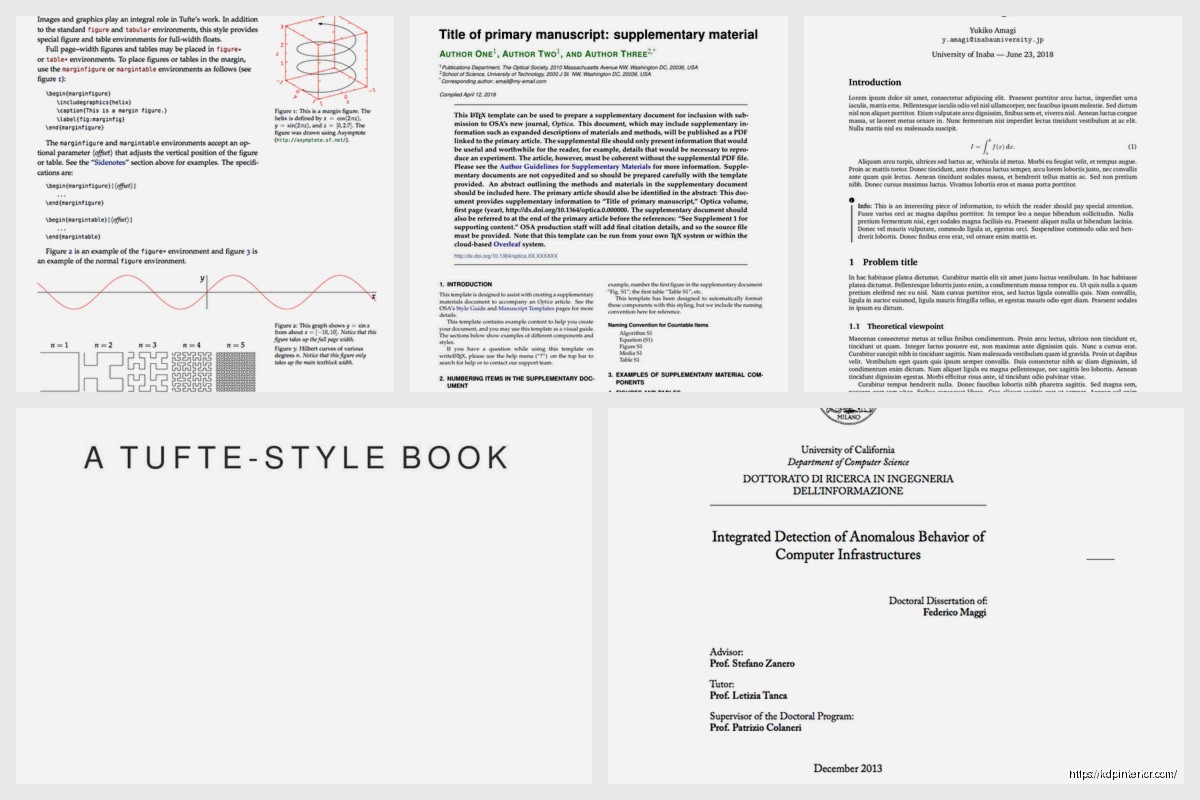
The figure environment wraps your image. Inside you use \includegraphics[width=0.8\textwidth]{filename} to insert the actual image. Then \caption{Your caption text} and \label{fig:yourlabel} for cross-referencing.
Tables use tabular environment inside a table float. The syntax is kinda annoying with all the ampersands and backslashes but you get used to it. Or just use online LaTeX table generators, I’m not gonna judge.
Cross-referencing is beautiful though. You label stuff with \label{} and reference it with \ref{} or \pageref{}. LaTeX updates all the numbers automatically when you add or remove content. This alone is worth learning LaTeX for academic books.
Advanced Layout Control
Sometimes you need more control over page layout. The fancyhdr package lets you customize headers and footers. Academic books usually want chapter names in headers and page numbers in footers or margins.
For two-sided printing which most academic books use, you want different headers on even and odd pages. Left pages show book title, right pages show chapter title, something like that. Fancyhdr makes this pretty straightforward once you read the documentation.
Footnotes and margin notes work great in LaTeX. Just use \footnote{your note text} inline and it handles numbering and placement. Margin notes with \marginpar{} if you need side commentary.
Back Matter Sections
After your last chapter use \backmatter command. This is for appendices, bibliography, index, stuff like that. Appendices use \appendix then regular \chapter{} commands but they get lettered instead of numbered.
Index generation is semi-automatic. You mark terms in your text with \index{term} throughout the book, use \usepackage{makeidx} and \makeindex in preamble, then \printindex where you want the index to appear. You gotta run makeindex command separately though which is kinda annoying.
Compiling and Troubleshooting
LaTeX compilation is different from Word’s WYSIWYG approach. You write code, compile it to PDF, check output, repeat. Usually you need to compile multiple times for references and citations to update properly. Overleaf does this automatically but local installations you gotta run pdflatex or xelatex multiple times.
Errors in LaTeX can be cryptic as hell. Missing braces, wrong package order, undefined references, all that. The error messages tell you line numbers but sometimes the actual problem is earlier in the document. I keep a backup copy and compile frequently so I know what broke it.
This is gonna sound weird but I actually watch compilation warnings even if it produces a PDF. Overfull hbox warnings mean text is sticking into margins. Underfull warnings mean spacing is stretched too much. You can usually ignore a few but lots of them means something’s wrong with your layout.
Templates and Classes
Most academic publishers provide their own LaTeX class files and templates. Springer, Elsevier, IEEE, they all have official templates. Download those and use them instead of basic book class because they’re already formatted to publisher specifications.
If you’re self-publishing academic work through KDP like some of my clients, you want to start with memoir or KOMA-Script classes instead of basic book. They’re more flexible and modern. Memoir class especially gives you tons of layout options while keeping proper book typography.
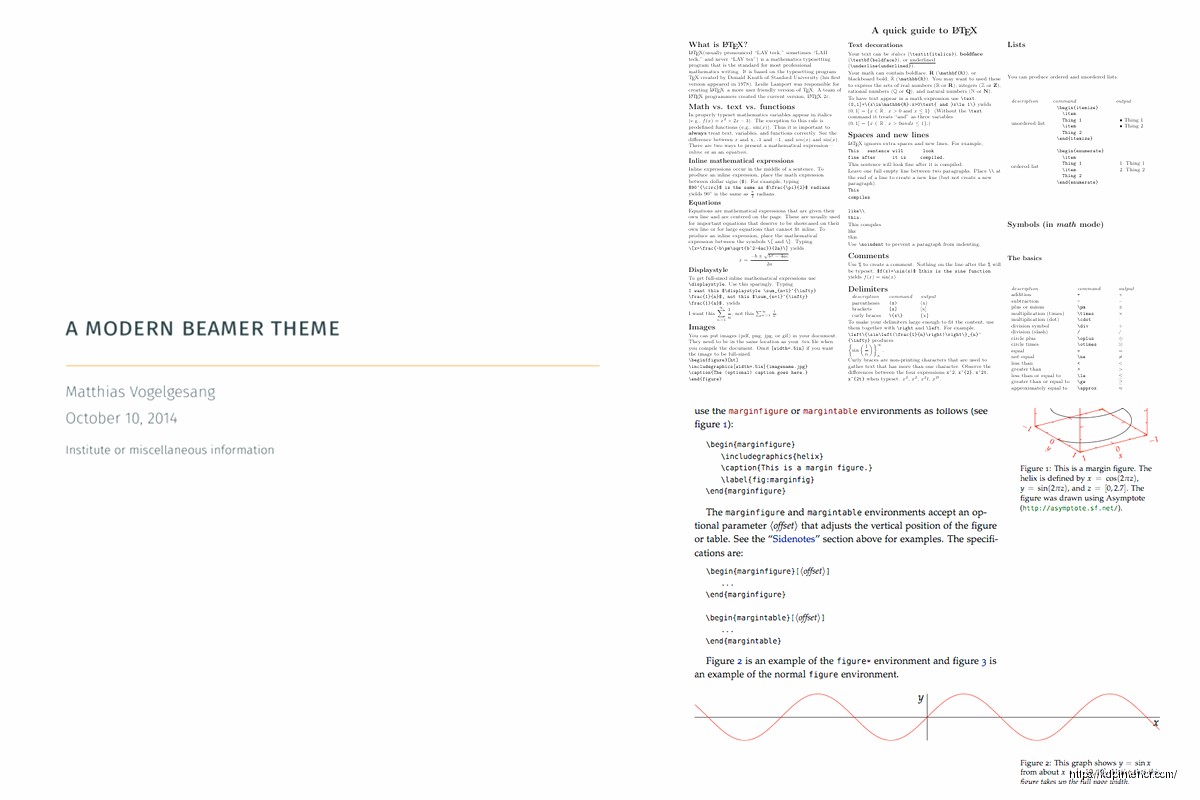
Template repositories like Overleaf’s gallery and LaTeXTemplates.com have dozens of book templates you can start from. Don’t reinvent the wheel, find something close to what you need and modify it.
Final PDF Preparation
For academic publishing you usually need PDF/A format which is archival quality. Use \usepackage[a-1b]{pdfx} to generate compliant PDFs. Some publishers want embedded fonts, some want outlined fonts, check their requirements.
Color profiles matter for print books. RGB for screen, CMYK for print. The pdfx package handles this but you might need to convert images beforehand. I use ImageMagick scripts to batch convert images to correct color space.
Hyperlinks in PDF are great for ebook versions but some print publishers want them removed. The hyperref package has options to make links invisible in print version while keeping them functional in digital version.
Honestly the biggest thing is just starting with a simple template and building up complexity as you need it. Don’t try to learn everything at once because you’ll get overwhelmed. LaTeX has been around since the 80s so there’s solutions for basically everything, you just gotta search for it.
DISCOVER OUR FREE BEST SELLING PRODUCTS
Editable Canva Lined Journal: Express Your Thoughts – KDP Template
Lined Pages Journal 120 pages Ready to Upload PDF Commercial Use KDP Template 6×9 8.5×11 5×8 for Notebooks, Diaries, Low Content
Lined Pages Journal 120 pages Ready to Upload PDF Commercial Use KDP Template 6×9 8.5×11 5×8 for Notebooks, Diaries, Low Content
Cute Dogs Coloring Book for Kids | Activity Book | KDP Ready-To-Upload
Daily Planner Diary : Diary Planners for Everyday Productivity, 120 pages, 6×9 Size | Amazon KDP Interior
Wolf Coloring KDP interior For Adults, Used as Low Content Book, PDF Template Ready To Upload COMMERCIAL Use 8.5×11"
Coloring Animals Head Book for Kids, Perfect for ages 2-4, 4-8 | 8.5×11 PDF
Printable Blank Comic Book Pages PDF : Create Your Own Comics – 3 Available Sizes
Notes KDP interior Ready To Upload, Sizes 8.5×11 6×9 5×8 inch PDF FILE Used as Amazon KDP Paperback Low Content Book, journal, Notebook, Planner, COMMERCIAL Use
Black Lined Journal: 120 Pages of Black Lined Paper Perfect for Journaling, KDP Notebook Template – 6×9
Student Planner Journal 120 pages Ready to Upload PDF Commercial Use KDP Template 6×9" 8.5×11" for Low Content book
Recipe Journal Template – Editable Recipe Book Template, 120 Pages – Amazon KDP Interior