Okay so here’s the thing about print-ready files – I spent like three hours last Tuesday night fixing a template that should’ve been ready to go and my cat kept walking across the keyboard which didn’t help, but I figured out what actually matters vs what’s just people overthinking it.
The Bleeds Thing Everyone Gets Wrong
First off, bleeds. You need 0.125 inches on all sides for KDP. That’s it. Not 0.25, not 3mm because you read some UK printing guide. Just 0.125 inches. What this means is if your book is 6×9, your actual document size needs to be 6.25 x 9.25 inches. The extra quarter inch total gets trimmed off after printing.
I see people mess this up constantly because they set up their document at 6×9 and then try to add bleeds later and everything shifts weird. Set it up right from the start. In Word, you gotta go to Layout > Size > More Paper Sizes and manually enter 6.25 x 9.25. In Canva, there’s literally a preset for KDP but double-check it because I’ve had it glitch out before.
The actual content – your text and images that matter – needs to stay 0.25 inches away from where the trim happens. So you’ve got the bleed zone (0.125) and then the safe zone (another 0.125 minimum, but I do 0.25 to be safe). This is why your margins matter so much.
Margin Setup That Actually Works
For a 6×9 book, I use these margins and haven’t had issues in like 200+ books:
- Top: 0.75 inches
- Bottom: 0.75 inches
- Outside: 0.75 inches
- Inside (gutter): 0.875 inches
The gutter is bigger because of the binding. Pages in the middle of thick books kinda disappear into the spine, so you need extra space there. For books under 100 pages, you can probably get away with 0.75 on the gutter too, but why risk it?
Oh and another thing – if you’re doing a workbook or journal with lines/prompts, keep everything at least 0.5 inches from all edges. I had someone email me once saying their gratitude journal had the prompts cut off and it was because they pushed right to the 0.25 safe zone. Amazon’s cutting isn’t always perfectly precise.
Color Mode and Resolution
This is gonna sound obvious but I still see people mess it up – RGB vs CMYK. Your screen shows RGB. Printers use CMYK. If you upload an RGB file for a color interior, the colors will shift during printing. Sometimes dramatically.
In Photoshop or Illustrator, convert to CMYK before you export. Image > Mode > CMYK Color. Your bright blues might look a little duller on screen after conversion, but that’s closer to what the printed version will actually look like.
For black and white interiors (which is most of my books honestly), just use grayscale. Don’t use RGB set to black and white because KDP’s system sometimes interprets that as color and charges you color pricing. Been there, lost $40 on one proof before I figured it out.
Resolution needs to be 300 DPI minimum. Not 72 DPI which is what web images are. Not 150 DPI because you’re trying to keep file sizes down. 300 DPI. If you’re using images or graphics, check this before you place them in your document. In Photoshop, Image > Image Size, and make sure resolution says 300 pixels/inch.
Fonts and Embedded Issues
Wait I forgot to mention – fonts can totally screw up your file if they’re not embedded properly. When you save your PDF, there’s usually an option to embed fonts. Always check that box.
In Word, when you’re doing Save As > PDF, click Options and make sure “ISO 19005-1 compliant (PDF/A)” is NOT checked. Sounds backwards, but that setting sometimes causes font issues with KDP. Just do a standard PDF.
For body text, stick with standard fonts. Times New Roman, Garamond, Georgia, Palatino. I know you wanna be creative but honestly readers don’t care and weird fonts cause problems. Save the creative stuff for the cover.
Font size for body text should be 10-12pt depending on the font. I use 11pt Garamond for most books. Looks professional, easy to read. Line spacing at 1.15 or 1.2. Not single-spaced (too cramped) and not double-spaced (wastes pages and looks weird).
The PDF Export Settings That Matter
Okay so funny story – I uploaded a file once and KDP rejected it because the PDF had security settings on it. Apparently if you set a password or restrict editing when you create the PDF, their system can’t process it. So make sure security is set to “None” when you export.
Your PDF should be:
- High quality/press quality
- Fonts embedded
- No security restrictions
- Flattened (no layers)
- Single pages, not spreads
That last one trips people up. Don’t export as a two-page spread. KDP wants individual pages, and they’ll assemble them. If you upload spreads, your book will be a mess.
In InDesign, you’d go to Export > Adobe PDF (Print) and choose PDF/X-1a:2001 preset. That handles most of the settings automatically. Then uncheck “Spreads” if it’s checked.
From Canva, just download as PDF Print and it usually handles it fine. But always check your bleed settings before downloading because Canva sometimes resets them.
Checking Your File Before Upload
I cannot stress this enough – open your PDF in Acrobat or a good PDF reader and flip through every single page before you upload. I know it’s boring, especially if you’ve got a 300-page book, but you gotta do it.
Things to look for:
- Weird page breaks or blank pages where they shouldn’t be
- Images that didn’t load or look pixelated
- Text that’s cut off at margins
- Headers or page numbers that are missing or wrong
- First page – should it be on the right? (Yes, chapters start on right-hand pages)
There’s this thing that happens sometimes where Word or other programs add a blank page at the end. KDP will reject files that end on an even-numbered page. Your last page needs to be odd-numbered. If you’ve got an accidental blank at the end, delete it before export.
Interior Type Matters for File Setup
Black and white interior is straightforward – grayscale, 300 DPI, PDF. Done.
Color interior needs CMYK and the file size can get huge. If your file is over 650 MB, KDP won’t accept it. You’ll need to compress it. In Acrobat, Tools > Optimize PDF > reduce file size. Try to keep images at 300 DPI but if you absolutely have to go to 250 DPI to get under the size limit, it’ll probably be fine.
Premium color is different from standard color – premium uses better paper and printing but costs more. Same file specs though.
Page Count Requirements
Your book needs to be at least 24 pages for KDP. Maximum is 828 pages for black and white, but honestly if you’re doing a 800-page book the spine gets thick and weird. I try to keep things under 400 pages.
Page count has to be divisible by 2, obviously, since pages are printed on both sides. But really you want it divisible by 4 because of how the printing sheets work. If you end up with like 73 pages, add a blank or a “notes” page to get to 74.
Oh and another thing – page numbers. Don’t put them too close to the edge. Keep them at least 0.5 inches from the bottom. I usually put mine centered at 0.6 inches from bottom edge. And no page numbers on blank pages or the title page.
Common File Errors KDP Flags
The automated review catches most issues but here’s what I’ve had flagged before:
Margins too small – they’ll tell you content is in the trim zone. Go back and increase your margins.
Low resolution images – usually means something is under 200 DPI. Find it, replace it, or remove it.
Wrong dimensions – you set up 6×9 but accidentally exported at 6.25×9.25 with crop marks or something. Redo the export.
Page count mismatch – your PDF has a different number of pages than what you entered in the setup. Count again, fix it.
File too large – compress that bad boy.
Templates vs Building From Scratch
You can download free templates from KDP – they have them for Word, InDesign, and other programs. Honestly? They’re fine. Not exciting, but they work. I used them for my first like 20 books.
The problem with templates is they’re generic. If you’re doing anything beyond a basic text book – like a journal, workbook, planner, coloring book – you’re gonna need to customize heavily or build from scratch.
I build most of my files in Canva now because it’s faster for the type of low-content books I do. But for text-heavy stuff, Word is still easier. Pick the tool that makes sense for your book type.
Spine Width Calculator
You need to know your spine width if you’re doing a full cover (which you should be). KDP has a calculator in the cover setup section. It’s based on page count and paper type.
White paper makes a thinner spine than cream paper. Don’t ask me why, something about the paper density.
You need the spine width to create your full cover template. The cover is one single file – front cover, spine, back cover all connected. The template dimensions are:
Total width = front cover width + spine width + back cover width + 0.25 inches for bleeds
So for a 6×9 book with a 0.5 inch spine:
(6 + 0.125) + 0.5 + (6 + 0.125) = 12.75 inches wide
Height is just the trim height plus bleeds: 9 + 0.25 = 9.25 inches tall
Testing With Proof Copies
Order a proof. Always. I don’t care if you’ve checked everything seventeen times. Order the physical proof because screens lie.
I had a book where everything looked perfect on screen, but the printed version had this weird color shift on one page that made the background look brown instead of gray. Had to redo it. Cost me the proof price ($4 or whatever) but saved me from having that error in customer copies.
The proof turnaround is usually like 5-7 days. Yeah it’s annoying to wait but just… do it. Check the margins with a ruler if you’re paranoid like me. Read through it. Make sure the colors look okay. Check that the spine text is centered and readable.
File Naming
This is small but – name your file something logical. “BookInterior_Final_v3.pdf” not “untitled.pdf” or “asdfghjkl.pdf”. When you’re managing multiple books and versions, you’ll thank yourself.
Same with your cover file. And keep all your source files organized. I’ve got folders for each book project with the final PDFs, the working files, the cover files, everything. Because inevitably you’ll need to update something six months later and you don’t wanna rebuild from scratch.
Anyway that’s most of what I’ve learned from doing this a few hundred times. Your first book template will take forever to set up, but once you’ve got a system it gets way faster. I can knock out a journal interior template in like 30 minutes now because I’ve got my settings saved and I know what works.
Just take it step by step, check everything twice, and order that proof. You’ll be fine.

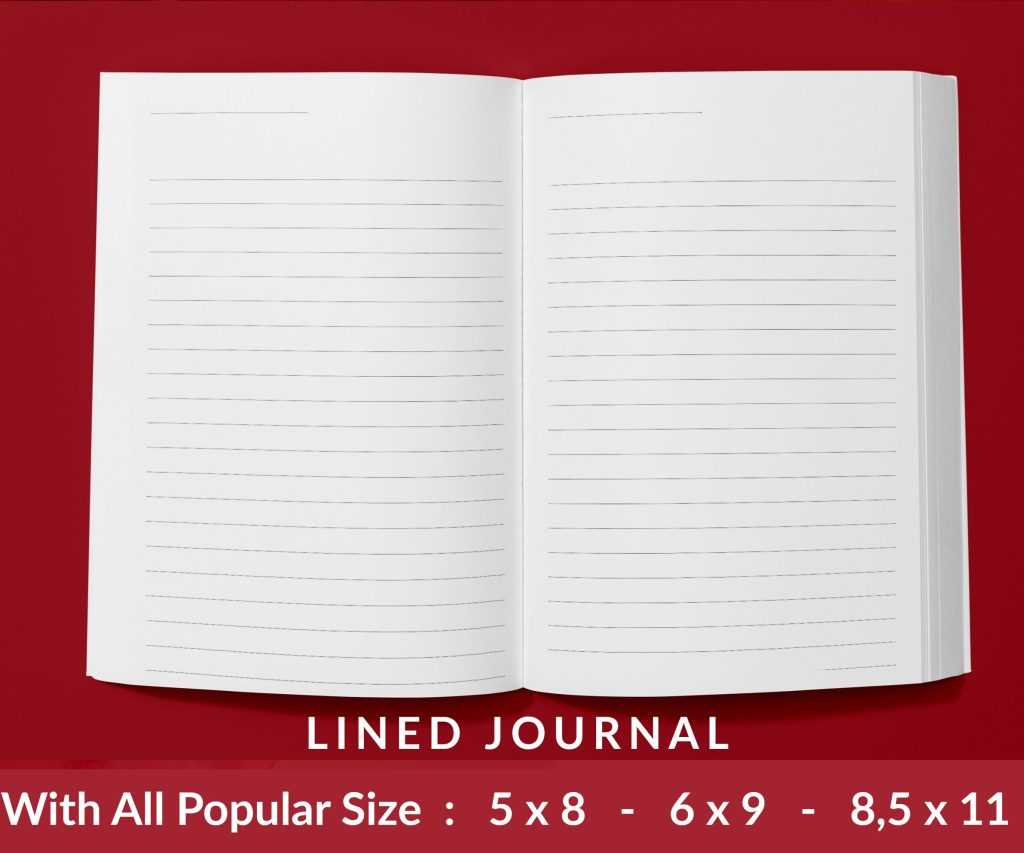 Lined Pages Journal 120 pages Ready to Upload PDF Commercial Use KDP Template 6x9 8.5x11 5x8 for Notebooks, Diaries, Low Content
1 × $0.00
Lined Pages Journal 120 pages Ready to Upload PDF Commercial Use KDP Template 6x9 8.5x11 5x8 for Notebooks, Diaries, Low Content
1 × $0.00  Black Lined Journal: 120 Pages of Black Lined Paper Perfect for Journaling, KDP Notebook Template - 6×9
1 × $0.00
Black Lined Journal: 120 Pages of Black Lined Paper Perfect for Journaling, KDP Notebook Template - 6×9
1 × $0.00 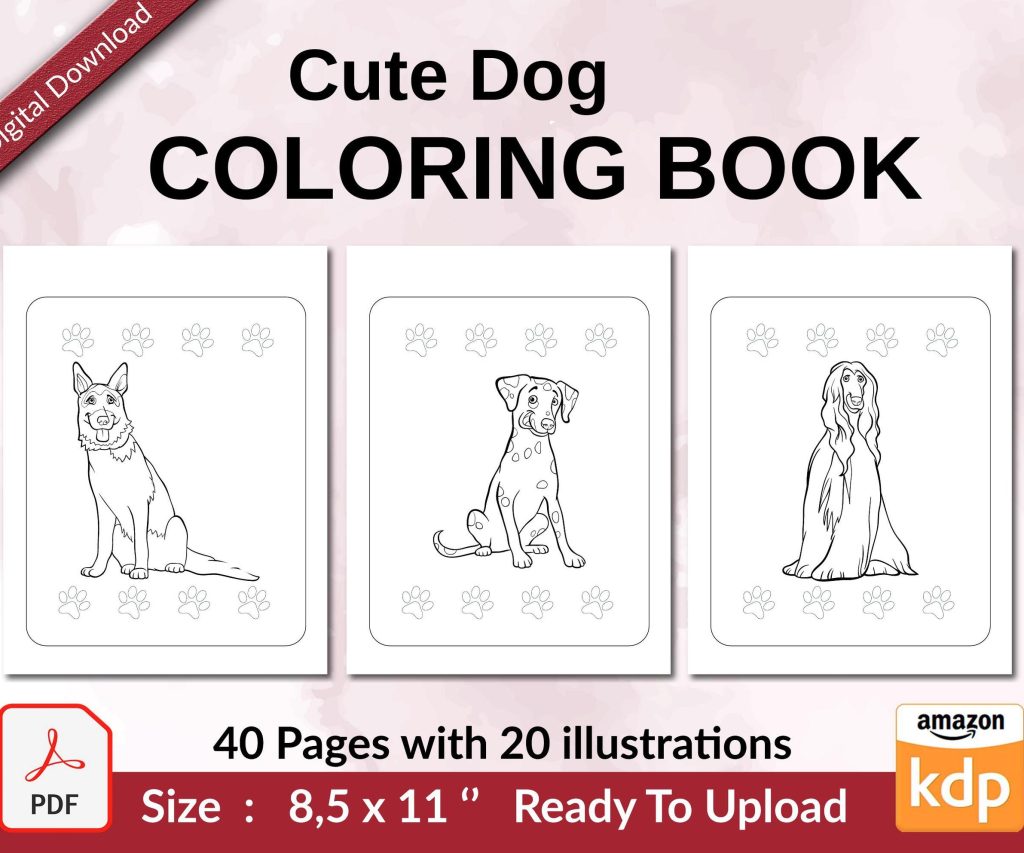 Cute Dogs Coloring Book for Kids | Activity Book | KDP Ready-To-Upload
2 × $0.00
Cute Dogs Coloring Book for Kids | Activity Book | KDP Ready-To-Upload
2 × $0.00 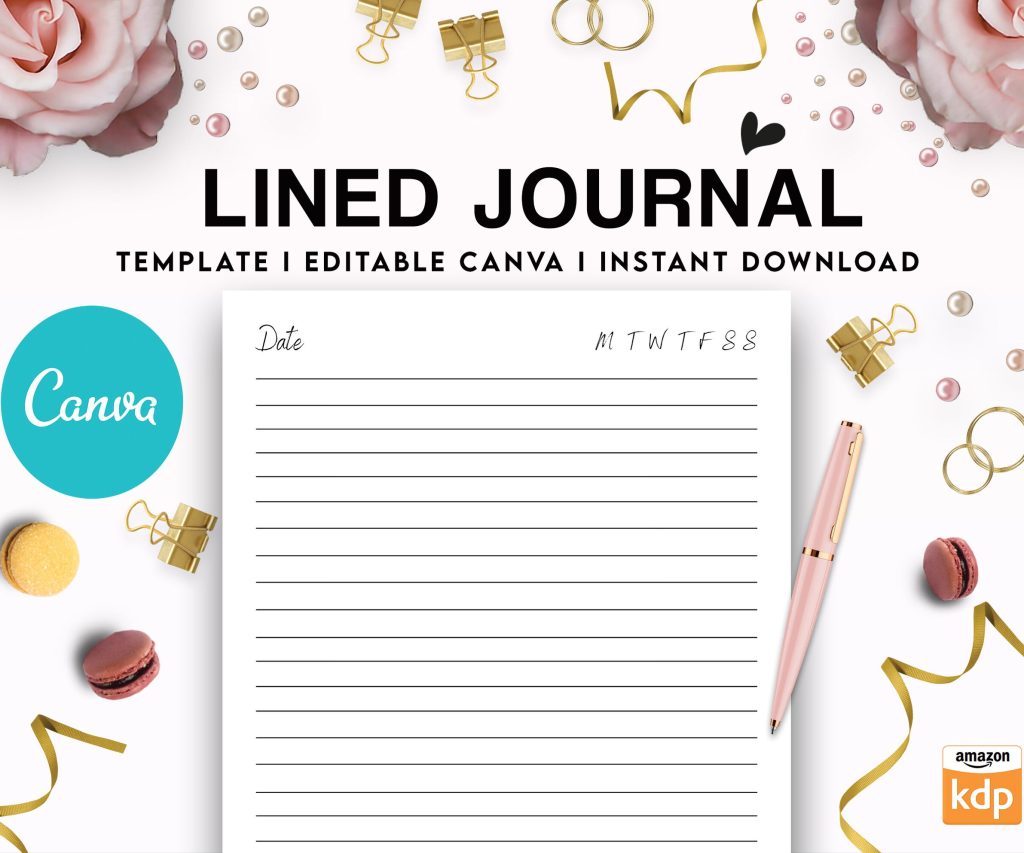 Editable Canva Lined Journal: Express Your Thoughts - KDP Template
1 × $0.00
Editable Canva Lined Journal: Express Your Thoughts - KDP Template
1 × $0.00 
DISCOVER OUR FREE BEST SELLING PRODUCTS
Editable Canva Lined Journal: Express Your Thoughts – KDP Template
Lined Pages Journal 120 pages Ready to Upload PDF Commercial Use KDP Template 6×9 8.5×11 5×8 for Notebooks, Diaries, Low Content
Lined Pages Journal 120 pages Ready to Upload PDF Commercial Use KDP Template 6×9 8.5×11 5×8 for Notebooks, Diaries, Low Content
Cute Dogs Coloring Book for Kids | Activity Book | KDP Ready-To-Upload
Daily Planner Diary : Diary Planners for Everyday Productivity, 120 pages, 6×9 Size | Amazon KDP Interior
Wolf Coloring KDP interior For Adults, Used as Low Content Book, PDF Template Ready To Upload COMMERCIAL Use 8.5×11"
Coloring Animals Head Book for Kids, Perfect for ages 2-4, 4-8 | 8.5×11 PDF
Printable Blank Comic Book Pages PDF : Create Your Own Comics – 3 Available Sizes
Notes KDP interior Ready To Upload, Sizes 8.5×11 6×9 5×8 inch PDF FILE Used as Amazon KDP Paperback Low Content Book, journal, Notebook, Planner, COMMERCIAL Use
Black Lined Journal: 120 Pages of Black Lined Paper Perfect for Journaling, KDP Notebook Template – 6×9
Student Planner Journal 120 pages Ready to Upload PDF Commercial Use KDP Template 6×9" 8.5×11" for Low Content book
Recipe Journal Template – Editable Recipe Book Template, 120 Pages – Amazon KDP Interior