-
×
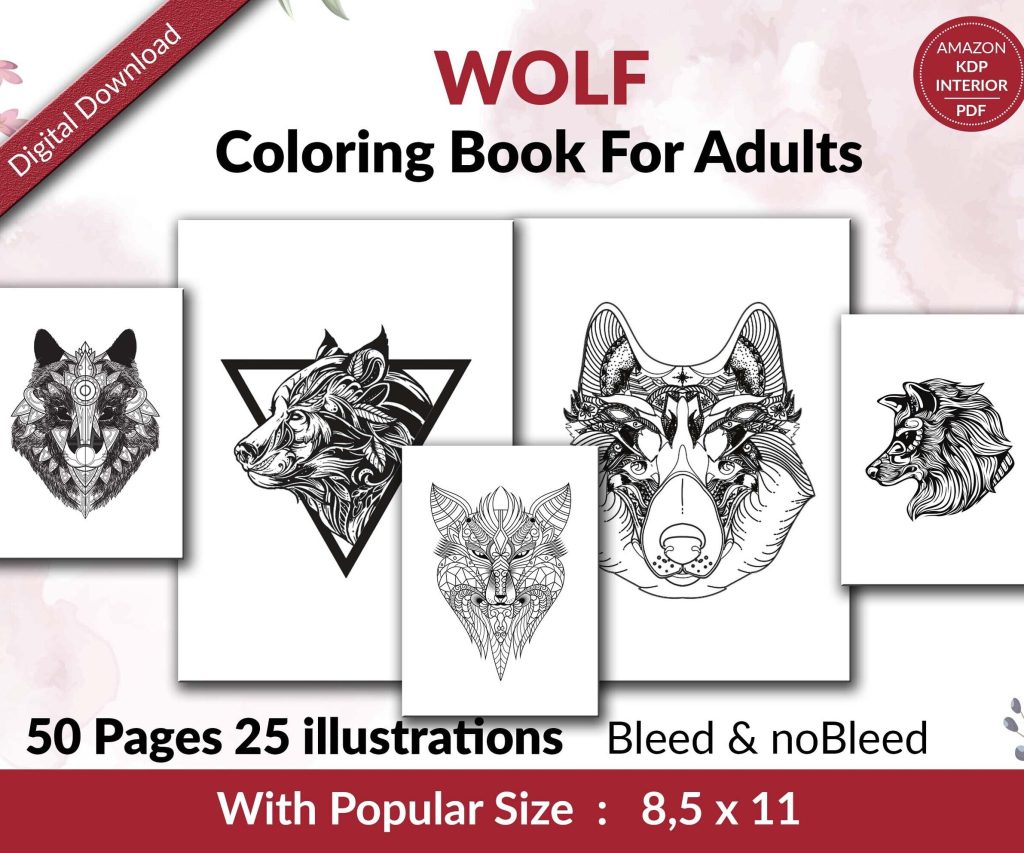 Wolf Coloring KDP interior For Adults, Used as Low Content Book, PDF Template Ready To Upload COMMERCIAL Use 8.5x11"
1 × $0.00
Wolf Coloring KDP interior For Adults, Used as Low Content Book, PDF Template Ready To Upload COMMERCIAL Use 8.5x11"
1 × $0.00
Subtotal: $0.00

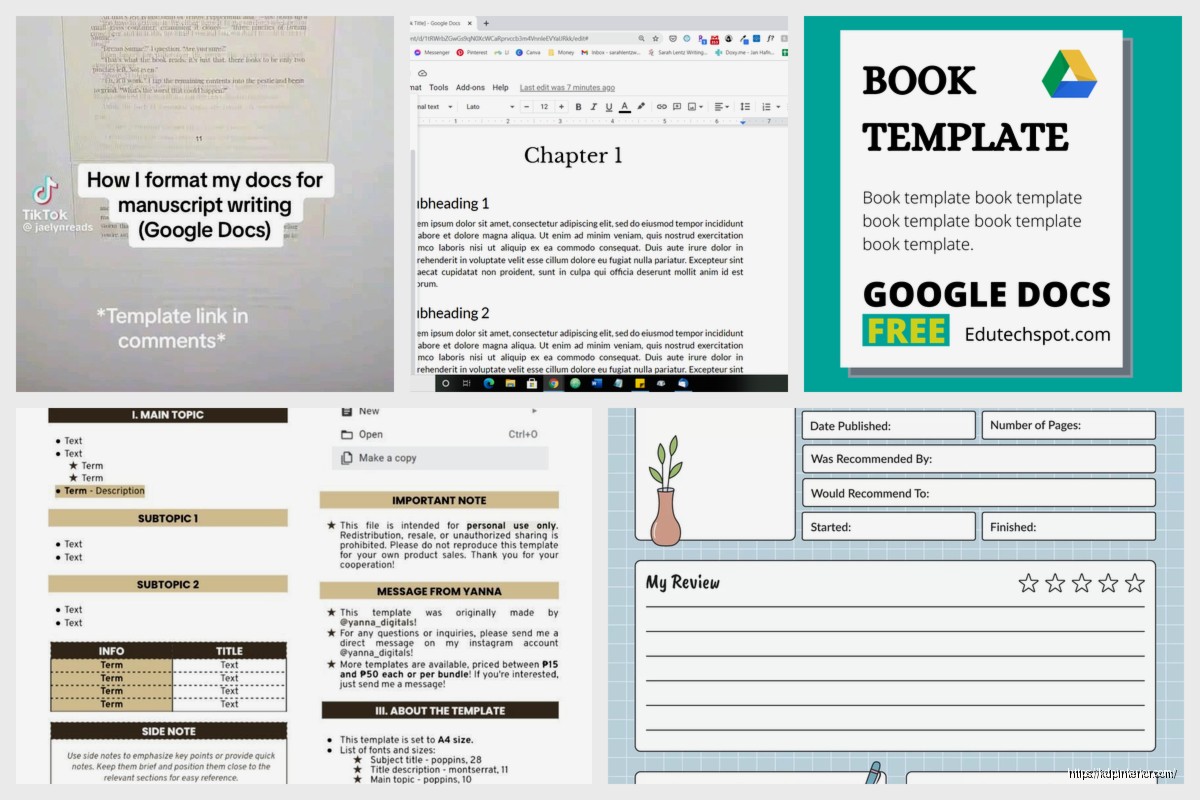
Okay so I just tested like 5 different Google Docs templates last week and here’s the deal – cloud publishing is honestly where you wanna be in 2024 because the whole “save to desktop then upload” workflow is just… it’s done.
First thing, you need to understand that Google Docs templates for actual book publishing aren’t the same as those cutesy templates people make for newsletters or whatever. You’re building something that needs to export clean to PDF or ePub, and Google Docs can be weird about formatting if you don’t set it up right from the start.
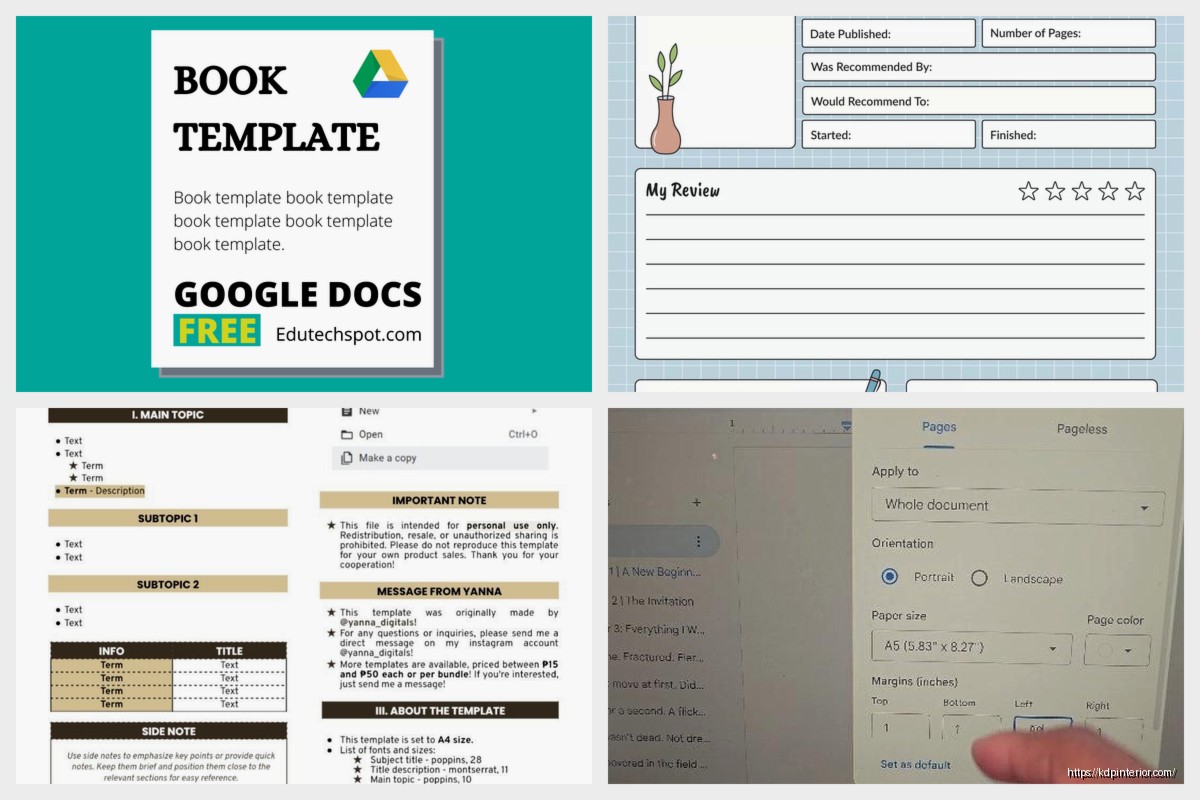
Start with a blank Google Doc. I know there’s like a million templates in their gallery but trust me, start blank. Go to File > Page Setup and this is where most people screw up already. For print books, you want custom dimensions – 6×9 is standard for most non-fiction, 5×8 for novels. Set your margins to at least 0.75 inches on all sides, but I usually do 1 inch on the inside (gutter) because binding eats space.
Oh and another thing – set this BEFORE you start writing. I cannot tell you how many times I’ve seen people write an entire book then try to change page size and everything breaks. Google Docs tries to reflow but it’s not InDesign, it’s gonna make weird choices.
For the font, stick with something Amazon’s system likes. I use Garamond or Georgia for body text, usually 11pt or 12pt. Yeah I know Calibri is the default but it looks like a corporate memo, not a book. Headers can be the same font, just bigger – 16pt for chapter titles, 14pt for subheadings.
This is gonna sound weird but the best thing Google Docs has going for it is the styles feature that everyone ignores. You know that dropdown that says “Normal text” at the top? That’s your entire formatting life right there.
Set up your styles once:
To customize these, you format one paragraph how you want it, then go to that dropdown, hover over the style name, and click “Update to match.” Now every time you apply that style, boom – consistent formatting. This saves SO much time when you’re doing final edits and realize you want all chapter titles centered instead of left-aligned.
I was watching The Bear the other night while formatting a client’s cookbook template and literally paused the show because I realized I’d been manually formatting headers for like 30 minutes when I could’ve just updated the style once. Felt like an idiot.
Okay so here’s where Google Docs gets finicky. You need page breaks between chapters – that’s Insert > Break > Page break or just Ctrl+Enter. Simple enough. But if you want different headers or footers in different sections (like no page numbers on chapter start pages), you need section breaks instead.
Section breaks let you have different formatting rules for different parts of your book. Front matter (copyright page, table of contents) usually doesn’t have page numbers, or uses Roman numerals. Main content uses regular numbers. Back matter might be different again.
To do this: Insert > Break > Section break (next page). Then double-click in the header or footer area, and you’ll see a checkbox that says “Different first page” and another for “Link to previous.” Uncheck “Link to previous” and now you can format that section independently.
Wait I forgot to mention – Google Docs calls them “sections” but they’re not as powerful as Word’s sections. You can’t do facing pages with different odd/even formatting easily. For complex layouts, you’re still better off in InDesign or Vellum, but for straightforward books? Google Docs works fine.
The smart move is creating building blocks you can copy-paste. I have a separate Google Doc that’s just a library of formatted elements:
When I start a new book, I just copy what I need from my library doc into the new project. Takes like 2 minutes versus rebuilding everything from scratch.
For the copyright page, keep it simple. Center-aligned, smaller font (9pt or 10pt), something like:
Copyright © 2024 Your Name
All rights reserved
ISBN: [your ISBN here]
You don’t need a lawyer-written novel here. Amazon’s got their own copyright registration through the publishing process anyway.
This part’s tricky because Google Docs handles images kinda poorly compared to actual layout software. Your options for text wrapping are limited – you’ve basically got inline, wrap text, or break text. For book publishing, I almost always use “Break text” which puts the image on its own line.
Size your images BEFORE uploading them to Google Docs. Like, use Canva or Photoshop or whatever and get them to the exact dimensions you want. If you resize in Google Docs, it maintains the file size but displays smaller, which is wasteful and can cause export issues.
For print books, images should be at least 300 DPI at their final size. For ebooks, you can go lower – 150 DPI is fine and keeps file sizes manageable. Amazon charges delivery fees based on file size for ebooks, so a 50MB ebook with huge images costs you money on every sale.
Don’t design your actual book cover in Google Docs. Please. Just don’t. Use Canva or hire someone. But you can create a title page for the interior – this is the first page inside the book that has your title and author name.
Center everything vertically and horizontally. Title in your Title style (big, bold, maybe 24pt), author name below in a smaller size. Keep it clean. This isn’t the place to get fancy with graphics.
Google Docs can auto-generate a TOC if you’ve used heading styles correctly, but honestly? It looks bad and you can’t customize it enough. I manually create mine.
Set up two-column tab stops. Left tab for chapter names, right-aligned tab with dots for page numbers. In the ruler at the top, click where you want the page numbers to align (usually right margin), select “Right tab” and check “Dotted line.” Now when you hit Tab between the chapter name and page number, you get those professional-looking dots.
Update the page numbers manually before final export. Yeah it’s tedious, but it takes like 5 minutes and looks way better than the auto-generated version.
Double-click in the footer area (I prefer footers for page numbers, headers for book title or chapter name). Center-align or right-align your page number. In Google Docs, go to Insert > Page numbers > More options, and you can choose position and whether to show on first page.
For the actual page number, Insert > Page number > Current page number. If you want “Page X of Y” format, you can do that but it’s overkill for most books.
My cat just knocked over my coffee and I had to clean that up before it hit my laptop… anyway.
When you’re done, File > Download. Your options are PDF, EPUB, and a bunch of other formats. For Amazon KDP print books, use PDF. For ebooks, it’s complicated.
PDF settings: Google Docs doesn’t give you much control here, which is annoying. It exports at 72 DPI by default which is… not ideal for print. For better quality, I actually use a workaround – File > Print > Save as PDF. This sometimes gives you better resolution, though it’s not consistent.
For ePub (ebooks), Google Docs export is pretty basic. It’ll maintain your headings and styles but complex formatting gets stripped. Images stay but might resize weirdly. Test your ePub in Kindle Previewer before publishing because what looks good in Google Docs might be broken in ebook format.
Okay so this is where Google Docs actually shines. Multiple people can edit simultaneously. Your editor can leave comments without downloading anything. You can see revision history if someone deletes a chapter by accident (happened to me twice last month on client projects, both times it was the author themselves who deleted it while half-asleep).
Share settings matter though. If you’re working with an editor, give them “Commenter” access, not “Editor,” until you’re ready for actual edits. Otherwise they might accidentally change stuff while reading through.
Version control is automatic but I still manually save versions at major milestones. File > Make a copy, and name it like “BookTitle_Draft1” or “BookTitle_PreEdit.” Google Drive doesn’t have a file size limit for Docs (it’s based on total storage), so keeping multiple versions is fine.
Before you type Chapter One, verify:
I’ve published 200+ books and I still use this checklist because fixing formatting after writing is genuinely painful.
Spacing between paragraphs looking weird? Check your Normal text style – it’s probably got spacing before/after set. Go to Format > Line & paragraph spacing > Remove space before/after paragraph.
Page numbers restarting randomly? You added a section break and the numbering reset. Double-click the footer, click “Options,” then “Continue from previous section.”
Export PDF has different fonts than your Doc? Google Docs doesn’t embed fonts properly sometimes. Stick to standard fonts (Arial, Georgia, Times New Roman, Garamond) that are universally available.
Images shifted during export? This is why I said use “Break text” wrapping. Inline images are more stable but less flexible. Pick your poison.
Look, Google Docs isn’t perfect for book publishing. It’s not Vellum, it’s not InDesign, it doesn’t have all the fancy features. But it’s free, it’s cloud-based, it works on any device, and for straightforward text-heavy books it’s totally adequate. I’ve made probably $40k from books formatted entirely in Google Docs, so anyone saying it’s not “professional” enough is just gatekeeping.
The key is setting up your template right from the start and not trying to make Google Docs do things it wasn’t designed for. Keep layouts simple, use styles consistently, and test your exports before uploading to Amazon. That’s really all there is to it.
DISCOVER OUR FREE BEST SELLING PRODUCTS
Editable Canva Lined Journal: Express Your Thoughts – KDP Template
Lined Pages Journal 120 pages Ready to Upload PDF Commercial Use KDP Template 6×9 8.5×11 5×8 for Notebooks, Diaries, Low Content
Lined Pages Journal 120 pages Ready to Upload PDF Commercial Use KDP Template 6×9 8.5×11 5×8 for Notebooks, Diaries, Low Content
Cute Dogs Coloring Book for Kids | Activity Book | KDP Ready-To-Upload
Daily Planner Diary : Diary Planners for Everyday Productivity, 120 pages, 6×9 Size | Amazon KDP Interior
Wolf Coloring KDP interior For Adults, Used as Low Content Book, PDF Template Ready To Upload COMMERCIAL Use 8.5×11"
Coloring Animals Head Book for Kids, Perfect for ages 2-4, 4-8 | 8.5×11 PDF
Printable Blank Comic Book Pages PDF : Create Your Own Comics – 3 Available Sizes
Notes KDP interior Ready To Upload, Sizes 8.5×11 6×9 5×8 inch PDF FILE Used as Amazon KDP Paperback Low Content Book, journal, Notebook, Planner, COMMERCIAL Use
Black Lined Journal: 120 Pages of Black Lined Paper Perfect for Journaling, KDP Notebook Template – 6×9
Student Planner Journal 120 pages Ready to Upload PDF Commercial Use KDP Template 6×9" 8.5×11" for Low Content book
Recipe Journal Template – Editable Recipe Book Template, 120 Pages – Amazon KDP Interior