
Amazon KDP guide, KDP book publishing
Book Templates: Publishing Formats & Designs

Mar
Okay so book templates are honestly one of those things I wish someone had just explained to me straight up seven years ago because I wasted like three months figuring this out the hard way.
First thing you gotta know is there’s basically two universes here – print templates and digital templates. They’re completely different animals and you can’t just use the same file for both, which sounds obvious now but I definitely tried that in 2017 and Amazon rejected like 15 books in a row before I figured it out.
Print Book Templates – KDP Paperback Stuff
So for paperback, Amazon’s really specific about trim sizes. The most common ones are 6×9 (standard nonfiction), 5×8 (looks more “booky” I guess?), and 8.5×11 for workbooks or planners. I use 6×9 for like 80% of my books because readers are just used to it and it feels professional without being weird.
The margins though… this is where everyone screws up initially. You need different margins for the left and right pages because of the binding. Your inside margin (the one near the spine) needs to be bigger so text doesn’t disappear into the gutter. I usually do 0.75 inches on the inside, 0.5 on the outside, and 0.5 top and bottom. Amazon’s calculator will tell you the minimum but honestly go a bit bigger because nobody ever complained about comfortable margins.
Oh and another thing – bleed. If you’re doing a book with images or colored backgrounds that go to the edge, you need 0.125 inch bleed on all sides. That means your design elements extend past the trim line so when they cut the book there’s no white edge showing up. I learned this when my first coloring book had these thin white lines on every page and looked super unprofessional.
For setting this up in Word (yeah I know people hate on Word but it works fine for simple stuff), you go to Layout > Margins > Custom Margins and set it to “Mirror Margins” under the Multiple Pages dropdown. That’s what makes the inside/outside margin thing happen automatically.
Cover Templates Are Their Own Nightmare
The cover’s separate and you need the exact dimensions which depend on your page count. Amazon has this cover calculator – you plug in your trim size, page count, and paper type (white or cream) and it spits out the dimensions. A 200-page 6×9 book on white paper is gonna be like 12.45 inches wide by 9.25 inches tall or something.
You’ve got three sections: front cover, spine, back cover. The spine width changes based on page count which is why you can’t make the cover until you know exactly how many pages you have. I use Canva Pro for most covers now because they actually have a KDP cover template built in, but Photoshop works if you’re into that. GIMP is free and does the job too.
Wait I forgot to mention – your cover needs bleed too, same 0.125 inches, but you also need to keep text and important stuff away from the trim line. Amazon wants like 0.125 inches safety margin from the trim, so really you’re staying 0.25 inches away from the edge with anything important.
Digital Templates – Ebook Formatting
Ebooks are completely different because the reader controls the font size and type. Your beautiful formatting? Doesn’t really matter. The ebook reflows based on the device and settings.
For Kindle, you can upload a Word doc directly and Amazon converts it, or you can get fancy with ePub files. Honestly for simple text books, Word is fine. You just gotta follow some rules:
Use styles instead of manual formatting. Like actually use the Heading 1, Heading 2, Normal styles in Word. Don’t just make text bigger and bold manually. This is gonna sound weird but I spent a whole weekend reformatting 30 books once because I’d been doing it wrong and the table of contents wasn’t generating right.
Keep formatting simple. No weird fonts, no text boxes, no columns. Stick to standard stuff – bold, italic, bullet points, numbered lists. Every time I’ve tried to get creative it looks broken on someone’s Kindle.
Images need to be decent quality but not huge file size. Amazon charges delivery fees based on file size for some pricing tiers, so a 50MB ebook costs you money every time someone downloads it. I compress images to like 300dpi max, usually smaller for simple graphics.
The Table of Contents Thing
Your ebook needs a clickable table of contents. In Word, if you used those heading styles I mentioned, you can auto-generate one. Go to References > Table of Contents and pick a style. When Amazon converts it, those become clickable links. Super important for nonfiction.
Oh and front matter – you want your title page, copyright page, maybe a dedication, then table of contents, then the actual content. Back matter is where you put your other books, author bio, whatever. I usually do a simple “Also by Daniel Harper” page with my other titles and Amazon links.
Design Elements That Actually Matter
So here’s what I’ve learned from publishing 200+ books – most design stuff doesn’t matter as much as you think, but a few things really do.
Chapter headings need to be consistent and clear. I use the same style throughout – usually Heading 1 style, maybe 18pt, bold, with some space before it. Don’t go crazy with decorative fonts unless it really fits your genre.
White space is your friend. New authors pack everything tight to save pages but it just looks cramped. Give your text room to breathe. I do 1.15 or 1.5 line spacing usually, and I always start chapters on a new page.
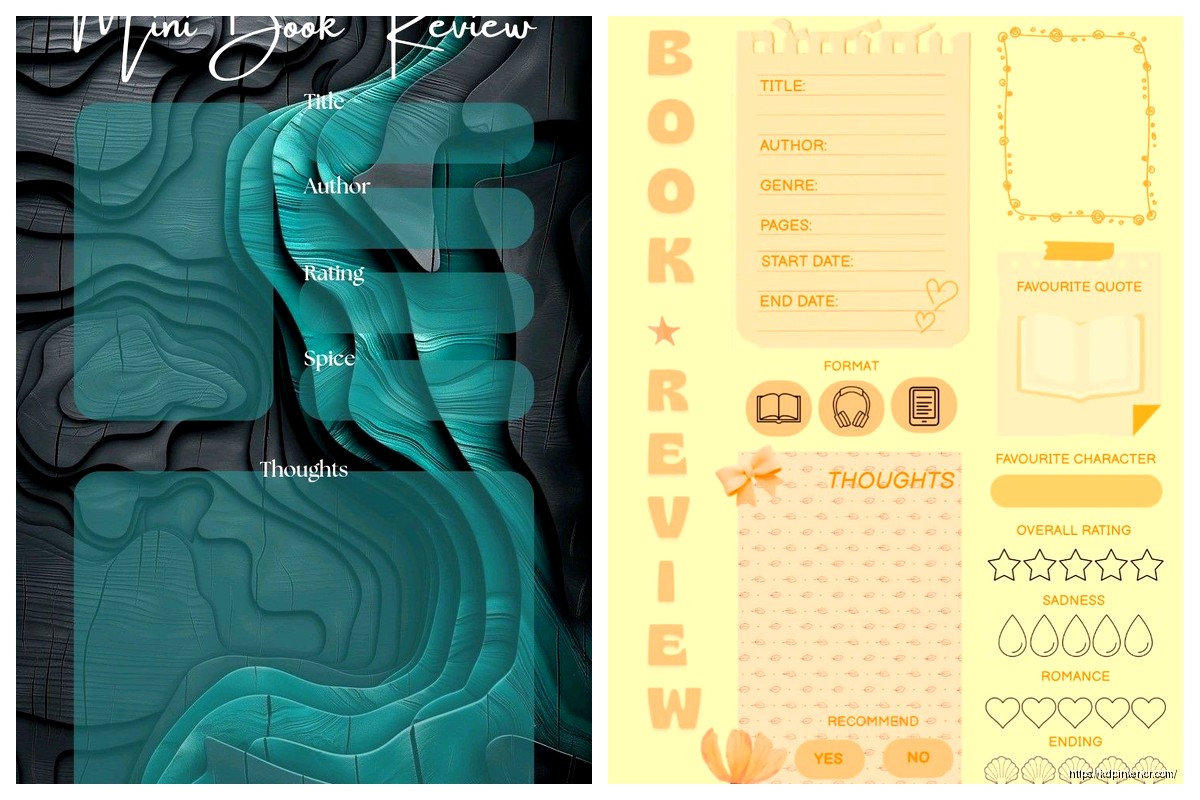
For workbooks and planners (I’ve done a ton of these), templates are basically mandatory unless you wanna draw 100+ pages by hand. I use a mix of Canva templates and stuff I’ve built in PowerPoint, believe it or not. PowerPoint’s actually great for layout-heavy books because everything stays exactly where you put it.
Software and Tools I Actually Use
Gonna just rapid-fire this because everyone asks:
Microsoft Word – still use it for basic text books, it’s fine, people overcomplicate this
Canva Pro – covers, interiors for planners/workbooks, social media stuff, worth the $13/month or whatever
Affinity Publisher – bought it once for $50, it’s like InDesign but you don’t need a subscription, use it for more complex layouts
Google Docs – free, works anywhere, good for collaborative stuff or if you don’t have Word
Kindle Create – Amazon’s free tool, actually pretty decent for converting Word docs to ebooks, handles the formatting conversion well
Calibre – free ebook management and conversion, bit of a learning curve but powerful
Template Resources You Can Actually Use
Amazon has free templates on their KDP website – they’re basic but they work and you know they’ll meet the requirements. I used those for my first probably 20 books.
Creative Market and Etsy have templates you can buy – usually $10-30 for a full book template. Sometimes worth it if you’re doing something specific like a recipe book or journal and don’t wanna build from scratch.
Canva’s template library is massive now. They have book interiors, covers, all kinds of stuff. Quality varies but there’s some good ones in there.
My cat just knocked over my coffee but anyway – Book Bolt has templates specifically for low-content books if you’re doing that kind of thing. Notebooks, planners, logs, all that. They charge monthly but have a huge library.
Common Mistakes I See All The Time
Using RGB instead of CMYK for print. Your colors will look wrong when printed. Set your color mode to CMYK from the start if you’re doing print.
Not checking the actual print proof. The digital proof looks fine, then the physical book shows up and the margins are off or images are blurry. Always order a proof copy before you approve it for sale.
Inconsistent formatting. Like chapter 3 has different spacing than chapter 7 because you formatted it on a different day and forgot what you did. Use styles in Word to keep everything consistent.
Ignoring Amazon’s content guidelines. They reject books for stuff like too much blank space (in low-content books), poor image quality, margins too small, all kinds of stuff. Read the guidelines, I know they’re boring but it saves you rejections.
Making the ebook look exactly like the print book. They’re different formats, embrace it. Your print book can have fancy headers and footers and page numbers. Your ebook should be clean and simple so it reflows properly.
File Formats That Actually Work
For print upload: PDF is king. Export from whatever program you used with high-quality settings, embed all fonts, CMYK color mode. I usually do PDF/X-1a standard which is the printing industry standard.
For ebook upload: Word doc (.docx) works fine for Amazon and they convert it. ePub if you’re going wide to other platforms like Apple Books or Kobo. MOBI is old and Amazon doesn’t even want it anymore.
Cover files: PNG or JPEG for ebook covers, usually PNG because it handles transparency better if you need it. For print covers, PDF or TIFF or high-res JPEG all work.
Actual Workflow I Use Now
Okay so after doing this for seven years, here’s my actual process:
Write/compile content in Google Docs because it autosaves and I can work from anywhere. Format roughly as I go using basic heading styles.
For print: Copy into Word, apply my custom template with proper margins and styles, add page numbers and headers if needed, export to PDF. Design cover in Canva using their KDP template, export at the right dimensions.
For ebook: Take that same Word doc, strip out page numbers and headers, simplify formatting, add hyperlinked table of contents, save as .docx and upload directly to KDP.
Order a proof copy, wait like a week, check it physically, make any adjustments, then approve for publishing.
The whole thing takes maybe an afternoon per book now, but those first books took me weeks because I was figuring everything out and redoing stuff constantly.
One last thing – Amazon updates their specs and requirements sometimes, so check the current guidelines before you start a new project. I’ve had books rejected because I used old specs from like two years ago and they’d changed the minimum margin requirements or something. Just takes a minute to verify you’re using current numbers.
DISCOVER OUR FREE BEST SELLING PRODUCTS
Editable Canva Lined Journal: Express Your Thoughts – KDP Template
Lined Pages Journal 120 pages Ready to Upload PDF Commercial Use KDP Template 6×9 8.5×11 5×8 for Notebooks, Diaries, Low Content
Lined Pages Journal 120 pages Ready to Upload PDF Commercial Use KDP Template 6×9 8.5×11 5×8 for Notebooks, Diaries, Low Content
Cute Dogs Coloring Book for Kids | Activity Book | KDP Ready-To-Upload
Daily Planner Diary : Diary Planners for Everyday Productivity, 120 pages, 6×9 Size | Amazon KDP Interior
Wolf Coloring KDP interior For Adults, Used as Low Content Book, PDF Template Ready To Upload COMMERCIAL Use 8.5×11"
Coloring Animals Head Book for Kids, Perfect for ages 2-4, 4-8 | 8.5×11 PDF
Printable Blank Comic Book Pages PDF : Create Your Own Comics – 3 Available Sizes
Notes KDP interior Ready To Upload, Sizes 8.5×11 6×9 5×8 inch PDF FILE Used as Amazon KDP Paperback Low Content Book, journal, Notebook, Planner, COMMERCIAL Use
Black Lined Journal: 120 Pages of Black Lined Paper Perfect for Journaling, KDP Notebook Template – 6×9
Student Planner Journal 120 pages Ready to Upload PDF Commercial Use KDP Template 6×9" 8.5×11" for Low Content book
Recipe Journal Template – Editable Recipe Book Template, 120 Pages – Amazon KDP Interior