
-
×
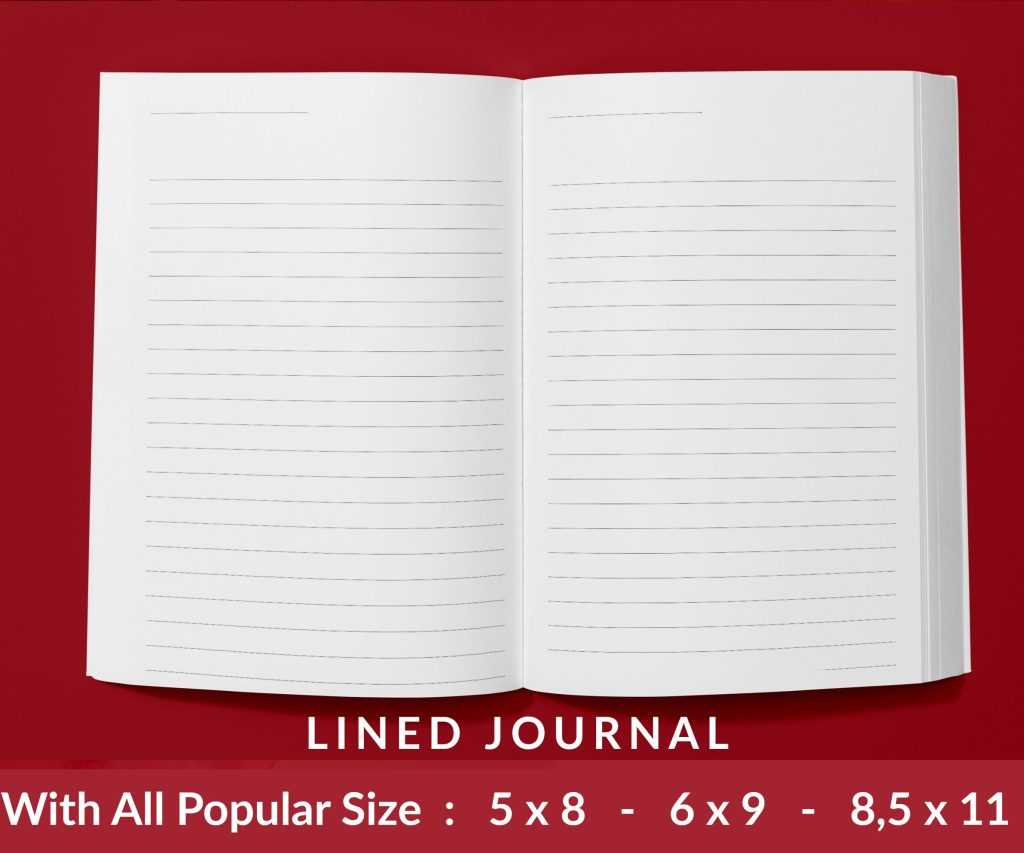 Lined Pages Journal 120 pages Ready to Upload PDF Commercial Use KDP Template 6x9 8.5x11 5x8 for Notebooks, Diaries, Low Content
1 × $0.00
Lined Pages Journal 120 pages Ready to Upload PDF Commercial Use KDP Template 6x9 8.5x11 5x8 for Notebooks, Diaries, Low Content
1 × $0.00
Subtotal: $0.00
Alright so you’re probably looking at Canva thinking it’s gonna solve all your design problems for KDP and honestly… it kinda does but not in the way most people think. I’ve been using it for like 5 years now and the integration isn’t some magic button, it’s more about knowing which dimensions to punch in and not screwing up your bleed settings.
First thing – and I cannot stress this enough because I see people mess this up constantly – you gotta understand that Canva doesn’t have a “KDP export” button. You’re basically tricking it into giving you what Amazon wants. Start by opening Canva and ignore all those templates they shove in your face. Go straight to “Custom Size” because their preset book sizes are usually off by a few millimeters and that’ll get your book rejected.
For a 6×9 book with bleed (which is what like 80% of my books are), you need 6.25 x 9.25 inches. That extra .25 is your bleed on each side. In Canva, click Create a Design, then Custom Size, and punch in those numbers. Make sure it’s set to inches not pixels because I’ve done that before at like 2am and ended up with a thumbnail-sized cover.
Oh and another thing – if you’re doing a cover (not just interior), you need to use KDP’s cover calculator first. Amazon has this tool that tells you the exact dimensions based on your page count. A 120-page book has a different spine width than a 200-page book, obviously. I usually have that calculator open in another tab while I’m setting up Canva.
Wait I forgot to mention – Canva Pro is basically required for this. The free version doesn’t let you resize designs easily and you can’t download transparent PNGs or high-res PDFs properly. I know it’s like $13/month or whatever but if you’re serious about KDP it pays for itself after one book sale honestly.
So for interiors – let’s say you’re making a journal or planner – you need each page designed separately in Canva then combined into one PDF. This is gonna sound weird but I actually create one design with like 100+ pages in Canva itself. You can keep adding pages by hitting that little plus icon at the bottom.
My usual setup looks like this:
The trick is remembering that KDP counts EVERY page including blanks. Your book needs to be at least 24 pages for paperback and the total page count has to be divisible by 2. I’ve uploaded books at 119 pages before and gotten errors… had to add a random “Notes” page at the end.
Okay so funny story – I lost like $300 in rejected print proofs my first year because I didn’t get bleed right. Here’s what nobody tells you: in Canva you need to extend your background colors and images all the way to the edge of that 6.25 x 9.25 canvas. But your text and important stuff? That needs to stay .25 inches INSIDE from all edges.
Canva doesn’t show you bleed lines automatically which is super annoying. What I do is create a rectangle frame that’s 5.75 x 8.75 inches (your trim size minus bleed), center it on the page, and use that as my guide. Everything important goes inside that box. Then I delete the box before exporting.
Some people use Canva’s grid feature but honestly I find that more confusing. My cat walked across my keyboard last week and somehow turned on the grid and I couldn’t figure out how to turn it off for like 20 minutes.
This is where people really mess up. Click that Share button, then Download. You want PDF Print – not standard PDF, not PNG, definitely not JPG for interiors. PDF Print gives you the color profile and resolution KDP wants.
For covers it’s different – you actually want PNG at the highest quality if your cover has transparency, or PDF Print if it doesn’t. I usually do PDF Print for covers too because it’s safer. Make sure you’re downloading at 300 DPI minimum. Canva Pro does this automatically but double-check in the download settings.
One thing that’s gonna save you headaches: download your file and actually open it on your computer before uploading to KDP. Check that all pages are there, nothing got cut off, colors look right. I’ve had Canva glitch out and export only 50 pages of a 100-page book. No idea why, it just happens sometimes.
Canva designs in RGB by default but KDP prints in CMYK. This means your colors are gonna shift slightly when printed. That bright blue you chose? It might come out more purple-ish. I’ve learned to design slightly more saturated than I want because printing always dulls colors a bit.
There’s no perfect fix for this in Canva unfortunately. Some designers export from Canva then run the PDF through CMYK conversion tools but honestly for low-content books most customers don’t care if the blue is 5% different than the mockup.
Canva has like a million fonts but not all of them embed properly in PDFs. Stick to the popular ones – Montserrat, Roboto, Playfair Display, those all work fine. I had a client cancel last week so I spent a few hours comparing the rendering of different fonts and the super decorative ones sometimes get blurry in print.
Also avoid font sizes under 10pt for body text. KDP will technically accept it but people will leave reviews saying they can’t read your book. I learned this the hard way with a gratitude journal that got roasted in reviews.
Covers are more complicated because you’re dealing with front, spine, and back all in one image. After you get your dimensions from KDP’s calculator, set that up as a custom size in Canva. Let’s say it spits out 12.55 x 9.25 inches for your full cover.
You need to mentally divide this into three sections – front cover, spine, back cover. I actually create text boxes as guides showing where each section starts and ends. So if your spine is 0.55 inches, I put a line 6 inches from the left (that’s your front cover), another at 6.55 inches (end of spine), and the rest is your back.
The barcode goes on the back cover – bottom right corner usually – and KDP adds that automatically so leave that space blank. Just a white rectangle in your design.
Here’s what I do to speed things up: I create master templates in Canva for each book size I commonly use. So I’ve got a 6×9 interior template, an 8.5×11 template, standard cover templates, etc. Each one has the bleed guides, safe zones, and basic layout already done.
When I start a new project I just duplicate that template and swap in new colors/images/text. Saves me probably 30 minutes per book. You can organize these in folders within Canva which is actually a decent feature they added.
Oh wait – if you’re doing a series of books, use Canva’s Brand Kit feature (Pro only again sorry). You can save your exact color palette and fonts so every book in the series matches perfectly. I did a set of 12 monthly planners this way and they all looked cohesive without me having to remember hex codes.
Gonna rapid-fire these because I’ve gotten all these rejections:
The error messages Amazon gives are pretty vague so you kinda have to guess sometimes. I keep a text file of all the rejections I’ve gotten and how I fixed them because you will get the same errors over and over.
If you’re using Canva’s built-in images or elements, most of them are licensed for commercial use through your Pro subscription BUT you need to modify them. You can’t just slap a single Canva element on a page and sell it. Add text, combine multiple elements, change colors, whatever. Just make it transformative.
I mostly use Canva elements for decorative stuff and bring in my own graphics from Creative Fabrica or other stock sites for main design pieces. Upload those directly into Canva through the Uploads section. Keep them organized in folders or you’ll end up with 500 random images like I have.
This is gonna sound weird but watching The Office while designing helps me not overthink things. I always overdesign when I’m too focused.
If you need to create a coloring book, use Canva’s “Duotone” effect on photos then crank up the contrast and reduce to pure black and white. Export as PDF Print and you’ve got coloring pages. Not as good as hand-drawn but way faster.
For activity books or puzzle books, I design everything in Canva but generate the actual puzzles elsewhere, then import them as images. Canva isn’t smart enough to create a real crossword puzzle but it’s great for making it look pretty.
Spiral notebooks and hardcover need different margin setups – check KDP’s specs for those because the binding eats more space. I mostly stick to paperback because it’s simpler honestly.
You can technically design your entire book in one massive Canva file (like 200 pages) but it gets super slow and crashes sometimes. I cap mine at 50 pages per file then merge the PDFs externally using a free tool like PDFsam.
Last thing – and this tripped me up for months – make sure your Canva account email matches your KDP account email or at least keep track of which designs go with which pen name. I’ve got like 3 different Canva accounts now for different niches and it’s a mess but it keeps things separated for tax purposes and whatnot.
DISCOVER OUR FREE BEST SELLING PRODUCTS
Editable Canva Lined Journal: Express Your Thoughts – KDP Template
Lined Pages Journal 120 pages Ready to Upload PDF Commercial Use KDP Template 6×9 8.5×11 5×8 for Notebooks, Diaries, Low Content
Lined Pages Journal 120 pages Ready to Upload PDF Commercial Use KDP Template 6×9 8.5×11 5×8 for Notebooks, Diaries, Low Content
Cute Dogs Coloring Book for Kids | Activity Book | KDP Ready-To-Upload
Daily Planner Diary : Diary Planners for Everyday Productivity, 120 pages, 6×9 Size | Amazon KDP Interior
Wolf Coloring KDP interior For Adults, Used as Low Content Book, PDF Template Ready To Upload COMMERCIAL Use 8.5×11"
Coloring Animals Head Book for Kids, Perfect for ages 2-4, 4-8 | 8.5×11 PDF
Printable Blank Comic Book Pages PDF : Create Your Own Comics – 3 Available Sizes
Notes KDP interior Ready To Upload, Sizes 8.5×11 6×9 5×8 inch PDF FILE Used as Amazon KDP Paperback Low Content Book, journal, Notebook, Planner, COMMERCIAL Use
Black Lined Journal: 120 Pages of Black Lined Paper Perfect for Journaling, KDP Notebook Template – 6×9
Student Planner Journal 120 pages Ready to Upload PDF Commercial Use KDP Template 6×9" 8.5×11" for Low Content book
Recipe Journal Template – Editable Recipe Book Template, 120 Pages – Amazon KDP Interior