
-
×
 Notes KDP interior Ready To Upload, Sizes 8.5x11 6x9 5x8 inch PDF FILE Used as Amazon KDP Paperback Low Content Book, journal, Notebook, Planner, COMMERCIAL Use
1 × $0.00
Notes KDP interior Ready To Upload, Sizes 8.5x11 6x9 5x8 inch PDF FILE Used as Amazon KDP Paperback Low Content Book, journal, Notebook, Planner, COMMERCIAL Use
1 × $0.00
Subtotal: $0.00
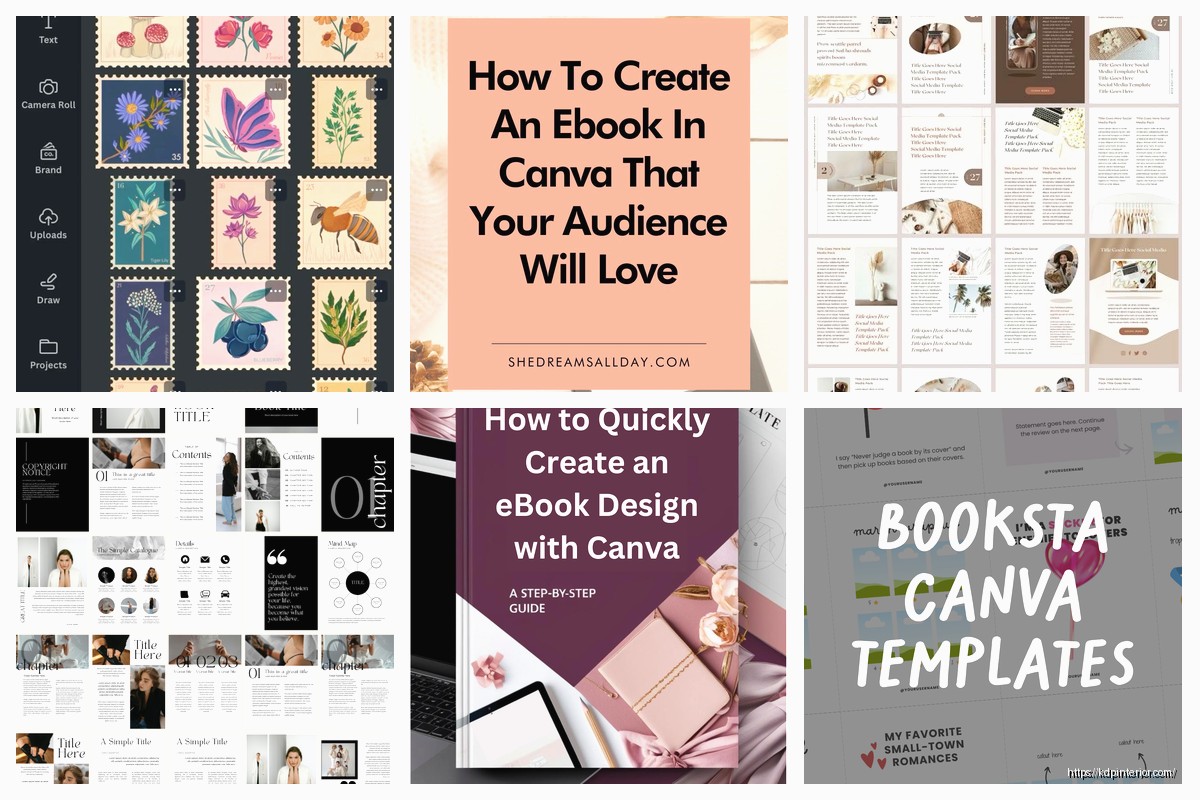
Okay so I’ve been using Canva for book templates since like 2019 and honestly it’s gotten so much better but also more confusing because they keep adding features. Let me just dump everything I know about their book design resources.
First thing – you’re gonna see a million templates when you search “book” in Canva. Most are actually designed for covers only, which is annoying when you need interior pages. The free version gives you access to maybe 30-40% of book templates, but here’s what nobody tells you… the free templates are usually fine for starting out? Like I made my first three books on the free plan and they sold decently.
But Pro is $120/year or whatever they’re charging now and honestly once you hit book number 5 or 6 you’re gonna want it. The background remover alone saves so much time if you’re doing covers with images. Plus you get the Brand Kit thing which lets you save your fonts and colors so you’re not searching through 900 fonts every single time.
So here’s where Canva gets messy. Search “book” and you get everything – magazines, covers, lookbooks. What you actually want to search:
The KDP ones are specifically sized right usually. Most templates default to 8.5 x 11 but if you’re publishing on Amazon you probably want 6 x 9 or 8.5 x 11 depending on your niche. I do mostly 6 x 9 for journals and planners because the printing cost is lower and people like that size.
Oh and another thing – when you open a template, immediately go to “Resize” in the top menu and double-check the dimensions. I’ve had templates that SAY they’re 6 x 9 but they’re actually 6.14 x 9.21 or some weird size. Amazon will reject that during upload or your margins will be off.
For KDP specifically these are your money sizes:
– 6 x 9 inches (most popular)
– 8.5 x 11 inches (workbooks, coloring books)
– 8 x 10 inches (kids books sometimes)
– 5 x 8 inches (smaller notebooks)
In Canva Pro you can create custom dimensions easily. Free version… you’re stuck with their preset sizes mostly which is frustrating. I upgraded after like month 3 because I got tired of working around it.
Canva has these collections but they’re kinda scattered everywhere. My dog just knocked over my coffee so gimme a sec… okay anyway.
Planner Templates: These are everywhere in Canva. Search “daily planner” or “weekly planner” and you’ll get hundreds. The good ones have:
– Proper margins (at least 0.5 inches inside margin for binding)
– Clean layouts that aren’t too busy
– Editable text boxes
– Grid or line elements you can duplicate
I use these as starting points then customize like crazy. Nobody wants the same planner as everyone else so you gotta make it unique.
Notebook and Journal Pages: Lined pages, dotted pages, blank pages with headers. These seem simple but getting the spacing right is annoying. Canva has some templates with proper line spacing already done. Look for ones marked “printable” because those usually have correct DPI settings.
Coloring Book Pages: This is where Canva gets weird because their drawing tools aren’t amazing for original illustrations. But they have line art elements you can combine. Just be careful with licensing – some elements are only free for Pro users and some you can’t use for commercial stuff even with Pro.
The Elements tab is where all the graphics live. For book interiors you want:
– Lines and shapes (for borders, dividers)
– Frames (for photo books or memory journals)
– Graphics that match your theme
– Icons if you’re doing workbooks
Pro tip that took me forever to figure out – use the search filters. Click Elements, type what you want, then filter by “Free” if you’re on the free plan. Or filter by “Graphics” vs “Photos” to narrow it down. I spent hours scrolling before I learned this and felt like an idiot.
This is gonna sound technical but it’s important. KDP requires specific margins depending on your page count. The thicker your book the wider your inside margin needs to be because of the binding.
In Canva you can’t set automatic bleeds like in InDesign but you can work around it. If you need bleed (which you do if your design goes to the edge of the page), set your canvas size slightly larger:
– For 6 x 9 book, create 6.25 x 9.25 canvas
– Design everything 0.125 inches from each edge
– Export as PDF
– Trim marks aren’t automatic so you gotta be careful during upload
Honestly for interiors I usually don’t do full bleed because it’s easier to just keep everything within margins. Covers are different – those NEED bleed.
For 6 x 9 books under 150 pages:
– Inside margin: 0.5 inches minimum (I usually do 0.625)
– Outside margin: 0.5 inches
– Top and bottom: 0.5 inches
Over 150 pages bump that inside margin to 0.75 or even 1 inch. Amazon will tell you the minimum during upload but giving yourself extra room is smart.
You can’t set margins in Canva like official book software but you can use the ruler guides. Turn on rulers (they’re in the top menu somewhere… View maybe?) then drag guides from the ruler edges to mark your safe zones.
Okay so funny story – my first book I used this fancy script font throughout and got reviews saying it was hard to read. Whoops. For interiors you want readability over style.
Good fonts in Canva:
– Lora (serif, readable, free)
– Crimson Text (classic book feel)
– Libre Baskerville (also classic)
– Montserrat (if you need sans-serif for headers)
– Raleway (clean, modern)
Avoid:
– Super thin fonts (hard to read when printed)
– Heavy decorative fonts for body text
– All caps for paragraphs
– Script fonts unless it’s just for titles
Font size matters too. For body text I do 11-12pt minimum. Headers can be 16-24pt depending. Line spacing should be 1.3 to 1.5 usually – Canva calls this “line spacing” in the text options.
Here’s where Canva is both awesome and limited. You can duplicate pages which is clutch for books. Design one page, duplicate it 100 times, then customize each one.
But – and this is important – Canva can get really slow once you hit like 120+ pages in one document. It’ll lag and sometimes crash. I was watching The Office while designing a 200-page planner once and Canva froze right during the Dinner Party episode which was extra frustrating.
My workaround: Create the book in sections
– Cover as one file
– Interior pages 1-50 as one file
– Pages 51-100 as another file
– etc
Then combine the PDFs later using a free PDF merger. There’s a bunch online or I use Adobe Acrobat but that costs money.
When you have a page you like, click the three dots on the page thumbnail (in the left sidebar) and hit “Duplicate.” You can duplicate multiple times. Some people don’t know you can also click and drag pages to reorder them which is helpful.
For templates you’ll reuse across multiple books, save them to your “Brand Kit” or create a folder system. Canva lets you organize projects into folders which I ignored for way too long and regretted.
This trips people up constantly. When you hit Download, you get options:
File type: PDF Print is what you want for KDP. PDF Standard works too but Print has better settings for physical books. PNG works if you’re doing one-page stuff but for full books stick with PDF.
Quality: The slider thing – keep it at maximum. File size might be bigger but print quality will be better. I’ve tested lower quality exports and you can see the difference especially in photos or colored elements.
Flatten PDF: There’s a checkbox for this. Check it. Makes the PDF compatible with more systems and KDP seems to process them faster.
Crop marks and bleed: Canva doesn’t add these automatically which is annoying. You gotta build them into your design or rely on KDP’s preview system to check margins.
Oh wait – if you’re doing a book with photos or high-res images, make sure those images are at least 300 DPI before you upload them to Canva. Canva doesn’t tell you the DPI of uploaded images which is frustrating. Low-res images look fine on screen but print fuzzy.
There’s this whole marketplace thing in Canva where creators sell templates. Some are good, some are overpriced. I’ve bought maybe 10-15 templates from there over the years. Price ranges from like $5 to $30 usually.
What to look for:
– Reviews (obviously)
– Preview images showing multiple pages
– Description mentioning print-ready or KDP-ready
– Editable elements (some templates lock certain parts)
Red flags:
– Only one preview image
– Suspiciously cheap for huge page counts
– No reviews or new creator with tons of templates (might be low-effort)
You can also find free templates people share but licensing gets murky. Make sure you’re allowed to use it commercially if you’re selling books.
After helping a bunch of people with their Canva books I see the same errors:
Text too close to edges: Looks fine on screen but gets cut off during printing or binding. Always keep text 0.5 inches from all edges minimum.
RGB instead of CMYK: Canva works in RGB by default. For print you technically want CMYK but honestly Amazon’s printers handle the conversion okay. Just know that bright RGB colors might look slightly different when printed.
Forgetting page numbers: If your book needs them add them manually. Canva doesn’t auto-number pages like Word does. I create one page with the page number positioned right then duplicate and change the number each time. Tedious but necessary.
Inconsistent spacing: Use the alignment tools and spacing features. Select multiple elements and Canva will show you options to space them evenly. Makes your pages look way more professional.
Transparent backgrounds where you don’t want them: Sometimes when you delete Canva’s default background you get transparency. For book interiors you usually want white or colored backgrounds not transparent. Add a rectangle covering the whole page and set it to white then send it to back.
Since you asked… here’s literally how I design a book now:
1. Figure out page count and size in KDP calculator first
2. Create custom dimension in Canva with those exact specs
3. Design master page with margins guides and basic layout
4. Duplicate that master page however many times I need
5. Customize each page with content
6. Export as PDF Print maximum quality
7. Upload to KDP and check the previewer carefully
8. Adjust margins if needed go back to Canva
9. Re-export and re-upload
For covers I use Canva too but that’s a whole different process with the spine calculator and everything.
The biggest time-saver has been creating reusable elements. Like I have a folder of border designs, header styles, and page layouts I reuse across different books. Saves hours compared to starting from scratch every time.
Anyway that’s basically everything I’ve learned about Canva book templates through way too much trial and error. There’s probably stuff I’m forgetting but those are the main things that would’ve helped me years ago when I started.
DISCOVER OUR FREE BEST SELLING PRODUCTS
Editable Canva Lined Journal: Express Your Thoughts – KDP Template
Lined Pages Journal 120 pages Ready to Upload PDF Commercial Use KDP Template 6×9 8.5×11 5×8 for Notebooks, Diaries, Low Content
Lined Pages Journal 120 pages Ready to Upload PDF Commercial Use KDP Template 6×9 8.5×11 5×8 for Notebooks, Diaries, Low Content
Cute Dogs Coloring Book for Kids | Activity Book | KDP Ready-To-Upload
Daily Planner Diary : Diary Planners for Everyday Productivity, 120 pages, 6×9 Size | Amazon KDP Interior
Wolf Coloring KDP interior For Adults, Used as Low Content Book, PDF Template Ready To Upload COMMERCIAL Use 8.5×11"
Coloring Animals Head Book for Kids, Perfect for ages 2-4, 4-8 | 8.5×11 PDF
Printable Blank Comic Book Pages PDF : Create Your Own Comics – 3 Available Sizes
Notes KDP interior Ready To Upload, Sizes 8.5×11 6×9 5×8 inch PDF FILE Used as Amazon KDP Paperback Low Content Book, journal, Notebook, Planner, COMMERCIAL Use
Black Lined Journal: 120 Pages of Black Lined Paper Perfect for Journaling, KDP Notebook Template – 6×9
Student Planner Journal 120 pages Ready to Upload PDF Commercial Use KDP Template 6×9" 8.5×11" for Low Content book
Recipe Journal Template – Editable Recipe Book Template, 120 Pages – Amazon KDP Interior