
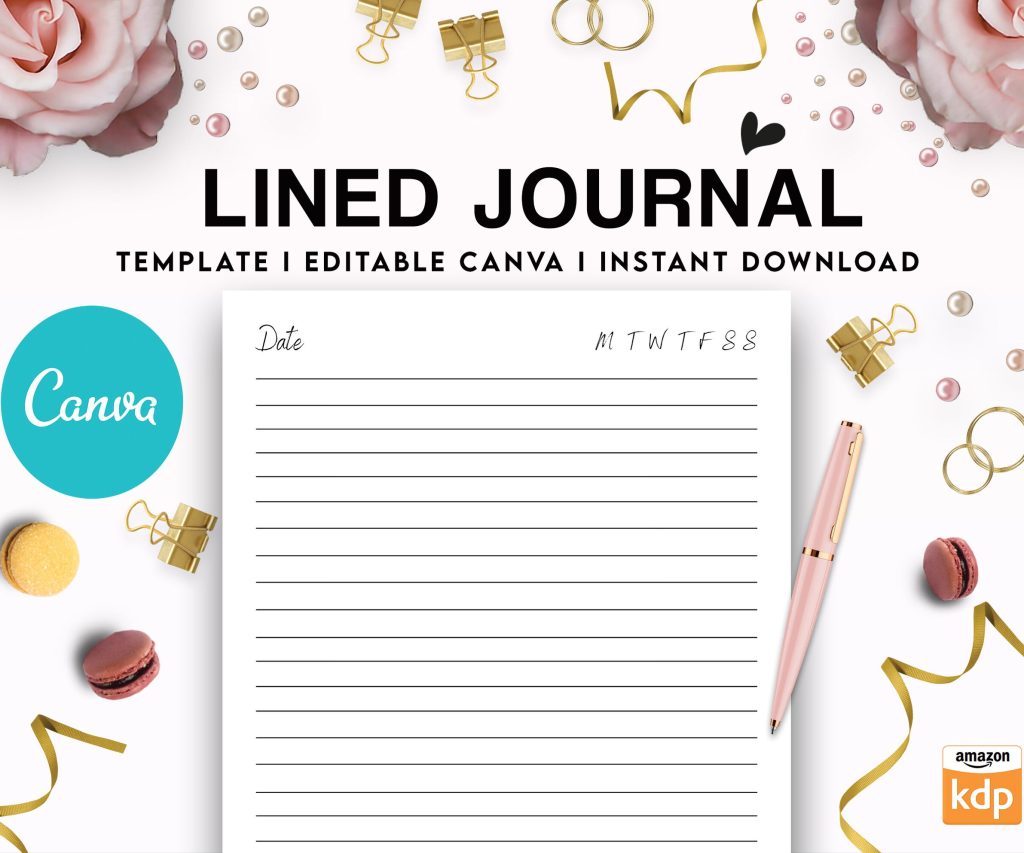
 Editable Canva Lined Journal: Express Your Thoughts - KDP Template
 Subtotal: $0.00
Amazon KDP guide, KDP book publishing
Cover Template KDP: All Book Sizes & Formats
27
Mar
Mar
Okay so the cover template thing for KDP is honestly way simpler than people make it out to be, but there are like these specific quirks that’ll mess you up if you don’t know about them. I just helped someone fix their paperback cover last week because they didn’t account for bleed and yeah… Amazon rejected it three times before they messaged me.
The Basic Formula Nobody Explains Right
So here’s the deal with KDP cover templates – you need the exact dimensions based on your page count and paper type. Amazon has this calculator tool but it’s kinda hidden in the paperback setup process. What you’re actually creating is one single image that wraps around the entire book – front cover, spine, back cover, all in one file.
The formula is basically: (trim width × 2) + spine width + bleed on both sides. Bleed is 0.125 inches on all edges for US marketplaces and 3mm for EU. Don’t mix these up because I’ve done that and it’s annoying to redo.
Getting Your Spine Width Right
This is where people screw up the most. Spine width depends on:
- Your page count (obviously)
- Paper type – white or cream
- Whether it’s black/white interior or color
White paper is thinner than cream, so same page count = different spine width. I learned this the hard way when I created like 15 covers assuming all my books would use white paper, then switched to cream for a journal and had to remake everything.
Amazon’s calculator gives you the spine width in inches. Write this down somewhere because you’ll need it multiple times.
Common Trim Sizes and What Actually Sells
Alright so there are a bunch of trim sizes available but honestly most of my sales come from like four sizes. Here’s what I use:
6 x 9 inches – this is the standard for non-fiction, memoirs, most text-heavy books. It’s what people expect when they pick up a “normal” book. I use this for probably 60% of my catalog.
8.5 x 11 inches – workbooks, planners, activity books, any kind of low-content book where people need space to write. My budget planners are all this size and they do really well.
5 x 8 inches – smaller novels, devotionals, poetry. It feels more intimate I guess? Some fiction authors swear by this size.
8 x 10 inches – coloring books, cookbooks, photo books. This is the sweet spot for visual content.
Oh and another thing – there’s also 5.5 x 8.5 which is digest size, pretty popular for certain genres but I don’t use it much. And square formats like 8 x 8 for kids books.
Creating the Template File Itself
You can download the template directly from KDP when you’re setting up your book. It comes as a PNG or PDF with guides showing you where the spine is, where the safe zone is (that’s the area where text won’t get cut off), and the bleed area.
But here’s what I actually do because the KDP templates are kinda basic – I use the dimensions they give me and create my own template in Canva or Photoshop. The KDP template is useful for reference but not great for actual design work.
Canva Method
In Canva, go to custom size and enter your full cover dimensions in pixels. You’ll need to convert from inches – it’s 300 DPI for print, so multiply your inches by 300. For a 6 x 9 book with 120 pages (let’s say spine is 0.246 inches), you’d calculate:
Width: (6 + 6 + 0.246 + 0.125 + 0.125) × 300 = 3,741 pixels
Height: (9 + 0.125 + 0.125) × 300 = 2,775 pixels
Then I manually add guides for the spine and safe zones. It’s tedious the first time but once you have a template saved, you just duplicate it for similar books.
Photoshop or GIMP Method
Same idea but you have more control over guides and layers. I actually prefer Photoshop for paperback covers because I can save all my guides and reuse them. Set your resolution to 300 DPI, create a new document with the exact dimensions in inches (no need to convert), and add guides manually.
The safe zone should be 0.125 inches from the trim line (not the bleed edge – the trim line). So basically 0.25 inches from the edge of your canvas.
Hardcover Templates Are Different
Wait I forgot to mention – if you’re doing hardcover (which is only available for certain trim sizes), the template structure is totally different. Hardcovers have a dust jacket AND a case cover. The dust jacket wraps around like a paperback but has flaps that fold inside. The case cover is what’s actually printed on the hard cover itself – usually just the spine and maybe a small design.
Honestly I don’t do many hardcovers because the pricing gets weird for customers, but when I do, I use the KDP template directly because there are too many measurements to mess up. The flaps alone are like 3 inches each and if you get that wrong… yeah.
Ebook Covers Are Way Easier
Okay so switching gears – ebook covers are just the front cover. That’s it. No spine, no back, no bleed needed. The recommended size is 2,560 x 1,600 pixels for optimal quality, but honestly anything around 1,600 pixels on the shortest side works fine.
I usually create my ebook covers at 1,600 x 2,400 pixels (that’s a 2:3 ratio which looks good as a thumbnail). Keep your file under 50MB but really you should be aiming for under 5MB because nobody needs a 50MB cover file.
Important: Your ebook cover and paperback front cover should match but they won’t be exactly the same dimensions. I create the ebook cover first, then extend it for the paperback. This is gonna sound weird but I actually design in layers so I can just expand the canvas when I need to add a spine and back cover.
File Formats That Actually Work
KDP accepts:
- TIFF
- PDF (but it has to be the right kind of PDF – more on this in a sec)
- JPG/JPEG
- PNG
I always use PDF for paperback covers and JPG for ebooks. PNG files get huge when you’re working with full-bleed print dimensions and Amazon’s uploader gets cranky with large files.
For PDFs, make sure you’re exporting as PDF/X-1a:2001 if you have that option. This is the print standard and it embeds all fonts and flattens everything. I’ve had PDFs rejected because the fonts weren’t embedded and Amazon couldn’t display them properly.
The Spine Width Calculator Thing
So Amazon has this spine calculator buried in the paperback content section. You enter your page count and paper type and it spits out the spine width. But here’s the trick – this is an ESTIMATE. The actual spine width can vary slightly based on how the book is bound.
That’s why KDP gives you a spine safe zone. Don’t put critical text (like your title) right at the edge of the spine area. Give it at least 0.0625 inches of buffer on each side. I usually keep text 0.125 inches away from the spine edges just to be safe.
My cat just knocked over my coffee but it’s fine – anyway, for books under 100 pages, the spine gets really narrow. Like under 0.2 inches sometimes. At that width, you might not even want text on the spine because it’ll be unreadable. I’ve done books where I just put a solid color or simple design on the spine because there’s no room for the title.
Color Mode and Resolution
Always design in CMYK for print, RGB for ebook. This is super important because what looks good on your screen (RGB) will look different when printed (CMYK). Colors shift, especially bright blues and greens.
I design in RGB first because most design tools default to that, then convert to CMYK before exporting the final PDF. In Photoshop you can do this under Image > Mode > CMYK Color. Canva auto-converts when you download as PDF print, which is actually pretty convenient.
Resolution needs to be 300 DPI minimum for print. Ebook covers can be 72 DPI technically, but I still do 300 DPI because why not? Storage is cheap and it looks crisper.
What Happens If Your Resolution Is Too Low
Amazon will reject it. I’ve tested this accidentally when I grabbed a low-res image from… somewhere I shouldn’t have. The rejection email says something like “cover image quality is too low” and you gotta reupload.
But sometimes Amazon accepts covers that are like 250 DPI or whatever. It’s not consistent. Don’t risk it though – just stick to 300 DPI and you’ll never have issues.
Bleed and Trim Marks
Bleed is the extra image area that extends beyond the trim line. When the book is printed, it’s cut at the trim line, and the bleed ensures there’s no white edge if the cut is slightly off.
You need 0.125 inches of bleed on all sides (top, bottom, left, right). This means any background color or image needs to extend all the way to the edge of your canvas. Don’t put important text or design elements in the bleed area because they might get cut off.
Trim marks are the little corner marks that show where the book will be cut. KDP’s templates include these but you don’t need to add them yourself when you’re designing. The printer handles that.
Different Formats Quick Reference
Paperback:
- Full wrap cover (front + spine + back + bleed)
- PDF or JPG, 300 DPI, CMYK
- Use KDP calculator for spine width
- 0.125″ bleed on all sides
Hardcover:
- Dust jacket (similar to paperback wrap)
- Case cover (just spine, sometimes front/back)
- Follow KDP template exactly because it’s complicated
- Same DPI and color mode as paperback
Ebook:
- Front cover only
- 2560 x 1600 pixels recommended (or similar ratio)
- JPG or PNG, RGB color mode
- Under 50MB file size
Common Mistakes I See All The Time
Text too close to the spine or edges – use the safe zone guides. I can’t stress this enough because I see books where the title is cut off on the spine or the barcode area covers important text on the back.
Wrong spine width – recalculate if you change your page count or paper type. This happened to me when I added an extra chapter and didn’t update the cover. The spine was too narrow and there was this weird white gap.
Forgetting the barcode area – Amazon puts a barcode on the back cover bottom right. Leave that space blank (usually about 2 x 1.2 inches). You can put a background color or pattern but no text or important images.
Not converting to CMYK – your vibrant cover looks muddy when printed because RGB colors don’t translate directly to CMYK. Always preview in CMYK before finalizing.
Oh and another thing – using too many fonts. This isn’t a technical issue but like, keep it to 2-3 fonts max. I’ve seen covers with 5 different fonts and it just looks messy.
Testing Before You Publish
Order a proof copy. Seriously. It costs like $5-10 depending on your book size and you’ll catch issues you can’t see on screen. I’ve caught spine alignment problems, color issues, and formatting weirdness that didn’t show up in the digital previewer.
The KDP previewer tool is okay but it’s not perfect. It shows you how your cover wraps around but the colors and resolution aren’t accurate to the final print.
Templates for Different Page Counts
You can’t use the same template for a 50-page book and a 300-page book because the spine width changes dramatically. I have saved templates for common page count ranges:
- 50-75 pages
- 100-150 pages
- 200-250 pages
- 300+ pages
Within each range, the spine width difference is small enough that I can adjust manually. But jumping from 100 to 300 pages? You gotta recalculate everything.
For low-content books (planners, journals), I usually stick to 100-120 pages because the spine is thick enough to read but not so thick that printing costs get crazy.
Alright so that’s basically the whole system for KDP cover templates. The key is getting your measurements right upfront, using the safe zones properly, and always always always checking your spine width when you change anything about your book’s interior. Once you have a good template saved, you can reuse it for similar projects and it gets way faster.
DISCOVER OUR FREE BEST SELLING PRODUCTS
Editable Canva Lined Journal: Express Your Thoughts – KDP Template
Lined Pages Journal 120 pages Ready to Upload PDF Commercial Use KDP Template 6×9 8.5×11 5×8 for Notebooks, Diaries, Low Content
Lined Pages Journal 120 pages Ready to Upload PDF Commercial Use KDP Template 6×9 8.5×11 5×8 for Notebooks, Diaries, Low Content
Cute Dogs Coloring Book for Kids | Activity Book | KDP Ready-To-Upload
Daily Planner Diary : Diary Planners for Everyday Productivity, 120 pages, 6×9 Size | Amazon KDP Interior
Wolf Coloring KDP interior For Adults, Used as Low Content Book, PDF Template Ready To Upload COMMERCIAL Use 8.5×11"
Coloring Animals Head Book for Kids, Perfect for ages 2-4, 4-8 | 8.5×11 PDF
Printable Blank Comic Book Pages PDF : Create Your Own Comics – 3 Available Sizes
Notes KDP interior Ready To Upload, Sizes 8.5×11 6×9 5×8 inch PDF FILE Used as Amazon KDP Paperback Low Content Book, journal, Notebook, Planner, COMMERCIAL Use
Black Lined Journal: 120 Pages of Black Lined Paper Perfect for Journaling, KDP Notebook Template – 6×9
Student Planner Journal 120 pages Ready to Upload PDF Commercial Use KDP Template 6×9" 8.5×11" for Low Content book
Recipe Journal Template – Editable Recipe Book Template, 120 Pages – Amazon KDP Interior