-
×
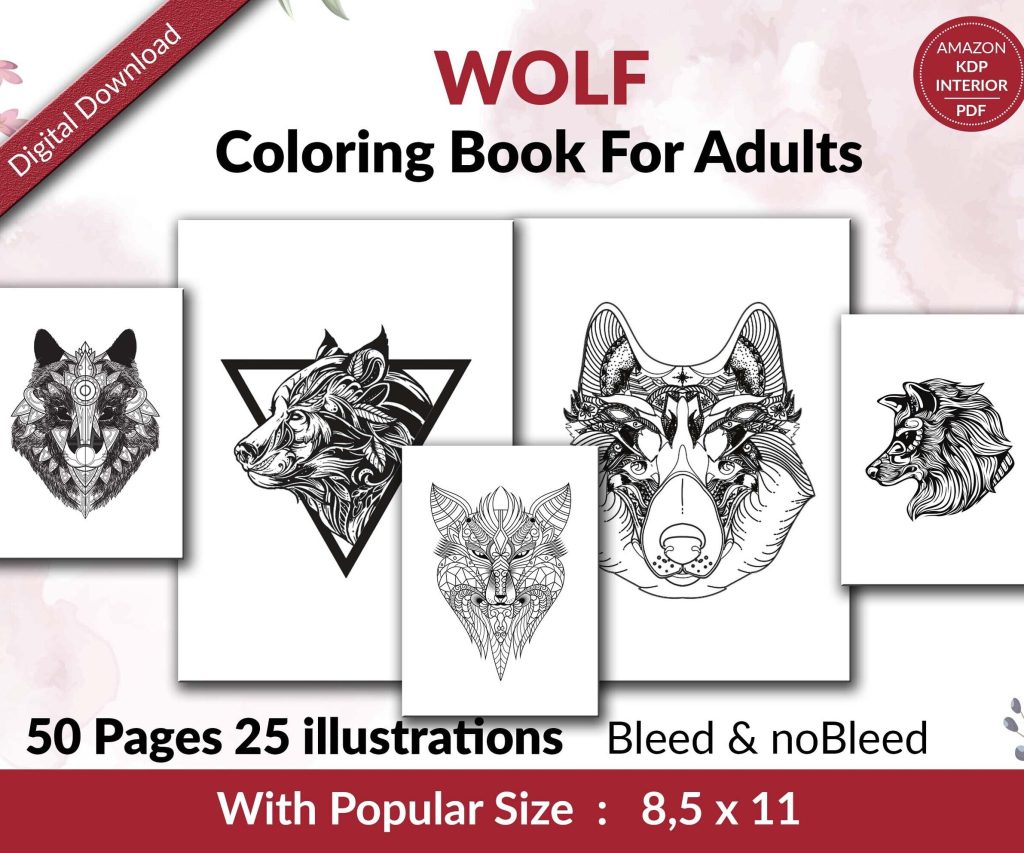 Wolf Coloring KDP interior For Adults, Used as Low Content Book, PDF Template Ready To Upload COMMERCIAL Use 8.5x11"
1 × $0.00
Wolf Coloring KDP interior For Adults, Used as Low Content Book, PDF Template Ready To Upload COMMERCIAL Use 8.5x11"
1 × $0.00
Subtotal: $0.00

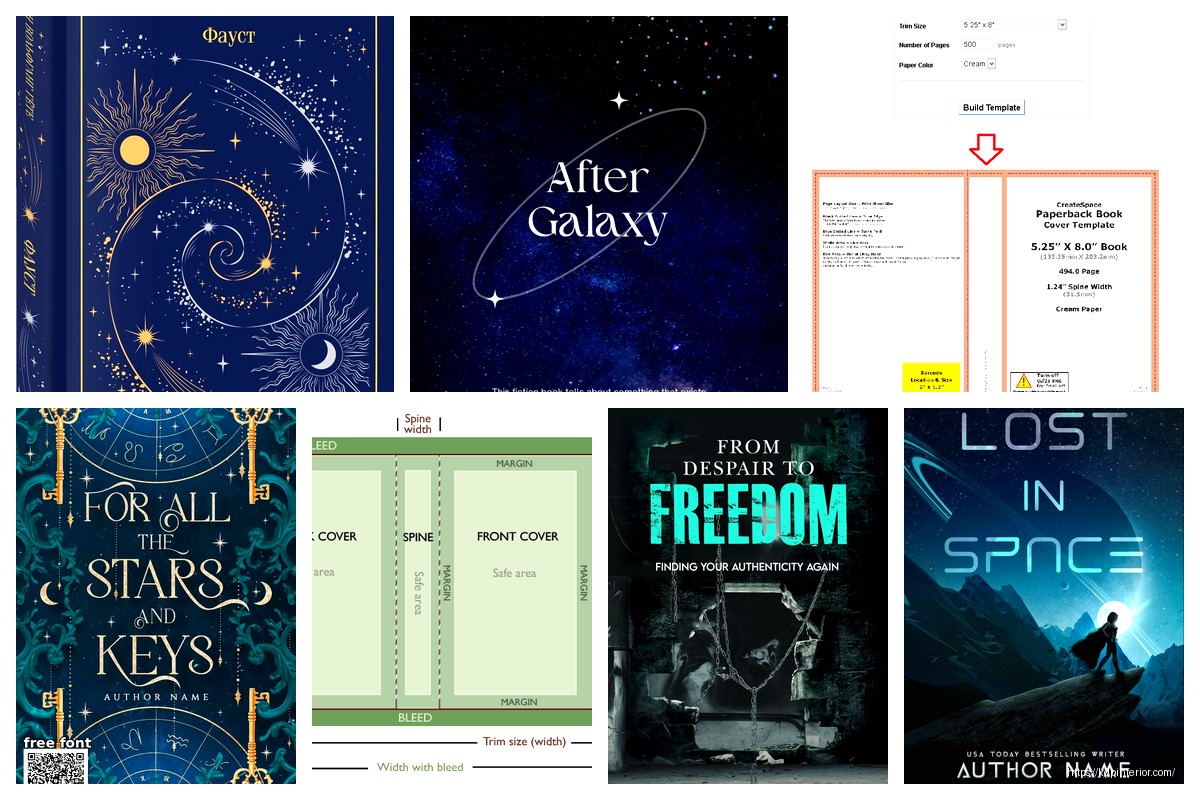
Okay so CreateSpace templates are basically this relic now but honestly I still get asked about them like every week because people are digging through old tutorials or they’ve got these files sitting on their hard drive from 2017 and they’re like “can I still use this?”
First thing – CreateSpace merged with KDP Print back in 2018 so technically CreateSpace doesn’t exist anymore but the templates? They still work. Kind of. The dimensions haven’t changed for standard trim sizes which is why you can totally pull up an old CreateSpace cover template and use it today for KDP Print. I tested this last month actually because someone in my consulting group had a 6×9 template from 2016 and we just… uploaded it. Worked fine.
The main templates people are looking for are the cover templates which had that specific layout – front cover, spine, back cover all in one file. CreateSpace used to auto-generate these based on your book specs and honestly that calculator was pretty solid. Better than some of the random calculators floating around now if I’m being real.
So here’s the deal – Amazon didn’t totally nuke the old CreateSpace resources when they merged everything. Some of the templates are still floating around in the KDP help sections but they’re buried. What I do is I keep a personal archive of the most common trim sizes because it’s faster than hunting through Amazon’s help docs every time.
The templates you’re probably looking for:
Each template came as a PNG file usually, sometimes PDF. The PNG files were actually easier to work with in Photoshop or Canva because you could just drop them in as a background layer and design right on top.
This is where people mess up constantly. The spine width changes based on your page count and paper type. CreateSpace had this built into their template generator – you’d enter your page count, pick white or cream paper, and boom, it’d spit out the exact dimensions including spine width.
Now with KDP Print you gotta use their cover calculator which is basically the same thing but the interface is different. But wait I forgot to mention – if you’re working with an OLD CreateSpace template and your page count changed, you need to regenerate the whole thing. Don’t just guess at the spine width. I’ve seen so many covers get rejected because someone added 20 pages to their manuscript but kept using the old template dimensions.
The formula if you wanna do it manually is roughly 0.002252 inches per page for white paper and 0.0025 inches per page for cream paper. But honestly just use the calculator because math at 11pm when you’re trying to upload a book is not the move.
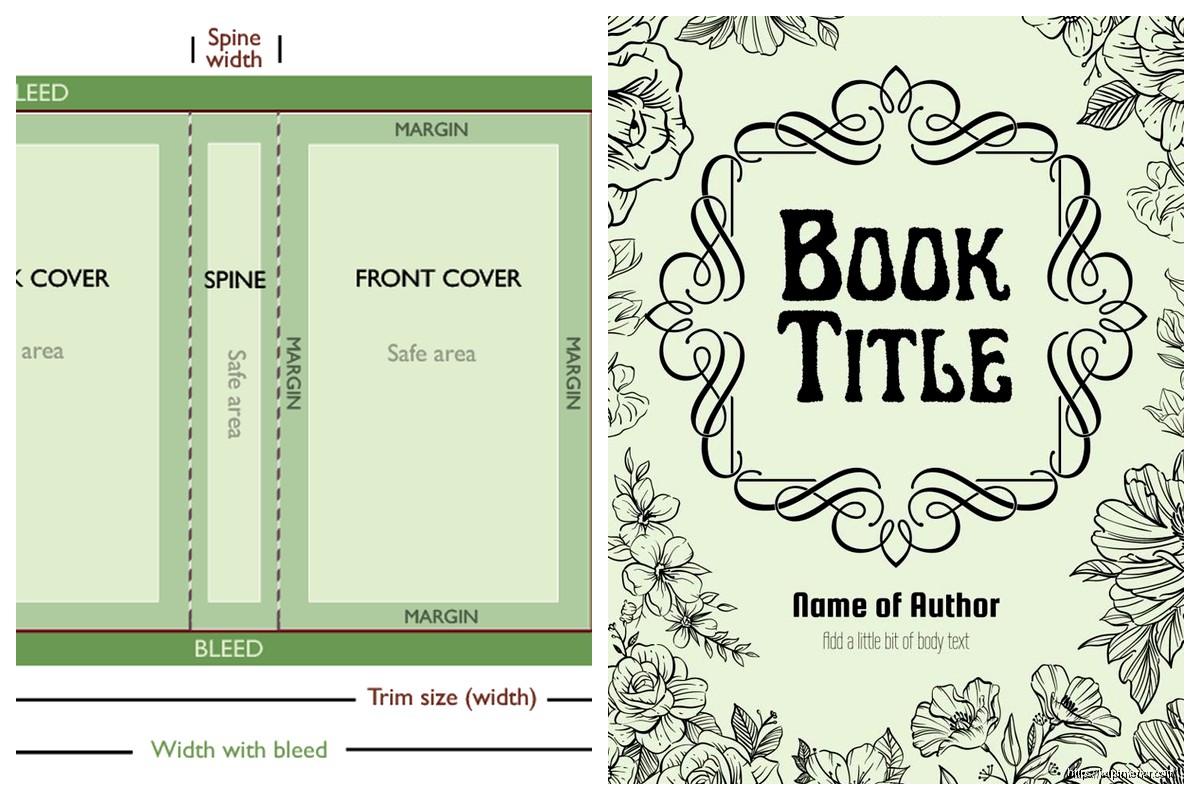
So CreateSpace templates had these built-in guides – you’d see the trim line, the safety line (usually 0.125 inches inside the trim), and the spine guidelines. The safety margin is crucial because anything important – text, logos, faces in photos – needs to stay inside that safety zone or it might get chopped off during the printing process.
KDP Print uses the same safety margins but I’ve noticed their automated cover creator tool is more forgiving now? Like I uploaded a cover last year where I had text slightly outside the safety zone and it went through fine. Still wouldn’t recommend pushing it though.
Oh and another thing – the bleed area. CreateSpace templates included a 0.125 inch bleed on all sides which means your background image or color needs to extend past the trim line. This is still the same with KDP Print. If your background doesn’t extend to the bleed edge you’ll get white lines on your finished book and trust me that looks terrible.
The technical requirements are basically identical:
I always design in CMYK now because I got burned once with this really vibrant blue cover that looked amazing on my monitor but printed out looking like… a sad denim color. CMYK gives you a better preview of how colors will actually print.
Okay so if you’ve got an old CreateSpace template file and wanna use it today here’s what you gotta do. First check the dimensions against the current KDP Print specs for your trim size. Go to KDP, start the cover creation process, and download their current template for comparison.
Most of the time the dimensions match exactly. Where you might see differences is in the spine width if your page count changed or if you’re switching between white and cream paper. I literally just did this last week for a client who had a 2015 CreateSpace template – the trim size was identical but the spine was off by like 0.08 inches because they added more content to the book.
If the dimensions don’t match you have two options – resize your entire design (not ideal because you might lose quality or mess up proportions) or rebuild the cover using a fresh template. I usually vote for rebuilding because it takes maybe an extra 30 minutes but you know it’s gonna be right.
CreateSpace templates work with pretty much any design software. I’ve used:
Photoshop – this is what I use 90% of the time. Drop the template as a guide layer, design on layers above it, flatten when done. Super straightforward.
Canva – you can upload the template dimensions as a custom size. It’s not as precise as Photoshop but for simple covers it works fine. I was designing a cover in Canva last night actually while watching this documentary about cults (totally unrelated but it was wild) and the main issue with Canva is making sure your bleed extends properly.
GIMP – free alternative to Photoshop. Works great with CreateSpace templates. The interface is clunkier but it gets the job done.
InDesign – overkill for just a cover but if you’re doing the interior too it makes sense. You can set up the template dimensions as a custom page size.
People put text on the spine that’s too small. If your book is under 130 pages or so the spine is gonna be really narrow – like under 0.3 inches. You can’t fit readable text in that space. Either skip spine text entirely or use absolute minimum font size. I usually say nothing smaller than 16pt for spine text and that’s pushing it.
Wrong color mode like I mentioned before. Designing in RGB when you need CMYK will mess up your colors.
Not extending the background to the bleed edge. This one gets so many covers rejected it’s not even funny.
Putting important elements too close to the trim line. Keep everything 0.125 inches inside the trim at minimum. I go 0.25 inches for text just to be extra safe.
CreateSpace templates had a white box on the back cover for the barcode. Amazon adds this automatically when you upload your cover so you need to leave that space blank. The box is typically about 2 inches wide by 1.2 inches tall in the lower right corner of the back cover.
Some people design with the barcode area as colored instead of white which can work but make sure there’s enough contrast for the barcode to scan properly. I stick with white because it’s foolproof.
This is gonna sound weird but I keep a folder on my drive with blank templates for every trim size I use regularly. When KDP releases updated templates I download them and compare against my archived versions to see if anything changed. So far nothing has changed since the CreateSpace merger but you never know.
I also save cover files with layers intact even after I upload the flattened version. Had a situation last year where a client wanted to update their book title slightly and because I had the layered file I could just edit the text layer and re-export. Took 5 minutes instead of rebuilding the whole cover.
The 300 DPI requirement is real but also people stress about file size too much. KDP accepts cover files up to 40MB which is massive. My covers are usually 5-15MB depending on how many graphics and photos are in the design.
If your file is too big you can usually reduce it by flattening layers and using PDF compression. I export from Photoshop as PDF with “smallest file size” preset and it’s never been an issue.
Wait I forgot to mention – some of the really old CreateSpace templates were 150 DPI which doesn’t meet current standards. If you’ve got an ancient template double-check the resolution before you spend hours designing on it.
A lot of pre-made cover designers still reference CreateSpace specs because like I said the dimensions haven’t changed. If you buy a premade cover and it says “CreateSpace ready” it’ll work fine for KDP Print assuming the trim size and page count match your book.
Just make sure whoever did the cover extended the design to include proper bleed and left the barcode area blank. I’ve bought premade covers where those details were overlooked and had to fix them myself which defeats the purpose of buying premade.
The other thing with premades is spine width – most designers create them for a specific page count range. If your book falls outside that range you’ll need customization. Some designers offer this free, others charge like $20-50 to adjust the spine.
Print a proof copy. Always. I know it costs money and takes time but seeing your cover in physical form catches issues that you’ll never spot on a screen. Colors look different, text might be smaller than you thought, the spine alignment might be slightly off.
I usually order the first proof through KDP Print’s system and then if there are issues I fix them and order another. It’s maybe $15-20 in proof costs but way better than having a mediocre cover on a live listing.
Some people use the digital proof feature KDP offers but honestly it’s not the same. The 3D preview is okay for checking layout but terrible for judging colors and text readability.
Anyway that’s basically everything I know about CreateSpace templates and using them today. They’re still totally viable tools you just gotta make sure your dimensions match your current book specs and follow the same print requirements KDP uses now.
DISCOVER OUR FREE BEST SELLING PRODUCTS
Editable Canva Lined Journal: Express Your Thoughts – KDP Template
Lined Pages Journal 120 pages Ready to Upload PDF Commercial Use KDP Template 6×9 8.5×11 5×8 for Notebooks, Diaries, Low Content
Lined Pages Journal 120 pages Ready to Upload PDF Commercial Use KDP Template 6×9 8.5×11 5×8 for Notebooks, Diaries, Low Content
Cute Dogs Coloring Book for Kids | Activity Book | KDP Ready-To-Upload
Daily Planner Diary : Diary Planners for Everyday Productivity, 120 pages, 6×9 Size | Amazon KDP Interior
Wolf Coloring KDP interior For Adults, Used as Low Content Book, PDF Template Ready To Upload COMMERCIAL Use 8.5×11"
Coloring Animals Head Book for Kids, Perfect for ages 2-4, 4-8 | 8.5×11 PDF
Printable Blank Comic Book Pages PDF : Create Your Own Comics – 3 Available Sizes
Notes KDP interior Ready To Upload, Sizes 8.5×11 6×9 5×8 inch PDF FILE Used as Amazon KDP Paperback Low Content Book, journal, Notebook, Planner, COMMERCIAL Use
Black Lined Journal: 120 Pages of Black Lined Paper Perfect for Journaling, KDP Notebook Template – 6×9
Student Planner Journal 120 pages Ready to Upload PDF Commercial Use KDP Template 6×9" 8.5×11" for Low Content book
Recipe Journal Template – Editable Recipe Book Template, 120 Pages – Amazon KDP Interior