
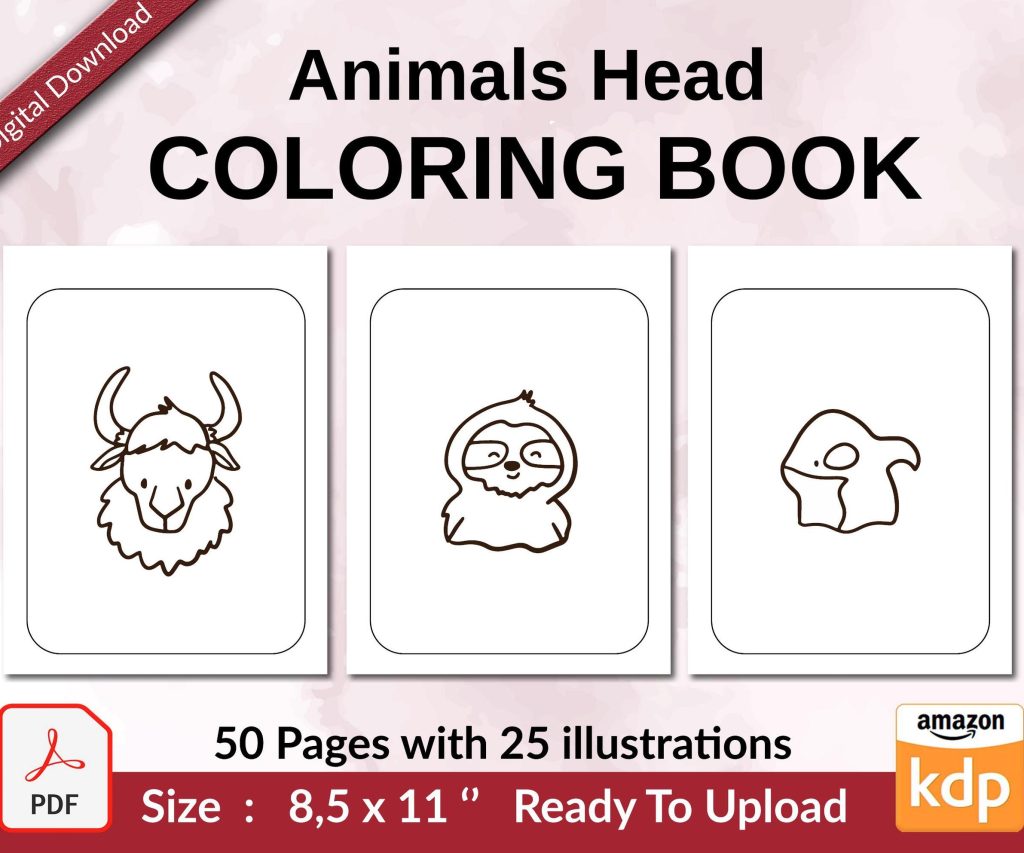
 Coloring Animals Head Book for Kids, Perfect for ages 2-4, 4-8 | 8.5x11 PDF
 Subtotal: $0.00
Amazon KDP guide, KDP book publishing
Creating a Book Cover for Kindle: Design Tutorial
02
Mar
Mar
okay so here’s what actually works for kindle covers
Right so you need a cover and honestly this used to stress me out way more than it should’ve until I figured out the actual workflow. Let me just walk you through what I do now because I’ve made like 200+ of these things and most of my books that hit $1k+ months have covers I made myself in under an hour.
First thing – and I cannot stress this enough – your cover needs to look good as a tiny thumbnail. I’m talking like 120 pixels wide because that’s what people see when they’re scrolling Amazon on their phone at 11pm looking for their next read. I learned this the hard way when I made this gorgeous detailed cover for a journal back in 2019 and it sold like 3 copies the first month because you literally couldn’t tell what it was in thumbnail view.
the actual dimensions you need
Amazon wants 2560 x 1600 pixels minimum for ebooks. That’s a 1.6:1 ratio. I usually work at 2700 x 4050 pixels though because that gives you the standard 6×9 book ratio and it just looks more like an actual book cover? Plus if you ever wanna do print later you’re already set up for it.
Some people work at exactly 2560 x 1600 and that’s fine too, just make sure you’re at 300 DPI. Amazon will accept 72 DPI but it looks like garbage and you know people can tell even if they don’t consciously realize it.
software options that don’t suck
Okay so for software I bounce between three options depending on what mood I’m in:
- Canva Pro – yeah yeah everyone uses it but there’s a reason. The templates are actually decent starting points and you can resize stuff easily. Costs like $13/month but honestly worth it for the stock photos alone
- Adobe Express (used to be Spark) – similar to Canva, little less intuitive but comes with Adobe Creative Cloud if you already have that
- Photoshop – this is what I use when I need full control but gonna be honest it’s overkill for most covers especially if you’re just starting
I also mess around with Affinity Publisher sometimes because it’s a one-time payment ($69 I think?) and works great, but the learning curve is steeper than Canva.
my actual process start to finish
So here’s what I do when I sit down to make a cover. Usually I’m doing this late at night after my client calls are done, probably with some random netflix show on in the background – just binged The Diplomat last week while cranking out like 5 covers.
step 1: look at what’s already working
Before I design anything I go to Amazon and search for books in my niche. Let’s say you’re making a recipe book. Search “keto recipes” or whatever your thing is and look at the top 20 results. Screenshot like 10-15 of them.
What colors keep showing up? What fonts? Is there food photography or is it graphic design? Are the titles big and bold or small and elegant?
This isn’t about copying – it’s about understanding what buyers in that niche expect to see. My anxiety journal that flopped? I made it all dark and moody when every other anxiety journal was soft pastels and calming blues. Learn from my mistakes lol.
step 2: pick your background
You’ve got basically three options here:
- Solid color (easiest, can look professional if you pick the right color)
- Gradient (very trendy right now especially for self-help and fiction)
- Photo or texture (needs to be high quality or it looks cheap)
For stock photos I use Unsplash (free), Pexels (free), or the Canva library if I’m working in there. Sometimes I’ll buy specific images from Creative Market if I’m working on a series and need something particular.
One trick – if you use a photo, add a colored overlay at like 40-60% opacity. Makes it easier to put text on top and ties everything together visually. I usually do this with a rectangle shape, set the color, then adjust the transparency.
step 3: typography is like 80% of the game
Okay so funny story, I once spent 3 hours on this elaborate cover design with custom illustrations and everything, and my buddy who’s a actual graphic designer looked at it and said “the font is terrible” and he was right. Changed just the font and suddenly it looked professional.
Here’s my font rules:
- Use maximum 2 fonts per cover, maybe 3 if one is just for a small subtitle
- Make sure they’re readable at thumbnail size – go look at your cover at like 20% zoom
- Bold fonts for titles, simple fonts for author names
- Sans serif fonts (no little feet on the letters) generally work better for thumbnails
My go-to fonts right now are like Bebas Neue for bold titles, Montserrat for clean modern looks, Playfair Display if I need something elegant. But honestly this changes based on genre.
Oh and another thing – make your title BIG. Like way bigger than you think it should be. I see so many new publishers make these covers with tiny titles and wonder why they don’t sell. Your title should take up like 40-60% of the cover space.
step 4: color psychology isn’t BS actually
This is gonna sound weird but color choice matters more than I thought when I first started. Different genres have different color expectations:
Romance = reds, pinks, purples
Thriller/Mystery = blacks, dark blues, reds
Self-help = blues, greens, oranges (calming or energizing)
Business = blues, blacks, grays (professional)
Children’s = bright primaries, everything colorful
You can break these rules but know that you’re breaking them. My best-selling planner has this weird coral-orange color that shouldn’t work for productivity but somehow does. Sometimes you get lucky.
technical stuff you gotta get right
file format and upload
Amazon accepts JPEG or TIFF. I always use JPEG because the files are smaller and I’ve never had quality issues. Save it at maximum quality though – in Photoshop that’s quality 12, in Canva just download as PNG first then convert to JPG if needed.
Wait I forgot to mention – make sure your background goes all the way to the edges. No white borders unless that’s intentionally part of your design. Amazon’s gonna display your cover on different colored backgrounds and a white border can look really amateur.
text safety zones
Keep important text at least 0.25 inches (about 75 pixels at 300 DPI) away from the edges. I usually keep everything 100 pixels from edges to be safe because Amazon sometimes crops covers slightly differently depending on where they display.
This bit me once when I had an author name right at the bottom edge and it got cut off in certain views. Not a huge deal but looked sloppy.
test before you publish
Before uploading to KDP, I do this every single time: take your cover image and shrink it down to like 150 pixels wide. Can you still read the title? Can you tell what the book is about? If not, redesign.
Also look at it on your phone. Email yourself the image and open it on mobile. View it in the Amazon app if you can. This’ll show you how 90% of potential buyers will see it.
tools and resources I actually use
Besides the software I mentioned, here’s my toolkit:
Coolors.co – for generating color palettes. I’ll usually start with one color I know I want and let it suggest complementary colors. Super fast way to get a professional looking color scheme.
FontPair.co – shows you font combinations that work well together. Saves so much time instead of trying random combos.
Remove.bg – if you need to remove backgrounds from images. Works like magic for product photos or if you wanna put an object on a different background.
Creative Fabrica – subscription site for graphics and fonts. I use this for patterns, textures, design elements. Think I pay like $19/month and it’s paid for itself many times over.
my weird workflow hack
This is probably just me being disorganized but I keep a Dropbox folder called “cover inspo” and whenever I see a cover I like anywhere – Amazon, walking through Barnes & Noble, scrolling Instagram whatever – I screenshot it or take a photo. Then when I’m stuck on a design I scroll through that folder.
Not to copy but just to remind myself what works. Sometimes I’ll see a color combo I saved six months ago and that’ll spark the whole design.
common mistakes I see everywhere
Too much going on – new designers try to fill every inch of space. White space (or negative space) is your friend. Let the design breathe.
Low quality images – blurry photos or pixelated graphics instantly make your book look self-published in the bad way. If an image looks even slightly questionable, find a better one.
Wrong genre signals – make sure your cover looks like it belongs next to the bestsellers in your category. A literary fiction cover on a romance novel is gonna confuse buyers.
Trying to be too clever – sometimes simple is better. You don’t need some abstract metaphorical design. Clear title, nice colors, professional fonts will outsell a confusing artistic cover most of the time.
Author name too small – unless you’re already famous, yeah your name can be smaller than the title, but it still needs to be readable. I see covers where the author name is like 8pt font and you literally can’t read it.
series covers deserve their own mention
If you’re doing a series – and you should be thinking series because that’s where the real money is – design all your covers at once. They need to obviously belong together while still being distinct.
Usually this means keeping the same layout, fonts, and overall color scheme but changing one key element. Could be the background color shifts, or there’s a different image, or the subtitle changes.
My dog just knocked over my coffee and I gotta say designing covers is way easier than cleaning coffee out of a keyboard but anyway-
when to hire a designer instead
Look I make my own covers most of the time but there are situations where I’ll hire someone. If it’s a fiction book where I’m really trying to compete with trad published authors, I’ll spend $100-300 on Fiverr or 99Designs for a pro cover.
Same if it’s a series I’m planning to spend real ad money on. The cover needs to be perfect and sometimes that’s above my skill level.
But for low-content books, planners, journals, simple non-fiction? DIY all the way. You can make perfectly good covers yourself and iterate quickly.
Last week my client canceled a meeting so I spent those two hours just making variations of the same cover with different color schemes. Ended up split testing three versions and one converted 40% better than the others. Can’t do that if you’re paying a designer every time.
the actual upload process
When you’re in KDP and uploading, Amazon’s gonna show you a preview of your cover. Check this carefully especially the 3D mockup view. Sometimes colors look different than they did on your screen.
If something looks off, don’t just shrug and publish anyway. Fix it. I’ve had covers where the color was slightly different after upload – usually stuff with gradients can shift. Just adjust and re-upload until it looks right.
Also Amazon will tell you if your file doesn’t meet specs. Listen to those warnings. Don’t try to upload a 72 DPI image or something too small because it’ll look terrible.
One more thing about fonts – make sure you have the license to use them commercially. Most fonts in Canva are licensed for commercial use automatically, but if you’re downloading free fonts from random sites, check the license. Last thing you need is legal drama over a $12 font license.
Anyway that’s basically my whole process. Start with research, keep it simple, make the title huge, test at thumbnail size, and don’t overthink it. I’ve published covers I spent 20 minutes on that outsold covers I spent 6 hours on. Sometimes you just gotta ship it and see what happens.
DISCOVER OUR FREE BEST SELLING PRODUCTS
Editable Canva Lined Journal: Express Your Thoughts – KDP Template
Lined Pages Journal 120 pages Ready to Upload PDF Commercial Use KDP Template 6×9 8.5×11 5×8 for Notebooks, Diaries, Low Content
Lined Pages Journal 120 pages Ready to Upload PDF Commercial Use KDP Template 6×9 8.5×11 5×8 for Notebooks, Diaries, Low Content
Cute Dogs Coloring Book for Kids | Activity Book | KDP Ready-To-Upload
Daily Planner Diary : Diary Planners for Everyday Productivity, 120 pages, 6×9 Size | Amazon KDP Interior
Wolf Coloring KDP interior For Adults, Used as Low Content Book, PDF Template Ready To Upload COMMERCIAL Use 8.5×11"
Coloring Animals Head Book for Kids, Perfect for ages 2-4, 4-8 | 8.5×11 PDF
Printable Blank Comic Book Pages PDF : Create Your Own Comics – 3 Available Sizes
Notes KDP interior Ready To Upload, Sizes 8.5×11 6×9 5×8 inch PDF FILE Used as Amazon KDP Paperback Low Content Book, journal, Notebook, Planner, COMMERCIAL Use
Black Lined Journal: 120 Pages of Black Lined Paper Perfect for Journaling, KDP Notebook Template – 6×9
Student Planner Journal 120 pages Ready to Upload PDF Commercial Use KDP Template 6×9" 8.5×11" for Low Content book
Recipe Journal Template – Editable Recipe Book Template, 120 Pages – Amazon KDP Interior