-
×
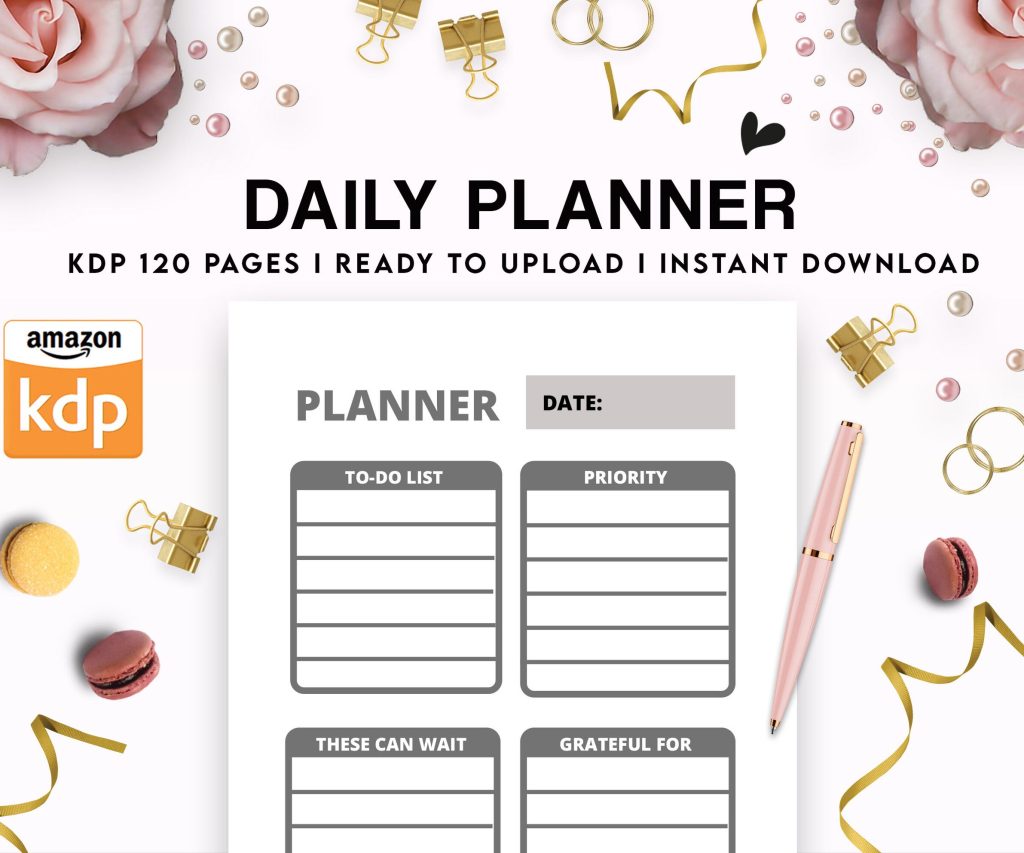 Daily Planner Diary : Diary Planners for Everyday Productivity, 120 pages, 6×9 Size | Amazon KDP Interior
1 × $0.00
Daily Planner Diary : Diary Planners for Everyday Productivity, 120 pages, 6×9 Size | Amazon KDP Interior
1 × $0.00
Subtotal: $0.00
 Daily Planner Diary : Diary Planners for Everyday Productivity, 120 pages, 6×9 Size | Amazon KDP Interior
1 × $0.00
Daily Planner Diary : Diary Planners for Everyday Productivity, 120 pages, 6×9 Size | Amazon KDP Interior
1 × $0.00 Subtotal: $0.00

I literally just walked my friend Sarah through this last week while my dog was barking at the neighbor’s cat, so it’s fresh in my head. She wanted to publish a recipe book and had no clue where to start.
First thing – you need your manuscript ready. Sounds obvious but you’d be surprised how many people try to upload a Word doc that’s a complete mess. I use Word or Google Docs, doesn’t really matter, but the formatting needs to be clean. No weird fonts, no random spacing issues. Keep it simple – one font throughout, consistent heading styles.
So the format you want is either DOC, DOCX, or EPUB. I usually stick with DOCX because it’s the easiest and Amazon‘s conversion tool handles it pretty well. But here’s the thing… if you’ve got a complex layout book with images and tables and stuff, you’re gonna want to create an EPUB file instead. There’s this free tool called Calibre that converts documents, though honestly the learning curve is annoying.
For images – and this trips people up all the time – they need to be at least 300 DPI if you’re doing print, but for Kindle you can get away with 72 DPI usually. Keep file sizes reasonable though. I learned this the hard way when I uploaded a photography book with massive image files and the download costs ate into my royalties.
Oh and another thing, your table of contents needs to be an actual hyperlinked TOC, not just text that looks like a table of contents. In Word, you do this with the References tab, then Insert Table of Contents. It’ll auto-generate based on your heading styles.
Wait I forgot to mention – you need a cover before you even get to the upload stage. Amazon requires a cover image that’s at least 1000 pixels on the shortest side, but I always do 1600 x 2560 pixels. That’s the sweet spot.
I use Canva for most of my covers now. Used to pay designers on Fiverr but honestly for low-content books and simpler ebooks, Canva templates work fine. Cost me like $13/month or whatever it is. The free version works too but you’re limited on images.
Your cover needs to look good as a thumbnail because that’s how 90% of people will see it first. Pull up Amazon on your phone and look at how small those covers appear in search results. If your title isn’t readable at that size, redesign it.
Okay so now you’re ready. Go to kdp.amazon.com and sign in with your regular Amazon account. If you don’t have a KDP account yet, you’ll need to set one up – they’ll ask for tax info and banking details. The tax interview is annoying but just answer honestly, it’s not as complicated as it looks.
Click the big yellow “Create” button and choose Kindle eBook. This is gonna sound weird but I always have two browser tabs open when I do this – one with my book details in a Google Doc, one with KDP. Makes it way easier to copy-paste everything.
Language is straightforward, just pick English or whatever. Book title needs to be exact – you can’t change this easily later without contacting support, so triple-check spelling.
Subtitle is optional but I always use it for non-fiction. It’s prime real estate for keywords. Like instead of just “Keto Recipes” you’d do “Keto Recipes: 100 Low-Carb Meals for Rapid Weight Loss and Energy” or whatever. Stuff those keywords in there naturally.
Series info only matters if you’re doing a series obviously. Edition number – just put 1 unless you’re republishing.
Author name – use your real name or a pen name, just be consistent across all your books. I’ve got like three different pen names for different niches at this point.
Description is where you sell the book. You get 4000 characters and you can use basic HTML for formatting. I always bold the key benefits and use bullet points. Write it like sales copy not a book report. This is probably the most important field besides your cover honestly.
You get to pick two categories during upload but you can email KDP support after publishing and get up to 10 total. I always do this. More categories = more chances to hit bestseller ranks in small niches.
Browse through Amazon’s category tree before you upload so you know exactly which ones you want. Some categories are super competitive, others have like 50 books total. Find the sweet spot.
Keywords – you get seven keyword boxes. Don’t waste these on single words. Use phrases that people actually search for. Think “low carb cookbook for beginners” not just “cookbook” you know?
There’s this thing called publisher rocket that costs like $97 one-time and it helps you find good keywords and categories. I bought it two years ago and it’s paid for itself probably 50x over. But you can also just manually search Amazon and see what comes up, check out similar books, see what categories they’re in.
Okay so now you upload your manuscript file. Click upload, select your DOCX or whatever, wait for it to process. Takes maybe 30 seconds to a few minutes depending on size.
Once it’s uploaded, DO NOT SKIP THE PREVIEW. I cannot stress this enough. Click “Launch Previewer” and it’ll show you what your book looks like on different devices. Check every single page. I once published a book with a random page break in the middle of a sentence because I didn’t preview it properly. Had to fix it and republish, got some annoyed reviews.
The previewer shows you Kindle, tablet, and phone views. Make sure your images aren’t distorted, your table of contents links work, chapter headings look right, all that stuff.
If something looks weird, you gotta go back to your source file, fix it, and re-upload. Sometimes Amazon’s conversion does strange things with formatting.
Okay next section is rights and pricing. For territories, I always select “All territories” unless you have a specific reason not to. Why limit your market right?
Primary marketplace is wherever you’re based – US for me. This affects what currency you think in mainly.
Now pricing – this is where it gets interesting. You have two royalty options: 35% or 70%. The 70% option sounds better obviously but there are restrictions. Your book has to be priced between $2.99 and $9.99, and Amazon charges delivery costs based on file size.
For most ebooks under 50 MB, the 70% royalty makes sense if you can price at $2.99 or higher. For low-content books or shorter stuff, sometimes 35% at $0.99 actually works out better for sales velocity.
I usually start at $2.99 for non-fiction, $3.99-$4.99 if it’s longer or more specialized. Fiction trends cheaper – like $2.99-$4.99 is standard for indie authors.
oh and another thing – KDP Select. This is Amazon’s exclusive program. If you enroll, your book can only be on Amazon, but you get perks like KU (Kindle Unlimited) payment for page reads, free promo days, and countdown deals.
I enroll most of my books in KDP Select because honestly the KU money is significant. I make probably 40% of my revenue from page reads. But if you wanna be on Apple Books, Kobo, whatever, you can’t do Select.
After you fill out everything and click publish, Amazon reviews your book. Usually takes 24-72 hours. Sometimes it’s like 6 hours, sometimes it’s three days, no real pattern to it.
They’re checking for content violations, making sure it’s not plagiarized, that kinda thing. I’ve had books approved in 8 hours and others take the full 72. Just gotta wait.
You’ll get an email when it’s live. Then it takes another few hours to actually show up in search results properly.
One time my client canceled a call so I spent like three hours just refreshing Amazon waiting for my book to appear. Not productive but I was excited about that particular launch.
Okay so your book is live, congrats. But you’re not done. First thing I do is check the book page on Amazon. Does everything look right? Description formatted correctly? Categories showing up? Cover look good?
Sometimes Amazon’s system glitches and your description formatting gets messed up, or the wrong category gets assigned. If anything’s wrong, you can go back into your KDP dashboard and edit it.
Author Central – set this up if you haven’t. It’s separate from KDP for some reason. You can add an author bio, photo, link your blog, get better sales data. It’s free and makes you look more legit.
Getting reviews is the next challenge. You can’t just ask friends and family anymore – Amazon cracks down on that. You gotta get real readers. Some people use ARC (advance review copy) services, some just rely on organic reviews over time. I usually do a launch week push with my email list if I have one for that niche.
Running ads – this is a whole other thing but KDP has Amazon Ads built in. I usually wait till I have at least 5-10 reviews before I start running ads though. Nobody wants to buy a book with zero social proof.
KDP dashboard shows your sales but there’s a delay – usually 2-3 days behind real-time. For more immediate data, check your Amazon Ads dashboard if you’re running ads, or use a tool like Book Bolt or Publisher Rocket.
If your book isn’t selling after a few weeks, look at these things: cover (probably the issue 80% of the time), title/subtitle, description, categories, keywords, price point. Test changing one thing at a time and see what happens.
I’ve completely redesigned covers and seen sales jump like 300%. It’s crazy how much the cover matters.
Also check your also-boughts – those are the books Amazon shows as “customers who bought this also bought…” If your also-boughts are in the wrong niche, your keywords or categories might be off.
Print book – if you want a paperback version, that’s KDP Print, same dashboard but different process. You need a full cover (front, back, spine) and interior formatted for print. I use Canva’s book cover tool for that too. Takes like an extra hour to set up.
The royalties for print are lower because there’s printing costs – usually you make $2-4 per sale depending on page count and price. But it’s nice to have the option, some people just prefer physical books.
This whole process from start to finish, if you have your content ready, takes maybe 2-3 hours for your first book. Once you’ve done it a few times you can upload a new book in like 30 minutes. It’s really not as complicated as it seems before you do it the first time, just gotta actually do it and see how it works.
DISCOVER OUR FREE BEST SELLING PRODUCTS
Editable Canva Lined Journal: Express Your Thoughts – KDP Template
Lined Pages Journal 120 pages Ready to Upload PDF Commercial Use KDP Template 6×9 8.5×11 5×8 for Notebooks, Diaries, Low Content
Lined Pages Journal 120 pages Ready to Upload PDF Commercial Use KDP Template 6×9 8.5×11 5×8 for Notebooks, Diaries, Low Content
Cute Dogs Coloring Book for Kids | Activity Book | KDP Ready-To-Upload
Daily Planner Diary : Diary Planners for Everyday Productivity, 120 pages, 6×9 Size | Amazon KDP Interior
Wolf Coloring KDP interior For Adults, Used as Low Content Book, PDF Template Ready To Upload COMMERCIAL Use 8.5×11"
Coloring Animals Head Book for Kids, Perfect for ages 2-4, 4-8 | 8.5×11 PDF
Printable Blank Comic Book Pages PDF : Create Your Own Comics – 3 Available Sizes
Notes KDP interior Ready To Upload, Sizes 8.5×11 6×9 5×8 inch PDF FILE Used as Amazon KDP Paperback Low Content Book, journal, Notebook, Planner, COMMERCIAL Use
Black Lined Journal: 120 Pages of Black Lined Paper Perfect for Journaling, KDP Notebook Template – 6×9
Student Planner Journal 120 pages Ready to Upload PDF Commercial Use KDP Template 6×9" 8.5×11" for Low Content book
Recipe Journal Template – Editable Recipe Book Template, 120 Pages – Amazon KDP Interior