
Amazon KDP guide, KDP book publishing
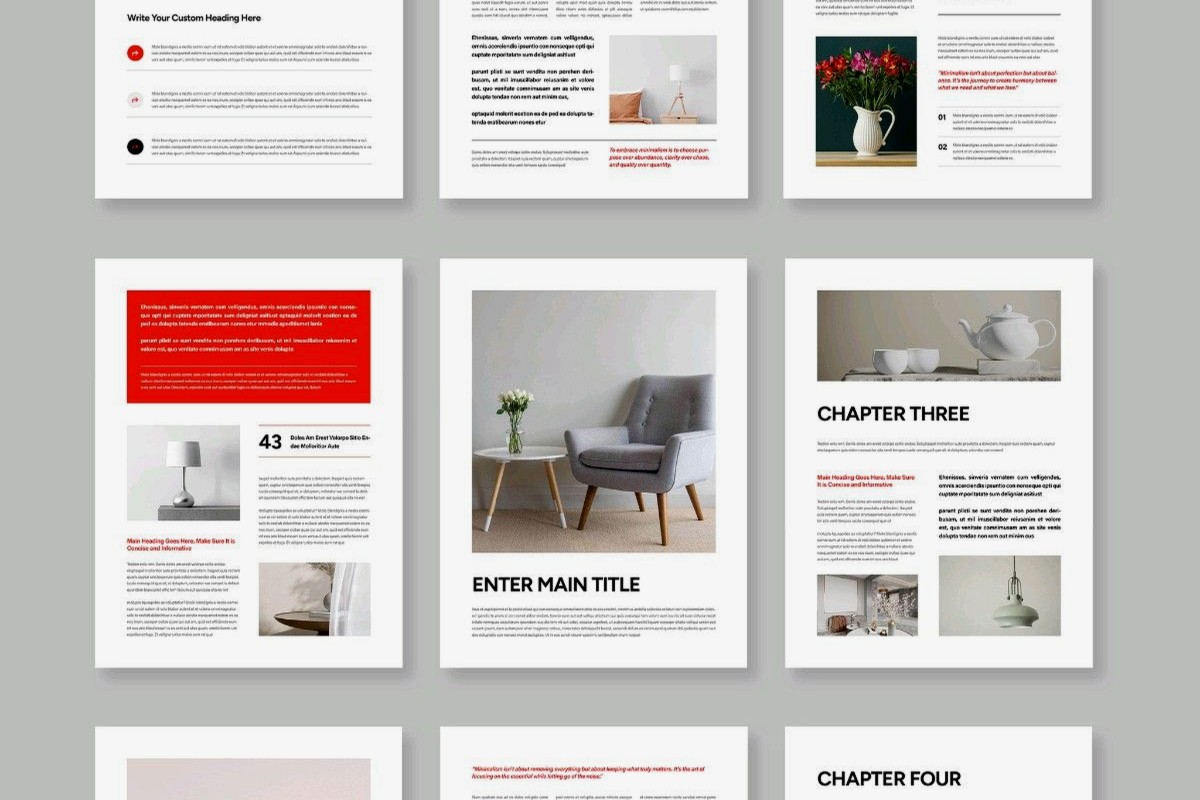
E-Booklet Template: Digital Mini Books
Apr
Okay so I just tested like five different e-booklet templates last week and here’s what actually works if you’re trying to create these digital mini books that people will actually open and use.
The Size Thing Nobody Talks About
First off, forget what you think you know about page counts. Real talk – the sweet spot for e-booklets is somewhere between 10-25 pages, and yeah I know that sounds random but here’s why. Anything under 10 pages feels like a glorified checklist, and anything over 25… well, you’re basically writing an ebook at that point and nobody’s gonna call it a “booklet” anymore.
I was testing this while my cat kept walking across my keyboard, so excuse me if this gets a bit scattered, but the dimensions matter way more than people realize. Most folks default to standard 8.5 x 11 because that’s what Word opens to, but that’s actually terrible for digital reading. Your readers are gonna view this on tablets or phones mostly, so I’ve been using 6 x 9 or even 5 x 8 for better screen fit.
Template Structure That Actually Makes Sense
So the basic bones of a working e-booklet template should have:
- Cover page (duh, but make it count)
- Quick intro or welcome page – like 2-3 paragraphs max
- Table of contents if you’re over 15 pages
- Main content sections with clear headers
- Action pages or worksheets if it’s that kind of booklet
- Resource page at the end
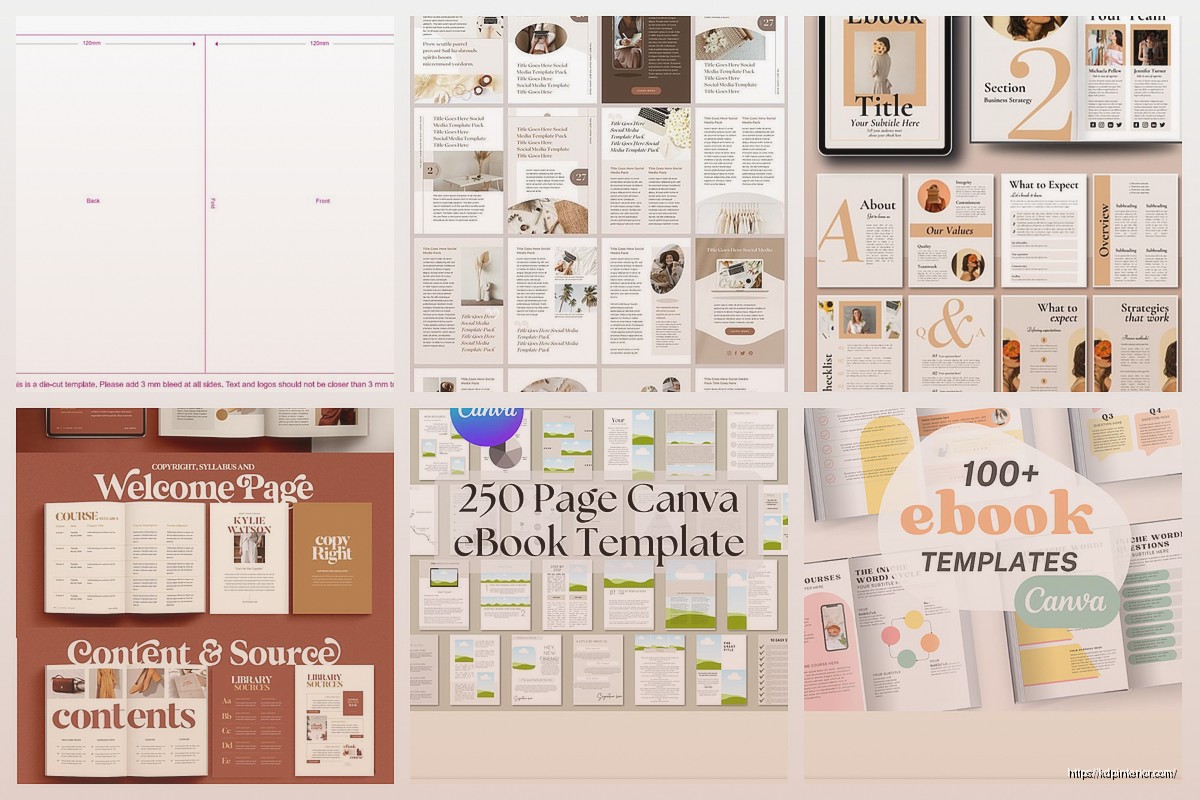
The cover page is where everyone screws up initially. They either go too fancy with graphics that bloat the file size, or too plain where it looks like a school report from 1997. I use Canva for mine now – costs like $12.99/month for Pro but the templates are solid and you can resize everything without it looking pixelated.
Setting Up Your Actual Document
In Word or Google Docs (I switch between both depending on if my laptop’s being weird), you wanna set your margins to 0.5 inches all around. This gives you more usable space without making it look cramped. Oh and another thing – use at least 11pt font, preferably 12pt. I know designers love their minimalist 9pt fonts but people reading digital booklets are usually multitasking and they need readability.
For fonts, stick with sans-serif for body text. I’m currently using Montserrat or Open Sans for most of my booklets because they’re clean and web-friendly. Headers can be a bit more stylized but don’t go crazy with script fonts that nobody can read.
Content Formatting Tricks
This is gonna sound weird but white space is your best friend here. Like, aggressively use white space. Every section should breathe. I learned this the hard way after creating a 20-page booklet that was so text-dense, my test readers said it gave them anxiety just looking at it.
Break up your content with:
- Subheadings every 2-3 paragraphs
- Bullet points (like I’m doing now)
- Text boxes for key takeaways
- Small graphics or icons to mark new sections
- Pull quotes if you’re including testimonials or important stats
Wait I forgot to mention – if you’re including worksheets or fill-in sections, make sure you’re creating actual form fields or just leaving obvious blank spaces. I tested a version with those interactive PDF fields and honestly? More trouble than it’s worth for most booklets. People either print them out or type directly into the PDF anyway.
The Color Scheme Situation
Keep your color palette to like 3-4 colors max. I use a main brand color, a complementary accent color, and then black/gray for text. That’s it. My first booklet looked like a rainbow exploded on it because I thought more colors = more visual interest. Nope. Just looks chaotic.
If you’re selling on platforms like Gumroad or Etsy, having a consistent color scheme across all your booklet covers also helps with brand recognition. I use the same purple and teal combo across my productivity booklet series and people have literally told me they recognize my products by the colors now.
File Format Wars
Okay so funny story – I used to export everything as PDFs only, which makes sense right? But then I started offering both PDF and EPUB versions and my sales went up like 30%. Some people really prefer reading in ebook apps with adjustable text size.
For PDFs, always export as “smallest file size” or “web optimized” unless you’ve got high-res images that need preservation. A 50MB booklet is ridiculous when it could be 5MB. I compress mine using Adobe Acrobat or sometimes just free online tools like Smallpdf.
EPUB is trickier if you’ve got specific formatting needs. I use Calibre to convert, but you gotta check the output because sometimes it gets wonky with text boxes and images. For simple text-based booklets though, EPUB is solid.
Images and Graphics
If you’re including images, keep them at 150 DPI for digital use. Anything higher is overkill and bloats your file. I source most of my images from Unsplash or Pexels (free) or Creative Fabrica if I need specific illustrations.
Pro tip that saved me hours – create a master image folder for each booklet project with everything sized and optimized before you even start laying out the document. Trying to resize and adjust images while you’re formatting is a nightmare and you’ll end up with inconsistent sizing.
The Interactive Elements Debate
Some people love adding clickable table of contents, hyperlinks, embedded videos… I’m honestly mixed on this. For workbooks and planners, yes, make the TOC clickable so people can jump around. But don’t go overboard with interactivity just because you can.
I tested a booklet with embedded YouTube links and like 40% of people couldn’t get them to work depending on their PDF reader. So now I just include regular URLs that people can copy-paste if they want. Less fancy but more functional.
Templates I Actually Use
I’ve built up a collection of templates I reuse and just swap out content:
- The Quick Guide template – 10-12 pages, heavy on bullet points and step-by-step instructions
- The Workbook template – 15-20 pages with fill-in sections and reflection prompts
- The Resource Collection template – basically an organized list with descriptions, 8-10 pages
- The Mini Course template – 20-25 pages, divided into modules or lessons
Each one has the same header/footer style, same font choices, just different content layouts. This is way more efficient than starting from scratch every time.
Monetization Stuff Real Quick
If you’re planning to sell these, price matters less than you think for booklets. I’ve sold them anywhere from $3 to $27 depending on the topic and depth. The $7-12 range seems to be the sweet spot for impulse purchases.
Lead magnets are different though – those I give away free in exchange for email addresses and they’re usually shorter, like 8-12 pages max. People’s attention span for free content is even shorter than paid content, which is kinda backwards but it’s true.
Production Speed
Once you’ve got your template dialed in, you should be able to knock out a booklet in like 2-4 days depending on research needs. I spent a whole weekend binging that show Severance and created two booklets during the episodes because the template did most of the heavy lifting.
My process now is: outline content in a Google Doc, dump all the text in, then spend time formatting and making it pretty. Way faster than trying to format as you write.
Common Mistakes I Keep Seeing
People mess up the most with inconsistent formatting. Like they’ll use different heading styles throughout, or their bullet points will be formatted three different ways. Pick your styles once and stick with them.
Also, not optimizing for mobile viewing is huge. At least 60% of people are gonna first open your booklet on their phone. Test it yourself – send it to your phone and see if it’s readable without zooming in constantly.
The other thing is making them too general. A booklet called “Marketing Tips” is gonna get ignored. But “7 Instagram Story Templates for Product Launches” is specific enough that people know exactly what they’re getting.
Tools Worth Paying For
Besides Canva, I use:
- Vellum (Mac only, $249 one-time but creates gorgeous layouts)
- Adobe InDesign if you’re serious about this and want maximum control
- Designrr for quickly converting blog posts or content into booklet format
But honestly you can create perfectly good booklets with just Google Docs/Word and free Canva. Don’t let tools be an excuse to not start.
The Actual Template Setup
When I create a new template, I set up styles for everything – Heading 1, Heading 2, Body Text, Captions, etc. This way if I decide to change the font later, I just update the style and everything changes automatically. Game changer.
I also create master pages in my templates with page numbers and any footer info already placed. Saves so much time not having to manually add that to every single page.
For spacing, I use 1.15 or 1.5 line spacing usually. Single spacing looks too cramped for most digital reading, but double spacing wastes too much real estate.
Distribution Considerations
Think about where people will actually use this booklet when you’re designing it. If it’s meant to be printed out and used as a workbook, you need to account for printer margins and maybe use a different layout. If it’s purely digital, you can be more creative with your spacing and design elements.
I create separate versions sometimes – one optimized for print (with bleed and crop marks) and one for digital (with clickable elements and smaller file size). Sounds like more work but it’s literally just saving two different export settings.
Wait, last thing – always, ALWAYS create a copyright page even for free booklets. Just a simple “Copyright [Year] [Your Name]. All rights reserved.” Protects you legally and makes it look more professional. I put mine right after the cover or at the very end.
So yeah that’s basically my whole approach to e-booklet templates. Start with a solid structure, keep formatting consistent, optimize for how people actually read digital content, and don’t overcomplicate it. The booklets that sell best for me are usually the simpler, more focused ones anyway.
DISCOVER OUR FREE BEST SELLING PRODUCTS
Editable Canva Lined Journal: Express Your Thoughts – KDP Template
Lined Pages Journal 120 pages Ready to Upload PDF Commercial Use KDP Template 6×9 8.5×11 5×8 for Notebooks, Diaries, Low Content
Lined Pages Journal 120 pages Ready to Upload PDF Commercial Use KDP Template 6×9 8.5×11 5×8 for Notebooks, Diaries, Low Content
Cute Dogs Coloring Book for Kids | Activity Book | KDP Ready-To-Upload
Daily Planner Diary : Diary Planners for Everyday Productivity, 120 pages, 6×9 Size | Amazon KDP Interior
Wolf Coloring KDP interior For Adults, Used as Low Content Book, PDF Template Ready To Upload COMMERCIAL Use 8.5×11"
Coloring Animals Head Book for Kids, Perfect for ages 2-4, 4-8 | 8.5×11 PDF
Printable Blank Comic Book Pages PDF : Create Your Own Comics – 3 Available Sizes
Notes KDP interior Ready To Upload, Sizes 8.5×11 6×9 5×8 inch PDF FILE Used as Amazon KDP Paperback Low Content Book, journal, Notebook, Planner, COMMERCIAL Use
Black Lined Journal: 120 Pages of Black Lined Paper Perfect for Journaling, KDP Notebook Template – 6×9
Student Planner Journal 120 pages Ready to Upload PDF Commercial Use KDP Template 6×9" 8.5×11" for Low Content book
Recipe Journal Template – Editable Recipe Book Template, 120 Pages – Amazon KDP Interior