-
×
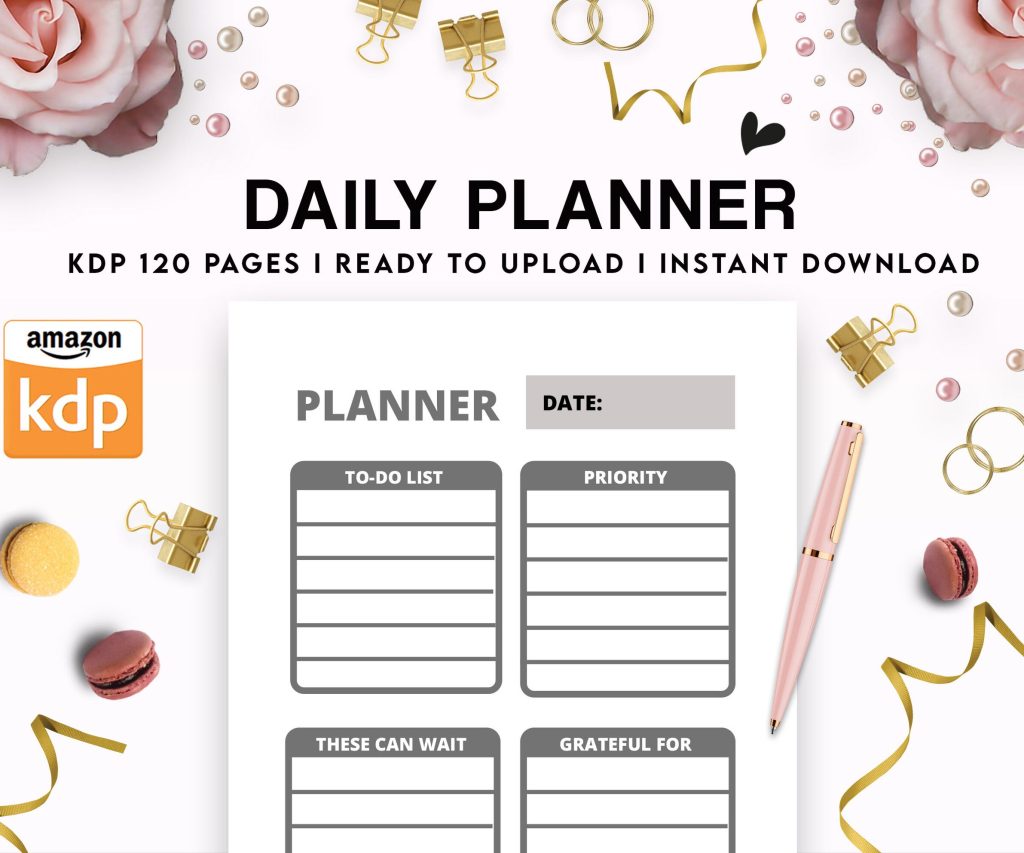 Daily Planner Diary : Diary Planners for Everyday Productivity, 120 pages, 6×9 Size | Amazon KDP Interior
1 × $0.00
Daily Planner Diary : Diary Planners for Everyday Productivity, 120 pages, 6×9 Size | Amazon KDP Interior
1 × $0.00
Subtotal: $0.00
 Daily Planner Diary : Diary Planners for Everyday Productivity, 120 pages, 6×9 Size | Amazon KDP Interior
1 × $0.00
Daily Planner Diary : Diary Planners for Everyday Productivity, 120 pages, 6×9 Size | Amazon KDP Interior
1 × $0.00 Subtotal: $0.00
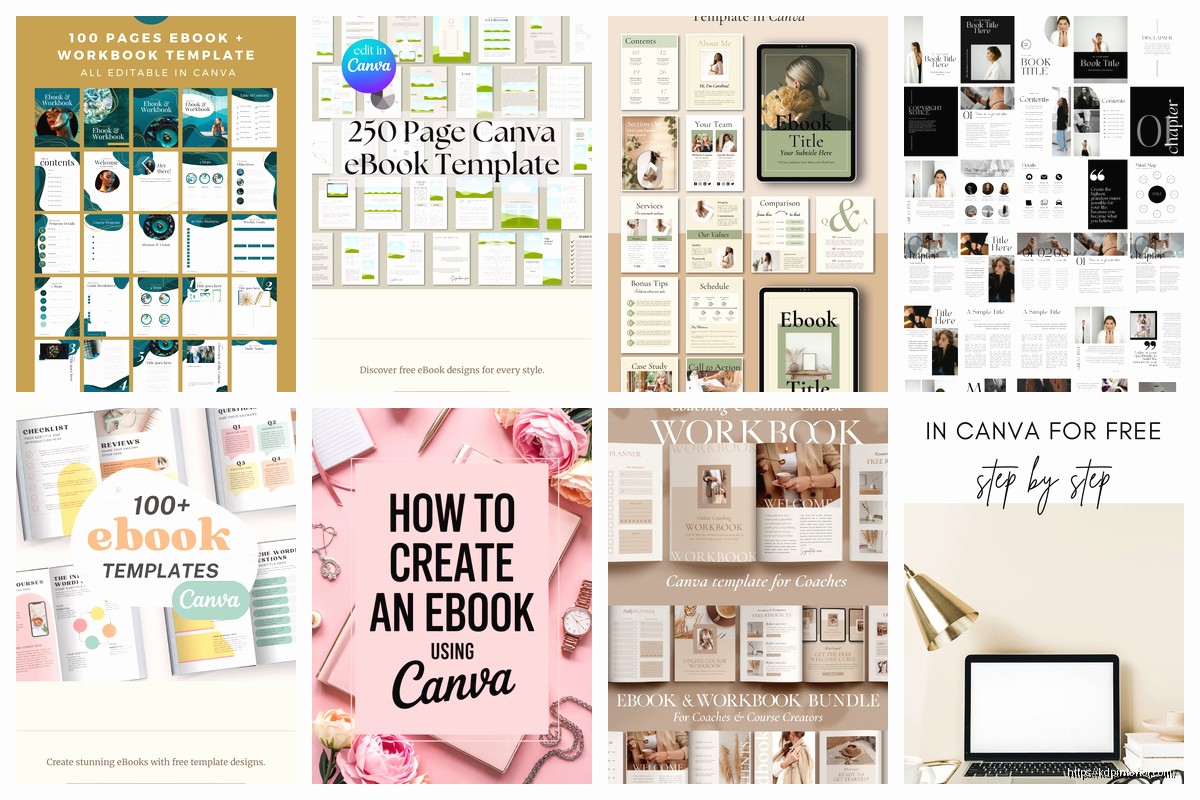
Okay so I’ve been messing around with Canva ebook templates for like the past three years and honestly it’s probably the fastest way to get a decent-looking digital book out there without hiring a designer. Just pulled up my account last week actually and realized I’ve created probably 70+ ebook templates in there, some good, some… well, let’s just say they never saw the light of day.
First thing you gotta do is get your dimensions right because I’ve seen people create these gorgeous designs and then realize they made it the wrong size for Kindle or whatever platform. The standard ebook size I use is 1600 x 2560 pixels which works for most platforms. That’s a 5:8 ratio basically. You can also do 1200 x 1920 if you want smaller file sizes but honestly with the way compression works now it doesn’t matter as much.
In Canva just go to custom size and punch those numbers in. Don’t use their “book cover” preset because that’s for print books and it’s gonna be way different proportions. I made that mistake with my first three ebooks back in 2018 and they looked stretched on Kindle devices.
So your cover page needs to work as a thumbnail at like 50 pixels wide on Amazon and also look good when someone opens the ebook. That’s the tricky part. I usually create mine with really bold text, high contrast, and not too many elements competing for attention.
Here’s what I typically include:
The mistake everyone makes is putting too much stuff on the cover. Like I get it, you want it to look professional but a cluttered cover just looks messy at thumbnail size. I learned this after my dog literally walked across my keyboard and deleted half my design elements and honestly? It looked better with less stuff.
Canva has thousands of fonts but most of them are terrible for ebook covers. You want something bold and readable. I usually stick with:
Don’t use script fonts for your main title unless you want people to squint and give up. I tried a beautiful script font on a recipe ebook once and got feedback that nobody could read the title. Lesson learned.
Okay so this is gonna sound weird but I actually enjoy designing interior pages more than covers now. You can set up a master template and then just duplicate it for consistency.
Create your first interior page with:
Once you’ve got that base page looking good, duplicate it like 50 times or however many pages you need. This is way faster than designing each page individually trust me.
The text tool in Canva is decent but not amazing for long-form content. I usually write my content in Google Docs first, then copy it over in chunks. Don’t try to paste your entire 10,000 word ebook into one Canva text box because it’s gonna lag like crazy and probably crash.
Break your content into sections:
For body text I keep it at 16-18 point font. Yeah that seems big but remember people are reading this on devices of all sizes. Better too big than too small. Line spacing should be 1.5 or 1.75 for easy reading.
Oh and another thing – Canva has millions of graphics and elements but if you just use them straight up, your ebook is gonna look like everyone else’s. I usually customize them by:
There’s this one geometric shape set I use constantly but I change the colors and layer them differently each time so they don’t look identical across my different ebooks.
Wait I forgot to mention – if you’re on the free version of Canva you’ll have way fewer elements to work with. The Pro version is like $13/month or something and honestly if you’re serious about creating ebooks it’s worth it. You get access to way more templates, can remove backgrounds from images, and can resize designs which is super helpful.
I make these different from regular content pages so readers know they’re starting something new. Usually I’ll do:
Keep these consistent throughout your ebook. Like if Chapter 1 has a blue gradient background, all your chapter pages should have that same blue gradient. Consistency makes it look professional even if your design skills are mid.
If you’re including images make sure they’re high enough quality. Canva lets you upload your own images or use theirs. The built-in image quality is usually pretty good but if you’re uploading your own, aim for at least 1000 pixels on the longest side.
I usually create full-page image spreads by just dragging an image to fill the entire page and then maybe adding a text overlay if needed. For inline images within text pages, I keep them centered and not too huge – maybe taking up half the page max.
This is gonna sound random but I was watching The Bear while designing an ebook last month and I got so distracted I accidentally made all my images way too dark. Had to go back and adjust the brightness on like 30 pages. Don’t design while watching intense TV shows apparently.
Ebook readers are gonna be staring at your pages on backlit screens so you gotta be careful with colors. I usually stick to:
You can get more colorful with chapter dividers and cover pages but for actual reading pages, keep it simple. I tried a dark background with light text once thinking it looked modern and cool but multiple readers complained it was hard on their eyes.
Okay so once your design is done you need to export it properly. Go to the download button and select PDF Print for the best quality. Don’t use PNG or JPG for ebooks because you’ll end up with giant file sizes and each page as a separate image which is terrible.
The PDF will keep everything vector-based where possible which means it’ll look sharp on any device. File size for a typical 30-40 page ebook usually comes out to 5-15 MB depending on how many images you included.
Most platforms accept PDF ebooks but if you need an EPUB or MOBI file you’ll need to convert it. I use Calibre which is free software. Just import your PDF and convert to whatever format you need. Fair warning though – PDFs don’t always convert perfectly to reflowable formats like EPUB because Canva creates fixed-layout designs.
For Amazon KDP you can actually upload PDFs directly which is what I usually do. They convert it on their end and it works fine for most ebooks especially ones with lots of visual elements.
After making dozens of these I’ve developed a few go-to template styles that work for different ebook types:
Workbooks and Planners: Lots of white space, clear sections for people to write or type in, simple borders and lines.
Recipe Books: Full-page image at the top, ingredients list in a box, instructions below, maybe a tip section at the bottom.
Educational Ebooks: Chapter pages with clear headers, body text with good spacing, callout boxes for important info, summary boxes at the end of sections.
Fiction: Honestly I don’t do much fiction design in Canva because most fiction readers prefer plain text. But if you’re doing illustrated fiction or poetry, Canva works great for creative layouts.
People make the same errors over and over with Canva ebooks and it drives me nuts because they’re so easy to avoid:
Use Canva’s alignment tools. Like seriously, those pink lines that show up when you’re dragging elements around? Pay attention to those. They’re helping you keep things lined up.
Once you’ve made a few ebooks you’ll get way faster at it. Here’s what speeds up my process:
Save your favorite color combinations as brand kits in Canva so you can reuse them instantly. Create a few master page layouts and save them as templates in your account. Keep a folder of go-to graphics and elements you use frequently.
I can now create a basic 20-page ebook template in about 2-3 hours whereas it used to take me all day when I started. The key is reusing elements and not reinventing the wheel every single time.
Oh and another thing – name your pages in Canva. Like actually click and rename them “Cover,” “Chapter 1,” “Content Page 1” etc. Future you will thank you when you’re trying to find a specific page to edit in a 50-page document.
Before you publish, export your PDF and open it on your phone, tablet, and computer. Sometimes things that look great on your desktop look weird on smaller screens. I once had a footer that was perfectly positioned on desktop but got cut off on mobile devices.
Send it to a friend and ask them to check it on their device too. Different screen sizes and resolutions can reveal issues you didn’t notice.
The whole process gets easier the more you do it honestly. My first ebook template probably took me 10 hours to create and it still looked kinda amateur. Now I can whip up something professional-looking in a few hours and actually feel confident putting it out there. Canva isn’t perfect but for people who aren’t professional designers it’s definitely the best tool I’ve found for creating decent ebooks without spending hundreds on software or hiring someone.
DISCOVER OUR FREE BEST SELLING PRODUCTS
Editable Canva Lined Journal: Express Your Thoughts – KDP Template
Lined Pages Journal 120 pages Ready to Upload PDF Commercial Use KDP Template 6×9 8.5×11 5×8 for Notebooks, Diaries, Low Content
Lined Pages Journal 120 pages Ready to Upload PDF Commercial Use KDP Template 6×9 8.5×11 5×8 for Notebooks, Diaries, Low Content
Cute Dogs Coloring Book for Kids | Activity Book | KDP Ready-To-Upload
Daily Planner Diary : Diary Planners for Everyday Productivity, 120 pages, 6×9 Size | Amazon KDP Interior
Wolf Coloring KDP interior For Adults, Used as Low Content Book, PDF Template Ready To Upload COMMERCIAL Use 8.5×11"
Coloring Animals Head Book for Kids, Perfect for ages 2-4, 4-8 | 8.5×11 PDF
Printable Blank Comic Book Pages PDF : Create Your Own Comics – 3 Available Sizes
Notes KDP interior Ready To Upload, Sizes 8.5×11 6×9 5×8 inch PDF FILE Used as Amazon KDP Paperback Low Content Book, journal, Notebook, Planner, COMMERCIAL Use
Black Lined Journal: 120 Pages of Black Lined Paper Perfect for Journaling, KDP Notebook Template – 6×9
Student Planner Journal 120 pages Ready to Upload PDF Commercial Use KDP Template 6×9" 8.5×11" for Low Content book
Recipe Journal Template – Editable Recipe Book Template, 120 Pages – Amazon KDP Interior