-
×
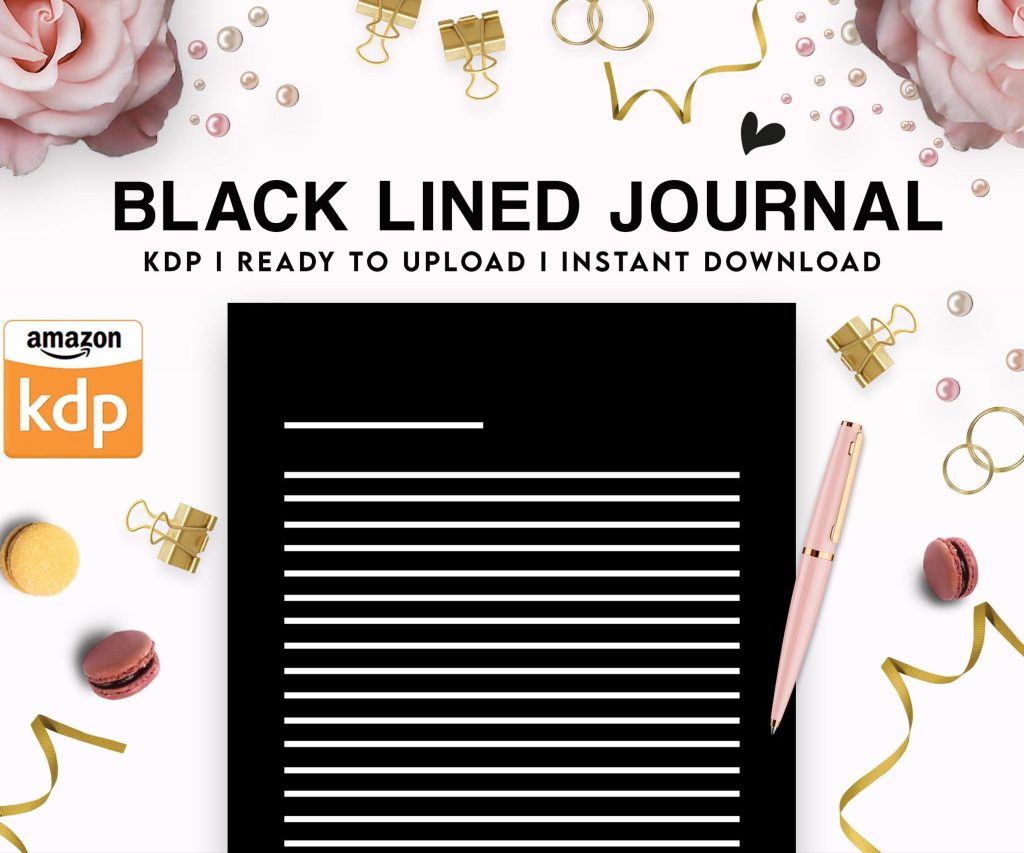 Black Lined Journal: 120 Pages of Black Lined Paper Perfect for Journaling, KDP Notebook Template - 6×9
1 × $0.00
Black Lined Journal: 120 Pages of Black Lined Paper Perfect for Journaling, KDP Notebook Template - 6×9
1 × $0.00
Subtotal: $0.00
 Black Lined Journal: 120 Pages of Black Lined Paper Perfect for Journaling, KDP Notebook Template - 6×9
1 × $0.00
Black Lined Journal: 120 Pages of Black Lined Paper Perfect for Journaling, KDP Notebook Template - 6×9
1 × $0.00 Subtotal: $0.00
Okay so I literally spent last Tuesday testing like eight different free book cover generators because my nephew asked me the same question and I figured I should actually know what works now in 2025. Here’s what you need to know.
Look, everyone says Canva and yeah it’s kinda obvious but there’s a reason. The free version actually gives you enough to make a decent cover if you’re not being super picky. You get the basic templates and honestly some of them don’t look terrible for like romance or self-help books.
What you wanna do is sign up with your email, then search for “book cover” in the templates section. They’ve got this Kindle size preset which is 1600×2560 pixels and that’s exactly what you need for Amazon. Don’t mess with custom dimensions unless you really know what you’re doing because KDP can be weird about sizing.
The free version limits you to like 250,000 free images and graphics which sounds like a lot until you realize the really good stuff has that little crown icon meaning it’s pro only. But here’s the thing, you can work around it. Use your own images from Unsplash or Pixabay, drag them into Canva, and then use Canva’s free text effects and shapes to build around them.
I usually start with a solid color background, nothing fancy. Then I’ll add a texture overlay from their free elements, set it to like 30% opacity so it’s subtle. Text goes on top and this is where people mess up, they use like five different fonts. Stick to two max. One bold font for the title, one simpler font for your author name.
Oh and another thing, Canva’s got this brand kit feature even in free now I think? You can save your colors so all your covers have the same vibe. Super helpful if you’re doing a series.
Okay this one’s gonna sound weird but DIYBookCovers.com is actually pretty solid for certain genres. It’s free but super basic, like we’re talking early 2000s website vibes. The interface looks like someone made it in Microsoft FrontPage but whatever, it works.
You pick a template, they’re organized by genre which is helpful. They’ve got thriller, romance, sci-fi, all that. Then you customize the text, colors, and you can upload one image. That’s it. One image. So you gotta make it count.
I used this for a quick gratitude journal cover last year when I just needed something up fast and didn’t wanna think too hard about it. Took me maybe 15 minutes total. The quality isn’t gonna win any awards but for low-content books or stuff where the cover isn’t the main selling point, it’s totally fine.
The download gives you a PNG at the right dimensions for KDP. No fuss, no weird file conversion issues. Just download and upload.
Wait I forgot to mention Placeit. So Placeit has a free trial that’s actually useful, not like those trials where you can’t download anything. You get a few free downloads per month I think? Don’t quote me on that, they change their terms constantly.
The templates here are way more professional-looking than DIY Book Covers. They’ve got mockups too which is cool if you wanna show your book on like a coffee table or someone’s hands holding it for your marketing images. But for the actual cover, their templates are pretty customizable.
You pick a genre again, thriller, mystery, whatever. Then you can change literally everything. Background images, text, fonts, colors, add shapes. It’s similar to Canva but the templates feel more… I dunno, bookish? Like they were designed by people who actually look at book covers.
The free version watermarks your downloads though. That’s the catch. So you gotta time it right, use your free credits on your final version after you’ve done all your testing and tweaking.
Sometimes I’ll design everything in Placeit, screenshot it, then recreate it in Canva or Photopea without the watermark. Is that cheating? Maybe. Does it work? Absolutely. You’re basically using Placeit as inspiration and a layout guide.
Okay so Photopea.com is basically Photoshop in your browser and it’s completely free. There’s ads on the side but who cares. If you know Photoshop at all, you’ll figure out Photopea in like five minutes.
I use this when I need more control than Canva gives me. Like if I’m blending multiple images together or I need to do specific color correction or I wanna add texture overlays that look professional.
You can upload your own images, there’s layers, masks, all the tools you’d expect. Text effects are solid. You can save as PSD files too which means you can go back and edit later without starting over.
The learning curve is steeper than Canva though, not gonna lie. My first time using it I spent like an hour just trying to figure out how to add a simple drop shadow. But there’s YouTube tutorials for everything. I literally had a tutorial playing on my other monitor while my cat kept walking across the keyboard, super annoying but I figured it out.
This one’s interesting because it’s made specifically for authors by Reedsy. They’re a company that connects authors with editors and designers, but they have this free tool that’s pretty decent.
It’s more limited than the others. You get maybe 20 templates total? And they’re very simple, minimalist designs. But sometimes simple is what you want. If you’re writing literary fiction or poetry or something artsy, these templates actually work better than the flashy thriller templates everywhere else.
You customize text and colors, that’s about it. No image uploads, no fancy effects. But the typography is really clean and professional. The fonts they chose are quality.
I used this for a short story collection last year and it looked way more legitimate than I expected. Sometimes less is more, you know?
Snappa’s another Canva alternative that people sleep on. The free version gives you like 5 downloads per month which isn’t a lot but if you’re just doing one cover, it’s enough.
The template library is smaller than Canva but the quality is pretty consistent. They’ve got book cover templates already sized right. You can upload your own images, add text, shapes, effects, all that standard stuff.
What I like about Snappa is it’s less overwhelming than Canva. Canva has so many options sometimes I get decision paralysis. Snappa keeps it simple. Pick template, customize, download. Done.
The graphics library is decent too. Not as massive as Canva but you can usually find what you need. And everything in the free version is actually free to use commercially, no weird licensing issues.
Here’s what I actually do for most of my covers now. I’ll find a background image on Unsplash or Pexels, both totally free stock photo sites. Then I’ll bring that into Canva or Photopea, add text, maybe a texture overlay or some shapes.
If I need mockups for marketing, I’ll use Placeit. If I need to do advanced editing like removing backgrounds or blending images, I’ll use Photopea. For quick simple covers, DIY Book Covers or Snappa.
You don’t have to stick to one tool. Mix and match based on what you need. I’ve literally used three different tools for one cover before. Background from Photopea, text layout from Canva, final mockup from Placeit.
Oh wait, I should mention stock photos more. Unsplash and Pexels are your friends. Both completely free, no attribution required for commercial use. Pixabay too but the quality is more hit or miss.
When you’re searching, be specific. Don’t just search “woman” search like “woman reading coffee shop window light” and you’ll get better results. The more specific, the less competition too because other authors aren’t using those exact images.
I spent like two hours one night just browsing Unsplash while watching that show Severance, saved like 50 images to a collection for future covers. Having a library of good images ready to go saves so much time later.
Okay so funny story, I made this cover last month that I thought looked great. Good image, nice colors, everything balanced. Uploaded it to KDP and got literally zero clicks. Changed nothing but the font and boom, suddenly people were checking it out.
Typography is huge. Your title needs to be readable in thumbnail size because that’s how 90% of people see it on Amazon. Go to your cover, zoom way out or look at it on your phone. Can you read the title? If not, your font is too thin or too fancy or too small.
Bold fonts work better for titles. Sans serif usually reads better than serif at small sizes but that’s not a hard rule. Test it. Make three versions with different fonts, ask people which one they’d click on.
And please don’t use Comic Sans or Papyrus or any of those meme fonts. Just don’t. There’s like a million good free fonts on Google Fonts, use those.
Different genres have color expectations. Thrillers are usually dark, blues and blacks and reds. Romance has a lot of pink, purple, warm tones. Self-help is often bright, yellows and oranges.
You don’t have to follow these rules exactly but they exist for a reason. People browsing the thriller category expect dark covers. If yours is bright yellow, it might stand out but it also might confuse people about what genre it is.
I usually look at the top 100 in my category on Amazon, see what colors are dominant, then do something similar but not identical. You wanna fit in enough that people recognize the genre but stand out enough that they notice your book specifically.
Before you finalize anything, do the thumbnail test. Shrink your cover down to like 200 pixels wide. Can you still read the title? Can you tell what the image is? Does it look like a muddy mess?
Most free tools let you preview at different sizes. Use that feature. I can’t tell you how many covers I’ve redesigned because they looked great full size but terrible as thumbnails.
Sometimes that means making your text bigger than you think it should be. Sometimes it means simplifying the background. Sometimes it means higher contrast between text and image.
KDP wants either JPG or PNG, honestly either works fine. PNG is higher quality but larger file size. For covers with text, I usually go PNG because it keeps the text crisp.
The dimensions for a standard ebook cover are 1600×2560 pixels, that’s a 1.6:1 ratio. Don’t go smaller than that or Amazon might reject it. You can go bigger but there’s no real reason to unless you’re doing print.
Keep your file under 50MB, though honestly if your cover is over 5MB something’s probably wrong. Most of mine are like 1-2MB.
If you’re doing paperback too, that’s a whole different thing. You need a full wrap cover with spine and back cover. Most of these free tools don’t do that automatically.
KDP has a cover calculator that tells you the exact dimensions based on your page count. Then you can use Canva or Photopea to create the full wrap. It’s more work but doable.
I usually design the ebook cover first, then expand it into a print cover. Keep the front consistent obviously, then design a simple back with your blurb and author bio.
Look, you’re not gonna create the next Great Gatsby cover with free tools. But you can definitely create something professional-looking that doesn’t scream “I made this myself in 20 minutes.” It just takes some practice and honestly, testing different tools until you find what clicks for you. Start with Canva, branch out from there, and don’t be afraid to mix multiple tools together. That’s what I do and I’ve got like 200 books up now so it obviously works well enough.
DISCOVER OUR FREE BEST SELLING PRODUCTS
Editable Canva Lined Journal: Express Your Thoughts – KDP Template
Lined Pages Journal 120 pages Ready to Upload PDF Commercial Use KDP Template 6×9 8.5×11 5×8 for Notebooks, Diaries, Low Content
Lined Pages Journal 120 pages Ready to Upload PDF Commercial Use KDP Template 6×9 8.5×11 5×8 for Notebooks, Diaries, Low Content
Cute Dogs Coloring Book for Kids | Activity Book | KDP Ready-To-Upload
Daily Planner Diary : Diary Planners for Everyday Productivity, 120 pages, 6×9 Size | Amazon KDP Interior
Wolf Coloring KDP interior For Adults, Used as Low Content Book, PDF Template Ready To Upload COMMERCIAL Use 8.5×11"
Coloring Animals Head Book for Kids, Perfect for ages 2-4, 4-8 | 8.5×11 PDF
Printable Blank Comic Book Pages PDF : Create Your Own Comics – 3 Available Sizes
Notes KDP interior Ready To Upload, Sizes 8.5×11 6×9 5×8 inch PDF FILE Used as Amazon KDP Paperback Low Content Book, journal, Notebook, Planner, COMMERCIAL Use
Black Lined Journal: 120 Pages of Black Lined Paper Perfect for Journaling, KDP Notebook Template – 6×9
Student Planner Journal 120 pages Ready to Upload PDF Commercial Use KDP Template 6×9" 8.5×11" for Low Content book
Recipe Journal Template – Editable Recipe Book Template, 120 Pages – Amazon KDP Interior