-
×
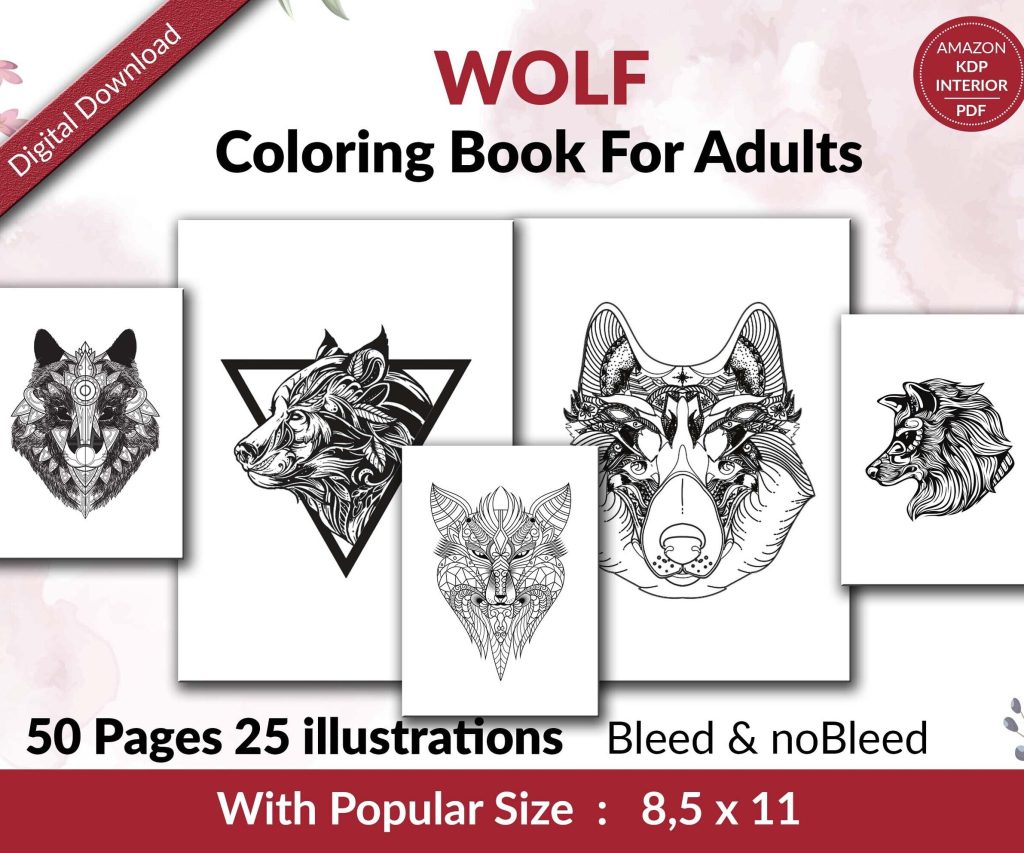 Wolf Coloring KDP interior For Adults, Used as Low Content Book, PDF Template Ready To Upload COMMERCIAL Use 8.5x11"
1 × $0.00
Wolf Coloring KDP interior For Adults, Used as Low Content Book, PDF Template Ready To Upload COMMERCIAL Use 8.5x11"
1 × $0.00
Subtotal: $0.00

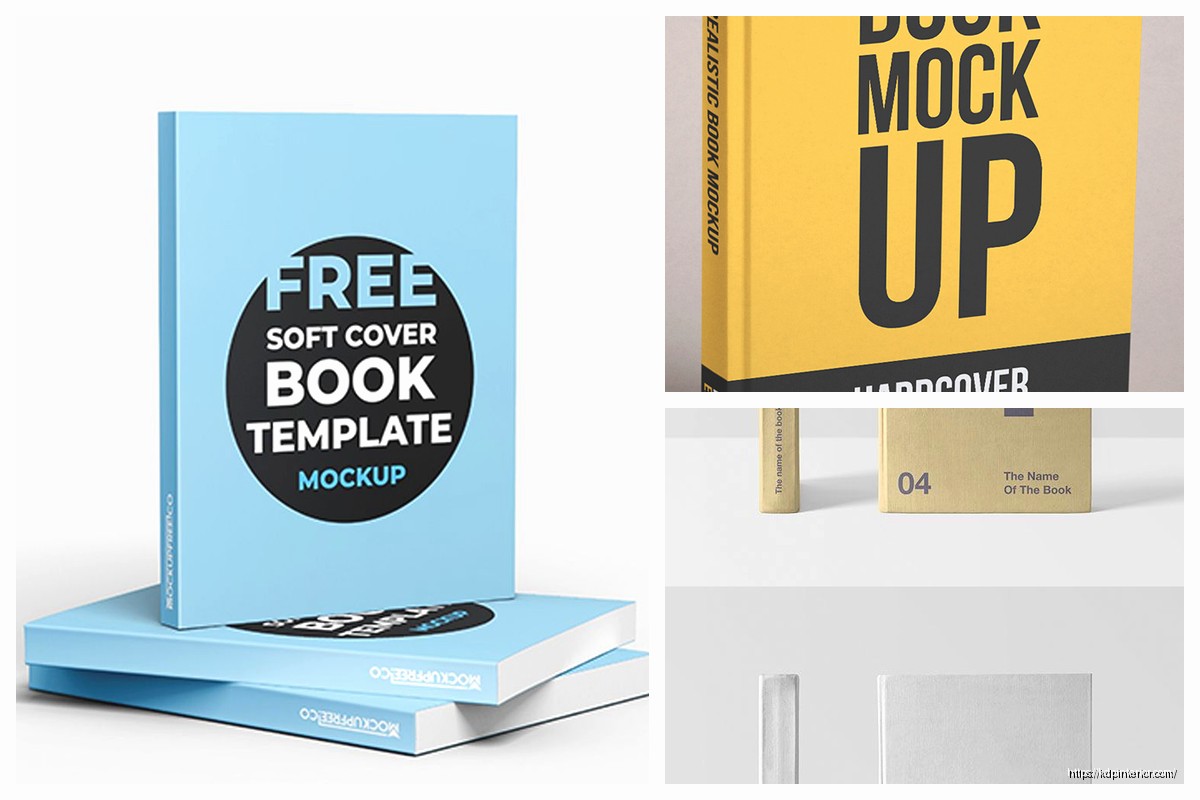
Okay so I just spent like three hours yesterday testing different mockup generators because one of my students asked about this and honestly the free options have gotten SO much better than when I started doing this back in 2017.
Look, your flat book cover file is boring. I don’t care how good your designer made it—when you’re trying to sell a book on social media or in your Amazon ads, people scroll past flat images like they’re nothing. But throw that same cover on a mockup that shows it as an actual book sitting on a desk with coffee or whatever, and suddenly people stop scrolling. I’ve tested this like dozens of times with my own books and the engagement difference is wild.
The thing is you need these mockups for basically everything now. Facebook ads, Instagram posts, Pinterest pins, your author website, email newsletters. I was putting together a promo last month for one of my planners and realized I had used the same flat cover image for like six months straight and my click-through rates were tanking.
So Canva has these built-in book mockup frames now and they’re honestly pretty decent for most stuff. You don’t even need the Pro version for the basic ones, though Pro gives you way more options.
Here’s what you do—create a new design, whatever dimensions you need for your platform. Then go to “Elements” and search for “book mockup” and you’ll get a bunch of frames that are basically just shapes you drop your cover into. The 3D ones are the best because they show spine and everything.
The problem with Canva’s mockups is they can look a bit… samey? Like everyone uses the same templates so if you’re in publishing groups you start seeing the same mockup styles over and over. But for quick social posts they’re perfect. I probably use Canva mockups for 60% of my casual Instagram stories and stuff.
Oh and another thing—Canva lets you animate these now. So you can make your book cover like fade in or whatever. I’m not sure how effective that actually is for conversions but it looks kinda cool.
Okay so Placeit (it’s by Envato) has the absolute best mockups I’ve found. Like professional quality stuff—books on beaches, in people’s hands, on bookshelves, lying on beds with perfect lighting. The detail is insane.
The catch is it’s not totally free. You can use individual mockups for like $8 each which adds up real fast, or get their unlimited subscription which I think is $15/month? I had it for about six months and honestly used it constantly, but then I realized I was only really making mockups during launch periods so I cancelled and now just pay per download when I need something specific.
Their ebook mockups are particularly good—they show books on iPads and Kindles and phones in a way that actually looks realistic. I used one for my low-content book last year that showed the planner on a desk with a laptop and succulent and it became my best-performing ad image.
Wait I forgot to mention—Placeit also does bundles. So instead of paying $8 for one mockup you can grab like 5 variations of similar scenes for $29 or something. Way better deal if you’re doing a big launch.
This is gonna sound weird but Smartmockups is my go-to when I need something specific that I can’t find pre-made. They have a free plan that’s actually usable—you get lower resolution downloads with a small watermark, but honestly for social media the resolution is fine and you can usually crop the watermark out if you’re strategic about it.
The interface is super simple. Upload your cover, pick a mockup template, adjust the positioning, download. They’ve got books on tables, books being held, books with props around them. The lighting on most of them is really natural-looking which I appreciate.
Their paid plan is like $13/month I think? And removes the watermark plus gives you high-res files. I bounce between having this subscription and not having it depending on how many books I’m launching that quarter.
Here’s something most people don’t do—you can layer mockups in other programs. Like I’ll download a book mockup from Smartmockups, then bring it into Canva and add text overlays, graphics, whatever. This way you get the quality mockup but can still customize it for different promotions.
I did this whole series last month where I had the same book mockup but changed the text overlay for different audience segments. Same base image, different messaging. Saved me probably four hours of work.
BookBrush was literally made for authors and it shows in the templates. Like they have mockup scenes that are specifically designed for book marketing—stuff like “bookstagram” style layouts with multiple books and props, or promo graphics with review quote spaces built in.
They have a free version but it’s pretty limited. The paid version is $10/month and honestly if you’re publishing regularly it might be worth it just for the time savings. They have these “rapid promo” templates where you can create like 10 different marketing graphics in about 15 minutes.
The mockups themselves are good quality but not quite as photorealistic as Placeit. They work great for social media though. I use BookBrush mostly for my romance pen name stuff because they have a lot of those aesthetic bookstagram-style layouts that romance readers seem to love.
Okay so if you wanna go completely free and have a bit of time, you can make your own mockups using free stock photos and GIMP or Photoshop if you have it.
Here’s the process—find a free stock photo from Pexels or Unsplash that shows someone holding a book or a book on a surface. Download it. Then you use the perspective tool in GIMP to warp your cover image so it matches the angle of the book in the photo. Layer it over the original book, blend the edges, maybe add a shadow.
Not gonna lie, this takes practice. My first attempts looked absolutely terrible—like obviously photoshopped in the worst way. But after doing it maybe a dozen times I got decent at it. The key is matching the lighting and perspective exactly.
I actually have a folder of like 30 stock photos I’ve collected that work well for this. Mostly hands-holding-book shots and desk-with-book shots. Then I can rotate through them so my mockups don’t all look identical.
This is where most DIY mockups fail—the shadows look wrong. Real books cast shadows and if your mockup doesn’t have realistic shadows it looks fake immediately.
In GIMP you gotta create a new layer for the shadow, use a soft brush with low opacity, and paint it in manually where the book would naturally cast shadow. Then blur it slightly. It’s tedious but makes such a difference.
There’s actually some YouTube tutorials on this that are way better than me trying to explain it through text. Search for “DIY book mockup GIMP” and you’ll find what I’m talking about.
Oh wait I should mention Photopea—it’s basically Photoshop but runs in your browser and is completely free. Same concept as the GIMP method but if you’re already familiar with Photoshop the interface will make more sense.
I was up late one night (my cat kept knocking stuff off my desk and I couldn’t sleep) and needed to make a mockup but I was on my old laptop that doesn’t have GIMP installed. Found Photopea and honestly it worked perfectly. Saved the project and everything.
The ads on the free version are kinda annoying but ignorable. You can pay like $5/month to remove them but I’ve never bothered.
MockupWorld has free mockup PSDs you can download. These are template files where you just open them in Photoshop or GIMP, drop your cover into the smart object, and it automatically fits into the scene with proper perspective and shadows.
The selection is hit or miss—sometimes they have exactly what I need, sometimes nothing works for my project. But it’s worth checking because when you find a good one it’s literally a two-minute process to create a professional mockup.
Similar sites include GraphicBurger, Freepik (some free, some paid), and Mockup World. I have all of them bookmarked and just search through when I’m starting a new campaign.
Here’s the thing nobody tells you—having a pretty mockup doesn’t mean it’ll sell books. I’ve tested this extensively with my KDP business and there’s definitely patterns to what works.
Mockups with people in them (or at least hands) perform better than static object-only mockups. Something about the human element makes it more relatable I guess. My best-performing ad ever was a mockup showing hands holding my productivity planner with a coffee cup blurred in the background.
Context matters too. A mockup that shows your book in a relevant environment works better than random aesthetic stuff. Like if you’re selling a cookbook, show it in a kitchen setting. Travel guide? Beach or airport setting. Seems obvious but I see authors all the time using generic mockups that don’t connect to their content.
Some people swear by adding text overlays to mockups—stuff like “Now Available” or review quotes or whatever. I’ve tested this both ways and honestly it depends on the platform.
For Facebook and Amazon ads, clean mockups without text overlays tend to perform better for me. The ad copy handles the messaging. But for Instagram and Pinterest, adding text directly to the image seems to help because people scroll so fast they might not read captions.
I usually create two versions—one clean, one with text—and use them for different purposes.
If you’re launching a book you’re gonna need like 10+ different mockup variations for all your marketing channels. Don’t create them one at a time as you need them—you’ll waste so much time.
What I do is block out like two hours right after my cover is finalized and just bang out every mockup I might need. Different angles, different settings, vertical and horizontal orientations, with and without text. Save them all in a folder labeled with the book title.
Then when I’m scheduling social posts or setting up ads, I just pull from that folder instead of stopping to create something new. This workflow thing has probably saved me 20+ hours over the past year.
So in practice here’s what I actually do—Canva for quick social stuff and stories, Smartmockups when I need something specific for an ad campaign, and occasionally Placeit when I’m doing a big launch and need that extra quality level.
I probably spend like $30-40/month total on mockup tools across subscriptions and individual downloads. For the amount of marketing content I create that’s totally worth it. But when I was starting out I did everything free through Canva and DIY methods and it worked fine.
The free options really are good enough for most authors, especially if you’re just starting out. Don’t feel like you need to spend money on this stuff until you’re consistently making sales and ready to level up your marketing.
I gotta say though the time savings of paid tools becomes more valuable as your publishing business grows. My time is worth more now than it was in 2017 so paying $15/month to save five hours of mockup creation is an easy decision.
DISCOVER OUR FREE BEST SELLING PRODUCTS
Editable Canva Lined Journal: Express Your Thoughts – KDP Template
Lined Pages Journal 120 pages Ready to Upload PDF Commercial Use KDP Template 6×9 8.5×11 5×8 for Notebooks, Diaries, Low Content
Lined Pages Journal 120 pages Ready to Upload PDF Commercial Use KDP Template 6×9 8.5×11 5×8 for Notebooks, Diaries, Low Content
Cute Dogs Coloring Book for Kids | Activity Book | KDP Ready-To-Upload
Daily Planner Diary : Diary Planners for Everyday Productivity, 120 pages, 6×9 Size | Amazon KDP Interior
Wolf Coloring KDP interior For Adults, Used as Low Content Book, PDF Template Ready To Upload COMMERCIAL Use 8.5×11"
Coloring Animals Head Book for Kids, Perfect for ages 2-4, 4-8 | 8.5×11 PDF
Printable Blank Comic Book Pages PDF : Create Your Own Comics – 3 Available Sizes
Notes KDP interior Ready To Upload, Sizes 8.5×11 6×9 5×8 inch PDF FILE Used as Amazon KDP Paperback Low Content Book, journal, Notebook, Planner, COMMERCIAL Use
Black Lined Journal: 120 Pages of Black Lined Paper Perfect for Journaling, KDP Notebook Template – 6×9
Student Planner Journal 120 pages Ready to Upload PDF Commercial Use KDP Template 6×9" 8.5×11" for Low Content book
Recipe Journal Template – Editable Recipe Book Template, 120 Pages – Amazon KDP Interior