
Amazon KDP guide, KDP book publishing
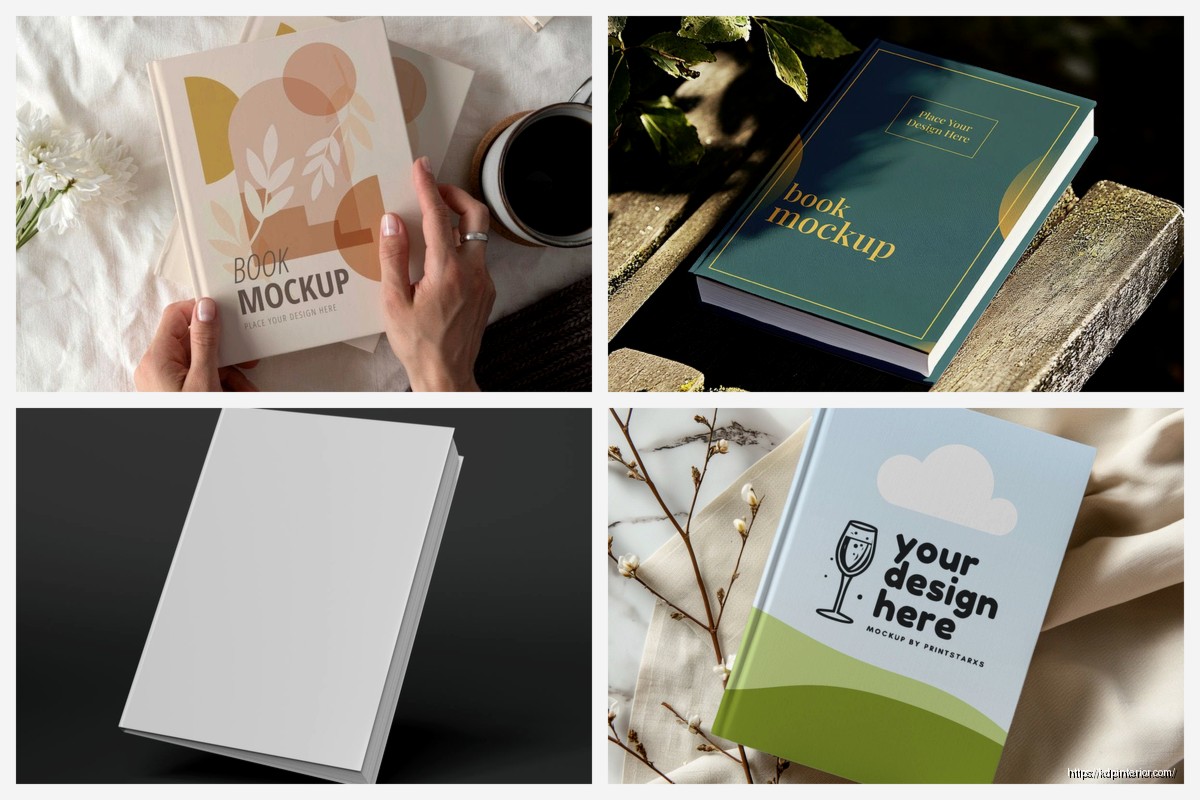
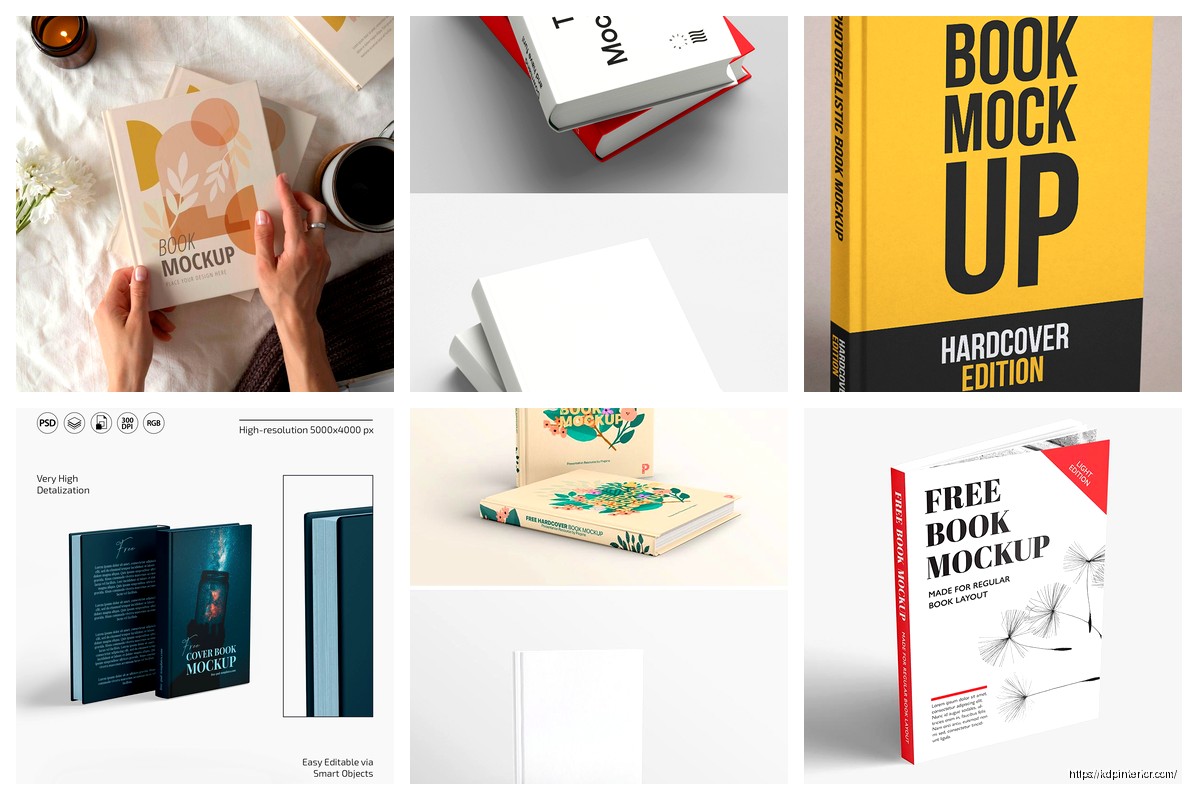
Free Book Mockup: No-Cost Visualization Tools
Apr
Okay so I just spent like three hours testing free mockup generators last week because a client asked me which ones actually work and honestly most of them are trash but there are a few that’ll save your butt when you need quick visuals for Amazon listings or social media.
Canva’s Book Mockup Feature Is Your Starting Point
Look I know everyone talks about Canva but seriously their free mockup templates are actually decent. You go to the templates section and search “book mockup” and you’ll get probably 50+ options. The free account limits you but honestly you don’t need the paid features for basic stuff.
What I do is upload my book cover design and just drop it into their pre-made templates. Takes like two minutes max. The 3D perspective ones look surprisingly professional considering they’re free. You can adjust the angle a bit, change background colors, add some props if you want that whole aesthetic thing going on.
The annoying part is the resolution on free downloads isn’t amazing so if you’re printing these for like a trade show or something you might notice it’s a bit fuzzy. But for Amazon A+ content or Instagram posts? Totally fine. I used one for a client’s paperback launch last month and it got more engagement than her actual professional photos which is kinda hilarious.
Placeit by Envato Has Limited Free Options
So Placeit is mostly paid but they rotate free mockups sometimes and if you catch them at the right time you can grab some really nice ones. I check their site maybe once a week just to see what’s free because their quality is honestly better than most paid options elsewhere.
The thing with Placeit is they have mockups in actual settings like someone holding your book on a couch or a book sitting on a coffee shop table with a latte next to it. Very lifestyle-y which works great if you’re marketing fiction or self-help books where you want that aspirational vibe.
Without paying you’re limited to like 3-5 downloads per month or something and you can’t remove their watermark on some of them. But I’ve found if you’re strategic about when you download you can build up a decent collection. Also their free trial lets you go nuts for a few days so if you have multiple books to mockup just sign up, download everything you need, then cancel. Not gonna lie I’ve done this twice.
Smartmockups Actually Surprised Me
Wait I forgot to mention Smartmockups because I only discovered this one like six months ago and it’s become one of my go-to options. They have a free tier that’s way more generous than you’d expect.
You get 10 free mockups per month which sounds limiting but here’s the trick – each mockup can be used for different book covers. So you find ten mockup templates you really like, save them as favorites, and then just cycle your different book covers through them throughout the month. I use the same five mockup styles for almost all my client work anyway because consistency in branding matters more than variety.
Their book mockups include paperbacks, hardcovers, ebooks on devices, even book stacks which are perfect for series. The customization options on the free plan are pretty solid too. You can change background colors, adjust shadows, rotate angles slightly.
One weird thing is their interface can be glitchy sometimes? Like I’ll upload a cover and it won’t quite fit right and I have to refresh the page. But once it works it works great. My dog was barking at the mailman the entire time I was figuring this tool out which made it way more annoying than it needed to be.
MockupWorld Is a Treasure Hunt
Okay so MockupWorld is different because it’s basically a directory of free mockup files you download and use in Photoshop or GIMP. If you don’t have Photoshop this won’t help you much unless you wanna learn GIMP which is the free alternative.
I keep a folder of like 20 book mockup PSDs I’ve downloaded from there over the years. The quality varies wildly – some look like they were made in 2008 and some are actually stunning. You gotta dig through their catalog which can take time but once you find good ones you can reuse them forever.
The process is you download the PSD file, open it in Photoshop, find the smart object layer, double click it, replace the placeholder with your book cover, save, close, and boom your cover is now in a realistic 3D mockup. Sounds complicated but after doing it twice you’ll get the hang of it.
What I like about this approach is you have way more control than web-based tools. You can adjust lighting, shadows, reflections, everything. Plus you own the file so you’re not dependent on a website staying online or changing their free tier.
The GIMP Alternative If You’re Broke
If you can’t afford Photoshop just get GIMP. It’s completely free and works with most PSD mockup files. The interface is ugly and confusing compared to Photoshop but there are tons of YouTube tutorials. I used GIMP for my first two years of self-publishing before finally paying for Adobe.
The smart object thing works a bit differently in GIMP so you’ll need to watch a specific tutorial on that but once you figure it out it’s the same workflow. Download mockup, insert cover, export, done.
Mediamodifier Has Some Decent Freebies
This is gonna sound weird but I discovered Mediamodifier because they sponsored a YouTube video I was watching about something completely unrelated. Checked them out and their free plan is actually usable.
They give you 10 free downloads per month similar to Smartmockups but their mockup styles are different. More modern and minimalist if that makes sense. Lots of clean backgrounds and simple compositions. If you’re doing non-fiction or business books these work really well.
The premium mockups are locked obviously but they have enough free options that you can create professional-looking visuals without paying. I use them mostly for LinkedIn posts when I’m promoting my consulting services because the aesthetic matches that platform better.
One annoying thing is they push their paid plan pretty hard. Like every other click there’s a popup about upgrading. I get it they need to make money but it’s kinda irritating when you’re just trying to work.
DIY Mockups With Your Phone
Oh and another thing – sometimes the best mockup is just taking a photo yourself. I know this sounds obvious but hear me out.
Print your book cover on regular paper, hold it up like it’s a real book, take a photo with your phone in good lighting, maybe add a plant or coffee mug in the frame for context. Boom free mockup that actually looks authentic because it IS authentic.
I did this for a client who had zero budget and the photos performed better on social media than the fancy mockups we used later. People respond to realness sometimes more than polished graphics.
You can use free apps like Snapseed to enhance the photos after – adjust brightness, add a bit of blur to the background, crop it nicely. Takes maybe ten minutes total and you get something unique that no one else is using.
The downside is if your book isn’t published yet you can’t do this obviously. But once you have a physical copy this is probably the most authentic way to showcase it.
Photopea for Browser-Based PSD Editing
Wait I should mention Photopea because this changed everything for me when I’m traveling or on a different computer. It’s a free browser-based tool that works almost exactly like Photoshop. You can upload those PSD mockup files from MockupWorld and edit them right in your browser.
No download, no installation, completely free. The interface is like 95% identical to Photoshop so if you know Photoshop you’ll figure out Photopea in seconds. And if you don’t know Photoshop the learning curve is the same anyway so might as well learn on the free tool.
I’ve edited full book mockups on my phone using Photopea which is insane if you think about it. The mobile experience isn’t great but it works in a pinch when you need to send something to a client quickly.
Only limitation is it’s ad-supported so you’ll see some ads in the interface but they’re not too intrusive. And everything processes a bit slower than desktop Photoshop obviously but for free I’m not complaining.
Book Brush Free Tier
Book Brush is specifically designed for authors which is cool because the mockups are tailored to what we actually need. Their free plan gives you access to basic mockup templates and you can create graphics for social media too.
The mockups aren’t as fancy as some other options but they’re functional. You can make simple 3D book covers, flat lays, device mockups for ebooks. The big selling point is they have templates sized specifically for Amazon ads, Facebook ads, Instagram posts, all that stuff.
I use Book Brush mostly for quick social media graphics when I don’t wanna overthink it. Their one-click templates make it easy to pump out consistent branding across platforms. Not the most creative tool but definitely the most efficient.
They really want you to upgrade to pro though and the free limitations can be frustrating. You can’t download high-res versions without paying and some of the better templates are locked. But for testing concepts or making quick drafts it’s solid.
Some Random Tips That’ll Save You Time
Always save your mockup files with clear naming conventions. I learned this the hard way after creating like 50 mockups and having no idea which was which. Now I do “BookTitle_MockupStyle_Date” and it’s way easier to find stuff later.
Keep a swipe file of mockups you like from other authors. I have a Pinterest board where I save examples that catch my eye then I try to recreate similar styles with free tools. You’re not copying you’re just learning what works visually.
Batch create your mockups when you find a tool you like. Don’t just make one, make five or ten variations while you’re in the flow. Different angles, different backgrounds, different contexts. Then you have options when you’re posting on social media or updating your Amazon listing.
Test your mockups at different sizes before using them. What looks good at full size might be unreadable as a thumbnail. I’ve made this mistake more times than I wanna admit – creating a gorgeous mockup that looks terrible when shrunk down for an ad.
Combining Tools for Better Results
Honestly the best approach is using multiple tools together. Like I’ll create a basic mockup in Canva, download it, then edit it in Photopea to add better shadows or adjust colors. Or I’ll use a Smartmockups template then bring it into Canva to add text overlays for social media.
No single free tool does everything perfectly so mixing them gives you more flexibility. It takes a bit longer but the results look way more professional than just using one tool’s default output.
I made a mockup last week that used four different free tools and it turned out better than some mockups I’ve paid for in the past. Started with a PSD from MockupWorld, edited in Photopea, added graphics in Canva, final touches in a free app called Pixlr. Took like 30 minutes but looked great.
The learning curve for this approach is steeper but once you have your workflow down you can crank out professional mockups pretty quickly without spending money. And that’s really what matters when you’re trying to bootstrap your self-publishing business – getting professional results on a tiny budget.
Just gotta experiment and figure out which tools fit your style and needs. What works for me might not work for you but at least now you’ve got options to test.
DISCOVER OUR FREE BEST SELLING PRODUCTS
Editable Canva Lined Journal: Express Your Thoughts – KDP Template
Lined Pages Journal 120 pages Ready to Upload PDF Commercial Use KDP Template 6×9 8.5×11 5×8 for Notebooks, Diaries, Low Content
Lined Pages Journal 120 pages Ready to Upload PDF Commercial Use KDP Template 6×9 8.5×11 5×8 for Notebooks, Diaries, Low Content
Cute Dogs Coloring Book for Kids | Activity Book | KDP Ready-To-Upload
Daily Planner Diary : Diary Planners for Everyday Productivity, 120 pages, 6×9 Size | Amazon KDP Interior
Wolf Coloring KDP interior For Adults, Used as Low Content Book, PDF Template Ready To Upload COMMERCIAL Use 8.5×11"
Coloring Animals Head Book for Kids, Perfect for ages 2-4, 4-8 | 8.5×11 PDF
Printable Blank Comic Book Pages PDF : Create Your Own Comics – 3 Available Sizes
Notes KDP interior Ready To Upload, Sizes 8.5×11 6×9 5×8 inch PDF FILE Used as Amazon KDP Paperback Low Content Book, journal, Notebook, Planner, COMMERCIAL Use
Black Lined Journal: 120 Pages of Black Lined Paper Perfect for Journaling, KDP Notebook Template – 6×9
Student Planner Journal 120 pages Ready to Upload PDF Commercial Use KDP Template 6×9" 8.5×11" for Low Content book
Recipe Journal Template – Editable Recipe Book Template, 120 Pages – Amazon KDP Interior