Okay so I just spent like three hours last Tuesday diving through Microsoft’s free book templates and here’s what actually works versus what’s gonna waste your time.
The main place everyone goes first is templates.office.com and honestly it’s not terrible but you gotta know what you’re looking for. If you just search “book template” you’ll get buried in stuff that’s more for like… corporate reports or photo books that your aunt makes at Walgreens. What you actually want is to search for “manuscript template” or “novel template” and then filter by Word.
The Templates That Don’t Suck
Microsoft has this manuscript template that’s basically formatted for standard novel submissions and I’ve used it probably 40 times now for client projects. It’s got 1-inch margins, Courier New 12pt (which you’ll change but whatever), proper chapter heading styles, and page numbers in the right spot. You download it and it just… opens in Word like a regular doc. Nothing fancy needed.
To grab it you go to File > New in Word and then search “manuscript” in the search box. The one you want usually says “Manuscript format” or “Novel manuscript template” in the title. There’s also one called “Book manuscript” that has a title page already set up which saves you like fifteen minutes of formatting.
What I Actually Do With These Templates
Here’s the thing though – I never use them exactly as-is. Like the margins are always wrong for KDP. Amazon wants different specs depending on your trim size and page count so you’re gonna have to adjust anyway. But starting with a template means the styles are already there and you’re not building from scratch.
Last week I was working on a client’s cookbook (my dog kept trying to sit on my laptop during this btw, super helpful) and I used the “Recipe book” template which is actually pretty solid. It’s got ingredient lists already formatted as tables, space for photos, and the chapter breaks work well. But I had to gut the color scheme because printing color interiors on KDP gets expensive fast.
How to Actually Download and Use These
So in Word – and this works for Word 2016, 2019, 2021, and Microsoft 365 – you click File then New. You’ll see a search bar that says “Search for online templates” and that’s where you type what you need. Don’t just browse the featured ones because they’re usually garbage for publishing.
Search terms that work:
- manuscript
- novel template
- book design
- memoir template
- poetry book (if you’re doing poetry)
- workbook template (for low-content stuff)
Once you click on a template preview you get this download button and it creates a new document based on that template. It doesn’t save anything to your computer automatically so make sure you do Save As right away or you’ll lose your work. I’ve done this more times than I wanna admit.
The Styles Panel Is Your Best Friend
Okay so this is gonna sound weird but the most important part of using any Word template isn’t the layout – it’s the styles. When you open a good template, go to the Home tab and look at the Styles section. You’ll see things like “Heading 1,” “Heading 2,” “Body Text,” etc.
These styles are what make your life easy later when you’re exporting to PDF or converting to other formats. If you format everything manually with just bold and font changes, you’re gonna hate yourself when you need to adjust spacing across 200 pages. With styles, you change it once and every chapter heading updates automatically.
The manuscript templates usually have styles already set up for:
- Chapter titles
- Scene breaks
- Body text
- First paragraph (no indent)
- Regular paragraphs (with indent)
If your template doesn’t have these, honestly just find a different one or you’ll spend more time fixing it than if you’d started from scratch.
Templates for Different Book Types
Fiction is pretty straightforward – you want that basic manuscript template I mentioned. But for non-fiction or low-content books, Microsoft actually has some decent options that most people don’t know about.
There’s a “Workbook” template that’s solid for creating journals or planners. It’s got text boxes and tables already formatted. I used this as a base for a goal-setting workbook I published last year that still brings in like $300 a month. Had to modify it heavily but the structure was there.
For poetry books, search “poetry chapbook” and there’s one with proper spacing and alignment for poems. The line spacing is already set wider than standard prose which is exactly what you need.
Wait I forgot to mention – there’s also templates for children’s books but honestly they’re pretty limited. Most of them assume you’re doing a photo book thing and the layouts don’t translate well to KDP’s specifications. I usually build children’s book interiors in InDesign or Canva instead.
The Hidden Templates Most People Miss
Okay so funny story – I discovered this by accident when I was looking for a planner template at like 2am while watching some Netflix show about serial killers (why do I do this to myself). If you search “daily planner” or “weekly planner” in the templates, Microsoft has a bunch that work great as bases for low-content books.
Same with:
- Recipe cards
- Travel journals
- Budget planners
- Fitness logs
- Reading journals
These aren’t marketed as “book templates” but they’re formatted for printing and have the right kind of structure. You just gotta adjust the page size and margins for KDP specs.
Modifying Templates for KDP
Here’s where people mess up constantly. You download a nice template, fill it with content, export to PDF, and then upload to KDP and everything looks wrong. The margins are off, headers are cut off, page numbers are in the gutter.
For KDP you need specific margins based on your page count. Books under 150 pages can have smaller inside margins (like 0.5 inches) but thicker books need more (up to 0.875 inches) to account for the binding.
To fix this in your template: go to Layout > Margins > Custom Margins. Then set:
- Top: 0.75 inches
- Bottom: 0.75 inches
- Inside: (use KDP’s calculator for this)
- Outside: 0.5 inches
- Gutter: 0 (you’re using inside margin instead)
Make sure “Mirror margins” is checked under Multiple pages dropdown. This makes left and right pages different which is what you need for a book.
Also change your page size. Most templates default to letter (8.5 x 11) but common KDP sizes are 6×9 or 5×8. Go to Layout > Size > More Paper Sizes and enter custom dimensions.
Headers and Footers That Don’t Screw Up
Templates usually have headers or footers already but they’re almost never set up right for books. You want “Different odd and even pages” checked in the header/footer options so you can put page numbers on the outside edge and maybe book title on one side and chapter title on the other.
To set this up: double-click in the header area, then check “Different Odd & Even Pages” in the Header & Footer Tools tab. Now you can format left and right pages differently.
Oh and another thing – make sure “Different First Page” is also checked so your title page and chapter opening pages can have no headers/footers. This is standard book formatting and it looks way more professional.
What to Do When Templates Break
Sometimes you download a template and it just… doesn’t work right. Text boxes are overlapping, styles are corrupted, images are doing weird things. I had this happen last month with a journal template and spent an hour troubleshooting before I just gave up and grabbed a different one.
If a template is acting buggy:
- Close Word completely and reopen
- Try downloading the template again
- Check if your Word version is updated
- Look for a different template with similar layout
It’s not worth fighting with broken templates. There’s enough free options that you can just move on to something that works.
Alternatives When Microsoft Templates Aren’t Enough
Look, Microsoft’s free templates are decent for getting started but they’re not gonna give you a super polished professional look without work. If you’re publishing books regularly, you might want to invest time in learning about style sheets or even template libraries from places like BookDesignTemplates.com (not free but worth it).
That said, I’ve published probably 50+ books using modified Microsoft templates and they sell fine. Readers care way more about content than whether your chapter headings use the fanciest font.
For low-content books especially, the free templates work great because you’re mostly dealing with simple layouts – lines for writing, boxes for checkboxes, tables for tracking stuff. You don’t need anything fancy.
Exporting Your Finished Template
Once you’ve got your template set up how you want it, save it as an actual template file (.dotx) so you can reuse it. Go to File > Save As, then in the “Save as type” dropdown choose “Word Template (.dotx)”. Name it something obvious like “KDP-6×9-Fiction-Template” so you remember what it’s for.
Now whenever you start a new book project, you can go to File > New > Personal and your custom template will be there. Saves so much time compared to reformatting from scratch every single time.
For the actual KDP upload, you’ll export to PDF. Go to File > Export > Create PDF/XPS. Make sure “Standard” is selected (not “Minimum size”) because you want print quality. This gives you a PDF that’s ready for KDP’s system.
Just make sure you do a test print through KDP’s proof system before you publish. I’ve caught so many margin issues and weird formatting glitches during proofing that looked fine on screen. The physical proof copy shows you exactly what readers will get.

 Notes KDP interior Ready To Upload, Sizes 8.5x11 6x9 5x8 inch PDF FILE Used as Amazon KDP Paperback Low Content Book, journal, Notebook, Planner, COMMERCIAL Use
1 × $0.00
Notes KDP interior Ready To Upload, Sizes 8.5x11 6x9 5x8 inch PDF FILE Used as Amazon KDP Paperback Low Content Book, journal, Notebook, Planner, COMMERCIAL Use
1 × $0.00 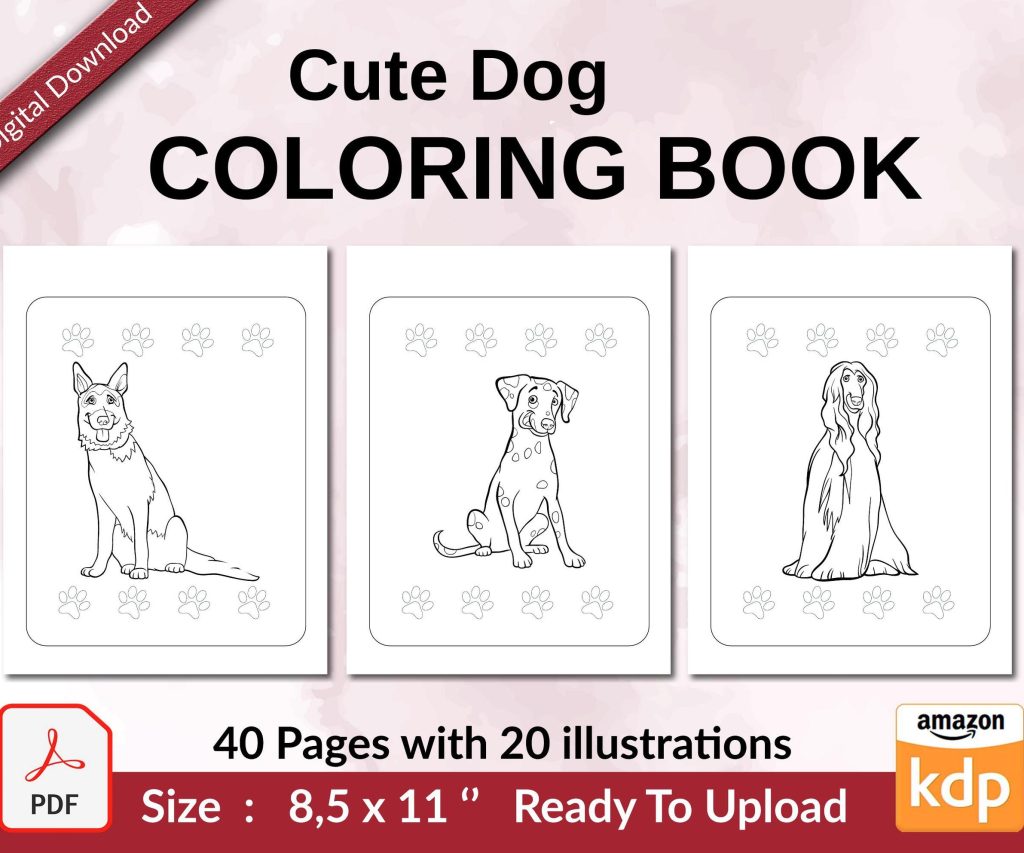 Cute Dogs Coloring Book for Kids | Activity Book | KDP Ready-To-Upload
1 × $0.00
Cute Dogs Coloring Book for Kids | Activity Book | KDP Ready-To-Upload
1 × $0.00 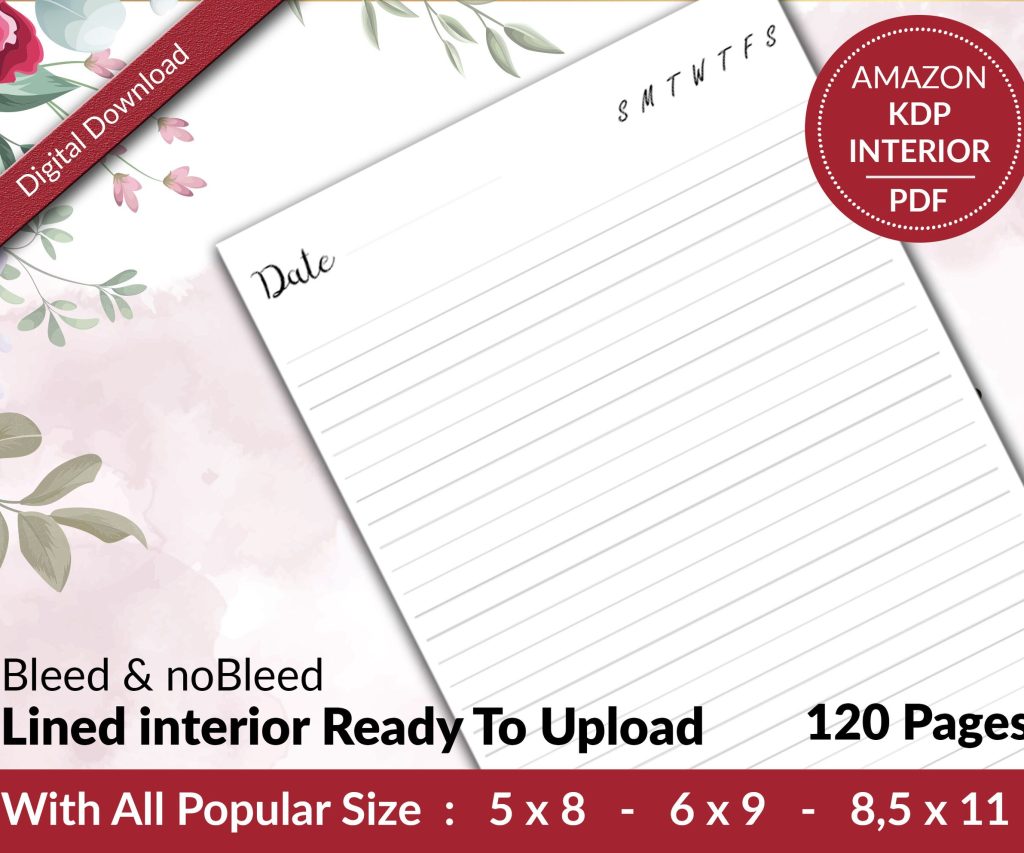 Lined Pages Journal 120 pages Ready to Upload PDF Commercial Use KDP Template 6x9 8.5x11 5x8 for Notebooks, Diaries, Low Content
1 × $0.00
Lined Pages Journal 120 pages Ready to Upload PDF Commercial Use KDP Template 6x9 8.5x11 5x8 for Notebooks, Diaries, Low Content
1 × $0.00 
DISCOVER OUR FREE BEST SELLING PRODUCTS
Editable Canva Lined Journal: Express Your Thoughts – KDP Template
Lined Pages Journal 120 pages Ready to Upload PDF Commercial Use KDP Template 6×9 8.5×11 5×8 for Notebooks, Diaries, Low Content
Lined Pages Journal 120 pages Ready to Upload PDF Commercial Use KDP Template 6×9 8.5×11 5×8 for Notebooks, Diaries, Low Content
Cute Dogs Coloring Book for Kids | Activity Book | KDP Ready-To-Upload
Daily Planner Diary : Diary Planners for Everyday Productivity, 120 pages, 6×9 Size | Amazon KDP Interior
Wolf Coloring KDP interior For Adults, Used as Low Content Book, PDF Template Ready To Upload COMMERCIAL Use 8.5×11"
Coloring Animals Head Book for Kids, Perfect for ages 2-4, 4-8 | 8.5×11 PDF
Printable Blank Comic Book Pages PDF : Create Your Own Comics – 3 Available Sizes
Notes KDP interior Ready To Upload, Sizes 8.5×11 6×9 5×8 inch PDF FILE Used as Amazon KDP Paperback Low Content Book, journal, Notebook, Planner, COMMERCIAL Use
Black Lined Journal: 120 Pages of Black Lined Paper Perfect for Journaling, KDP Notebook Template – 6×9
Student Planner Journal 120 pages Ready to Upload PDF Commercial Use KDP Template 6×9" 8.5×11" for Low Content book
Recipe Journal Template – Editable Recipe Book Template, 120 Pages – Amazon KDP Interior