
-
×
 Notes KDP interior Ready To Upload, Sizes 8.5x11 6x9 5x8 inch PDF FILE Used as Amazon KDP Paperback Low Content Book, journal, Notebook, Planner, COMMERCIAL Use
1 × $0.00
Notes KDP interior Ready To Upload, Sizes 8.5x11 6x9 5x8 inch PDF FILE Used as Amazon KDP Paperback Low Content Book, journal, Notebook, Planner, COMMERCIAL Use
1 × $0.00
Subtotal: $0.00
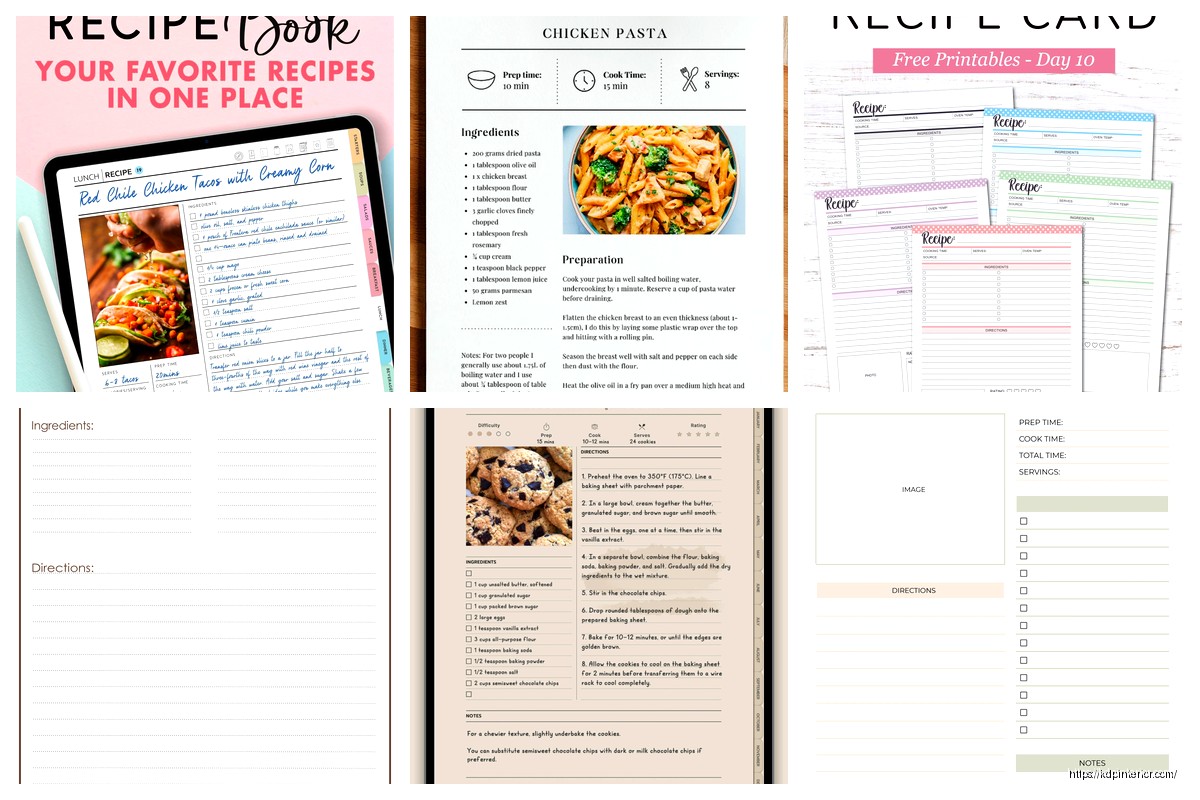
Okay so I was literally putting together a recipe book for my sister last month and spent way too much time testing free templates, so here’s what actually works and what’s garbage.
Look, everyone starts with Word templates because they’re right there. Microsoft has this whole gallery of cookbook templates that are honestly not terrible. You open Word, search for “cookbook” in the template section, and you get maybe 15-20 options. The problem is they’re all formatted for like… grandma’s church cookbook from 1987. Very floral, very dated.
But here’s the thing – the structure is solid. I grabbed one called “Family Cookbook” and just stripped out all the clip art nonsense. The ingredient list format, the step numbering, the prep time boxes… all that underlying structure saves you hours. You just gotta make it not look like a craft fair threw up on it.
The best part about Word templates is they’re already set up for printing. Margins are correct, page breaks make sense, headers and footers are in the right spots. When you’re creating from scratch you forget about bleed and gutter margins and then your printed book looks like amateur hour.
So Canva… okay this is gonna sound like an ad but I promise it’s not. They have a free tier that includes cookbook templates and they don’t look like they time-traveled from 1995. I tested about eight different ones last week while my cat was knocking stuff off my desk repeatedly, super distracting but anyway.
The “Modern Recipe Book” template is clean. Black and white, lots of whitespace, actually uses fonts that don’t make your eyes bleed. You can customize everything without a design degree. Change colors, swap photos, adjust text boxes. It’s all drag and drop.
Here’s what I learned though – Canva‘s free version limits you to like 30 pages or something? Maybe it was 25. Either way if you’re making a full cookbook you’ll need to create multiple documents and combine them later as PDFs. Pain in the ass but doable.
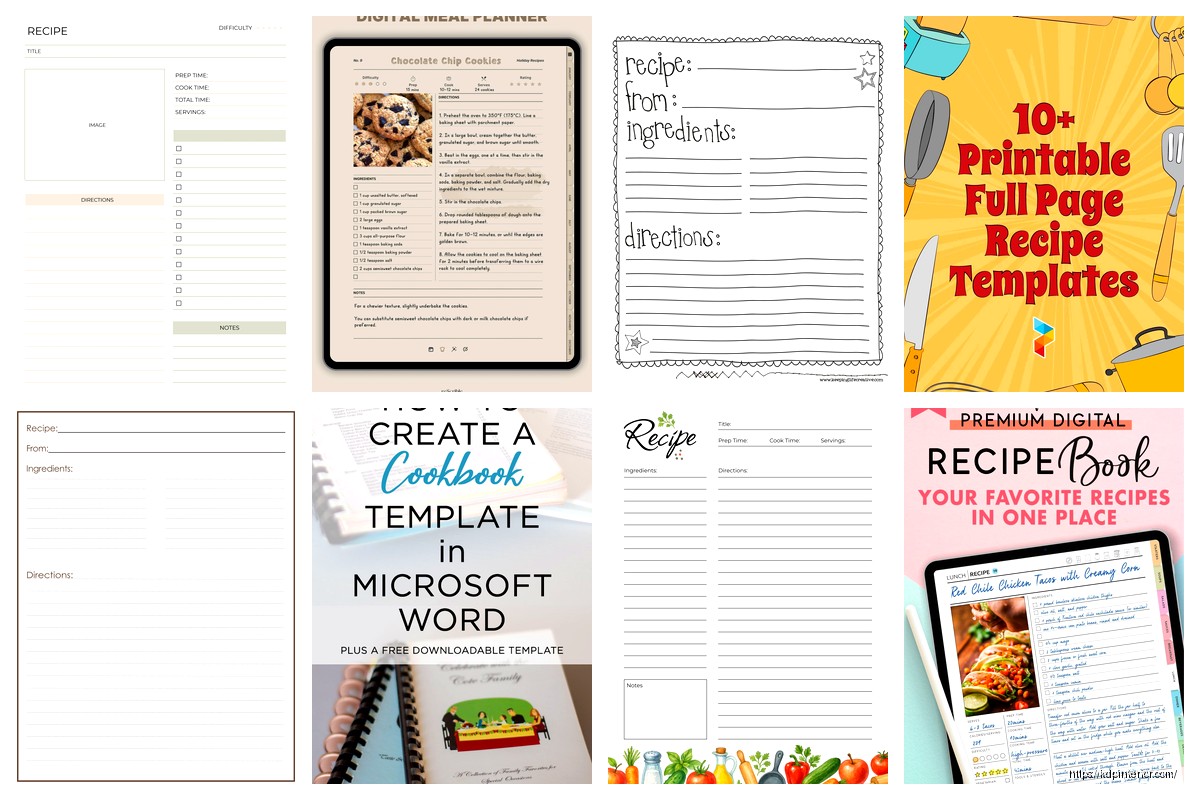
The templates come in different sizes. Letter size (8.5×11), A4, square formats. For KDP you want 8.5×11 or 8×10 typically. Don’t pick the square format unless you specifically want a square book, which costs more to print anyway.
Wait I forgot to mention Google Docs has a template gallery that’s actually decent. Not as pretty as Canva but way more functional for actual writing. You go to docs.google.com, click Template Gallery at the top, then scroll to “Personal” section.
There’s usually a “Recipe Book” option and a “Cookbook” option. They’re basically the same but different formatting. The Recipe Book one has this nice two-column layout for ingredients and instructions side by side. I used this for a quick family recipe collection and it worked perfectly.
The advantage with Google Docs is collaboration. If you’re collecting recipes from multiple people – like I did for my sister’s wedding shower cookbook thing – you can share the doc and people can add their recipes directly. No emailing back and forth, no formatting disasters when someone sends you a recipe typed in Comic Sans.
You can download as PDF, Word doc, or even EPUB if you wanna get fancy. For print books you want PDF. For Kindle you could do EPUB but honestly just use their converter.
Okay so practical stuff. Template.net has hundreds of free cookbook templates. Yes the website looks sketchy and yes you gotta give them your email but the downloads are legit. I’ve used probably fifteen templates from there over the years for various projects.
They have Word templates, Publisher templates (if anyone still uses Publisher?), InDesign templates if you’re fancy, and even Google Docs templates. The free ones have “FREE” in big letters on the thumbnail. Don’t accidentally click the premium ones unless you wanna pay like $9.
Format-wise you’re looking at DOCX, PAGES, INDD, and PDF. If you see PDF only, that’s usually not editable so skip those. You want DOCX for Word or PAGES if you’re on Mac.
Oh and another thing – Hloom has cookbook templates that are completely free, no email required. Just download and go. They’re more basic but sometimes basic is what you need. Clean, simple, gets the job done. Their “Simple Recipe Book Template” is literally just a clean layout with ingredient boxes and instruction sections. Perfect if you don’t want to mess with design stuff.
After testing like twenty templates here’s what actually matters. The template needs consistent formatting throughout. Some free templates look great on page one and then page two is completely different styling. That’s lazy design and you’ll spend hours fixing it.
Check if there’s a table of contents template included. Manually creating a TOC is tedious. Good templates have this built in with automatic page numbering. You just type the recipe name and it populates the page number automatically.
Ingredient list formatting is huge. You want checkboxes or bullet points that are consistent. Some templates use weird symbols or icons that don’t print well. Stick with simple bullets or checkboxes.
Photo placement boxes should be included. Even if you’re not using photos in every recipe, having the space designated helps with layout. You can always delete empty photo boxes but having them pre-positioned is helpful.
So many free templates use fonts you don’t have installed. You open the template and Word is like “we substituted Calibri for BespokeSerifAwesome” and suddenly everything looks wrong. Before committing to a template, check what fonts it uses.
Open the template, select all text, and look at the font dropdown. If you see fonts you don’t recognize, either install them or pick a different template. Installing fonts isn’t hard but it’s annoying when you’re trying to just get work done.
Safe fonts that everyone has: Times New Roman, Arial, Calibri, Georgia, Garamond. If the template uses these you’re golden. If it’s using custom fonts you’ll see them listed when you open the file.
Okay so if you’re making this for Amazon KDP like I do constantly, you need specific dimensions. Amazon has their own templates you can download directly from the KDP website. Go to kdp.amazon.com, click Resources, then Download Paperback Templates.
You enter your page count and trim size and it generates a Word template with correct margins and bleeds. This is honestly the most important template to use if you’re going to KDP. Using a random cookbook template from the internet means you’ll spend hours adjusting margins later.
Common trim sizes for cookbooks are 8×10 inches or 8.5×11 inches. The 8×10 looks more professional, 8.5×11 is easier because it’s standard letter size. I usually go 8×10 for client work, 8.5×11 for personal projects.
Amazon’s templates have inside margin of like 0.5 inches or more depending on page count. Don’t ignore this. If your text is too close to the binding it gets lost in the gutter and looks terrible. Their templates handle this automatically.
Here’s something I do all the time – take the cover page from one template, the recipe page layout from another, the index from a third. You’re not married to using one template for everything.
I’ll grab a fancy cover page from Canva, export it as PDF. Then use a simple Word template for the actual recipes. Then maybe grab a table of contents design from Template.net. Combine them all in a PDF editor like Sejda or PDFescape which are both free online.
This sounds complicated but it takes like ten minutes once you’ve done it twice. And you end up with something that looks custom instead of obviously template-y.
Speaking of combining PDFs… you’re gonna need a free PDF editor. Adobe wants like $15/month which is ridiculous for occasional use. I use Sejda which lets you do like three tasks per day for free. That’s usually enough.
You can merge PDFs, add page numbers, rearrange pages, all the basic stuff. For cookbook creation you mainly need merging and maybe adding page numbers if your template doesn’t have them.
PDFescape is another free option that works in browser. Little clunkier but gets the job done. I used this last night actually to combine recipe pages because Sejda was being weird.
Wait I should mention free food photos because a cookbook without photos looks boring. Unsplash and Pexels have thousands of free food photos. High quality, no attribution required though I usually add it anyway in the credits page.
Search for specific dishes or ingredients. “Chocolate cake” gives you like 500 options. “Fresh basil” for herb photos. “Wooden cutting board” for background textures. You can build an entire cookbook’s worth of images without spending a dollar.
Pixabay is another one but quality is more hit or miss. Unsplash is consistently good. Pexels is in between.
For KDP specifically you need at least 300 DPI resolution. Most stock photo sites let you download high res versions for free. Just make sure you’re grabbing the large size, not the preview size.
Okay so practical formatting stuff I learned the hard way. Use styles in Word or Google Docs. Don’t just manually format each heading. Set up Heading 1 for recipe titles, Heading 2 for sections, Normal for body text.
This matters because when you generate a table of contents it pulls from heading styles. If you manually bolded and enlarged text instead of using heading styles, it won’t show up in the TOC. I’ve redone entire cookbooks because I didn’t know this at first.
Keep ingredient lists simple. Just bullet points and text. Don’t get fancy with tables or text boxes. Tables break when you export to PDF sometimes. Bullet points are foolproof.
Number your instruction steps. Seems obvious but some templates don’t do this. Readers want to see “1. Preheat oven” not just “Preheat oven.” Makes following recipes way easier.
Here’s what I do – before using a template for like 50 recipes, I test it with three recipes first. Full process. Add text, add photos, export to PDF, check how it looks.
You’ll catch issues immediately. Maybe the photo boxes are too small. Maybe the font size is too large and text doesn’t fit. Maybe the margins are off. Better to find out with three recipes than after you’ve done thirty.
Print a test page if you’re making a physical book. What looks good on screen doesn’t always translate to paper. Colors might be off, text might be too small, images might be blurry. Print before you commit.
Alright so practically speaking, I rotate between like four templates depending on the project. For quick personal cookbooks I use the Google Docs “Recipe Book” template. Fast, simple, good enough.
For client work or anything going to KDP I start with Amazon’s official template for the trim size I need. Then I customize the look using Canva elements. Export Canva stuff as images, drop them into the Word template.
For family cookbook projects where multiple people contribute I use Template.net’s “Family Recipe Cookbook” Word template. It has sections for different family members and notes sections which people love.
For modern, photo-heavy cookbooks I use Canva’s “Modern Cookbook” template and just deal with the page limit by creating multiple documents. The end result looks professional enough that people think I paid for design.
None of these are perfect. Every template needs customization. But they give you the structure so you’re not starting from a blank page, which is the whole point of templates anyway.
Oh and one more thing – save your customized template separately. Like if you spend an hour adjusting a template to look exactly how you want, save that as “My Cookbook Template” so you can reuse it. Don’t customize the same base template over and over. That’s just inefficient and I did that for way too long before I realized I could just save my version.
DISCOVER OUR FREE BEST SELLING PRODUCTS
Editable Canva Lined Journal: Express Your Thoughts – KDP Template
Lined Pages Journal 120 pages Ready to Upload PDF Commercial Use KDP Template 6×9 8.5×11 5×8 for Notebooks, Diaries, Low Content
Lined Pages Journal 120 pages Ready to Upload PDF Commercial Use KDP Template 6×9 8.5×11 5×8 for Notebooks, Diaries, Low Content
Cute Dogs Coloring Book for Kids | Activity Book | KDP Ready-To-Upload
Daily Planner Diary : Diary Planners for Everyday Productivity, 120 pages, 6×9 Size | Amazon KDP Interior
Wolf Coloring KDP interior For Adults, Used as Low Content Book, PDF Template Ready To Upload COMMERCIAL Use 8.5×11"
Coloring Animals Head Book for Kids, Perfect for ages 2-4, 4-8 | 8.5×11 PDF
Printable Blank Comic Book Pages PDF : Create Your Own Comics – 3 Available Sizes
Notes KDP interior Ready To Upload, Sizes 8.5×11 6×9 5×8 inch PDF FILE Used as Amazon KDP Paperback Low Content Book, journal, Notebook, Planner, COMMERCIAL Use
Black Lined Journal: 120 Pages of Black Lined Paper Perfect for Journaling, KDP Notebook Template – 6×9
Student Planner Journal 120 pages Ready to Upload PDF Commercial Use KDP Template 6×9" 8.5×11" for Low Content book
Recipe Journal Template – Editable Recipe Book Template, 120 Pages – Amazon KDP Interior