-
×
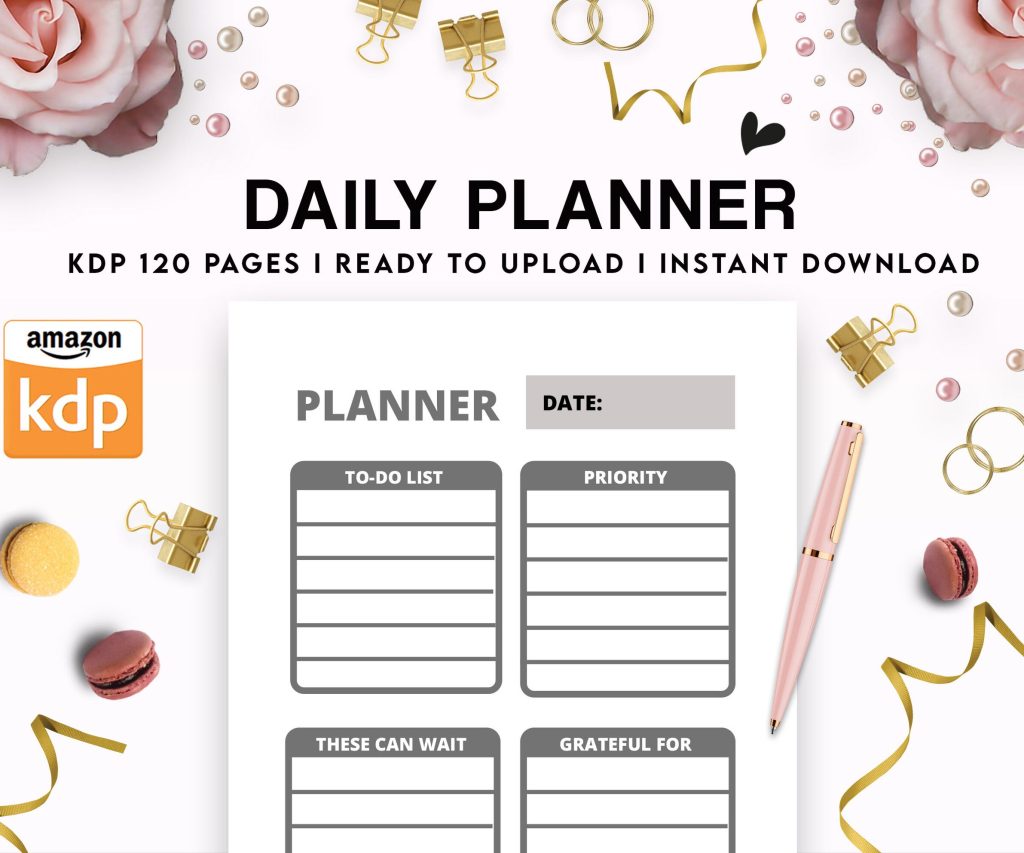 Daily Planner Diary : Diary Planners for Everyday Productivity, 120 pages, 6×9 Size | Amazon KDP Interior
1 × $0.00
Daily Planner Diary : Diary Planners for Everyday Productivity, 120 pages, 6×9 Size | Amazon KDP Interior
1 × $0.00
Subtotal: $0.00
 Daily Planner Diary : Diary Planners for Everyday Productivity, 120 pages, 6×9 Size | Amazon KDP Interior
1 × $0.00
Daily Planner Diary : Diary Planners for Everyday Productivity, 120 pages, 6×9 Size | Amazon KDP Interior
1 × $0.00 Subtotal: $0.00
Okay so I just spent like three hours last week diving into free ebook templates because one of my students asked about this and honestly, there’s way more good stuff out there than when I started doing this seven years ago.
Canva is probably gonna be your first stop and yeah I know everyone talks about it but listen – their free ebook templates are legit good enough for most KDP projects. You don’t even need the Pro version for basic stuff. I was messing around with their minimalist cookbook template last Thursday while watching The Last of Us (so good btw) and realized you can basically repurpose ANY of their social media templates into ebook pages if you just resize them.
The trick with Canva though is you gotta set your custom dimensions right from the start. For KDP, I usually go with 6×9 inches at 300 DPI. Create a custom size, then browse their templates. Some won’t fit perfectly but you can adjust. Their “Magazine” category actually has better layouts for ebooks than the actual ebook section sometimes which is weird but whatever.
Visme’s free plan is pretty limited but their ebook templates have this clean corporate look that works great for lead magnets or if you’re publishing business content. I used one of theirs for a productivity planner template I sold maybe 2000 copies of last year. The drag-and-drop editor is smoother than Canva in some ways, especially for adding charts and data visualization stuff.
You get like 5 projects on the free plan so it’s not ideal if you’re pumping out tons of books but for testing a concept or creating one really polished piece, it works.
Wait I forgot to mention – Google Docs has a template gallery that’s completely free and people just… don’t use it? Go to docs.google.com/templates and check the “Work” section. There’s recipe books, reports, proposals that you can convert into ebook formats.
Here’s what I do: grab a Google Docs template, customize it with my content, then export as PDF. For KDP, you can upload PDFs directly or convert to other formats using Calibre (which is free and I’ll get to that in a sec). The formatting stays pretty clean if you use their built-in styles properly.
My cat just knocked over my coffee but anyway – the advantage with Google Docs is collaboration. If you’re working with a ghostwriter or editor, sharing a Google Doc is way easier than passing around Canva links or whatever.
Similar deal with Microsoft’s online version. If you have any Microsoft account (even free), you can access Word online and their template library. Their book templates are actually formatted better for print than most design tools because they understand margins, headers, page numbers – all that stuff that makes a book look professional.
I published like 30 journals using modified Word templates in 2019. Just changed colors, fonts, maybe added some graphics from free stock sites. Made probably $8k from those before the market got saturated.
Calibre is this ugly-looking but insanely powerful ebook management tool. It’s free, open-source, and honestly if you’re doing any volume of ebook publishing you gotta have it installed. It converts between formats – EPUB to MOBI to PDF to AZW3, whatever you need.
But here’s the thing nobody tells you – Calibre also has a built-in ebook editor. You can create ebooks from scratch or modify existing templates. The learning curve is steeper than Canva but once you figure it out, you have way more control over your final product.
I use Calibre mostly for converting and quality checking. Like I’ll create something in Canva, export as PDF, then run it through Calibre to make sure it looks good on different devices. You can preview how your ebook appears on Kindle, iPad, phone screens, etc.
Scribus is free desktop publishing software that’s basically a budget version of InDesign. It’s clunky and crashes sometimes but it’s genuinely free with no weird limitations. If you’re doing anything with complex layouts – like activity books, cookbooks with specific formatting, workbooks with form fields – Scribus can handle it.
The templates that come with Scribus are kinda dated looking but you can find free Scribus templates on sites like Template.net or just modify the built-in ones. I made a meal planning book using Scribus that had tables and checkboxes and it came out really clean for print-on-demand.
Warning though: Scribus has this thing where it’s picky about fonts and images. Make sure everything is embedded properly before you export or you’ll get weird errors when uploading to KDP.
Template.net has thousands of free templates including ebook layouts. You gotta create a free account but then you can download templates in Word, Pages, Google Docs formats. The quality varies wildly – some look super professional, others look like they were made in 2005.
I grab templates from there when I need something specific like a recipe layout or a fitness tracker design. Just search “ebook template” plus your niche and see what comes up. Download a few, test them out.
HubSpot offers free ebook templates specifically designed for lead magnets and business content. They’re PowerPoint-based which sounds weird but actually works pretty well. Download the PPT, customize it, export as PDF. The designs are modern and on-brand with current trends.
I used one of their templates for a “Amazon KDP Quick Start Guide” freebie I give to email subscribers and it looks way more professional than anything I could’ve designed myself.
Okay so these aren’t template sites exactly but Freepik has some free ebook templates in their vectors section and Flaticon is perfect for adding icons and graphics to whatever template you’re using. Both have free accounts with attribution requirements – you gotta credit them in your ebook.
For KDP books you’re selling, the attribution thing can be annoying. But for lead magnets or free ebooks you’re giving away, it’s totally fine. I’ve used probably hundreds of Flaticon icons in various projects.
Book Bolt has some free resources if you sign up for their newsletter. Not a ton, but occasionally they release free templates for specific niches. I got a free coloring book template from them last month that had 20 pages already designed – just needed to add my own branding.
Creative Fabrica does “free goods of the week” or whatever they call it. Sometimes that includes book templates or interior elements you can use. You need a free account but they don’t spam you too badly.
This is gonna sound weird but I’ve found good free templates just by searching on Pinterest and seeing where they link to. A lot of designers offer one or two freebies to get you into their ecosystem. You download the free template, it’s actually decent, and if you need more you can buy their premium stuff.
So you found a template you like – now what? If it’s already in a KDP-friendly format like PDF or DOCX, you’re golden. Upload directly or make your edits first.
If it’s in some weird format, Calibre is your friend for conversion. I’ve converted PowerPoint presentations, Apple Pages files, even some HTML-based ebook templates using Calibre or CloudConvert (which is also free for small files).
Amazon has Kindle Create which is completely free and honestly underrated. It doesn’t have templates in the traditional sense but it has themes and formatting options that basically act like templates. You import a Word doc or other file, choose a theme, and Kindle Create formats it for ebook or paperback.
I use Kindle Create mostly for ebooks with lots of text – like the actual ebooks I publish, not low-content stuff. It handles chapters, table of contents, images pretty well. For paperbacks it’s more limited but still useful for simple layouts.
Your template is only as good as the images and graphics you add to it. Unsplash, Pexels, and Pixabay are the holy trinity of free stock photos. All have different licensing but generally you can use them commercially without attribution.
I probably use Unsplash most because their search is better and the photo quality is consistently high. Pexels has more variety including videos if you’re doing anything multimedia. Pixabay has illustrations and vectors which are great for certain book types.
RemoveBG is this free tool that removes backgrounds from images. Super useful when you’re customizing templates and need a clean graphic without a white box around it. The free version has some size limitations but works fine for most ebook projects.
Google Fonts is obvious but yeah, it’s free and has hundreds of quality fonts. DaFont has way more variety but quality varies and you gotta check the licensing for each font – some are free for personal use only.
Font Squirrel only lists fonts that are free for commercial use which saves time. I bookmark fonts I like there and use them across multiple projects.
Here’s a thing I learned the hard way: embedded fonts can bloat your file size. KDP has file size limits and fees based on delivery costs. Sometimes using standard fonts (Arial, Times New Roman, whatever) keeps your file smaller and your costs down. Not sexy but practical.
Don’t just download a template and immediately build your whole book around it. I always create a few test pages first to make sure the layout works for my content type.
Like I was working on a gratitude journal template last month and the free template I found looked amazing but once I started adding actual content, the spacing was all wrong. Spent two hours trying to fix it before I just grabbed a different template.
Preview your work constantly. If you’re making a Kindle ebook, use Kindle Previewer (free from Amazon) to see how it actually looks on devices. For paperbacks, order a proof copy before you publish – costs like $3-5 usually and saves you from embarrassing formatting mistakes.
Sometimes one template isn’t enough. I’ll grab a layout from Canva, icons from Flaticon, photos from Unsplash, fonts from Google Fonts, and combine everything into one project.
The key is keeping track of licensing requirements. Most free resources are fine for commercial use but some require attribution or have restrictions. I keep a spreadsheet of what I’ve used where because nothing sucks more than having to unpublish a book because of licensing issues.
CloudConvert is super helpful for format conversion when you’re working across different tools. Like if you design something in Canva but need it in a different format for editing in another program.
Oh and another thing – compression. Large file sizes are a problem for KDP pricing. TinyPNG compresses images without losing much quality. I run all my images through it before adding to templates. Can cut file size by like 60-70% sometimes.
KDP has different requirements than Draft2Digital or IngramSpark. The free templates you find might work great for one platform but need adjustment for others.
For KDP specifically: 6×9 is the most common trim size for paperbacks. Margins matter – you need enough gutter space for binding. Bleed if you have images going to the edge of pages. The KDP help section actually has pretty good specs listed.
For ebooks (EPUB format), responsive design matters more than fixed layouts. Text should reflow based on device and user settings. Some fancy templates with rigid layouts don’t convert well to ebook format.
I usually design with my primary platform in mind first, then adapt if I’m publishing wide. Saves time compared to trying to make one template work perfectly everywhere.
Anyway that’s most of what I’ve figured out over the years with free ebook templates and resources. There’s definitely more specialized tools and sites depending on your specific niche but these cover like 90% of what you’d need for standard KDP publishing.
DISCOVER OUR FREE BEST SELLING PRODUCTS
Editable Canva Lined Journal: Express Your Thoughts – KDP Template
Lined Pages Journal 120 pages Ready to Upload PDF Commercial Use KDP Template 6×9 8.5×11 5×8 for Notebooks, Diaries, Low Content
Lined Pages Journal 120 pages Ready to Upload PDF Commercial Use KDP Template 6×9 8.5×11 5×8 for Notebooks, Diaries, Low Content
Cute Dogs Coloring Book for Kids | Activity Book | KDP Ready-To-Upload
Daily Planner Diary : Diary Planners for Everyday Productivity, 120 pages, 6×9 Size | Amazon KDP Interior
Wolf Coloring KDP interior For Adults, Used as Low Content Book, PDF Template Ready To Upload COMMERCIAL Use 8.5×11"
Coloring Animals Head Book for Kids, Perfect for ages 2-4, 4-8 | 8.5×11 PDF
Printable Blank Comic Book Pages PDF : Create Your Own Comics – 3 Available Sizes
Notes KDP interior Ready To Upload, Sizes 8.5×11 6×9 5×8 inch PDF FILE Used as Amazon KDP Paperback Low Content Book, journal, Notebook, Planner, COMMERCIAL Use
Black Lined Journal: 120 Pages of Black Lined Paper Perfect for Journaling, KDP Notebook Template – 6×9
Student Planner Journal 120 pages Ready to Upload PDF Commercial Use KDP Template 6×9" 8.5×11" for Low Content book
Recipe Journal Template – Editable Recipe Book Template, 120 Pages – Amazon KDP Interior