Okay so here’s the thing about free printable book covers – most people don’t realize you can actually grab professional-looking designs without spending a dime, and I’ve been testing a bunch of these sources for the past few weeks because honestly the paid templates were eating into my margins.
Where to Actually Find Decent Free Templates
Canva’s free tier is where I’d start, even though everyone and their mom uses it now. They’ve got like thousands of book cover templates and yeah some look generic but here’s what I do – I search for “book cover” obviously but then I filter by the actual book size I need. You can customize dimensions to 6×9 or 8.5×11 or whatever KDP size you’re working with. The free elements are marked with that little “Free” tag and honestly? There’s enough there to make something that doesn’t scream “I made this in five minutes.”
But wait I forgot to mention – you gotta be careful with the licensing. Canva’s free stuff is cool for commercial use as long as you’re not just reselling the template itself. Which like… you’re making it into an actual book cover so you’re fine. Just don’t download the template and try to sell it AS a template, you know?
Vecteezy and Freepik Are Kinda Hit or Miss
So Vecteezy has this whole section of free book cover vectors and backgrounds. Some of them are actually really nice – I used one for a gratitude journal last month and it worked out great. The catch is you need to give attribution if you’re using the free license, OR you can pay like $9 for that one design to use it without credit. Which defeats the purpose if you’re trying to keep it free but whatever.
Freepik is similar vibes. They have a freemium model where you get some downloads per day on the free account. I think it’s like 3 or 10 depending on… actually I don’t remember exactly. But the quality is solid. You’re gonna find more abstract backgrounds and design elements rather than full complete covers though. So it’s more like building blocks.
The DIY Download Process That Actually Works
Here’s my actual workflow when I’m grabbing free stuff – and this is gonna sound weird but I keep a spreadsheet of every free resource I download with the license terms because I got paranoid after almost using something that wasn’t actually commercial-use-okay.
First thing is figure out your exact dimensions. KDP has specific bleed requirements and if you’re doing a paperback with like 100 pages vs 300 pages the spine width changes. There’s a cover calculator on KDP but honestly I just keep a note in my phone with my most common sizes.
Then I hit up Canva first because it’s the easiest. If I can’t find something that fits the vibe I’m going for, I move to Pixabay or Unsplash for background images. Both are completely free for commercial use, no attribution required. My cat literally walked across my keyboard while I was downloading from Unsplash yesterday and somehow downloaded like 15 random images but anyway.
Combining Free Elements Into Something Unique
This is where people mess up – they just use one template as-is and call it done. But if you grab a background from Unsplash, a texture overlay from Vecteezy, and then add your text in Canva using their free fonts? Suddenly it looks way more custom.
I did this for a recipe journal last week. Got a free food photo from Pexels, added a subtle pattern from a free vector site, used the Playfair Display font which is free and looks expensive, and boom. Sold like 30 copies in the first week which isn’t amazing but it’s not bad for a super niche cookbook thing.
Oh and another thing – Google Fonts has hundreds of free fonts you can use commercially. Don’t sleep on typography because honestly a good font choice can make a mediocre cover look intentional.
The Legal Stuff You Actually Need to Know
Okay so this part is boring but important. Creative Commons Zero (CC0) is your friend – that means completely free, no attribution, do whatever you want. Sites like Pixabay, Pexels, and Unsplash mostly use CC0 or their own similar license.
Creative Commons Attribution means you gotta credit the creator. Sometimes that’s fine if you’re making something for personal use or you don’t mind adding a credit page, but for KDP books it’s kinda awkward to have “cover photo by RandomUser123” in your book.
Some sites have an “editorial use only” license which means you CANNOT use it for commercial stuff. I almost screwed this up with a really pretty image from… I think it was Shutterstock’s free section? Anyway, always read the license. Takes 30 seconds and saves you from potential issues.
Programs for Actually Editing These Downloads
If you’re on a Mac, Preview can do basic stuff but it’s pretty limited. I use GIMP which is free and open source – it’s basically Photoshop but the interface is weird and clunky. There’s a learning curve but YouTube tutorials exist for literally everything.
Photopea is this free browser-based editor that’s actually really good. Like surprisingly good. It reads PSD files and has layers and all that. I was watching The Last of Us while trying to figure it out and honestly picked it up in like an hour of messing around.
Canva’s editor is probably the most user-friendly though. Even if you download elements from other sites, you can upload them to Canva and arrange everything there. The free version has some limitations on exports but for book covers you’re usually fine with the standard PDF or PNG export.
Specific Sites I Actually Use Regularly
Let me just list these out because I keep them bookmarked:
- Canva – obvious choice, templates plus design tools
- Pixabay – free images, vectors, some templates
- Unsplash – high quality photos, all free commercial use
- Pexels – similar to Unsplash, slightly different selection
- Vecteezy – vectors and design elements, some free some paid
- FreePik – similar to Vecteezy
- Creative Fabrica – they have free downloads every week if you make an account
- FontSquirrel – 100% free commercial fonts
- DaFont – mix of free and paid, read licenses carefully
Creative Fabrica is interesting because they’re primarily a paid subscription service but they offer freebies. You gotta create an account and sometimes the free stuff is kinda random but I’ve found some good fonts and design elements there.
What to Do When Free Isn’t Cutting It
Sometimes you just can’t find what you need in free resources. Like if you’re doing a really specific niche – I was trying to find stuff for a bird watching journal and the free options were… not great.
In those cases I’ll spend like $5-15 on Creative Market or Etsy for a specific template or element. But the key is mixing paid elements with free ones. Buy one really good central image or template, then use free fonts, free textures, free backgrounds to fill it out.
Or honestly sometimes it’s worth paying a designer on Fiverr like $20-30 for a basic cover if you’re gonna use it for multiple products or variations. I did this for a series of planners and just changed the colors and text for each one.
Common Mistakes I See People Making
Using low resolution images is the biggest one. KDP wants 300 DPI for print books. If you grab some tiny thumbnail image and try to stretch it to cover size, it’s gonna look pixelated and terrible. Always check the image dimensions before downloading.
Not understanding bleed and trim is another thing. Your cover needs to extend past the actual book dimensions by like 0.125 inches on all sides. If you don’t account for this, important elements might get cut off. KDP’s templates show you the safe zone – keep text and important graphics inside that.
Overthinking the design is actually a problem too. I spent like 6 hours on a journal cover once making it super elaborate with tons of elements and it sold worse than a simple minimalist cover I made in 20 minutes. Sometimes less is more, especially for low-content books.
My Actual Process Start to Finish
When I’m starting a new book cover from scratch using free resources, here’s what I actually do:
Open KDP’s cover calculator and input my book specs. Download the template they provide – it’s just a blank PNG with guidelines but it’s helpful.
Search Canva for templates in my genre. Even if I don’t use the template directly, it gives me ideas for layout and what works in that category.
Find a background. Usually from Unsplash or Pixabay. Search terms matter here – instead of just “background” I’ll search like “watercolor texture” or “minimal gradient” or whatever fits the vibe.
Grab any additional graphics if needed. Maybe a small icon or decorative element from Vecteezy.
Do all the actual design work in Canva. Upload my downloaded elements, arrange everything, add text with free fonts. Make sure everything important is inside the safe zone.
Export as PNG at the highest quality. Then I upload to KDP and pray it looks okay in the preview because sometimes colors shift slightly.
Size and Format Considerations
For paperbacks you need a full wrap cover – front, spine, back. The spine width calculator on KDP is essential. You can’t just guess it because if your spine is even slightly off, the text won’t line up right.
For hardcovers the process is similar but the dimensions are different and there’s dust jacket vs. case laminate covers. I mostly do paperbacks so I’m less experienced with hardcover specifics but the free resources work the same way.
For ebooks you only need the front cover. Way simpler. Just make sure it’s at least 1600 pixels on the shortest side. I usually do 1600×2400 or 1600×2560.
Testing What Actually Converts
This is gonna sound obvious but test different covers. I’ll sometimes upload the same book with 2-3 different cover variations and see which one gets more clicks and sales. Amazon’s A+ Content doesn’t work for KDP books but you can just… make multiple versions and track which performs better.
Free resources make this easy because you’re not out any money if a cover design flops. I’ve had covers I thought were amazing perform terribly and simple covers I threw together in 10 minutes do really well. You never really know until you test.
Wait I forgot to mention – there are some Facebook groups and Reddit communities where people share free resources and templates. r/FreeAssets or whatever it’s called has design stuff sometimes. The KDP Facebook groups occasionally have people sharing free templates they made.
Color Profiles and Technical Stuff
Okay this gets a bit technical but KDP wants sRGB for ebooks and either sRGB or US Web Coated SWOP v2 for print. If you’re using Canva you don’t really need to worry about this because it handles it automatically. But if you’re using GIMP or Photoshop or whatever, make sure you’re in the right color space.
I messed this up once and my cover looked fine on screen but printed way darker than expected. Now I always download a physical proof before going live with a new design, especially if I’m using free resources where I can’t test exactly how they’ll print.
Fonts can also cause issues if they’re not embedded properly. Canva handles this automatically. If you’re using other programs, make sure to flatten your text layers or embed fonts before exporting. Otherwise KDP might reject your file or substitute a different font which would be terrible.
The file size matters too. KDP has limits on how big the cover file can be. Usually not an issue but if you’re layering a ton of high-res images it can add up. Compress if needed but don’t sacrifice too much quality.
Anyway that’s basically everything I’ve learned about using free printable book cover resources over the past few years. It’s definitely possible to make professional-looking covers without spending money, you just gotta know where to look and be willing to spend time customizing things so they don’t look generic.

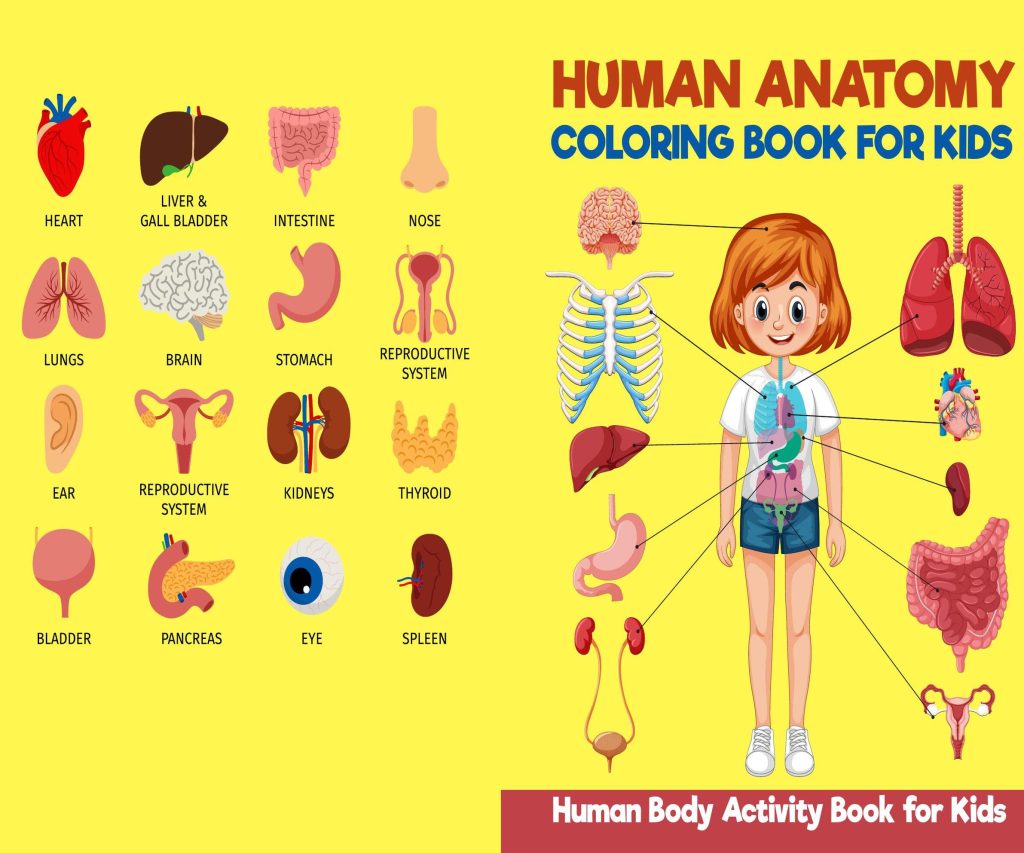 Human anatomy coloring Activity book PDF File 8.5x11 inch For Kids aged 2-4 4-8, KDP interior Ready To Upload COMMERCIAL Use
1 × $4.99
Human anatomy coloring Activity book PDF File 8.5x11 inch For Kids aged 2-4 4-8, KDP interior Ready To Upload COMMERCIAL Use
1 × $4.99  Notes KDP interior Ready To Upload, Sizes 8.5x11 6x9 5x8 inch PDF FILE Used as Amazon KDP Paperback Low Content Book, journal, Notebook, Planner, COMMERCIAL Use
1 × $0.00
Notes KDP interior Ready To Upload, Sizes 8.5x11 6x9 5x8 inch PDF FILE Used as Amazon KDP Paperback Low Content Book, journal, Notebook, Planner, COMMERCIAL Use
1 × $0.00 
DISCOVER OUR FREE BEST SELLING PRODUCTS
Editable Canva Lined Journal: Express Your Thoughts – KDP Template
Lined Pages Journal 120 pages Ready to Upload PDF Commercial Use KDP Template 6×9 8.5×11 5×8 for Notebooks, Diaries, Low Content
Lined Pages Journal 120 pages Ready to Upload PDF Commercial Use KDP Template 6×9 8.5×11 5×8 for Notebooks, Diaries, Low Content
Cute Dogs Coloring Book for Kids | Activity Book | KDP Ready-To-Upload
Daily Planner Diary : Diary Planners for Everyday Productivity, 120 pages, 6×9 Size | Amazon KDP Interior
Wolf Coloring KDP interior For Adults, Used as Low Content Book, PDF Template Ready To Upload COMMERCIAL Use 8.5×11"
Coloring Animals Head Book for Kids, Perfect for ages 2-4, 4-8 | 8.5×11 PDF
Printable Blank Comic Book Pages PDF : Create Your Own Comics – 3 Available Sizes
Notes KDP interior Ready To Upload, Sizes 8.5×11 6×9 5×8 inch PDF FILE Used as Amazon KDP Paperback Low Content Book, journal, Notebook, Planner, COMMERCIAL Use
Black Lined Journal: 120 Pages of Black Lined Paper Perfect for Journaling, KDP Notebook Template – 6×9
Student Planner Journal 120 pages Ready to Upload PDF Commercial Use KDP Template 6×9" 8.5×11" for Low Content book
Recipe Journal Template – Editable Recipe Book Template, 120 Pages – Amazon KDP Interior