okay so here’s what you actually need to know about free book templates
Right so I was literally just helping someone with this yesterday while my cat was knocking over my coffee and honestly the whole “free printable book template” thing is kinda messy but also super doable if you know where to look. Most people overthink it.
First thing – when you’re looking for free templates, you gotta understand what you’re actually downloading. Like are we talking about a Word doc that’s formatted for print? A PDF you can fill in? An InDesign file that requires Adobe’s expensive software? Because I’ve downloaded probably 200+ “free” templates over the years and half of them are basically useless or require paid software to even open properly.
The Microsoft Word Route (Start Here Honestly)
Word templates are gonna be your easiest option. You can find decent ones on sites like Template.net and Hloom, but here’s the deal – most free Word templates are formatted for like 8.5×11 which is NOT what you want for KDP unless you’re doing a workbook or planner. For actual books, you need 6×9 or 5×8 trim sizes usually.
So what I do is grab a basic template and then manually adjust the page size. Go to Layout > Size > More Paper Sizes and punch in your dimensions. Then you gotta fix the margins because KDP requires specific gutter margins (that’s the inside margin where the binding is). For a 6×9 book under 150 pages, I usually do 0.5″ outside margins and 0.75″ inside gutter. Over 150 pages? Bump that gutter to 0.875″ or even 1″.
Oh and another thing – headers and footers. Free templates either have zero formatting for these or they’re super fancy and complicated. You want simple. Page numbers on the outside corners (right side for odd pages, left for even). Book title or author name in the header but NOT on chapter opening pages. This is where you use section breaks in Word which… honestly still trips me up sometimes and I’ve been doing this for seven years.
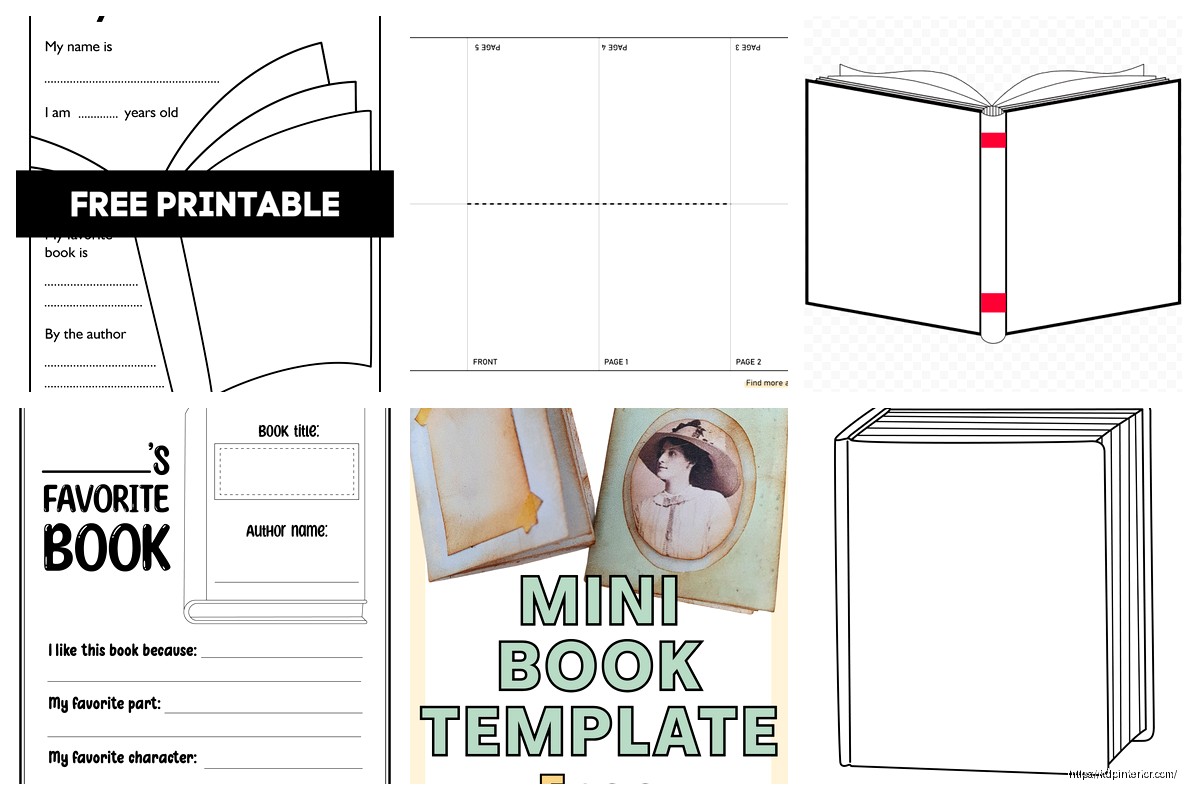
Canva Templates Are Actually Pretty Solid Now
Wait I forgot to mention Canva earlier. They’ve got free book templates now and they’re surprisingly good? Like I was skeptical because Canva used to be just for social media graphics but they’ve really expanded. The catch is their free templates are limited and you can’t always get the exact trim size you need.
But if you’re doing something visual like a kids book or a recipe book or even a journal with prompts, Canva’s gonna save you so much time. They have pre-made page layouts, you can drag and drop images, and the typography options are decent. Just make sure you’re exporting as PDF Print quality, not the web version. I made that mistake once and uploaded a super low-res file to KDP and it looked terrible.
The annoying part with Canva is the bleed settings. KDP wants 0.125″ bleed on all sides for color interiors. Canva’s templates don’t always account for this properly so you might need to manually extend your background colors or images past the page edge. It’s tedious but necessary unless you want white edges showing up when they trim your book.
Google Docs for the Basics
Okay so funny story – I published my first three books using nothing but Google Docs and it worked fine. Not ideal, but fine. Google has some free book templates in their template gallery but they’re pretty basic. The advantage is it’s free, cloud-based, and you can collaborate if you’re working with someone else.
The disadvantage is Google Docs is NOT designed for professional book formatting. You can’t do proper section breaks, the header/footer control is limited, and forget about advanced typography stuff like kerning or proper widow/orphan control. But for a simple text-based book? It works.
I usually start in Google Docs for the writing phase, then export to Word for actual formatting. Or if I’m being lazy and the book is super simple (like a 30-page guided journal with just text prompts), I’ll format the whole thing in Docs and export as PDF.
The Reedsy Book Editor Thing
This is gonna sound weird but Reedsy has this free online book editor that’s actually designed for ebook formatting but works okay for print too. It’s more limited than Word but it handles the basics – chapters, page breaks, front matter, all that stuff. And it exports to PDF which you can upload directly to KDP.
I used it for a short story collection once and it was… fine. Not amazing, kinda limited on design options, but if you literally have zero budget and don’t wanna mess with Word or Canva, it’s there. The formatting is clean and professional-looking by default which is nice.
Where to Actually Find These Templates
Okay so lemme just list the sites I actually use because there’s a million garbage sites out there promising “professional templates” that are just clipart thrown on a page:
- BookDesignTemplates.com – not all free but they have some solid free options, especially for Word
- KDP’s own template creator – seriously people sleep on this, Amazon has a free tool that generates custom-sized templates
- Template.net – hit or miss but the book category has some usable stuff
- Canva obviously
- Your local library website sometimes has Creativebug or Lynda/LinkedIn Learning access which includes template downloads
The KDP template thing is underrated. You go to their resources page, select your trim size and page count, and it generates a Word or PowerPoint template with the exact specs you need including margins, bleed, all of it. It’s super basic looking but it’s technically perfect for their printing requirements.
Interior Formatting Stuff That Always Gets Messed Up
So you’ve got your template, now what? The biggest mistakes I see (and made myself repeatedly):
Fonts. Free templates often use fonts that aren’t licensed for commercial use. Even if you’re giving the book away, if you’re on KDP you’re technically in commercial territory. Stick to safe fonts like Garamond, Georgia, Times New Roman, or Libre Baskerville. Boring but legal.
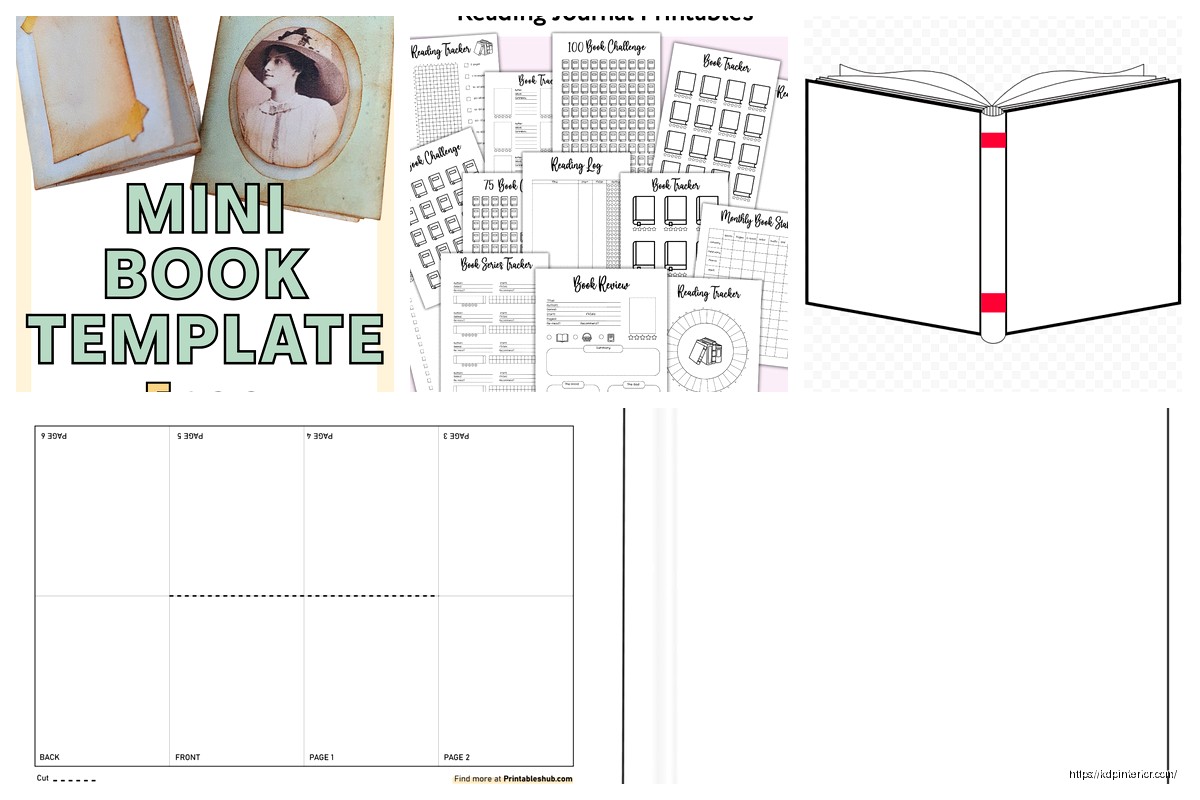
Line spacing. Should be 1.15 to 1.5 for fiction, can be tighter for non-fiction. Too much spacing and your page count balloons which increases printing costs. Too little and it looks cramped and unprofessional.
Chapter headings. They should start about 1/3 down the page, not at the very top. This is one of those things that screams amateur if you don’t do it right. Most free templates ignore this completely.
Orphans and widows. Single lines of text stranded at the top or bottom of pages. Word has settings to prevent this (Paragraph > Line and Page Breaks > Widow/Orphan control) but you still gotta manually check because it’s not perfect.
Wait I should mention – if you’re doing a book with images, you need way more space in your margins and the file size gets huge. I did a cookbook once and the PDF was like 200MB before I compressed it. KDP has file size limits so you gotta use tools like Adobe Acrobat or online compressors to shrink it down without losing too much quality.
The Cover Template Situation
Oh right, covers. Free printable templates for covers are even trickier because the cover dimensions depend on your page count (the spine width changes based on how thick the book is). KDP has a cover calculator and template generator that’s actually mandatory to use unless you really know what you’re doing.
You can design in Canva or whatever but you HAVE to get the dimensions from KDP’s calculator. I’ve seen people design beautiful covers that were completely wrong dimensionally and then they’re confused why KDP rejects them. The spine has to be exact or the text will be off-center or cut off.
For covers, honestly, I usually just pay someone on Fiverr for like $25-50 because it’s not worth the headache. But if you’re truly DIY-ing it, use KDP’s cover creator tool or download their template and design in Canva or GIMP (free Photoshop alternative).
Testing Your Template Before You Commit
This is super important – order a proof copy before you publish publicly. I don’t care how perfect your PDF looks on screen, print is different. Colors shift, margins look different, text might be too small. KDP lets you order author proofs for just the printing cost (usually like $3-8 depending on size).
I learned this the hard way when I published a journal and the margins were so tight the text was basically in the gutter and unusable. Had to recall everything and reformat. Super embarrassing and cost me money.
Also check your PDF in Adobe Reader at 100% zoom, not in whatever viewer your template software has. Word’s print preview lies sometimes. The actual PDF is what KDP will print from so that’s what matters.
Quick Fixes for Common Template Problems
If your free template has weird formatting you can’t figure out, sometimes it’s easier to just copy all the text (Ctrl+A, Ctrl+C), paste it into a brand new blank document as plain text (paste special > unformatted text), and reformat from scratch using a different template. Sounds extreme but I’ve done this multiple times when dealing with corrupted or overly-complex templates.
Images not aligning right? Make sure they’re set to “in line with text” not “wrap text” or floating. This fixes like 80% of image placement issues.
Page numbers restarting randomly? You’ve got section breaks you didn’t know about. Show formatting marks (the ¶ button in Word) and delete the extra section breaks or fix the header/footer settings for each section.
Low-Content Book Templates Are Different
Just realized I should mention this – if you’re doing low-content books (planners, journals, logbooks, that kind of thing), the template needs are totally different. You’re not formatting text, you’re designing repetitive page layouts.
For these I actually prefer PowerPoint or Canva over Word because you’re working with design elements more than text formatting. There are tons of free low-content templates on Etsy (yeah some are free despite being on Etsy) and Creative Fabrica if you search around. Some require attribution, some don’t, read the licensing.
I’ve made probably 150+ low-content books and honestly most of them started from free templates that I customized. Change the colors, swap out fonts, add different graphics, boom – “new” design. As long as you’re not just reselling the template itself, you’re usually fine legally.
Anyway that’s basically the rundown. Free templates are totally usable, you just gotta know which ones are actually free (not trial versions), which file formats you can work with, and how to customize them properly for KDP’s specs. Start simple, test with a proof copy, and don’t overthink it. Your first book will probably have formatting issues anyway – mine did – but you learn by doing.

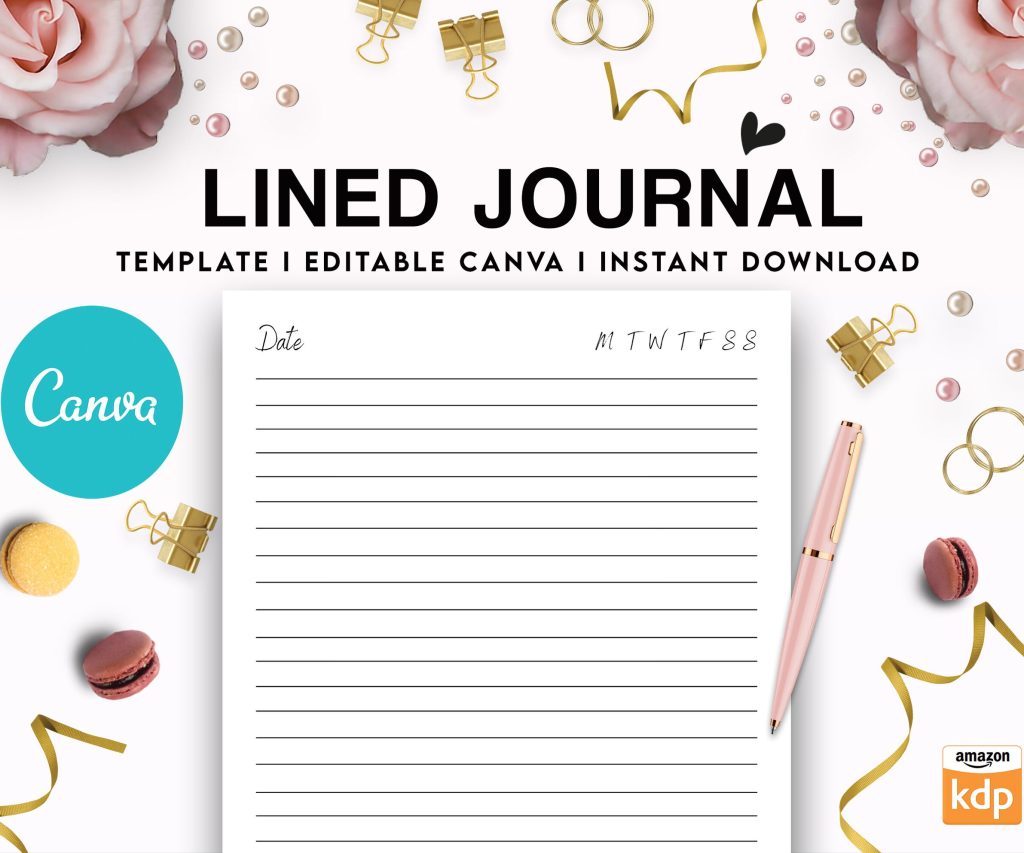 Editable Canva Lined Journal: Express Your Thoughts - KDP Template
1 × $0.00
Editable Canva Lined Journal: Express Your Thoughts - KDP Template
1 × $0.00 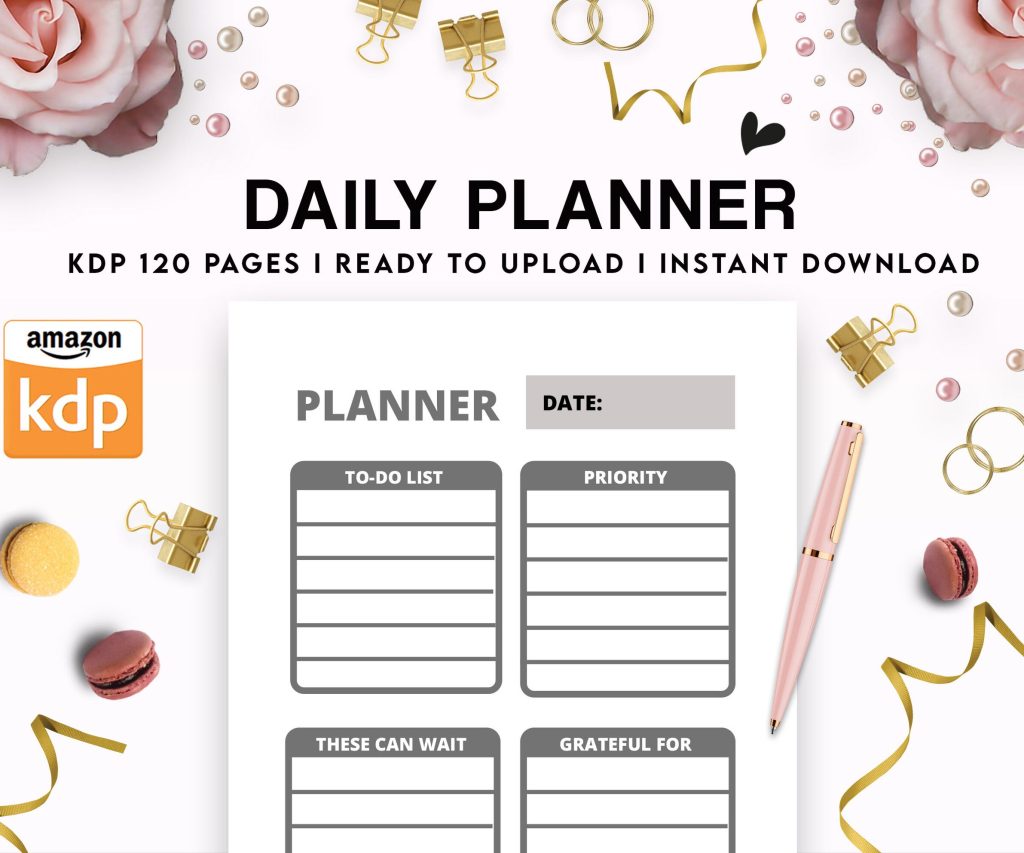 Daily Planner Diary : Diary Planners for Everyday Productivity, 120 pages, 6×9 Size | Amazon KDP Interior
1 × $0.00
Daily Planner Diary : Diary Planners for Everyday Productivity, 120 pages, 6×9 Size | Amazon KDP Interior
1 × $0.00 
DISCOVER OUR FREE BEST SELLING PRODUCTS
Editable Canva Lined Journal: Express Your Thoughts – KDP Template
Lined Pages Journal 120 pages Ready to Upload PDF Commercial Use KDP Template 6×9 8.5×11 5×8 for Notebooks, Diaries, Low Content
Lined Pages Journal 120 pages Ready to Upload PDF Commercial Use KDP Template 6×9 8.5×11 5×8 for Notebooks, Diaries, Low Content
Cute Dogs Coloring Book for Kids | Activity Book | KDP Ready-To-Upload
Daily Planner Diary : Diary Planners for Everyday Productivity, 120 pages, 6×9 Size | Amazon KDP Interior
Wolf Coloring KDP interior For Adults, Used as Low Content Book, PDF Template Ready To Upload COMMERCIAL Use 8.5×11"
Coloring Animals Head Book for Kids, Perfect for ages 2-4, 4-8 | 8.5×11 PDF
Printable Blank Comic Book Pages PDF : Create Your Own Comics – 3 Available Sizes
Notes KDP interior Ready To Upload, Sizes 8.5×11 6×9 5×8 inch PDF FILE Used as Amazon KDP Paperback Low Content Book, journal, Notebook, Planner, COMMERCIAL Use
Black Lined Journal: 120 Pages of Black Lined Paper Perfect for Journaling, KDP Notebook Template – 6×9
Student Planner Journal 120 pages Ready to Upload PDF Commercial Use KDP Template 6×9" 8.5×11" for Low Content book
Recipe Journal Template – Editable Recipe Book Template, 120 Pages – Amazon KDP Interior