
-
×
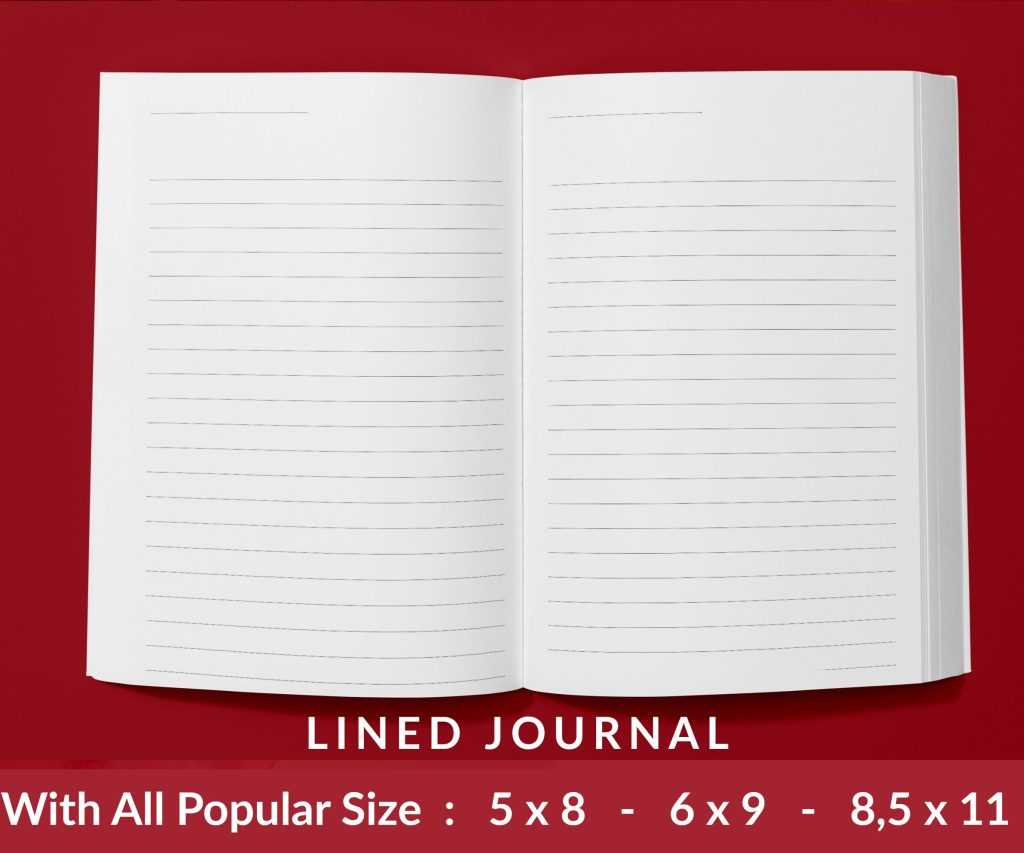 Lined Pages Journal 120 pages Ready to Upload PDF Commercial Use KDP Template 6x9 8.5x11 5x8 for Notebooks, Diaries, Low Content
1 × $0.00
Lined Pages Journal 120 pages Ready to Upload PDF Commercial Use KDP Template 6x9 8.5x11 5x8 for Notebooks, Diaries, Low Content
1 × $0.00
Subtotal: $0.00
Okay so I just spent like three hours last night going through every free Google Docs book template I could find because someone in my KDP group asked about this and honestly? The options are way better than they were even a year ago.
First thing – Google Docs itself has a template gallery that most people completely miss. You open a new doc, look at the top right where it says “Template gallery” and boom. They’ve got like maybe 4-5 book-related templates in there. They’re super basic but that’s actually not a bad thing when you’re starting out. The “Novel” template is decent for fiction, gives you chapter formatting already set up.
But here’s where it gets better. There’s this site called Template.net that has probably 30+ book templates specifically for Google Docs. Some are meh but I found a really solid manuscript template there last month that I’ve been using for client projects. You just click “Edit in Google Docs” and it copies to your Drive automatically. No download weirdness or file conversions.
Hloom has this whole section for book templates and I gotta say their stuff is cleaner than most. They have templates for different genres – like there’s a specific one for cookbooks that actually has recipe formatting built in, another for children’s books with image placeholders. The file sizes are small which means they load fast even if your internet is being annoying.
Oh and another thing – Canva technically has Google Docs integration now. So you can design a book layout in Canva (they have free templates) and export it to Docs. It’s not perfect because some formatting gets wonky but for like poetry books or quote books where you want specific visual layouts? Works pretty well.
Most free templates include the basics you need. Title page formatting, copyright page (though you’ll need to customize obviously), table of contents that auto-updates, chapter heading styles, page numbers. The Novel template from Google’s own gallery has paragraph spacing already set to industry standard which saves you from having to figure that out.
Wait I forgot to mention – Kevin Anderson has a free manuscript template on his site that’s specifically formatted for submitting to agents or self-publishing. It follows Shunn formatting which is like the standard for manuscript submissions. Even if you’re going straight to KDP, starting with proper formatting makes the conversion process way smoother.
So Template.net (yeah them again) breaks down templates by genre and this actually matters more than I thought it would. A memoir template has different front matter than a novel template. Cookbook templates have ingredient list formatting. Academic book templates include bibliography and citation formatting.
I tested their thriller novel template last week and it had this cool thing where chapter numbers were styled differently – looked more professional than just slapping “Chapter 1” at the top. Little details like that make your final product look less DIY.
Okay this is gonna sound obvious but I see people mess this up constantly. When you open any of these templates, first thing you do is go to File > Make a Copy. Don’t just rename it. Make an actual copy. That way you keep the original template clean for next time.
Then – and this is important – go through and set up your Styles. Google Docs has this Styles menu (it’s in the toolbar) where you can define what “Heading 1” looks like, what “Normal text” looks like, etc. Most templates have this already done but you might want to tweak it for your brand or whatever.
Here’s something that tripped me up when I first started. Google Docs defaults to 1-inch margins all around. That’s fine for some stuff but for KDP books you usually want:
Most free templates don’t have this set up correctly because they’re designed for general use not specifically for print-on-demand. You gotta adjust it manually. Go to File > Page Setup and change those margins. It makes a difference in how your book looks printed.
I’m gonna be real with you – I have like five templates saved in my Drive that I rotate between depending on the project. There’s the Kevin Anderson manuscript one for client work where they want “professional” formatting. There’s a modified version of Google’s Novel template that I use for fiction. And there’s this workbook template from Template.net that I use when I’m creating low-content planners or journals.
My cat just knocked over my coffee while I’m writing this so if this gets rambly that’s why.
The best free one I’ve found is honestly just Google’s built-in Novel template with modifications. Start with that, change the font to something more bookish (I like Crimson Text or Literata – both are free Google Fonts), adjust margins like I mentioned, and set up running headers.
Running headers are those little text bits at the top of each page. Usually author name on left pages, book title on right pages. You set these up using Header & Footer options. Most templates don’t include this but it’s easy to add.
Template.net’s Business Book template works for most non-fiction. It has built-in formatting for bullet lists, numbered lists, callout boxes (kinda), and image captions. The table of contents auto-generates which is clutch when you’re doing a 200-page how-to book.
I modified mine to include a “Key Takeaways” style that’s just a bordered text box. Readers love that stuff – makes the book more scannable.
This is where people usually screw up. They open a template, start changing fonts and spacing randomly, and suddenly the whole thing looks inconsistent. Here’s the process that actually works:
Go to Format > Paragraph Styles > Options > Save as my default styles. This saves your formatting choices so everything stays consistent. Then when you add new text, it’ll automatically match.
For fonts – stick to one font family. Maybe use bold or italic for emphasis but don’t mix like five different fonts. Free fonts that look professional in Google Docs: Lora, Merriweather, PT Serif, Crimson Text. All of these are designed for long-form reading.
Every chapter should start on a new page. You do this with page breaks not by hitting Enter a bunch of times. Insert > Break > Page Break. This keeps everything clean when you export to PDF.
Section breaks are different – you use those when you want to change formatting mid-document. Like if you want front matter with Roman numerals (i, ii, iii) and then regular numbers for chapters. Most free templates don’t set this up so you might need to do it manually.
Okay so funny story – I spent like two months trying to figure out the best way to go from Google Docs to KDP and the answer is stupidly simple. You export as DOCX (File > Download > Microsoft Word), then upload that to KDP. Amazon’s converter handles DOCX files really well.
Some templates export cleaner than others though. The more complex the formatting, the more likely something breaks in conversion. I had this mystery novel template that looked gorgeous in Docs but when I converted it to DOCX half the chapter headings were messed up. Ended up being an issue with custom spacing.
Always always always preview your book using KDP’s online previewer before you publish. Download the DOCX from Google Docs, upload to KDP, and check every single page in the preview. Look for:
I’ve caught so many formatting problems this way. Like last month I had a cookbook template where all the recipe titles looked fine in Docs but in the KDP preview they were way too small. Easy fix once I knew about it.
If you’re comfortable with a bit of technical stuff, you can create custom styles that make your books look way more professional. Here’s what I do:
Create a character style for first line of chapters – usually small caps or a drop cap effect. Google Docs doesn’t do true drop caps but you can fake it with a larger first letter.
Set up automatic page numbering that starts at the right place. Front matter usually isn’t numbered or uses Roman numerals. Chapter content uses regular numbers starting at 1. You do this with section breaks and then editing the header/footer for each section separately.
Most templates have this but people don’t use it right. When you apply Heading styles (Heading 1, Heading 2, etc.) to your chapter titles, Google Docs can auto-generate a table of contents. Insert > Table of Contents. Pick the style you want.
The cool part? When you change a chapter title or add new chapters, you just click the table of contents and hit the refresh button. It updates automatically. Saves so much time compared to manually typing out chapter names and page numbers.
Real talk – some free templates are garbage. If you see a template that’s super heavy on graphics and design elements, it’s probably gonna cause problems when you try to convert for KDP. Amazon’s system doesn’t handle complex layouts well.
Also avoid templates that use tables for layout. Some designers use tables to create columns or position text, and that stuff breaks constantly in conversion. Stick to templates that use straightforward formatting – paragraphs, headings, simple lists.
This is gonna sound weird but I also avoid templates that are too pretty. If a free template looks like it came from a professional designer, there’s usually a catch – either it’s watermarked, or it’s a “lite” version and they want you to buy the full version, or the formatting is so complex it’s not worth the hassle.
In my Google Drive I have a folder called “Book Templates” with about eight templates I use regularly. Each one is named clearly – “Fiction Novel Template Clean,” “Non-Fiction Business Book,” “Cookbook Standard,” stuff like that. When I start a new project I just make a copy of whichever template fits.
I’ve customized each one with my preferred fonts, margins, and style settings. Took maybe an hour total to set them all up but now I save that time on every single book. It’s one of those things where the upfront investment pays off constantly.
The workbook template gets the most use honestly. I create a lot of planners and journals for KDP and having a template with pre-formatted boxes, lines, and spacing means I can pump out a new book in like three days instead of a week.
Wait I forgot to mention – you can share templates with your VA or whoever helps with formatting. Just set the sharing settings to “Anyone with the link can view” or “can copy” and send them the link. They make their own copy and work from that. Way easier than trying to export and import files.
DISCOVER OUR FREE BEST SELLING PRODUCTS
Editable Canva Lined Journal: Express Your Thoughts – KDP Template
Lined Pages Journal 120 pages Ready to Upload PDF Commercial Use KDP Template 6×9 8.5×11 5×8 for Notebooks, Diaries, Low Content
Lined Pages Journal 120 pages Ready to Upload PDF Commercial Use KDP Template 6×9 8.5×11 5×8 for Notebooks, Diaries, Low Content
Cute Dogs Coloring Book for Kids | Activity Book | KDP Ready-To-Upload
Daily Planner Diary : Diary Planners for Everyday Productivity, 120 pages, 6×9 Size | Amazon KDP Interior
Wolf Coloring KDP interior For Adults, Used as Low Content Book, PDF Template Ready To Upload COMMERCIAL Use 8.5×11"
Coloring Animals Head Book for Kids, Perfect for ages 2-4, 4-8 | 8.5×11 PDF
Printable Blank Comic Book Pages PDF : Create Your Own Comics – 3 Available Sizes
Notes KDP interior Ready To Upload, Sizes 8.5×11 6×9 5×8 inch PDF FILE Used as Amazon KDP Paperback Low Content Book, journal, Notebook, Planner, COMMERCIAL Use
Black Lined Journal: 120 Pages of Black Lined Paper Perfect for Journaling, KDP Notebook Template – 6×9
Student Planner Journal 120 pages Ready to Upload PDF Commercial Use KDP Template 6×9" 8.5×11" for Low Content book
Recipe Journal Template – Editable Recipe Book Template, 120 Pages – Amazon KDP Interior