
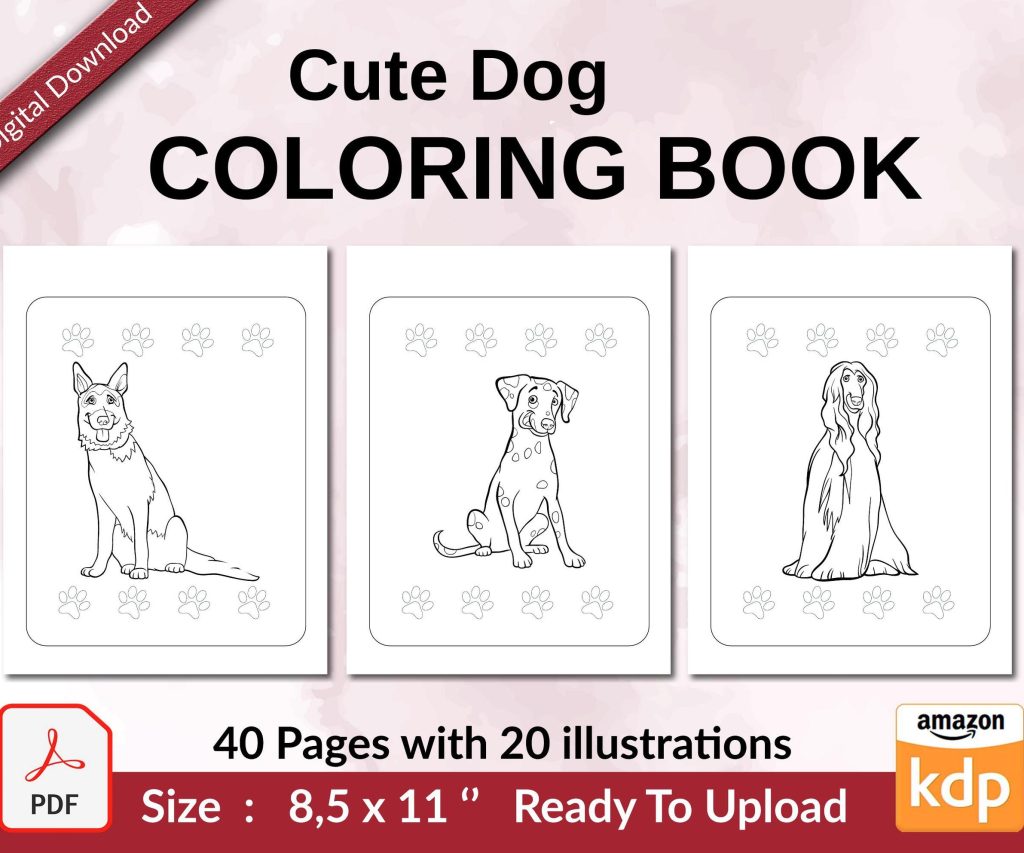
 Cute Dogs Coloring Book for Kids | Activity Book | KDP Ready-To-Upload
 Subtotal: $0.00
Amazon KDP guide, KDP book publishing
How to Publish Your Book on Amazon: Complete Checklist
20
Feb
Feb
Okay so here’s exactly what you gotta do to publish on Amazon
Right so I literally just walked a client through this yesterday and they went live in like 3 hours, so this is fresh. First thing – you need a KDP account obviously. Go to kdp.amazon.com and sign up with whatever Amazon account you already have. They’re gonna ask for tax info right away which is annoying but just have your SSN ready if you’re in the US, or they’ll make you fill out a W-8BEN if you’re international.
The tax interview thing freaks people out but honestly just answer the questions. Takes maybe 5 minutes. You’ll need to add your bank info too for royalties but you can skip that initially and come back to it before you publish.
Getting your manuscript file ready
So this is where people mess up constantly. For ebooks you want either a .doc, .docx, or ideally an .epub file. PDFs work but Amazon‘s gonna convert them weird and your formatting will look like garbage. Trust me on this – I published my first 20 books as PDFs and had to go back and reupload everything because the line breaks were all wonky.
For print books (paperback or hardcover) you need a PDF. But not just any PDF – it needs to be formatted to their trim size specs. The most common size is 6×9 inches for non-fiction and most fiction. Amazon has free templates you can download from the KDP website under “Print Book Template Generator” or something like that.
Oh and another thing – your margins matter way more than you think. Amazon needs like 0.5 inches on the outside edges but the inside margin (the gutter) needs to be wider. For a 150-page book maybe 0.75 inches, but if you’re doing a 400-page monster you might need 1 inch because of how thick the spine gets.
The actual upload process
Login to KDP and hit that yellow “Create” button. You’ll see options for Kindle eBook or Paperback or Hardcover. Pick whatever format you’re starting with – you can add the other formats later to the same book listing.
They’re gonna ask you a bunch of stuff:
- Language (probably English for you)
- Book title and subtitle
- Author name – use your real name or pen name, doesn’t matter
- Description (this is your back cover copy basically)
- Keywords – you get 7 boxes, use all of them
- Categories – pick 2 that actually match your book
Wait I forgot to mention – the description field allows HTML but most people don’t know that. You can use bold tags and make bullet points and stuff. Makes your book page look way more professional. I usually write mine in Word first then convert it.
ISBN situation you need to understand
For ebooks you don’t need an ISBN at all. Amazon assigns an ASIN automatically. For print books Amazon will give you a free ISBN if you want, or you can buy your own from Bowker (like $125 for one or $295 for 10). The free Amazon one works fine honestly unless you’re planning to distribute outside of Amazon, then you need your own.
I use the free ones for 90% of my books because I’m not trying to get into bookstores or anything. My cat literally just knocked over my coffee while I’m writing this, cool cool cool.
Uploading your actual files
So you’re still in the KDP setup process. After all that metadata stuff you’ll get to the content upload section. For ebooks just upload your .doc or .epub file. Amazon has a previewer tool that shows you what it’ll look like on different devices – Kindle, iPad, phone, whatever. Check it carefully because formatting issues show up here.
Common problems I see: weird page breaks, images that are too big, hyperlinks that don’t work, table of contents that isn’t linked properly. The previewer catches most of this.
For print books you upload two files – the interior PDF and the cover. The interior is your manuscript with all the pages. The cover is trickier because it needs to be one image that includes front cover, spine, and back cover all in one.
Cover dimensions are specific don’t mess this up
Amazon has a cover calculator tool. You put in your trim size, page count, and paper type (white or cream) and it tells you the exact pixel dimensions you need. For a 6×9 inch book with 200 pages on white paper you’re looking at something like 12.5 inches wide by 9 inches tall at 300 DPI.
The spine width changes based on page count so that’s why you gotta use their calculator. I usually design covers in Canva Pro or hire someone on Fiverr for like $20. Just make sure they know KDP specs.
Oh and bleed – if your cover has images or color that goes to the edge you need to add 0.125 inches of bleed on all sides. Amazon’s calculator accounts for this but your designer needs to know.
Pricing and royalty options
Okay so this is gonna sound weird but pricing actually affects your royalties in a big way. For ebooks you can choose 35% or 70% royalty. The 70% option requires your price to be between $2.99 and $9.99, and Amazon charges delivery costs (usually like 15 cents per book based on file size). The 35% option lets you price from $0.99 to $200 but obviously you earn less per sale.
Most of my ebooks are priced at $4.99 with the 70% royalty. That nets me about $3.40 per sale after delivery fees. For print books the royalty is fixed at 60% of the list price minus printing costs. Printing costs depend on page count and whether you use color or black and white.
A 200-page paperback costs Amazon about $3 to print. If you price it at $12.99, you get 60% of $12.99 ($7.79) minus $3 printing = $4.79 per sale. You can see all this in the pricing calculator on the KDP setup page.
Enrollment in KDP Select
They’re gonna ask if you want KDP Select. This makes your ebook exclusive to Amazon for 90 days but you get benefits like being in Kindle Unlimited (readers can borrow it) and you can run free promotions. I enroll like 80% of my books because the Kindle Unlimited borrows add up to decent money – you get paid per page read.
But if you wanna sell on Apple Books or Kobo or whatever, don’t enroll. You can’t be on other platforms if you’re in KDP Select.
Rights and territories
You’ll see a question about publishing rights. If you wrote the book yourself or have the rights, choose “I own the copyright.” Then pick territories – I always choose “All territories” because why wouldn’t you want worldwide distribution?
Amazon sells in like 15+ marketplaces – US, UK, Germany, Japan, India, all kinds of places. You get royalties from all of them automatically.
Hit publish and then wait
After you’ve filled everything out and uploaded your files, there’s a “Publish Your Kindle eBook” or “Publish Your Paperback Book” button. Click it. Amazon reviews your book before it goes live – usually takes 24-72 hours for ebooks, sometimes up to 5 days for print books.
They’re checking for content issues, formatting problems, copyright violations, that sort of thing. Most books get approved no problem. You’ll get an email when it’s live with a link to your Amazon page.
One time I published a book at like 11pm and it was live by 7am the next day. Other times it’s taken 3 days. No real pattern to it.
After it’s published what you need to check
Once you’re live, buy a copy of your own book to check it. For print books this is crucial – you might notice weird margins or blurry images that didn’t show up in the previewer. For ebooks download it to your Kindle app and flip through. I’ve caught typos and formatting issues this way that I missed in the preview.
If you need to fix something just go back to your KDP bookshelf, click the three dots next to your book, and choose “Edit eBook/Paperback content.” Upload the corrected files and republish. Takes another day or two for the changes to go live.
Oh and get your Amazon Author Central account set up – author.amazon.com. This lets you add an author bio, photo, link your books together, and track sales better than the basic KDP dashboard.
The paperback-ebook linking thing
If you publish both formats, Amazon should automatically link them so they show up on the same product page. Sometimes this takes a few days, sometimes it’s instant. If they don’t link after a week, contact KDP support and they’ll fix it manually.
You want them linked because it looks more professional and customers can easily switch between formats. Plus the reviews combine.
My client actually canceled our call last week so I spent like three hours testing different keyword combinations for a book and found that longer phrases (like “how to train a puppy step by step”) convert better than single words (“puppy”). Not totally related but might help with your keywords when you’re setting things up.
Common mistakes I see people make
Choosing categories that are too competitive – like just “Fiction > Romance” instead of drilling down to “Fiction > Romance > Contemporary > Small Town.” More specific = easier to rank.
Not using all 7 keyword boxes. Amazon gives you seven for a reason, use them all.
Ignoring the book description. People skim this to decide if they’ll buy. Make it compelling, use formatting, include what problem your book solves.
Pricing too low thinking it’ll get more sales. Sometimes true, but you end up working way harder for less money. Test different price points after launch.
Not having the “Look Inside” feature set up properly. Amazon automatically creates this from your uploaded file but check that it shows a good preview – title page, table of contents, first chapter. You can adjust what shows in your manuscript file if needed.
Setting unrealistic expectations about sales. Your first book probably won’t be a bestseller and that’s fine. I made like $12 my first month. Now I’m at that $5k-$30k range but it took years and lots of books.
Anyway that’s pretty much the whole process. It sounds like a lot but once you do it once it becomes pretty straightforward. My buddy published his first book last month following basically these steps and he figured it out in an afternoon while watching Netflix.
DISCOVER OUR FREE BEST SELLING PRODUCTS
Editable Canva Lined Journal: Express Your Thoughts – KDP Template
Lined Pages Journal 120 pages Ready to Upload PDF Commercial Use KDP Template 6×9 8.5×11 5×8 for Notebooks, Diaries, Low Content
Lined Pages Journal 120 pages Ready to Upload PDF Commercial Use KDP Template 6×9 8.5×11 5×8 for Notebooks, Diaries, Low Content
Cute Dogs Coloring Book for Kids | Activity Book | KDP Ready-To-Upload
Daily Planner Diary : Diary Planners for Everyday Productivity, 120 pages, 6×9 Size | Amazon KDP Interior
Wolf Coloring KDP interior For Adults, Used as Low Content Book, PDF Template Ready To Upload COMMERCIAL Use 8.5×11"
Coloring Animals Head Book for Kids, Perfect for ages 2-4, 4-8 | 8.5×11 PDF
Printable Blank Comic Book Pages PDF : Create Your Own Comics – 3 Available Sizes
Notes KDP interior Ready To Upload, Sizes 8.5×11 6×9 5×8 inch PDF FILE Used as Amazon KDP Paperback Low Content Book, journal, Notebook, Planner, COMMERCIAL Use
Black Lined Journal: 120 Pages of Black Lined Paper Perfect for Journaling, KDP Notebook Template – 6×9
Student Planner Journal 120 pages Ready to Upload PDF Commercial Use KDP Template 6×9" 8.5×11" for Low Content book
Recipe Journal Template – Editable Recipe Book Template, 120 Pages – Amazon KDP Interior