
Amazon KDP guide, KDP book publishing
KDP 6 x 9 Template: Standard Book Size Guide
Mar
Okay so the 6 x 9 template thing, I literally just walked someone through this yesterday and they were making it way harder than it needs to be. The 6 x 9 size is pretty much the standard for most nonfiction books on Amazon, and honestly it’s what I use for like 80% of my projects because readers are used to it and it just works.
So first thing you gotta understand is that when KDP says 6 x 9, they mean the TRIM size – that’s what the book looks like after it’s printed and cut. But your actual PDF needs to be different dimensions because you need to account for bleed. I see people mess this up constantly and then wonder why their covers look weird or why Amazon rejects their files.
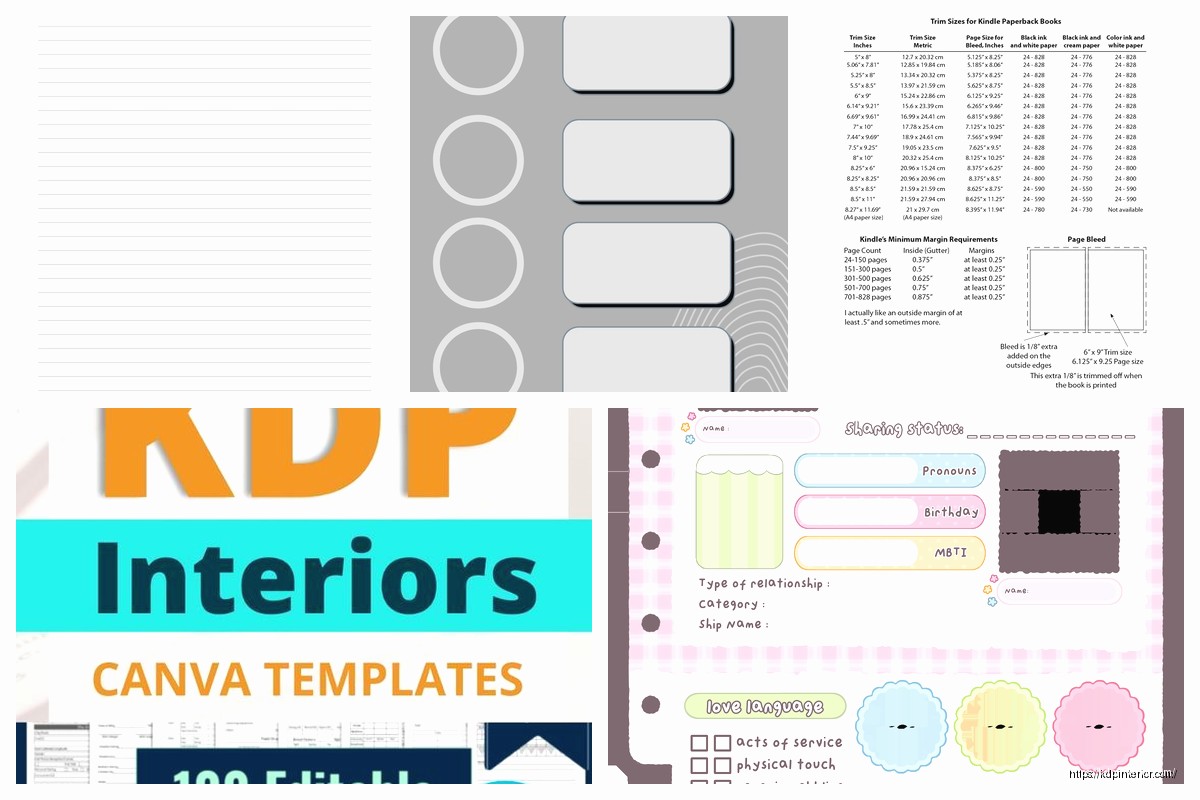
For a 6 x 9 book with bleed (which you should always use unless you’re doing some weird all-text interior with no graphics), your interior document needs to be 6.125 x 9.25 inches. That extra 0.125 inches on each side is your bleed area. Without it, you might get white lines on the edges after the book is trimmed and trust me, that looks unprofessional as hell.
Setting Up Your Document Margins
The margins are where people really screw up. You can’t just use default Word margins and call it a day. For a 6 x 9 book, I typically use:
– Inside margin (the gutter): 0.75 to 1 inch depending on page count
– Outside margin: 0.5 to 0.75 inches
– Top margin: 0.75 inches
– Bottom margin: 0.75 inches
Wait I forgot to mention – the inside margin needs to be bigger for thicker books because of how the spine works. If you’ve got like a 300-page book, you want closer to 1 inch on that inside margin so text doesn’t disappear into the binding. I learned this the hard way on a cookbook I did back in 2019 where half the recipes were basically unreadable because they curved into the spine. Lost like $400 in returns on that one.
The Gutter Calculation Thing
So KDP has this calculator tool but honestly it’s not that complicated. For every 100 pages you add about 0.0625 inches to your inside margin. But like… don’t overthink it. Here’s what I actually do:
- Under 150 pages: 0.75 inch inside margin
- 150-300 pages: 0.875 to 1 inch
- Over 300 pages: 1 to 1.25 inches
These aren’t the “official” specs but they’ve worked for me across probably 150+ books and I’ve never had an issue.
Software Options For Templates
Okay so you can use Word, Google Docs, InDesign, Affinity Publisher, or even Canva now. Each one has its quirks and I’ve used all of them at different points.
Microsoft Word is what most beginners use and honestly it’s fine for straightforward books. You set up your page size to 6.125 x 9.25, adjust your margins, and you’re basically good to go. The annoying part is that Word doesn’t handle bleed super well – you have to manually extend any background colors or images to the edge of that 6.125 x 9.25 area. Also Word’s PDF export can be wonky sometimes with fonts, so always embed your fonts when you export.
Google Docs is what I use when I’m traveling or working from my laptop at a coffee shop because it’s cloud-based. But real talk, it’s more limited than Word for formatting. You can’t do custom page sizes as easily and the margin controls are less precise. I only use it for super basic text-only books.
InDesign is the professional option and if you’re serious about this, it’s worth learning. The learning curve is steep though – took me like 3 months to feel comfortable with it. But once you get it, you can create way better-looking interiors. The master pages feature alone saves me hours per book.
Oh and another thing – Affinity Publisher is basically a cheaper InDesign alternative. One-time payment instead of Adobe’s subscription model. I switched to it last year for some projects and it’s pretty solid, though the template library isn’t as extensive.
The Canva Situation
Canva added KDP templates recently and everyone’s asking me about them. They’re… okay? Good for really visual books like journals or planners. Not great for text-heavy stuff because the text formatting tools are limited. I made a gratitude journal template in Canva and it turned out fine, but when I tried to do a business book it was frustrating as hell. You can’t do automatic page numbering properly and the typography controls are basic.
Actual Template Setup Walkthrough
Let me walk you through setting up a Word template since that’s what most people use. Open Word, go to Layout > Size > More Paper Sizes. Set width to 6.125 and height to 9.25. Make sure you’re in inches not centimeters because I’ve seen that mix-up before.
Then go to Layout > Margins > Custom Margins. Put in your margin numbers based on your page count. Check the box for “Mirror margins” – this is crucial because it makes your inside/outside margins flip on odd and even pages like a real book.
For headers and footers, you want them in that top and bottom margin area but not too close to the edge. I usually put page numbers about 0.5 inches from the bottom edge, centered on the outside edge of each page. Headers can have chapter titles or book title, positioned about 0.5 inches from the top.
Bleed Settings That Actually Matter
This is gonna sound weird but most people set up bleed wrong even when they think they’re doing it right. The bleed area is that extra 0.125 inches around your content, but you only need to worry about it if you have elements that touch the page edges – like background colors, images, borders, decorative elements.
If your book is just black text on white pages with no graphics touching the edges, you technically don’t even need to worry about bleed. But I always set up my documents with bleed dimensions anyway because it’s easier to have one standard template.
When you do have elements in the bleed area, they need to extend all the way to the edge of that 6.125 x 9.25 page. Not to 6 x 9, not to 6.1 x 9.2, all the way to the edge. Otherwise you risk white lines showing up after trim.
Font and Typography Stuff
For 6 x 9 books, body text should be 10 to 12 point depending on the font. I usually go with 11 point for serif fonts like Garamond or Georgia, and 10.5 point for sans-serif fonts. Line spacing (leading) should be 1.15 to 1.5 – I prefer 1.3 for most books because it’s readable without wasting too much space.
My dog just knocked over my coffee cup while I’m writing this so if there’s a random sentence that doesn’t make sense, that’s why I’m distracted.
Anyway, paragraph spacing matters more than people think. Don’t just hit Enter twice between paragraphs like it’s an email. Use the paragraph spacing settings – I do 0 pt before and 6-8 pt after each paragraph. Makes everything look cleaner.
Chapter Formatting
Chapter titles should start about 1.5 to 2 inches from the top of the page. I see people put them right at the top margin and it looks cramped. Give them breathing room. Font size for chapter titles is usually 16-20 pt, and I like to add some extra space before the first paragraph starts – like 0.3 to 0.5 inches.
Some people do fancy chapter opening pages with graphics or quotes, which is cool for certain genres but honestly for most nonfiction it’s unnecessary. Keep it simple unless you’re doing a cookbook or travel guide or something visual.
The Spine Width Thing Everyone Asks About
So the spine width depends on your page count and paper type. Amazon has a calculator for this but here’s the rough formula: take your page count, multiply by 0.002252 for white paper or 0.0025 for cream paper, and that gives you the spine width in inches.
A 200-page book on white paper would be about 0.45 inches spine width. You need this number when you’re creating your cover, not really for the interior template, but people always ask about it when we’re talking about 6 x 9 specs.
Exporting Your PDF The Right Way
Okay so when you’re done with your interior, you gotta export it as a PDF correctly or Amazon will reject it. In Word, go to File > Save As > PDF. Click Options and make sure “ISO 19005-1 compliant (PDF/A)” is NOT checked – Amazon doesn’t want PDF/A format, they want regular PDF.
Also in those options, embed all fonts. This is super important because if fonts aren’t embedded, Amazon’s system might substitute them with something random and your book will look terrible.
Resolution should be at least 300 DPI for any images. I’ve had books rejected for low-res images even though the text was fine. If you’re using photos or graphics, make sure they’re high quality.
Color vs Black and White
For 6 x 9 books, most people do black and white interiors because it’s cheaper to print and keeps the book price competitive. Color interiors are like 3-4x more expensive per page and unless you’re doing a photography book or children’s book or something that needs color, it’s not worth it.
I did a travel guide in color once and had to price it at $24.95 to make any profit. Same book in black and white could’ve been $12.95. Sold way fewer copies of the color version.
Common Mistakes I See All The Time
People forget about page numbering position – if your numbers are too close to the edge, they might get trimmed off. Keep them at least 0.5 inches from any edge.
Using RGB color mode instead of CMYK for printed books. Amazon accepts RGB but CMYK gives you more accurate color representation. Though for black and white books this doesn’t matter.
Not testing the PDF before uploading. Always open your exported PDF and scroll through the whole thing. Check that page numbers are correct, no weird font substitutions happened, images look good, margins are consistent.
Oh wait I forgot to mention – you can download KDP’s own templates from their website. They have Word and InDesign templates for 6 x 9 and other sizes. These are pre-formatted with the correct dimensions and margins, so if you’re feeling lazy or unsure, just start with one of those. I used their templates for my first like 20 books until I got comfortable making my own.
The Proof Copy Is Essential
Never ever publish without ordering a proof copy first. I don’t care how perfect your PDF looks on screen, the printed version will show issues you didn’t see. Colors might be darker, text might be too close to the gutter, images might look fuzzy.
Proof copies cost like $3-5 plus shipping and they’ve saved me from so many embarrassing mistakes. Found a chapter that was completely missing once. Found backwards page numbers. Found a random lorem ipsum paragraph I forgot to delete. All stuff I missed on the PDF review.
The thing about 6 x 9 is it’s so standard that you can develop one solid template and just reuse it for every project. I have like 5 variations saved – one for books under 150 pages, one for 150-300, one for over 300, one for workbooks with wider margins, and one for poetry with centered text. Makes the whole process way faster once you’ve got your templates dialed in.
Actually gonna wrap this up because I’m at like 2000 words and you probably get the idea by now – 6 x 9 is straightforward once you understand trim size vs bleed, get your margins right based on page count, and export your PDF properly. Start with KDP’s templates if you’re new, then customize as you get more comfortable with the formatting.
DISCOVER OUR FREE BEST SELLING PRODUCTS
Editable Canva Lined Journal: Express Your Thoughts – KDP Template
Lined Pages Journal 120 pages Ready to Upload PDF Commercial Use KDP Template 6×9 8.5×11 5×8 for Notebooks, Diaries, Low Content
Lined Pages Journal 120 pages Ready to Upload PDF Commercial Use KDP Template 6×9 8.5×11 5×8 for Notebooks, Diaries, Low Content
Cute Dogs Coloring Book for Kids | Activity Book | KDP Ready-To-Upload
Daily Planner Diary : Diary Planners for Everyday Productivity, 120 pages, 6×9 Size | Amazon KDP Interior
Wolf Coloring KDP interior For Adults, Used as Low Content Book, PDF Template Ready To Upload COMMERCIAL Use 8.5×11"
Coloring Animals Head Book for Kids, Perfect for ages 2-4, 4-8 | 8.5×11 PDF
Printable Blank Comic Book Pages PDF : Create Your Own Comics – 3 Available Sizes
Notes KDP interior Ready To Upload, Sizes 8.5×11 6×9 5×8 inch PDF FILE Used as Amazon KDP Paperback Low Content Book, journal, Notebook, Planner, COMMERCIAL Use
Black Lined Journal: 120 Pages of Black Lined Paper Perfect for Journaling, KDP Notebook Template – 6×9
Student Planner Journal 120 pages Ready to Upload PDF Commercial Use KDP Template 6×9" 8.5×11" for Low Content book
Recipe Journal Template – Editable Recipe Book Template, 120 Pages – Amazon KDP Interior