
Amazon KDP guide, KDP book publishing
KDP 6×9 Cover Template: Design Dimensions
Mar
Okay so the 6×9 cover template thing trips up literally everyone at first and I spent like three hours one night figuring this out because Amazon’s own template generator was down and I had a client deadline, so here’s what you actually need to know.
The full wrap cover for a 6×9 book isn’t just 6×9 – that’s the trim size, which is basically what the final book looks like when it’s sitting on a shelf. Your actual cover file needs to account for the spine width AND bleed, and this is where people mess up constantly.
The basic formula is: (bleed + back cover width + spine width + front cover width + bleed) x (bleed + height + bleed)
For 6×9 specifically that means your width is gonna be 0.125″ bleed on left + 6″ back cover + spine width + 6″ front cover + 0.125″ bleed on right. Height is 0.125″ top bleed + 9″ + 0.125″ bottom bleed = 9.25″ total height. Easy part done.
The spine width calculation is where it gets annoying because it changes based on your page count and paper type. Amazon has this calculator buried in their help pages but honestly I just use this rough formula: page count x 0.002252 for white paper or page count x 0.0025 for cream paper. So like a 120-page book on white paper would be roughly 0.27″ spine width.
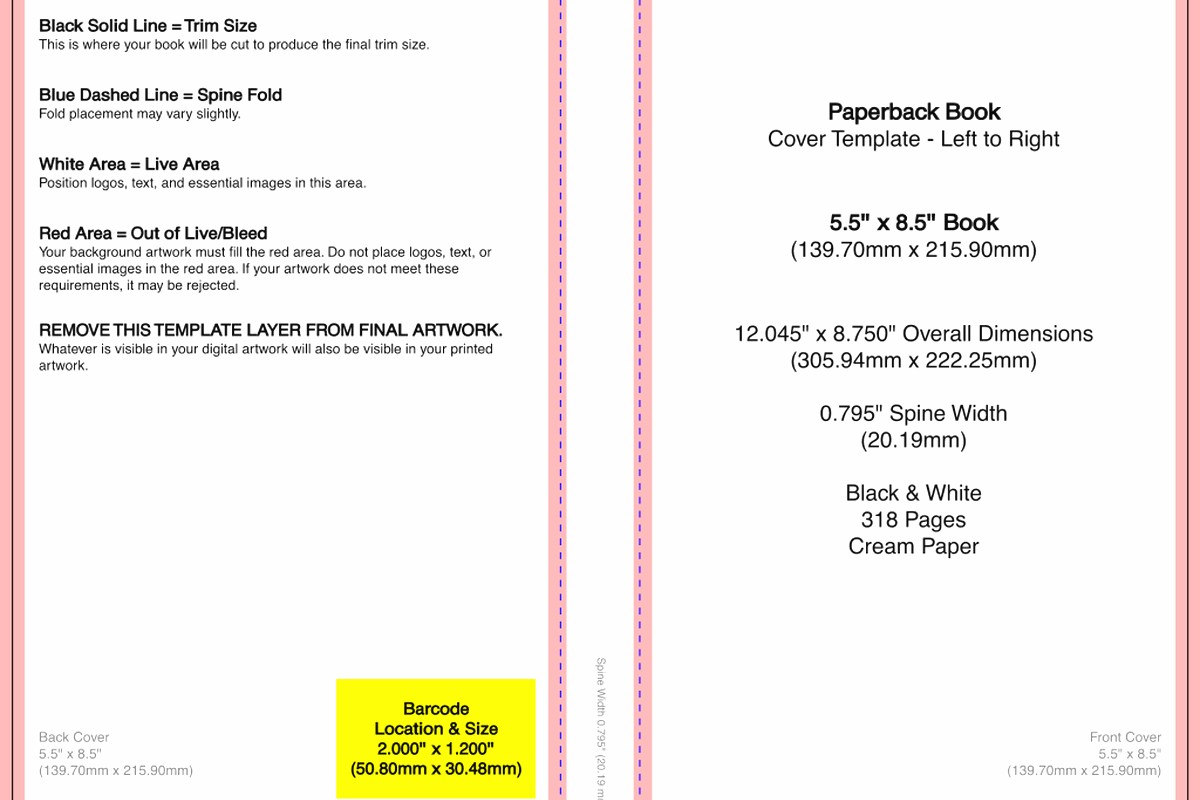
Wait I forgot to mention – you NEED to download Amazon’s actual template for your specific book because if you’re off by even a tiny bit, they’ll reject it. Go to your KDP bookshelf, click “Create New Title,” go through the paperback setup, enter your page count and paper type, and there’s a link that says “Calculate Spine Width” or something like that. Download that template as a PNG or PDF.
Last week I was working on a cookbook project while watching that show The Bear (have you seen it? anyway) and I made the mistake of designing the cover at exactly the trim size without accounting for bleed. Uploaded it, got rejected in like four hours with this vague message about “cover doesn’t meet specifications.” Super frustrating.
The Bleed Area Reality Check
So bleed is this extra 0.125 inches on all four sides that gets trimmed off during printing. Anything important – text, logos, your face if it’s a memoir – needs to stay at least 0.125″ INSIDE the trim line. Actually I keep important stuff 0.25″ away from trim just to be safe because I’ve seen some wonky cuts from Amazon’s printers.
The template you download will have these guides showing you the trim line and the safety line. Don’t ignore those. I learned this the hard way when a client’s author name got partially cut off on the spine because we pushed it too close to the edge. Had to redo everything.
Your design software matters here too. I use Photoshop mostly but Canva works if you’re careful about the dimensions. In Photoshop I set up the document at 300 DPI minimum – Amazon requires at least 300 but honestly I do 400 for anything with photos because the print quality is noticeably better.
Actual Dimensions for Common Page Counts
Okay so here are the real numbers I use all the time:
For a 100-page book on white paper, spine is about 0.225″ so your total cover width is 12.475″ x 9.25″ height.
150 pages on cream paper comes out to spine width around 0.375″, making your full cover 12.625″ x 9.25″.
200 pages white paper is roughly 0.45″ spine, so 12.7″ x 9.25″ total.
These are approximations though – seriously just use Amazon’s calculator because paper suppliers change and the math shifts slightly. I got burned once using old dimensions I had saved and the book came back with text wrapping weird on the spine.
Setting Up Your Design File
Open your design program and create a new document with those exact dimensions. Make sure it’s in inches not pixels or centimeters – I’ve seen that mistake too many times. Set color mode to CMYK if you’re using Photoshop because that’s print standard, even though Amazon accepts RGB they convert it anyway and sometimes colors shift.
Put in guides at the bleed lines (0.125″ from each edge) and at the trim lines. Then add guides for the spine area. The spine center should be exactly at the middle of your document width minus the adjustment for spine width… actually this is gonna sound weird but I just use the template Amazon gives you as a layer underneath my design and line everything up visually. Way easier than calculating.
Oh and another thing – save your file as a PDF when you’re done. I export as PDF/X-1a:2001 format which is the publishing standard. Make sure fonts are embedded and images are flattened. Amazon accepts TIFF files too but PDF is more reliable in my experience.
The Spine Design Problem Nobody Talks About
If your book is under like 80 pages, the spine gets SO thin that you basically can’t put text on it. Amazon recommends not putting spine text on anything under 0.0625″ spine width, which is roughly 28 pages on white paper. I did a 50-page journal once and tried to squeeze the title on the spine anyway – looked terrible in person, all squished and hard to read.
For thin spines just design a killer front cover instead. Honestly most people browse by front cover anyway unless they’re looking at a physical bookstore shelf, and let’s be real most KDP books aren’t making it to physical stores.
When you DO design spine text, rotate it so the text reads from top to bottom when the book is lying face-up. That’s the US standard. Some European countries do it opposite but for Amazon US stick with top-to-bottom.
Common Mistakes That’ll Get You Rejected
Text too close to trim – already mentioned this but it’s like 40% of rejections I see from clients.
Wrong color mode – using RGB when it should be CMYK can make colors print totally different than you expect. That bright blue becomes this muddy navy situation.
Low resolution images – anything under 300 DPI looks pixelated in print. I learned this with my first KDP book back in 2017, used some stock photos at 72 DPI because I didn’t know better. Looked fine on screen, awful printed.
Forgetting the barcode space – Amazon puts their barcode on the bottom right of the back cover. Leave like a 2″ x 1.25″ white rectangle down there. I usually put it 0.25″ up from the bottom trim and 0.25″ in from the right trim.
Using spot colors or special effects – Amazon prints in CMYK process, they can’t do metallic inks or spot UV or embossing. Keep it simple.
File size too big – Amazon has a 40 MB limit I think? If your file is huge compress it. I use the “save for web” option in Photoshop or run it through a PDF compressor online.
The Back Cover Layout Strategy
So you got your back cover space which is the left 6″ of your full wrap. I always design back covers with the description text in the upper two-thirds, maybe an author photo or testimonial quotes in the middle, then that white space for barcode at the bottom.
Keep your back cover text at least 11 or 12 point font, anything smaller is hard to read. Use a clean sans-serif or serif font, nothing too fancy. I made the mistake once of using this decorative script font for an entire back cover description – my cat jumped on my keyboard while I was working and I got distracted and didn’t fix it – anyway it was basically illegible when printed.
Oh wait I should mention – your ISBN barcode, Amazon handles that automatically. You don’t design it or add it yourself. They overlay it during the printing process. Just leave the space blank, don’t put “barcode goes here” or anything.
Front Cover Design Considerations
The front cover is the right 6″ section of your wrap. This is your money maker, what people see in Amazon search results and on the thumbnail. Make your title BIG and readable even at thumbnail size.
I test this by shrinking my design down to like 100 pixels wide and seeing if I can still read the title. If not, it’s too small or the colors don’t have enough contrast.
Subtitle can be smaller but should still be legible. Author name usually goes at bottom, sized appropriately based on how well-known you are. If you’re Stephen King make it huge, if you’re debut author like most of us maybe keep it modest.
Images or graphics should be high quality and relevant to your genre. Amazon shoppers make snap judgments – you got maybe 2 seconds to grab them. I spent ages learning what works for different genres, like cozy mysteries need soft colors and cute illustrations, thrillers need dark colors and bold typography, self-help needs clean modern design with maybe an inspirational image.
The Actual Upload Process
Once your cover is designed and saved as PDF, go to your KDP bookshelf and upload it in the paperback content section. There’s a cover option that says “Upload a print-ready cover file” – that’s what you want, not the Cover Creator tool.
Amazon’s gonna process it and show you a preview. Check that preview CAREFULLY. Zoom in on the spine text, make sure nothing got cut off weird, verify the back cover description is readable. I’ve caught mistakes at this stage that would’ve been expensive to fix after ordering proof copies.
If it looks good, approve it and order a proof copy before you publish. Always always always order a physical proof. Digital previews don’t show you print quality issues, color accuracy, or how the spine looks in real life. Costs like eight bucks and saves you from publishing something with problems.
The proof usually arrives in 5-7 days. When you get it, check everything – colors, text clarity, spine alignment, cover wrap positioning. I hold it next to other 6×9 books I have to see if it looks professional.
One more thing – if you’re doing a series, keep your cover dimensions and design template consistent across all books. Nothing looks more amateur than a series where book one has a 0.5″ spine and book three has a 0.3″ spine because you didn’t account for different page counts in your original design. Plan ahead, design templates that work for a range of page counts, maybe keep your spine design simple so it scales.
Anyway that’s basically everything I wish someone had told me when I started. The dimensions seem complicated but once you do it twice it becomes automatic. Just download Amazon’s template, use their calculator, and don’t try to wing it with approximate measurements.
DISCOVER OUR FREE BEST SELLING PRODUCTS
Editable Canva Lined Journal: Express Your Thoughts – KDP Template
Lined Pages Journal 120 pages Ready to Upload PDF Commercial Use KDP Template 6×9 8.5×11 5×8 for Notebooks, Diaries, Low Content
Lined Pages Journal 120 pages Ready to Upload PDF Commercial Use KDP Template 6×9 8.5×11 5×8 for Notebooks, Diaries, Low Content
Cute Dogs Coloring Book for Kids | Activity Book | KDP Ready-To-Upload
Daily Planner Diary : Diary Planners for Everyday Productivity, 120 pages, 6×9 Size | Amazon KDP Interior
Wolf Coloring KDP interior For Adults, Used as Low Content Book, PDF Template Ready To Upload COMMERCIAL Use 8.5×11"
Coloring Animals Head Book for Kids, Perfect for ages 2-4, 4-8 | 8.5×11 PDF
Printable Blank Comic Book Pages PDF : Create Your Own Comics – 3 Available Sizes
Notes KDP interior Ready To Upload, Sizes 8.5×11 6×9 5×8 inch PDF FILE Used as Amazon KDP Paperback Low Content Book, journal, Notebook, Planner, COMMERCIAL Use
Black Lined Journal: 120 Pages of Black Lined Paper Perfect for Journaling, KDP Notebook Template – 6×9
Student Planner Journal 120 pages Ready to Upload PDF Commercial Use KDP Template 6×9" 8.5×11" for Low Content book
Recipe Journal Template – Editable Recipe Book Template, 120 Pages – Amazon KDP Interior