
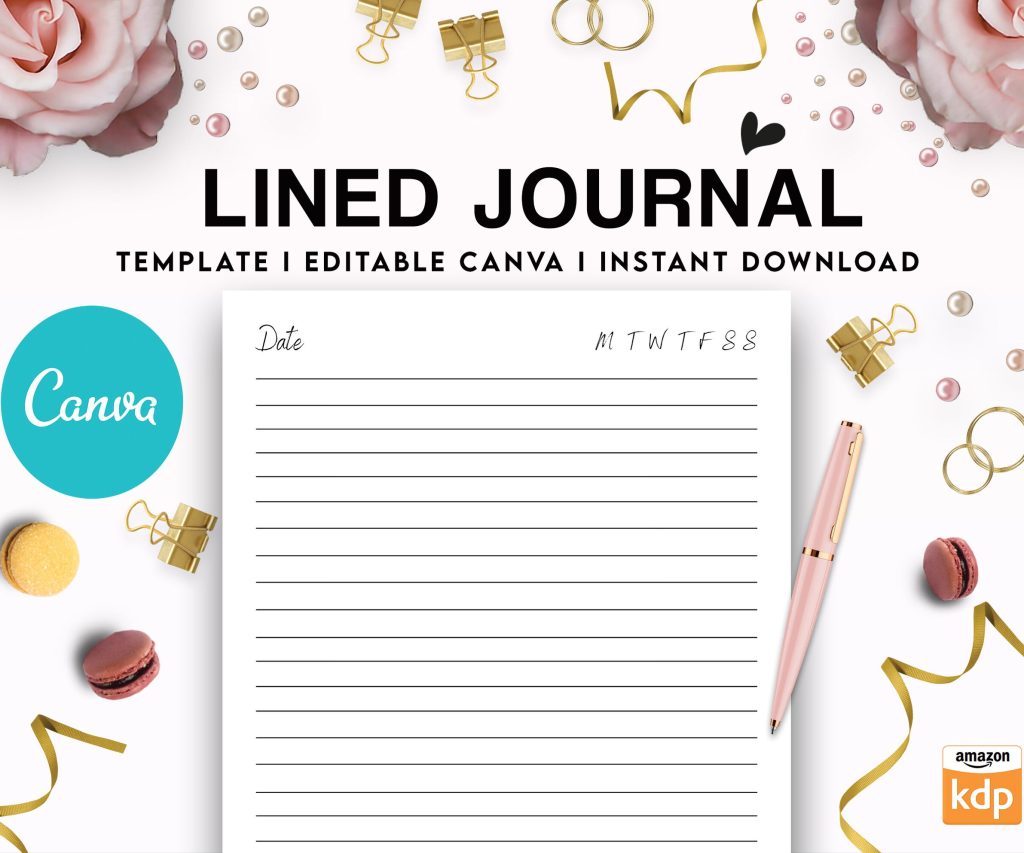
 Editable Canva Lined Journal: Express Your Thoughts - KDP Template
 Subtotal: $0.00
Amazon KDP guide, KDP book publishing
KDP Amazon Book Cover Template: Official Resources
27
Mar
Mar
Okay so the official KDP cover template thing is actually way more important than most people think and I see so many books with bleed issues or text getting cut off because they just… didn’t use the template properly.
So first thing, Amazon has this Cover Template Generator on KDP and you gotta use it. Like, I know it seems basic but I’ve published over 200 books and I still use it every single time because the dimensions change based on your page count. A 120-page book needs different spine width than a 300-page book, obviously, but people forget this all the time.
You find it by logging into your KDP dashboard, then under “Help” there’s a link that says “Download Cover Templates” or you can just search “KDP cover calculator” and it’ll pop up. You enter your trim size (that’s like 6×9 or 8.5×11 or whatever), your page count, paper type (white or cream), and whether you want paperback or hardcover. The system spits out a ZIP file with a PNG template and a PDF with all the specs.
The Template Files You Actually Get
When you download that ZIP file, there’s usually like 3-4 files in there and honestly the first time I did this back in 2017 I was confused about which one to use. The PNG file is the one with the blue and pink sections showing you the safe zones. That’s your working template. The PDF has all the measurements written out if you’re into that level of detail.
The blue area is your bleed zone – anything in there might get trimmed off during printing. The pink/safe zone is where your actual important stuff needs to stay. Text, logos, faces in photos, anything you care about seeing on the final book needs to be at least 0.125 inches inside that trim line.
I learned this the hard way with a recipe book where I put the page numbers too close to the edge and like half of them got cut off on the printed version. Had to redo the whole thing and it cost me like two weeks of sales momentum.
Trim Sizes and What Amazon Actually Supports
So Amazon supports a bunch of trim sizes but not everything. The most common ones are:
- 5×8 inches (typical for novels)
- 6×9 inches (most popular for non-fiction)
- 8.5×11 inches (workbooks, journals, coloring books)
- 8×10 inches (also good for activity books)
- 7×10 inches (textbook-ish size)
There’s more but those are like 90% of what you’ll use. Each one has different margin requirements and the template generator adjusts for that automatically which is why you can’t just wing it with random dimensions.
Oh and another thing – the page count you enter HAS to match your interior file exactly. Not approximately, not “close enough.” If your interior is 247 pages and you make a cover for 250 pages, the spine will be too wide and it’ll look weird. Amazon might reject it or it might just look sloppy with gaps.
Using the Template in Design Software
I use Photoshop mostly but this works in Canva, GIMP, Affinity Publisher, whatever. You open that PNG template as the bottom layer and build your cover design on top of it. Keep the template layer visible while you work so you can see the safe zones.
In Photoshop specifically, I usually set the template layer to like 50% opacity so I can see it but it’s not overwhelming. Then I create separate layers for the front cover, spine, and back cover elements. This way if I need to adjust just the spine text I’m not messing with everything else.
The resolution needs to be 300 DPI minimum. This is non-negotiable for print. I’ve seen people try to use 72 DPI images (which look fine on screen) and the printed version looks pixelated and terrible. Amazon’s system will actually reject covers under 300 DPI most of the time but sometimes they slip through and then you get bad reviews about print quality.
Wait I forgot to mention – the file format for upload needs to be PDF, TIFF, or JPEG. I always use PDF because it preserves the quality better and Amazon’s system seems to process them faster. When you save your PDF from Photoshop or whatever, make sure you’re saving it as PDF/X-1a:2001 or PDF/X-3:2002 if your software has that option. Those are print-ready standards.
Spine Width Calculations
The spine width is the trickiest part and where the template really saves you. It’s calculated based on your page count and paper type. Cream paper is slightly thicker than white paper so a 200-page book on cream will have a wider spine than the same book on white.
Amazon’s formula is roughly:
- White paper: page count × 0.0025 inches
- Cream paper: page count × 0.0029 inches
But honestly don’t do this math yourself just use the template generator. I tried calculating it manually once while watching some Netflix show (I think it was that baking competition one?) and got the numbers wrong and had to redo the cover.
For books under 100 pages or so, the spine is really narrow and you might not even be able to fit text on it. Amazon recommends no spine text for books under 80 pages because it’s just too thin to print legibly. I usually skip spine text for anything under 120 pages because even if it technically fits, it looks cramped.
Common Mistakes People Make With Templates
Okay so here’s where I see people mess up constantly:
Not accounting for bleed – They design their cover to the exact trim size and then important stuff gets cut off. You need that extra 0.125 inches (or 3mm) of bleed on all sides. Your background images should extend into the bleed area but your text and important graphics should stay in the safe zone.
Wrong color mode – Design in CMYK not RGB. RGB is for screens, CMYK is for print. If you design in RGB the colors will look different when printed. Usually more muted or darker. I learned this with a bright blue cover that printed almost navy and I was so frustrated.
Text too small on the spine – Even if it fits, if it’s under like 16pt font size it’s gonna be hard to read. Remember people are looking at this on a bookshelf from a distance. I use 18-20pt minimum for spine text usually.
Low resolution images – Using stock photos that are too small and stretching them up. This always looks bad. If you’re using Canva, make sure you’re downloading the PDF print version not the PNG for social media version.
Forgetting the barcode space – Amazon puts a barcode on the back cover bottom right. The template shows you where it goes. Don’t put important design elements there because they’ll be covered. I usually leave that whole corner pretty minimal.
The Back Cover Layout
The back cover needs your book description, maybe an author bio, possibly review quotes if you have them. But here’s the thing – keep the text in the safe zone and leave space for that barcode. I usually put the barcode area about 2 inches from the bottom and 0.5 inches from the right edge.
Your ISBN goes in the barcode so you don’t need to include it separately. Amazon generates this automatically if you use their free ISBN or it’ll use the one you provide if you bought your own.
Oh and the back cover text should be readable but doesn’t need to be huge. I use 10-12pt font typically. Much smaller than the front cover title obviously. And make sure there’s good contrast – light text on dark background or vice versa.
Hardcover Templates Are Different
If you’re doing hardcover (which is available for most trim sizes now), the template is structured differently. Hardcovers have a dust jacket that wraps around, so the template includes flaps on the left and right sides. These flaps are usually where you put the author bio and maybe a longer description or review quotes.
The spine on hardcovers is also more prominent because the book is thicker and sturdier. You can get away with smaller page counts and still have readable spine text.
Hardcover templates also need 0.1875 inches of bleed instead of 0.125 inches, so slightly more. The template generator adjusts for this automatically but it’s good to know if you’re troubleshooting why things look different.
Downloading Multiple Templates
If you’re doing both paperback and hardcover, or different trim sizes, you need separate templates for each. I usually download all the variations I might need at the start of a project and save them in a project folder with clear names like “6x9_paperback_250pages.png” so I don’t mix them up.
This is gonna sound weird but I actually keep a spreadsheet of all my books with their exact page counts and trim sizes because I’ve reused templates before when doing revised editions and it saves so much time. Just duplicate the design file and swap out the content.
Font and Typography Considerations
Your fonts need to be embedded in the PDF when you save it. Most design software does this automatically but sometimes custom fonts don’t embed properly and Amazon’s system will substitute them with default fonts which looks terrible.
I stick to standard fonts mostly – things like Garamond, Palatino, Helvetica, Arial for safety. If you’re using a fancy decorative font, make sure it’s embedded or convert the text to outlines/shapes before saving (though this makes the file bigger).
The title on your front cover should be legible in thumbnail size because that’s how most people will see it first on Amazon. I always check my covers at like 100 pixels wide to make sure the title is still readable. If it’s not, the font size needs to go up or the design needs to be simpler.
Color Profiles and Proofing
Set your color profile to US Web Coated SWOP v2 if you’re in the US or FOGRA39 if you’re in Europe. These are standard print profiles. Your design software should have these options in the color settings.
And seriously order a proof copy before you publish. It costs like $5-10 depending on your book size but it’s worth it to see the actual printed version. I’ve caught issues in proof copies that I never would’ve noticed on screen – colors being slightly off, text being harder to read than I thought, the cover finish looking different than expected (matte vs glossy makes a huge difference).
Amazon lets you order proofs through your KDP dashboard before the book goes live. Do this for every new book or major cover revision.
File Size Limits
Your cover file can’t be bigger than 650 MB but honestly if you’re hitting that limit something is very wrong. Most covers are like 20-50 MB as PDFs. If yours is way bigger, you probably have unnecessary layers or super high resolution images that need to be optimized.
I compress my images before bringing them into my design file. There’s no point having a 500 DPI image when you only need 300 DPI. It just makes everything slower to work with and the file size bloated.
Oh wait, one more thing about the templates – they show you the trim line, the bleed line, and the safe zone but they don’t show you the fold lines for hardcover flaps. You kinda have to estimate where those folds will be based on the template dimensions. Usually the flaps are about 3-4 inches wide but check your specific template’s measurements.
Updates and Template Changes
Amazon updates their template generator occasionally when they add new trim sizes or adjust specifications. Always download a fresh template for each new project rather than reusing an old one from like 2019. The specs might have changed slightly.
I bookmark the template generator page in my browser and check it every few months to see if there’s anything new. They added some larger trim sizes recently that are good for coffee table books and activity books.
And if you’re using expanded distribution (getting your book into libraries and bookstores beyond Amazon), there might be additional requirements. The template generator has a checkbox for expanded distribution that adjusts the specs accordingly. Usually just slightly different margins or bleed requirements.
Alright that’s basically everything about the official KDP templates. The key is just using the generator for every book, keeping your important stuff in the safe zone, and ordering proof copies to check the real thing before going live. Sounds simple but you’d be amazed how many people skip these steps and then wonder why their covers look weird or get rejected.
My cat just knocked over my coffee so I gotta go clean that up but yeah, use the templates, they’re free and they work.
DISCOVER OUR FREE BEST SELLING PRODUCTS
Editable Canva Lined Journal: Express Your Thoughts – KDP Template
Lined Pages Journal 120 pages Ready to Upload PDF Commercial Use KDP Template 6×9 8.5×11 5×8 for Notebooks, Diaries, Low Content
Lined Pages Journal 120 pages Ready to Upload PDF Commercial Use KDP Template 6×9 8.5×11 5×8 for Notebooks, Diaries, Low Content
Cute Dogs Coloring Book for Kids | Activity Book | KDP Ready-To-Upload
Daily Planner Diary : Diary Planners for Everyday Productivity, 120 pages, 6×9 Size | Amazon KDP Interior
Wolf Coloring KDP interior For Adults, Used as Low Content Book, PDF Template Ready To Upload COMMERCIAL Use 8.5×11"
Coloring Animals Head Book for Kids, Perfect for ages 2-4, 4-8 | 8.5×11 PDF
Printable Blank Comic Book Pages PDF : Create Your Own Comics – 3 Available Sizes
Notes KDP interior Ready To Upload, Sizes 8.5×11 6×9 5×8 inch PDF FILE Used as Amazon KDP Paperback Low Content Book, journal, Notebook, Planner, COMMERCIAL Use
Black Lined Journal: 120 Pages of Black Lined Paper Perfect for Journaling, KDP Notebook Template – 6×9
Student Planner Journal 120 pages Ready to Upload PDF Commercial Use KDP Template 6×9" 8.5×11" for Low Content book
Recipe Journal Template – Editable Recipe Book Template, 120 Pages – Amazon KDP Interior