
-
×
 Notes KDP interior Ready To Upload, Sizes 8.5x11 6x9 5x8 inch PDF FILE Used as Amazon KDP Paperback Low Content Book, journal, Notebook, Planner, COMMERCIAL Use
1 × $0.00
Notes KDP interior Ready To Upload, Sizes 8.5x11 6x9 5x8 inch PDF FILE Used as Amazon KDP Paperback Low Content Book, journal, Notebook, Planner, COMMERCIAL Use
1 × $0.00
Subtotal: $0.00
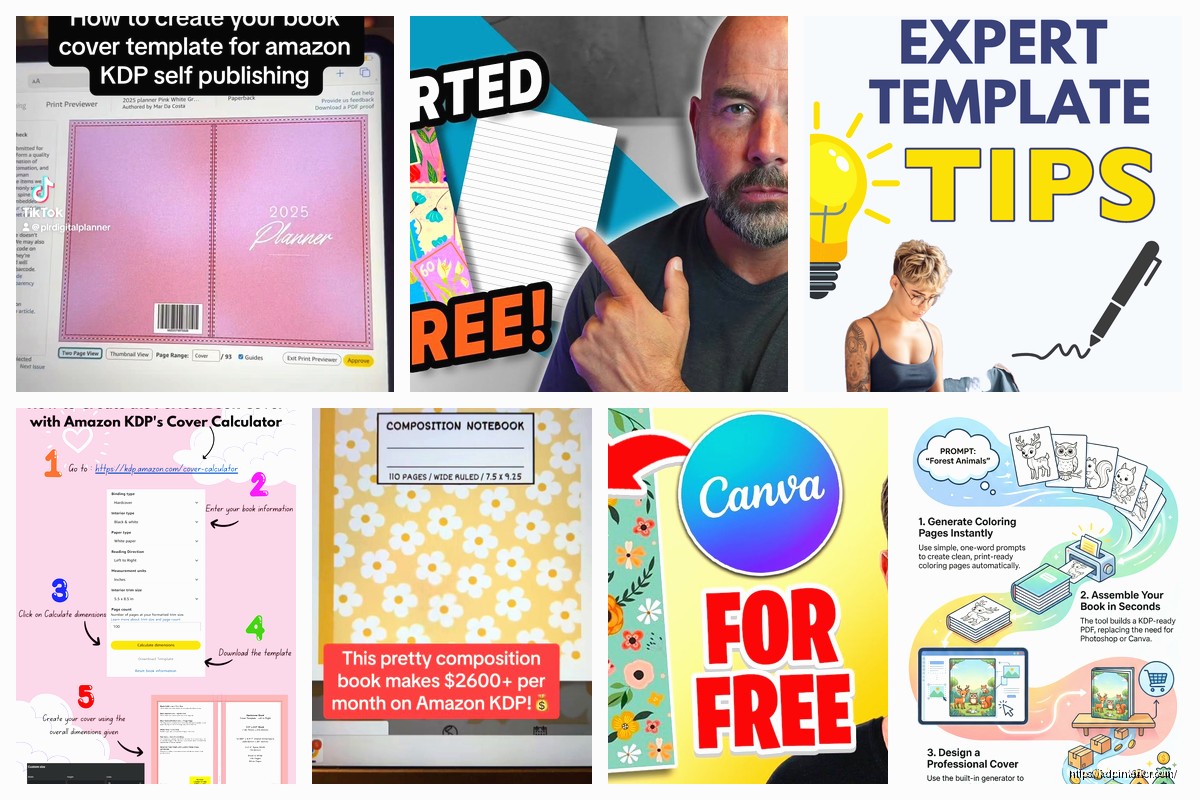
Okay so I just spent like three hours testing KDP’s built-in cover creator last week and here’s the deal – it’s actually way better than it used to be but you still gotta know what you’re doing or your cover will look like every other generic book out there.
So when you’re uploading your book in KDP, there’s that option to use their cover creator right? I used to skip right past it because honestly it looked terrible back in like 2019. But they’ve updated it and for low-content books especially journals and planners it’s actually usable now.
The thing is you’re limited to their templates. They’ve got maybe 50-60 layouts and you can swap colors fonts and upload one image. That’s it. I made a gratitude journal cover in about 15 minutes last month that’s actually selling okay – nothing amazing but it doesn’t look embarrassing.
Here’s what you do: pick a template that matches your niche, use their stock images if you don’t have your own (they’ve got maybe 1000 images in there sorted by category), change the colors to something that pops in thumbnails. And this is important – always preview it at thumbnail size because that’s how 90% of people will see it first.
The biggest limitation is you can’t layer multiple images or add complex graphics. So if you’re doing like a coloring book cover or something that needs to show actual pages inside forget it. You’ll need real design software.
Okay so Canva’s free version is where most people start and honestly it’s fine for probably 70% of KDP covers. I’ve made literally hundreds of covers in Canva. My cat knocked over my coffee on my keyboard while I was designing a planner cover last week and I lost like 30 minutes of work because I forgot to duplicate the design first – always duplicate your designs as backup.
The free version gives you:
The paid version ($13/month or whatever it is now) gets you the premium stock photos and the background remover tool which is actually super useful. I went back and forth on paying for it for like six months but eventually caved because the background remover alone saves me so much time.
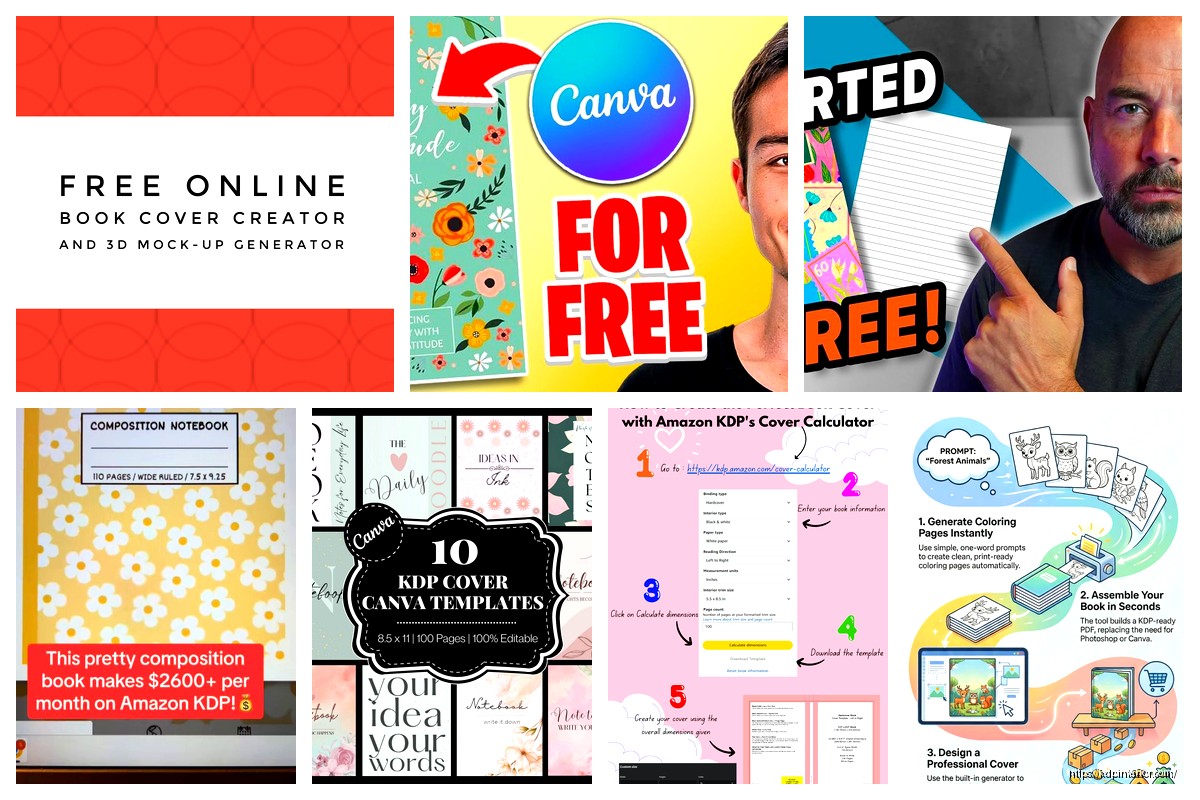
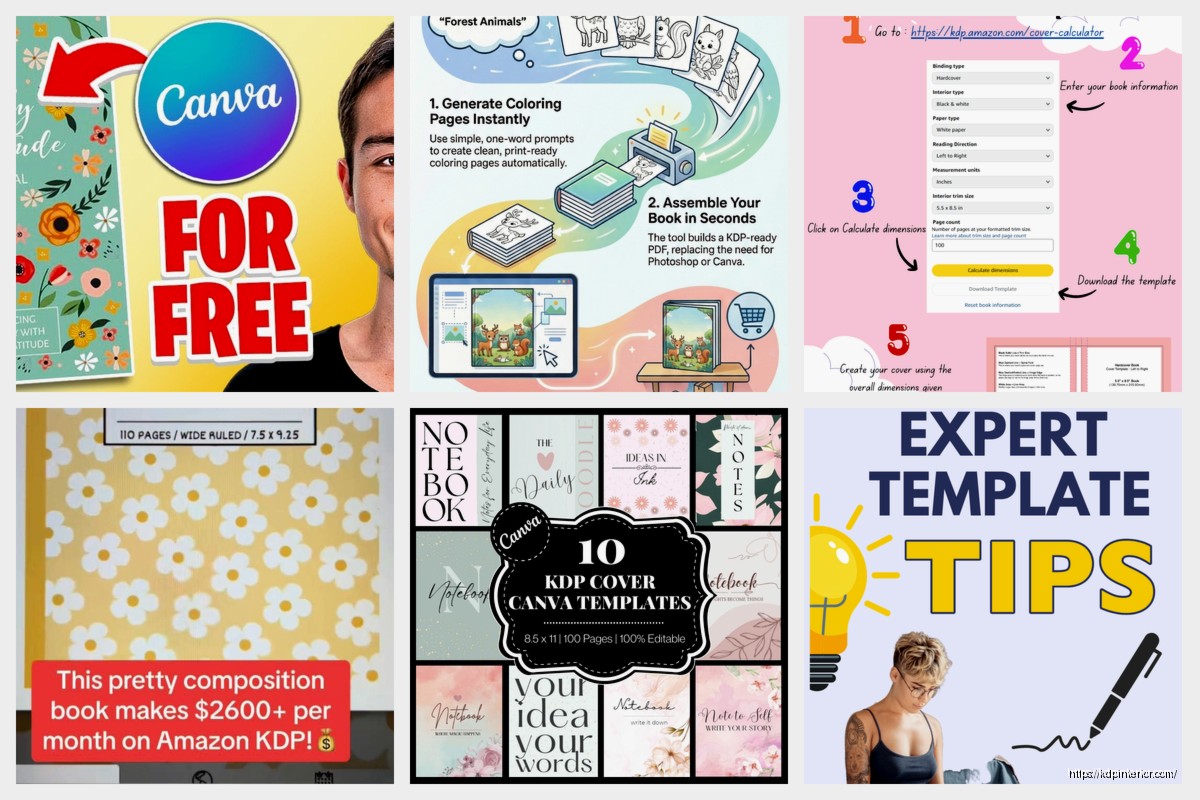
For KDP covers you wanna set up a custom dimension. Don’t use their book cover templates because those aren’t sized right for KDP specs. Go to custom size and punch in your dimensions based on your page count and trim size. Amazon has that cover calculator template thing – download that first so you know your exact measurements.
Wait I forgot to mention – Canva’s biggest weakness is it compresses your images sometimes and the quality can look meh when you upload to KDP. Always download at the highest quality setting and check it. I’ve had covers rejected because the resolution was too low even though Canva said it was fine.
GIMP is free Photoshop basically. It’s ugly and the interface is confusing as hell but it’s completely free and you can do professional-level work in it. I use it when I need to do complex stuff that Canva can’t handle.
The learning curve is steep though not gonna lie. I watched probably 20 YouTube tutorials before I felt comfortable with it. But once you get the basics down you can:
For KDP covers I use GIMP when I’m doing something with multiple product mockups or when I need that exact specific look that requires detailed editing. Like I did this cookbook cover that had food photos overlapping with specific transparency effects – couldn’t do that in Canva.
The thing about GIMP is you really need to set up your canvas right from the start. Create new image, set it to your exact cover dimensions including spine and back cover if you’re doing paperback, set resolution to 300 DPI minimum, and make sure color mode is RGB. I’ve screwed this up before and had to start over which is super annoying.
Oh and another thing – GIMP’s text tool is kinda clunky compared to Canva. It works but it’s not intuitive. You’ll probably get frustrated with it at first.
This is gonna sound weird but Photopea runs in your browser and it’s basically Photoshop’s interface but free. I discovered it maybe two years ago when my laptop was being slow and I needed to make a quick edit. Now I use it all the time.
It works almost exactly like Photoshop so if you’ve ever used that even a little bit you’ll figure out Photopea fast. It’s got layers, masks, filters, all that stuff. And because it’s browser-based you can work on any computer without installing anything.
The free version has ads on the side which is whatever. You can pay like $5/month or something to remove them but honestly they don’t bother me that much. What I like about Photopea for KDP covers:
I made a whole series of notebook covers in Photopea last month while I was watching that show Severance – took me like three episodes to bang out ten covers because once you set up your template you can just swap elements and save new versions.
The main downside is if your internet cuts out you’re kinda screwed. And it can be a little laggy if you’re working with huge file sizes. But for standard KDP covers it works great.
BookBrush has a free plan that’s actually decent. It’s designed specifically for book covers and marketing graphics so everything is already sized right for Amazon which is nice. Less thinking required.
The free version is limited – you get like 10 downloads per month I think and you can’t access all the premium templates. But if you’re just starting out or only publishing a couple books it’s enough.
What’s cool about BookBrush is they have mockup generators built in. So you can make your cover and then instantly see it on a 3D book mockup for your ads or social media or whatever. Saves you from having to use a separate mockup tool.
The templates are specifically designed for different genres too. Like they have sections for journals planners workbooks coloring books all separated out. So you’re not starting from a blank canvas trying to figure out what works.
I don’t use BookBrush as much anymore because I have my own workflow but when I’m in a rush or testing a new niche quickly it’s handy. Made a fitness journal cover in there in like 20 minutes last week just to see what would happen – it’s doing okay.
Pixlr is another browser-based editor. It’s got two versions – Pixlr X which is simple and Pixlr E which is more advanced. Both are free with some premium features locked.
Honestly I use this mostly for quick edits not full cover creation. Like if I need to resize something fast or adjust colors or remove a background quickly. It’s lighter weight than Photopea and faster for simple stuff.
The AI tools in the paid version are supposedly good but I haven’t tested them much. The free version is enough for basic KDP cover work if you’re doing simple designs.
Okay so here’s what I actually do when I’m making covers now. This might be scattered but it’s how I work:
I start in Canva for the basic layout because it’s fast. Get my text positioned, choose my color scheme, place my main images. Export that as a PNG.
Then if I need more detailed work I’ll bring it into Photopea or GIMP. Add shadows, adjust specific elements, maybe overlay textures or patterns. Fine-tune everything.
Always work at 300 DPI minimum. Amazon wants high quality and if your cover looks pixelated or blurry it’ll hurt your sales. I’ve tested this – a sharp professional cover can literally double your conversion rate compared to a fuzzy amateur-looking one.
For fonts use Google Fonts which are free and you can use commercially. Don’t use the default Canva fonts that everyone uses because your cover will blend in with thousands of others. Find something that fits your niche but isn’t overused.
Colors matter more than you think. I spent like two weeks testing different color combinations for journal covers and warmer colors (reds oranges yellows) consistently got more clicks than cool colors (blues greens). But that varies by niche obviously.
Oh wait I should mention – always check your cover on mobile. Like actually pull it up on your phone and see how it looks at thumbnail size. If you can’t read the title or see what it is in 2 seconds it’s not gonna work.
If you’re doing paperback you need the full wraparound cover with spine and back. This is where the KDP cover calculator template comes in super handy. Download that, it shows you exactly where your spine is and where the safe zones are.
I usually design my front cover first, then extend it out to include the spine and back. The spine width depends on your page count – more pages means wider spine. Amazon’s template accounts for this automatically.
For the back cover just put a simple description and maybe your author name or logo. Don’t overthink it. Most people never see the back cover when buying online anyway.
The barcode goes on the bottom right of the back cover – Amazon adds that automatically so leave that space blank. I’ve had covers rejected because I put design elements where the barcode goes.
Test your covers before you commit. I’ll make 3-4 versions sometimes and run them past people or test them with Facebook ads just to see which gets more engagement.
Don’t use copyrighted images obviously. Stick to free stock photo sites (Pixabay, Unsplash, Pexels) or buy from places like Creative Market or Creative Fabrica if you need something specific.
Typography is huge. Bad font choices make your cover look amateur instantly. Use maximum two fonts per cover usually – one for the title one for subtitle if you have one.
White space is your friend. Don’t cram everything together. Let your design breathe a little.
Save all your cover files organized by niche or date. I’ve lost covers before because I didn’t save them properly and had to recreate them which is super frustrating.
Honestly the best way to get good at this is just make a bunch of covers. Your first ones will probably look rough but by cover number 20 or 30 you’ll have developed your own style and workflow. I look back at my early covers and cringe but that’s how you learn.
DISCOVER OUR FREE BEST SELLING PRODUCTS
Editable Canva Lined Journal: Express Your Thoughts – KDP Template
Lined Pages Journal 120 pages Ready to Upload PDF Commercial Use KDP Template 6×9 8.5×11 5×8 for Notebooks, Diaries, Low Content
Lined Pages Journal 120 pages Ready to Upload PDF Commercial Use KDP Template 6×9 8.5×11 5×8 for Notebooks, Diaries, Low Content
Cute Dogs Coloring Book for Kids | Activity Book | KDP Ready-To-Upload
Daily Planner Diary : Diary Planners for Everyday Productivity, 120 pages, 6×9 Size | Amazon KDP Interior
Wolf Coloring KDP interior For Adults, Used as Low Content Book, PDF Template Ready To Upload COMMERCIAL Use 8.5×11"
Coloring Animals Head Book for Kids, Perfect for ages 2-4, 4-8 | 8.5×11 PDF
Printable Blank Comic Book Pages PDF : Create Your Own Comics – 3 Available Sizes
Notes KDP interior Ready To Upload, Sizes 8.5×11 6×9 5×8 inch PDF FILE Used as Amazon KDP Paperback Low Content Book, journal, Notebook, Planner, COMMERCIAL Use
Black Lined Journal: 120 Pages of Black Lined Paper Perfect for Journaling, KDP Notebook Template – 6×9
Student Planner Journal 120 pages Ready to Upload PDF Commercial Use KDP Template 6×9" 8.5×11" for Low Content book
Recipe Journal Template – Editable Recipe Book Template, 120 Pages – Amazon KDP Interior