-
×
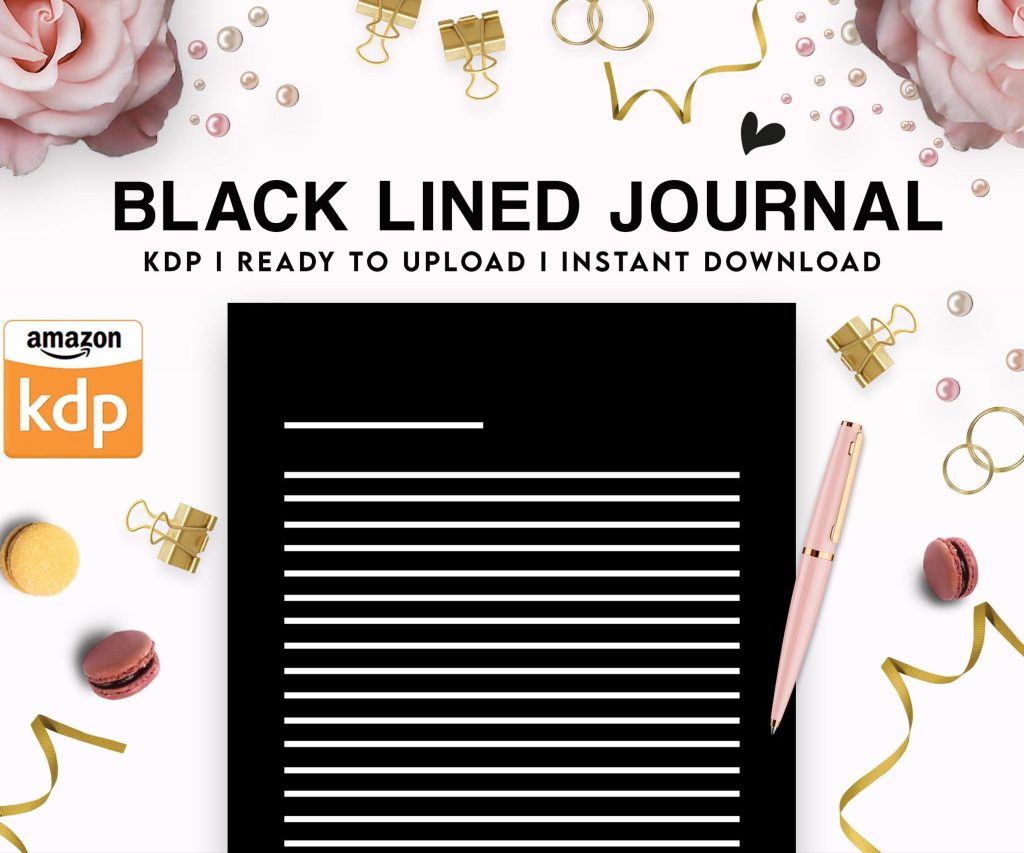 Black Lined Journal: 120 Pages of Black Lined Paper Perfect for Journaling, KDP Notebook Template - 6×9
1 × $0.00
Black Lined Journal: 120 Pages of Black Lined Paper Perfect for Journaling, KDP Notebook Template - 6×9
1 × $0.00
Subtotal: $0.00
 Black Lined Journal: 120 Pages of Black Lined Paper Perfect for Journaling, KDP Notebook Template - 6×9
1 × $0.00
Black Lined Journal: 120 Pages of Black Lined Paper Perfect for Journaling, KDP Notebook Template - 6×9
1 × $0.00 Subtotal: $0.00
Okay so the whole KDP cover template thing is actually way simpler than people make it sound, but there’s like a bunch of places you can grab templates and honestly some are garbage and some are actually solid.
First thing – Amazon’s official cover calculator is where you gotta start because the dimensions change based on your page count. Go to kdp.amazon.com/en_US/cover-calculator and punch in your trim size, page count, paper type. For low content books I’m usually doing 8.5 x 11 or 6 x 9, white paper. The calculator spits out exact dimensions including spine width and you absolutely need this or your cover will get rejected. I learned this the hard way back in 2017 when I uploaded like 30 covers that were all wrong dimensions and had to redo everything over a weekend when I was supposed to be watching the playoffs.
The free tools that actually work – Canva is probably where 80% of self-publishers start. They have KDP templates built in now which is convenient. You can search “KDP cover” in their template section and it’ll show you pre-sized options. The free version is honestly fine for most low content stuff. I use Canva Pro because I got tired of not being able to download transparent backgrounds but if you’re just starting out the free version works.
BookBolt has cover templates too and they’re designed specifically for KDP which is nice. They have this whole research platform but the cover creator is separate and pretty straightforward. It’s not free though – I think it’s like $10 a month or something now? They have templates for notebooks, journals, coloring books, all that stuff. The spine calculator is built right in which saves time.
Oh and another thing – Placeit by Envato has book cover mockup templates. Not the same as design templates but useful for your Amazon listing images. You can drop your flat cover design onto a 3D book mockup. Makes it look more professional in the thumbnails. I think they have a subscription model now but you used to be able to buy individual mockups for like $8 each.
For actual free downloads of blank templates, Creative Fabrica sometimes has freebies if you’re on their mailing list. They do a lot of graphics bundles and occasionally throw in cover templates. Same with Design Bundles – they have a free section that rotates. Quality varies wildly though, you gotta check the reviews.
Wait I forgot to mention – if you want actual PSD or PNG templates with guides already laid out, search “KDP cover template” on Etsy. Sounds weird but there’s sellers who package up templates with bleed lines, safe zones, spine markers all color coded. Usually costs like $5-15 for a bundle. I bought one back in 2019 that had templates for every trim size and I still use those files as my base. Way faster than setting up guides from scratch every time.
The design tools themselves – Canva I already mentioned but let me break down the others. Adobe Photoshop if you already have Creative Cloud is obviously the most powerful option. I use it for anything that needs precise layer control or if I’m doing something with a lot of photo manipulation. The learning curve is real though. There’s free YouTube tutorials everywhere but it took me probably 3 months of messing around before I felt comfortable designing covers quickly.
Photopea is basically free Photoshop in your browser. Same interface, works with PSD files, does layers and everything. I used this exclusively for like my first year before I got Adobe. It’s completely free, ad-supported. Performance can be laggy with huge files but for standard KDP covers it’s solid. Just make sure you save your work constantly because browser crashes are a thing.
GIMP is the free desktop alternative to Photoshop. Open source, pretty capable. Interface is kinda clunky in my opinion but if you’re on a budget it gets the job done. I used it for maybe 6 months before switching. The color management is different from Photoshop so colors sometimes look off when you export but for low content covers where you’re mostly doing text and simple graphics it’s fine.
Affinity Designer and Affinity Photo – these are one-time purchase instead of subscription. I think they’re like $70 each now? Used to be $50. Really solid middle ground between free tools and Adobe pricing. If you hate subscriptions this is probably your best bet. The interface is clean, works with common file formats, has all the features you actually need for cover design.
This is gonna sound weird but I sometimes use PowerPoint for really simple covers. Like if I’m doing a basic notebook cover that’s just a pattern background and text, PowerPoint is fast and I already know all the shortcuts. You can set custom slide dimensions to match your cover specs. Export as high-res PNG. Done. Not professional advice but it works in a pinch.
For finding graphics and elements to use on your covers – Creative Fabrica has unlimited downloads if you subscribe. I pay for this one, totally worth it for the volume I do. Millions of graphics, fonts, patterns. Just make sure you check the license – some stuff is personal use only and you need commercial license for KDP.
Freepik has a ton of free vectors and images but the free ones usually require attribution which you can’t really do on a book cover. Their premium subscription removes that requirement. I had it for a while, cancelled when I got Creative Fabrica because there was too much overlap.
Pixabay and Pexels for free stock photos. Both are completely free, no attribution required. Quality has gone up a lot in the past few years. I use these for planner covers sometimes when I need lifestyle images or textures.
Font Squirrel and Google Fonts for typography. Both free, commercially licensed. Google Fonts integrates directly into Canva which is convenient. Font Squirrel has more unique options. My go-to fonts for low content covers are usually Montserrat, Playfair Display, Bebas Neue, Raleway. Clean, readable, professional enough.
Oh wait, technical stuff you gotta know – your cover needs to be 300 DPI for print. This is non-negotiable. If you upload 72 DPI it’ll look blurry and pixelated when printed. In Canva this is automatic when you download for print. In Photoshop/GIMP/Photopea you set this when you create the document.
Color mode should be RGB for KDP print, which seems backwards because traditional printing uses CMYK but Amazon’s system wants RGB. I spent like a week troubleshooting why my colors looked washed out before I figured this out. Their printers convert RGB to CMYK on their end.
Bleed is usually 0.125 inches (or 3.175mm) on all sides. This means your background design needs to extend past the trim line so when they cut the book there’s no white edges if the cut is slightly off. The cover calculator includes bleed in the dimensions it gives you so don’t add extra.
Safe zone – keep all text and important elements at least 0.25 inches inside the trim line. Nothing worse than having your title cut off because it was too close to the edge. I’ve seen this happen so many times with new publishers.
The spine – okay this is where people mess up constantly. If your book is under 72 pages the spine is basically invisible and Amazon recommends not putting text on it. Over 100 pages you’ve got room to work with. The calculator tells you the exact spine width. I always make a vertical guide at the exact center and then guides on either side at the spine width. Keeps everything centered and properly placed.
For low content books specifically – notebooks, journals, planners, coloring books – your cover doesn’t need to be super complex. Actually simpler usually converts better. Think about what you see in Barnes & Noble. Clean design, clear title, maybe a pattern or simple graphic. That’s it. I see people overdesigning with like 47 different elements and weird fonts and it just looks cluttered in the thumbnail.
Speaking of thumbnails – remember your cover is gonna be displayed at like 150 pixels wide on Amazon search results. Details disappear at that size. Big bold text, high contrast, simple layouts. Test your cover by shrinking it down to thumbnail size and seeing if you can still read the title.
Okay so funny story, I once designed this whole elaborate cover with this intricate mandala pattern, spent like 4 hours on it, looked gorgeous at full size. Uploaded it, checked the Amazon listing, couldn’t read the title at thumbnail size at all. Had to redesign the whole thing with bigger text and more contrast. Now I always check thumbnail view before I finalize anything.
Tools for checking your cover before upload – I just use the preview feature in whatever design program I’m using but there’s also BookBrush which has a mockup generator. You can see what your cover looks like as a thumbnail, on a bookshelf, being held, etc. Helps catch issues before you upload.
Templates for specific niches – if you’re doing coloring books you need to think about the back cover differently because people want to see sample pages. I usually put 4-6 small preview images of interior pages on the back. For planners, showing the date range on the cover is important. Notebooks can be super minimal.
One thing I gotta mention – don’t use copyrighted characters or trademarked stuff on your covers even if you find the graphics on “free” sites. Disney, Marvel, NFL logos, all that – it’ll get your account banned. Amazon is really strict about this. Only use stuff you have clear commercial rights to use.
The workflow I use now after doing this for 7 years – I open my base template PSD file that has all the guides already set up, swap in the new dimensions from the cover calculator if needed, design the front cover first, then extend elements to the back and spine. Export as PDF for upload. Takes maybe 30-45 minutes per cover now but it used to take me like 3 hours when I started.
For patterns and backgrounds I usually grab stuff from Creative Fabrica or make simple gradients. Solid colors work great too – don’t overthink it. Some of my best-selling notebooks have covers that are literally just a color gradient and text.
Text effects – drop shadows, outlines, subtle glows can help text pop off busy backgrounds. Don’t go crazy with it though. One or two effects max. I see a lot of covers with like outer glow plus drop shadow plus bevel plus stroke and it looks dated and amateur.
My cat just knocked over my coffee which is great timing… anyway, where was I –
If you’re doing a series of books keep the design consistent. Same fonts, similar layout, color scheme that ties them together. People who buy one are more likely to buy others if they recognize them as a series.
The back cover text – keep it simple for low content books. Maybe a short description, barcode area (Amazon adds this automatically so leave space), maybe a small author logo or website. Don’t cram a novel back there. For planners I usually list key features as bullet points.
Author photo on the back cover – completely optional for low content. I don’t use one. For actual novels or non-fiction it’s more common but for journals and notebooks nobody cares.
Price on the cover – never put it on there because your price might change and then your cover is wrong. Amazon displays the price on the listing anyway.
Tools I don’t recommend – Microsoft Word or Publisher for covers. Just no. The export quality isn’t good enough and positioning elements precisely is a nightmare. Same with most basic online editors that aren’t specifically designed for print.
BookBrush vs Canva debate – I’ve used both extensively. Canva is better for overall design flexibility. BookBrush is faster if you’re just cranking out low content covers using their templates. I keep subscriptions to both because they serve different purposes in my workflow.
Free trials – most of these paid tools offer free trials. Take advantage of that. Design a bunch of covers during the trial period, see which interface you like best, then decide if you wanna pay. I did this with like 5 different tools before settling on my current setup.
Alright so that’s basically everything I’ve learned about KDP cover templates and design tools over the years. Start with Canva free version and the Amazon cover calculator, that’ll get you through your first few books. As you make money reinvest in better tools and graphics subscriptions. Don’t spend a ton upfront before you know if this is something you wanna stick with.
DISCOVER OUR FREE BEST SELLING PRODUCTS
Editable Canva Lined Journal: Express Your Thoughts – KDP Template
Lined Pages Journal 120 pages Ready to Upload PDF Commercial Use KDP Template 6×9 8.5×11 5×8 for Notebooks, Diaries, Low Content
Lined Pages Journal 120 pages Ready to Upload PDF Commercial Use KDP Template 6×9 8.5×11 5×8 for Notebooks, Diaries, Low Content
Cute Dogs Coloring Book for Kids | Activity Book | KDP Ready-To-Upload
Daily Planner Diary : Diary Planners for Everyday Productivity, 120 pages, 6×9 Size | Amazon KDP Interior
Wolf Coloring KDP interior For Adults, Used as Low Content Book, PDF Template Ready To Upload COMMERCIAL Use 8.5×11"
Coloring Animals Head Book for Kids, Perfect for ages 2-4, 4-8 | 8.5×11 PDF
Printable Blank Comic Book Pages PDF : Create Your Own Comics – 3 Available Sizes
Notes KDP interior Ready To Upload, Sizes 8.5×11 6×9 5×8 inch PDF FILE Used as Amazon KDP Paperback Low Content Book, journal, Notebook, Planner, COMMERCIAL Use
Black Lined Journal: 120 Pages of Black Lined Paper Perfect for Journaling, KDP Notebook Template – 6×9
Student Planner Journal 120 pages Ready to Upload PDF Commercial Use KDP Template 6×9" 8.5×11" for Low Content book
Recipe Journal Template – Editable Recipe Book Template, 120 Pages – Amazon KDP Interior