
Amazon KDP guide, KDP book publishing
KDP Cover Template Generator: Automated Design Tool
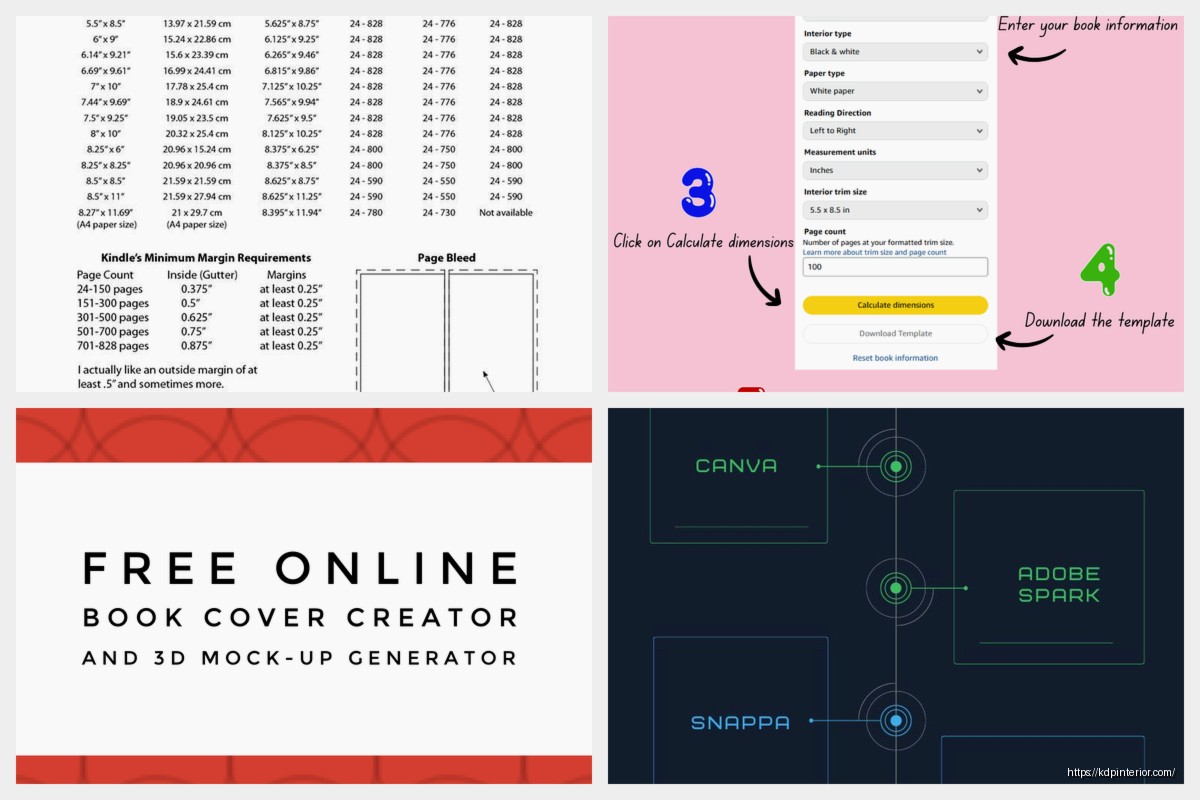
Mar
Okay so I just spent like three hours last Tuesday testing these KDP cover template generators because honestly I was tired of paying designers $50 every time I needed a quick cover for a journal or planner, and here’s what actually works.
The whole automated design tool thing sounds fancy but really you’re just looking at software that takes your dimensions and spits out a PDF or PNG with the right specs for KDP. The tricky part is getting your spine width correct because Amazon’s calculator is… well it exists but you gotta know your page count and paper type first.
Setting Up Your Cover Dimensions
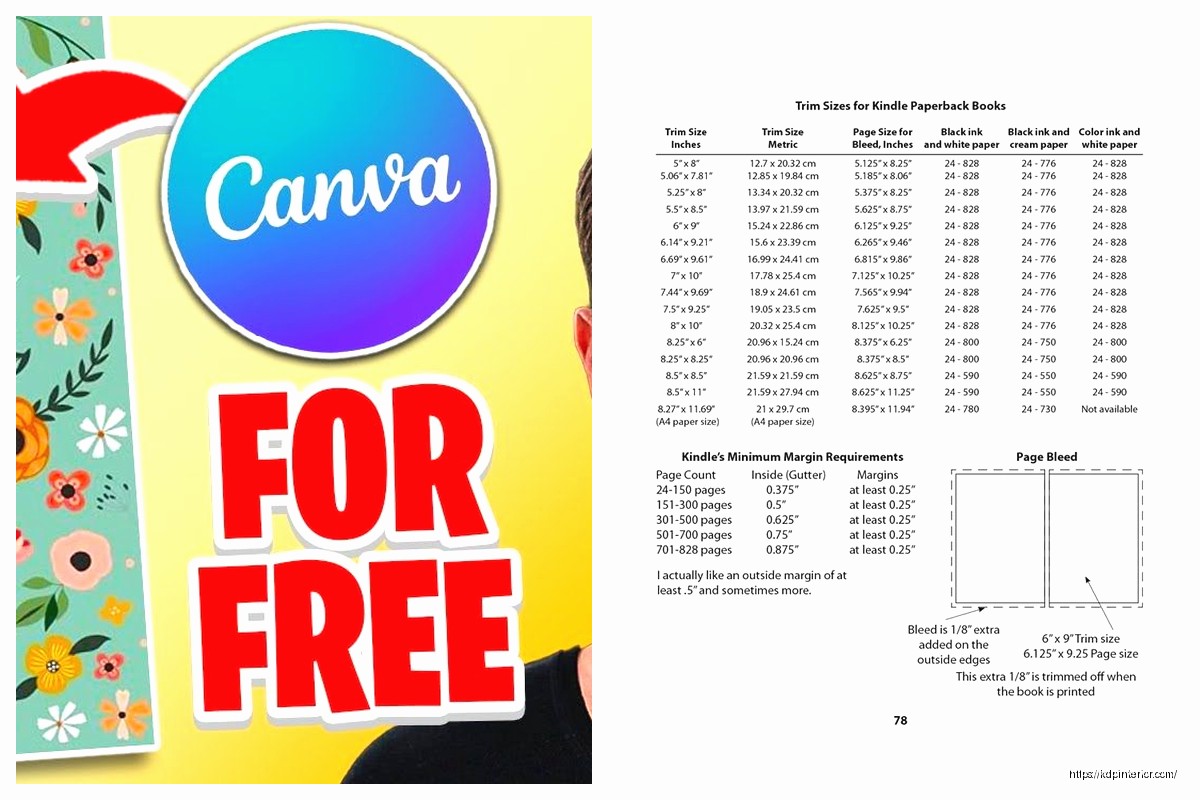
First thing you need is your trim size. Most of my low content books are 8.5 x 11 inches because that’s what people expect for planners and journals. But if you’re doing a smaller notebook go with 6 x 9 inches. The generator needs three measurements – front cover, spine, and back cover.
Here’s the formula that took me forever to figure out:
Your total cover width = (2 × trim width) + spine width + 0.25 inches for bleed
So for an 8.5 x 11 book with 120 pages on white paper, you’re looking at roughly 8.5 + 8.5 + 0.27 + 0.25 = 17.52 inches wide. Height is just your trim height plus bleed, so 11 + 0.25 = 11.25 inches.
The spine width calculator on KDP’s site will give you the exact number but it changes based on page count and whether you use cream or white paper. White paper is thinner so your spine will be narrower. I always screenshot the calculator results because I’m gonna need them again.
Which Template Generator Actually Works
I’ve tested maybe six different tools and honestly most are garbage or want $30/month which is insane. The free KDP Cover Calculator from KDP itself works but it just gives you dimensions, not an actual template file you can use in Canva or Photoshop.
What I actually use now is a combination of things and this is gonna sound scattered but stay with me. I use Canva Pro (yeah I pay for it, worth it) and create a custom dimension based on my KDP calculator results. Then I manually add guides for where the spine starts and ends.
Oh and another thing – Book Bolt has a cover creator tool that’s pretty solid if you already have their subscription. It auto-generates the template with guides built in and you can download it as a layered file. I think it’s like $10/month for the basic plan? Something like that. I use it when I’m doing a bunch of covers at once because it saves time.
The Manual Setup Method in Canva
If you don’t wanna pay for anything extra here’s how I do it in regular Canva:
Create custom dimensions using your calculated total width and height. So if my math above gave me 17.52 x 11.25, I’m making a canvas that exact size but Canva wants pixels so multiply by 300 for print quality. That’s 5256 x 3375 pixels.
Now the annoying part – you gotta manually mark where your spine is. Take your front cover width (8.5 inches = 2550 pixels) and that’s where your spine starts from the left edge. The spine width (let’s say 0.27 inches = 81 pixels) gets added to that. So spine area is from pixel 2550 to pixel 2631.
I literally just drag text boxes or thin rectangles to mark these areas because Canva doesn’t have real guides like Photoshop does. It’s janky but it works and I’m not paying Adobe $60/month just for covers.
Safety Zones and Bleed
This is where people mess up constantly and get their covers rejected. Amazon needs 0.125 inches of bleed on all edges. That means your background or any design that goes to the edge needs to extend past your trim line by that much.
But wait there’s more – you also can’t put important stuff like text or logos within 0.125 inches of the trim line because it might get cut off. So really you’ve got a safe zone that’s 0.25 inches from the edge on all sides.
For the spine this is super critical. Don’t put text on the spine if your book is under 100 pages because the spine is too narrow and it’ll get cut off or look terrible. I learned this the hard way with a 80-page journal where I thought I was being clever with the title on the spine. Amazon printed it but it looked awful.
Barcode Placement
Amazon puts the barcode on the bottom right of your back cover automatically. You need to leave a white rectangle there that’s 2 x 1.2 inches minimum. I usually make it 2.5 x 1.5 inches to be safe with a white background.
The barcode area needs to be white or very light colored – no dark backgrounds or they’ll reject your cover. I tried a black back cover once with a white box for the barcode and it got rejected twice before I figured out the white box needed to be bigger than I thought.
Design Elements That Actually Convert
Okay so now you’ve got your template set up and you’re wondering what to actually put on the cover. This is where I see people overthinking it like crazy.
For low content books especially planners and journals, your cover needs exactly three things: clear title that tells them what it is, simple design that matches the niche, and professional-looking typography. That’s it.
I was watching The Bear the other night while designing covers and realized most of my best sellers have super minimal designs. Like my budget planner that does $800/month has literally just a title, subtitle, and some geometric shapes. Nothing fancy.
The front cover is your money maker. The spine only matters if you’re in bookstores which you’re not. The back cover barely matters because people decide on Amazon from the front cover image. But you still gotta design it properly because Amazon checks.
Back Cover Copy
I keep my back covers simple – usually just repeat the title, add 3-5 bullet points about what’s inside, and leave space for the barcode. Some people put their author bio or publisher logo back there but honestly nobody reads it for low content books.
The bullet points should match your Amazon description. Like if your planner has monthly spreads, habit trackers, and goal pages, list those. Takes me maybe 5 minutes to write back cover copy now.
Exporting Your Cover File
This is where the automated part really helps if you’ve got a good tool. Your file needs to be a PDF for upload to KDP, high resolution, and with the bleed included.
In Canva you download as PDF Print, which automatically includes bleed and uses CMYK color instead of RGB. That’s important because RGB colors look different when printed and you’ll be mad when your bright blue comes out purple.
File size needs to be under 40MB but I’ve never hit that limit with covers. Usually mine are 2-5MB which is fine.
Before you upload check these things:
- Dimensions match exactly what KDP calculator told you
- Spine text is centered on the spine area if you have any
- Nothing important is in the trim zones
- Barcode area is clear and light colored
- Text is readable at thumbnail size
That last one is huge – your cover shows up tiny on Amazon search results so if people can’t read your title from the thumbnail they won’t click. I zoom out in Canva to like 10% to check this.
Common Mistakes That’ll Get You Rejected
Amazon’s cover review team is… picky. I’ve had covers rejected for the weirdest reasons but here are the common ones:
Wrong dimensions – even being off by 0.01 inches will get rejected. Use their calculator numbers exactly, don’t round.
Bleed issues – if your background doesn’t extend to the bleed edge or you have white gaps, rejected. Make sure your background layer is bigger than your canvas.
Spine text on thin books – anything under 100 pages just skip the spine text. It won’t work and they’ll reject it.
Low resolution images – needs to be 300 DPI minimum. If you’re using stock photos make sure they’re high res versions.
Copyright stuff – don’t use images you don’t have rights to, Amazon checks this and you can get your account suspended.
The Proof Copy Test
Okay this is gonna sound like extra work but order a proof copy before you publish. It costs like $5-8 and you can see exactly how your cover looks printed. The colors will be slightly different than on screen and you can check if your spine alignment is correct.
I did this with my first 10 books and caught so many issues – spine text slightly off center, colors too dark, back cover text too small to read. Now I can usually skip it because I know what works but for your first few books definitely order proofs.
Automating Multiple Covers
If you’re doing series or lots of books in the same format this is where templates really shine. I’ve got about 15 Canva templates saved for different trim sizes and niches.
My planner template has all the guides and barcode area already set up. I just swap out colors and text for each new planner variation. Takes maybe 20 minutes per cover instead of 2 hours starting from scratch.
Book Bolt’s automation is even better for this – you can batch create covers by uploading a CSV file with different titles and it generates multiple versions. I haven’t used this much because I like controlling the design but if you’re doing 50 variations of the same journal it could save days.
Wait I forgot to mention – some people use Photoshop templates from Creative Fabrica or Etsy. These are pre-made PSDs with layers you can edit. They’re like $5-15 and honestly some are really good quality. The problem is you need Photoshop or at least Photopea (free online version) to edit them.
Testing Cover Designs
Here’s something nobody talks about enough – your cover directly impacts your sales. Like dramatically. I’ve had books where I changed just the cover and sales doubled within a week.
The way I test now is I’ll create 2-3 cover variations and run them as different editions or in different markets. Not the same book with different covers competing, that’s against TOS, but similar books in the niche.
My dog just knocked over my coffee while I’m writing this but anyway – track which covers get better click-through rates. Amazon doesn’t show you this directly but you can estimate from your impressions vs sales data in your KDP dashboard.
Bold colors and clear text seem to work better than complex designs. People are scrolling fast on mobile and you’ve got maybe half a second to catch their attention.
Quick Workflow Summary
When I’m making a new cover now it goes like this:
Get page count and trim size, plug into KDP calculator for spine width. Screenshot the results.
Open my saved Canva template for that trim size or create new custom dimensions if it’s different.
Design front cover first – title, subtitle, main design elements.
Copy elements to back cover and add bullet points plus barcode space.
Add spine text only if book is over 100 pages.
Check everything at 10% zoom – is title readable, design clear, nothing in trim zones.
Download as PDF Print.
Upload to KDP and go through their cover review.
The whole process takes me 30-45 minutes now for a simple cover. Complex ones with lots of graphics maybe 2 hours. Way better than when I started and each cover took a full day because I didn’t understand the technical requirements.
One last thing – save your cover files organized by ASIN or book title because you’ll need to update them eventually. I’ve got a whole folder system and it’s still a mess but at least I can find stuff.
DISCOVER OUR FREE BEST SELLING PRODUCTS
Editable Canva Lined Journal: Express Your Thoughts – KDP Template
Lined Pages Journal 120 pages Ready to Upload PDF Commercial Use KDP Template 6×9 8.5×11 5×8 for Notebooks, Diaries, Low Content
Lined Pages Journal 120 pages Ready to Upload PDF Commercial Use KDP Template 6×9 8.5×11 5×8 for Notebooks, Diaries, Low Content
Cute Dogs Coloring Book for Kids | Activity Book | KDP Ready-To-Upload
Daily Planner Diary : Diary Planners for Everyday Productivity, 120 pages, 6×9 Size | Amazon KDP Interior
Wolf Coloring KDP interior For Adults, Used as Low Content Book, PDF Template Ready To Upload COMMERCIAL Use 8.5×11"
Coloring Animals Head Book for Kids, Perfect for ages 2-4, 4-8 | 8.5×11 PDF
Printable Blank Comic Book Pages PDF : Create Your Own Comics – 3 Available Sizes
Notes KDP interior Ready To Upload, Sizes 8.5×11 6×9 5×8 inch PDF FILE Used as Amazon KDP Paperback Low Content Book, journal, Notebook, Planner, COMMERCIAL Use
Black Lined Journal: 120 Pages of Black Lined Paper Perfect for Journaling, KDP Notebook Template – 6×9
Student Planner Journal 120 pages Ready to Upload PDF Commercial Use KDP Template 6×9" 8.5×11" for Low Content book
Recipe Journal Template – Editable Recipe Book Template, 120 Pages – Amazon KDP Interior