Okay so here’s the thing about launching on KDP without spending a dime
I was literally explaining this to someone last night while my cat was knocking stuff off my desk, and I realized most people overcomplicate this. You don’t need to drop money on your first launch. Like, at all. I’ve done this over 200 times and honestly some of my best performers started with zero budget.
First thing – your manuscript. Use Google Docs. I know everyone’s gonna tell you to buy Scrivener or Vellum or whatever, but Google Docs is free and it works. I still use it for like half my books. The key is setting it up right from the start so you’re not reformatting everything later which is just… the worst.
Set your page size to 6×9 inches (that’s the most common trim size for paperbacks). Go to File > Page Setup and punch in custom dimensions. Margins should be 0.75 inches on all sides, maybe bump the inside margin to 0.85 if you’re doing a thicker book. I learned that one the hard way when my 300-page journal had text disappearing into the spine.
The Cover Situation
This is where people think they need to spend money but you really don’t. Canva has a free version that’s perfectly fine. I’ve made covers that sold thousands of copies using just the free version. The trick is not trying to do too much – simple covers often perform better anyway.
KDP’s cover dimensions are specific. For a 6×9 book with say 120 pages, your full cover width is gonna be around 12.5 inches (that includes spine and both covers). Height is 9.25 inches because you need bleed. Canva has KDP templates built in now which is honestly a game changer.
Use Canva’s free stock photos or hit up Pixabay or Unsplash. Both are completely free for commercial use. I’ve got this whole system where I save images I like into folders by category – been doing that for years and it saves so much time.
For fonts, stick with what’s already in Canva or grab free ones from Google Fonts. Just make sure they’re actually free for commercial use. Most are but double check the license.
Interior Formatting Without Losing Your Mind
Okay so low-content books are easier – you can literally create these in Canva too. I did a client call last week and showed someone how to make a basic lined notebook in like 20 minutes. Just create your page size, add your lines or whatever elements, duplicate it 100 times, download as PDF. Done.
For actual books with text, Google Docs works but you gotta be careful with a few things. Use page breaks between chapters (Ctrl+Enter), not just a bunch of returns. Set up your headers and footers properly – double click the top or bottom of the page to edit them.
Here’s something nobody tells you – turn OFF hyphenation. It looks weird in print. Also, use a standard font like Garamond, Times New Roman, or Palatino. Size 11 or 12. Line spacing at 1.15 or 1.5 depending on your target page count.
Export as PDF when you’re done. Make sure you select “PDF/A-1b” if that option is available – it’s more compatible with KDP’s system.
The Actual KDP Upload Process
Creating your KDP account is free obviously. Amazon doesn’t charge you anything to publish. They just take a cut when you sell, which is how this whole thing works.
When you’re setting up your book, the title and subtitle are huge for discoverability. Don’t just pick something that sounds cool – think about what people are actually searching for. I usually open up Amazon in another tab and start typing keywords into the search bar to see what autocompletes.
Categories – you get two. Pick ones where you can actually rank. I’ve got this whole spreadsheet of category combinations that work well but honestly just browse Amazon in your niche and see where similar books are ranking. Click on the orange “#1 Best Seller” badges to see what categories those books are in.
Keywords Are Where Most People Mess Up
You get 7 keyword boxes. Don’t waste them on single words. Use phrases. Like, if you’re publishing a recipe journal, don’t just put “recipes” – put “blank recipe book for my own recipes” or “family recipe keeper book”. Think about how actual humans search.
I spend way too much time on this part but it matters. Sometimes I’ll watch TV and just brainstorm keywords during commercials. My partner thinks I’m weird but whatever, it works.
Tools you can use for free – Amazon’s search bar (seriously, just start typing), Google autocomplete, even looking at competitor books and seeing what phrases they use in their titles and descriptions.
Pricing Strategy When You’re Starting at Zero
For ebooks, you can price between $0.99 and $9.99 and choose 70% royalty on the $2.99-$9.99 range (with some country restrictions). Below that you get 35% which is fine for lower-priced stuff.
Paperbacks depend on your page count and color vs black and white. KDP has a printing cost calculator built in. Your royalty is 60% of list price minus printing costs. So a 120-page black and white 6×9 book costs about $2.50 to print, you price it at $9.99, you make about $3.50 per sale.
I usually price my first books slightly lower than competition to get some initial traction. Not super cheap because that can look suspicious, but like… if everyone’s at $12.99, I’ll go $9.99.
The Description – Your Free Sales Page
This is basically your Amazon sales page and it’s completely free real estate. You’ve got 4000 characters. Use them.
Format it with HTML if you want bold text and bullet points. It’s super basic HTML – like bold text here for bold, italic text here for italics. I literally learned this just by looking at other books’ descriptions and copying the format.
Start with a hook – what problem does your book solve or what benefit does it provide? Then bullet points with features or what’s inside. Then maybe a short paragraph about who it’s for. End with a call to action like “Scroll up and click Buy Now.”
I was watching this random documentary about marketing last month and they mentioned that people scan, they don’t read. So bullet points and bold text help break things up visually.
Free Author Central Setup
Author Central is separate from KDP but it’s free and you should set it up. It lets you add an author bio, photos, link your books together, and add editorial reviews to your book pages.
Even if you’re using a pen name, create a simple bio. Doesn’t have to be fancy. “Jane Smith loves creating useful planners and journals for busy people” or whatever fits your brand.
The cool thing is you can also add your blog feed if you have one, and it shows up on your Amazon author page. I don’t always do this but it’s there if you want.
Getting Your First Reviews Without Spending Money
This is tricky because Amazon has rules. You can’t just ask your friends to leave reviews anymore – well you can, but they need to disclose they know you and honestly it’s not worth the risk of looking shady.
What I do – I soft launch first. Like, I’ll publish the book but not promote it anywhere. Just let it sit for a week or two. Sometimes you’ll get organic sales just from Amazon’s algorithm showing it to people. Those first few reviews are gold.
You can also enroll in KDP Select (it’s free, you just make your ebook exclusive to Amazon for 90 days) which gives you access to Kindle Unlimited. KU readers tend to read more books and leave more reviews in my experience.
Oh and another thing – put a polite request for reviews in the back of your book. Not pushy, just something like “If you enjoyed this book, I’d really appreciate a review on Amazon.” Some people will actually do it.
The A+ Content Thing
If you’re enrolled in KDP Select, you can also access A+ Content for your ebook listings. It’s this enhanced description area with images and formatted text. Completely free to use once you’re in KDP Select.
I honestly don’t use this for every book because it takes time to set up, but for books I’m really trying to push, it makes the listing look way more professional. You can add comparison charts, image galleries, headers with background images – all stuff that makes your book stand out.
Launch Day Stuff Nobody Tells You
Your book won’t show up immediately. Like, you’ll publish it and then you gotta wait. Ebooks usually go live within 24-72 hours. Paperbacks can take longer, sometimes up to a week if it’s your first one because they review it more carefully.
Don’t panic if your formatting looks weird in the previewer. Sometimes it does but prints fine. I always order an author copy (you pay just printing costs, no royalty to yourself obviously) before I start promoting heavily. Just to make sure everything looks right in physical form.
The preview tool in KDP is pretty good though. Use the online previewer and the downloadable previewer. Check every single page. I once published a journal with a weird blank page in the middle because I didn’t check thoroughly and had to fix it after someone left a review mentioning it. Super annoying.
Free Promotion Methods That Actually Work
Okay so you’ve launched and now you need people to know about it. Without spending money on ads or whatever.
Pinterest is free and works surprisingly well for certain niches. Like, if you’re doing planners, journals, recipe books, coloring books – anything visual. Create pins linking to your Amazon page. Use keywords in your pin descriptions. I set this up for a client last year and she was getting consistent sales just from Pinterest.
You can also create a basic website or blog with free platforms like WordPress.com (the free version) or even just an Instagram account dedicated to your books. It’s not gonna drive massive traffic immediately but it’s something.
Facebook groups can be good if you do it right. Don’t just spam your link – actually participate in groups related to your niche, be helpful, and occasionally mention your book when it’s genuinely relevant. I’m in like 15 different planner and journal groups and I’ll comment on people’s posts, and yeah, sometimes that leads to sales.
Wait I forgot to mention – your book description should include your author name or pen name in a natural way because sometimes people search by author once they’ve bought one book and liked it.
KDP Select Free Promotions
If you enrolled in KDP Select, you get 5 free promotion days every 90 days. You can make your ebook free for up to 5 days total (doesn’t have to be consecutive).
Here’s the strategy I use – I’ll run a free promo for 2-3 days, promote it on free book sites (there are lists of these online, just Google “free ebook promotion sites”). You can submit your book to like 30+ sites that list free Kindle books. No cost to submit to most of them.
During the free days, you might get hundreds or thousands of downloads. When the promo ends and your book goes back to paid, Amazon’s algorithm usually gives you a little boost because of all the activity. Plus some of those free downloaders will leave reviews.
I’ve launched books that got literally zero traction, then ran a free promo, got 500 downloads and 5 reviews, and suddenly the book started selling consistently. It’s kinda wild how that works.
The Stuff That Doesn’t Cost Money But Takes Time
Okay this is gonna sound weird but I optimize my books based on what’s working. Like, if I notice certain keywords in my description or title are bringing in sales (you can kinda tell from your KDP reports), I’ll create similar books targeting those keywords.
Your KDP dashboard shows you where your sales are coming from – which Amazon marketplace, which format (ebook vs paperback). I check this weekly. If I see a book selling well on Amazon UK but nowhere else, I might adjust my keywords to include UK spelling variations or terms.
Series sell better than standalone books. If you’ve got one book doing okay, make a companion to it. I published a meal planning journal, then added a grocery list notepad, then a recipe keeper. All in the same visual style with similar keywords. People who bought one would find the others. Cost me nothing extra except time to create them.
The Seasonal Opportunity
Publishing seasonal content 2-3 months before the season hits is free and works really well. Like, I’ll create Christmas-themed stuff in September, publish it in early October. By the time people are actually searching for Christmas planners or journals, my book has been live for a bit and has maybe a few reviews already.
You can literally plan out a whole year of seasonal releases. New Year planners in October, Valentine’s stuff in December, summer activity books in March. Just keep creating and publishing.
My cat is currently sitting on my keyboard which is making this harder to type but anyway…
Building on What Works
I’ve got this approach where I publish a book, see if it gets any traction in the first 30 days. If it does, I make more books in that niche. If it doesn’t, I try a different niche. This costs nothing but time and attention.
Like last year I published a random budget planner thinking it would do okay. It did better than okay – it made like $400 in the first month. So I made a debt payoff tracker, a savings challenge book, a bill organizer. Same niche, similar covers, cross-promoted in the back of each book. That whole series now makes $2k-$3k a month.
The initial investment for all of that? Zero dollars. Just time in Canva and Google Docs.
Tracking Everything For Free
Your KDP dashboard is free obviously and has decent data. Sales, royalties, pages read (if you’re in KU), everything broken down by marketplace and format.
I also keep a simple spreadsheet (Google Sheets is free) where I track each book – title, publish date, niche, total sales, total royalties. It helps me see patterns over time. Like oh, all my cooking journals do well in January, or my gratitude journals spike in November.
You can also set up Google Alerts for your book title or pen name. Free notification anytime someone mentions it online. I’ve discovered blog reviews this way that I didn’t even know existed.
The Paperback Plus Ebook Strategy
Always publish both if possible. Some people only buy paperbacks, some only buy ebooks. By having both, you’re not limiting your audience. And it costs you nothing extra – you’re just uploading to two different sections of KDP with the same account.
You can even use the same interior file for both sometimes. Like, a lined journal works as both an ebook and paperback. The ebook version is kinda useless actually but some people buy it anyway and print the pages themselves. I don’t get it but hey, sales are sales.
For actual text books, you might need to format slightly differently for ebook vs paperback but it’s not hard. Google Docs can export to both PDF (for paperback) and EPUB or DOCX (for ebook).
Common Free Launch Mistakes I See All The Time
People publish one book and then just wait for sales. That’s not how this works. You need multiple books. Amazon’s algorithm favors authors with multiple titles. Readers buy multiple books from authors they like. One book is just… not a business strategy.
Bad covers. I know I said Canva is free and it is, but you still gotta make the cover look professional. Look at bestsellers in your category and match that quality level. Don’t use clip art that looks like it’s from 1995. Don’t use 10 different fonts. Keep it simple and clean.
Ignoring keywords completely or using terrible ones. Like, I see people put “book” as a keyword. Yeah no kidding it’s a book, everyone knows that. Use specific phrases that describe what your book actually is.
Not checking the competition. Before you publish, search Amazon for books like yours. How many are there? What are they priced at? What do their covers look like? What keywords are in their titles? You should know this stuff.
Publishing and then immediately changing everything. Give your book at least 30 days before you decide it’s not working and mess with the title, cover, description, whatever. Amazon’s algorithm needs time to figure out where your book fits.
The Patience Thing
This is probably the hardest part and it doesn’t cost money but it costs sanity sometimes. Your first book probably won’t be a bestseller. Your first 10 books might not be bestsellers. That’s normal.
I published like 30 books before I had one that made decent money consistently. Those first 30 taught me what worked and what didn’t. They’re still up and they still make small amounts here and there. It all adds up.
The free launch approach means you’re not risking money, but you are investing time. Just be realistic about that. You’re trading money for time, which is a good trade when you’re starting out.
Updating Books After Launch
You can update your book anytime for free. New cover, revised interior, updated description, different keywords – whatever. Just go into your KDP dashboard and edit.
I usually update my covers once a year or so to keep them looking current. Design trends change. What looked good in 2019 might look dated now. Takes maybe an hour in Canva, costs nothing.

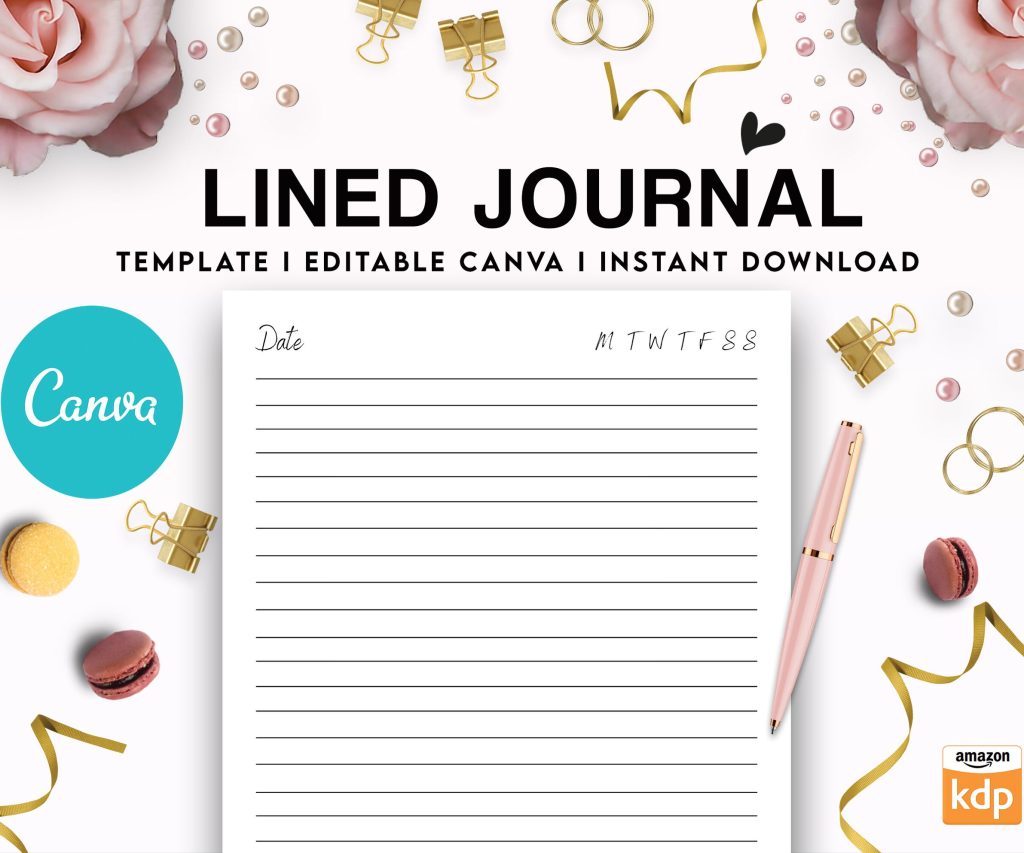 Editable Canva Lined Journal: Express Your Thoughts - KDP Template
1 × $0.00
Editable Canva Lined Journal: Express Your Thoughts - KDP Template
1 × $0.00 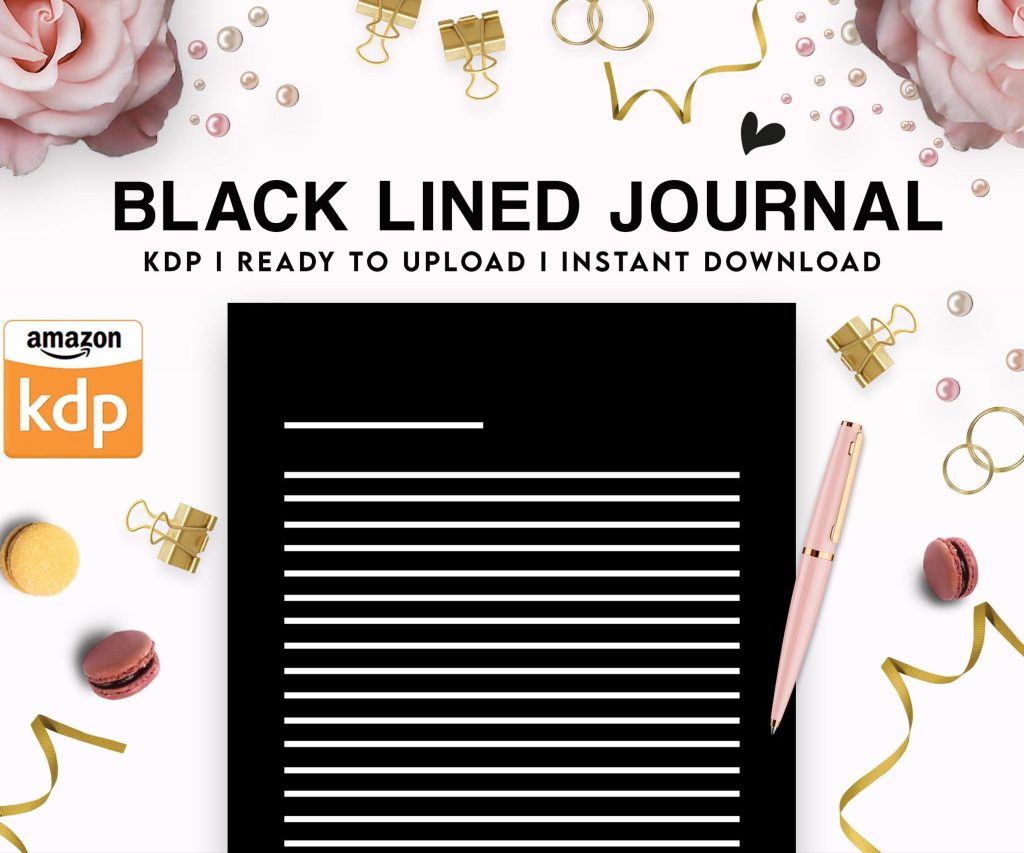 Black Lined Journal: 120 Pages of Black Lined Paper Perfect for Journaling, KDP Notebook Template - 6×9
1 × $0.00
Black Lined Journal: 120 Pages of Black Lined Paper Perfect for Journaling, KDP Notebook Template - 6×9
1 × $0.00 
DISCOVER OUR FREE BEST SELLING PRODUCTS
Editable Canva Lined Journal: Express Your Thoughts – KDP Template
Lined Pages Journal 120 pages Ready to Upload PDF Commercial Use KDP Template 6×9 8.5×11 5×8 for Notebooks, Diaries, Low Content
Lined Pages Journal 120 pages Ready to Upload PDF Commercial Use KDP Template 6×9 8.5×11 5×8 for Notebooks, Diaries, Low Content
Cute Dogs Coloring Book for Kids | Activity Book | KDP Ready-To-Upload
Daily Planner Diary : Diary Planners for Everyday Productivity, 120 pages, 6×9 Size | Amazon KDP Interior
Wolf Coloring KDP interior For Adults, Used as Low Content Book, PDF Template Ready To Upload COMMERCIAL Use 8.5×11"
Coloring Animals Head Book for Kids, Perfect for ages 2-4, 4-8 | 8.5×11 PDF
Printable Blank Comic Book Pages PDF : Create Your Own Comics – 3 Available Sizes
Notes KDP interior Ready To Upload, Sizes 8.5×11 6×9 5×8 inch PDF FILE Used as Amazon KDP Paperback Low Content Book, journal, Notebook, Planner, COMMERCIAL Use
Black Lined Journal: 120 Pages of Black Lined Paper Perfect for Journaling, KDP Notebook Template – 6×9
Student Planner Journal 120 pages Ready to Upload PDF Commercial Use KDP Template 6×9" 8.5×11" for Low Content book
Recipe Journal Template – Editable Recipe Book Template, 120 Pages – Amazon KDP Interior