
-
×
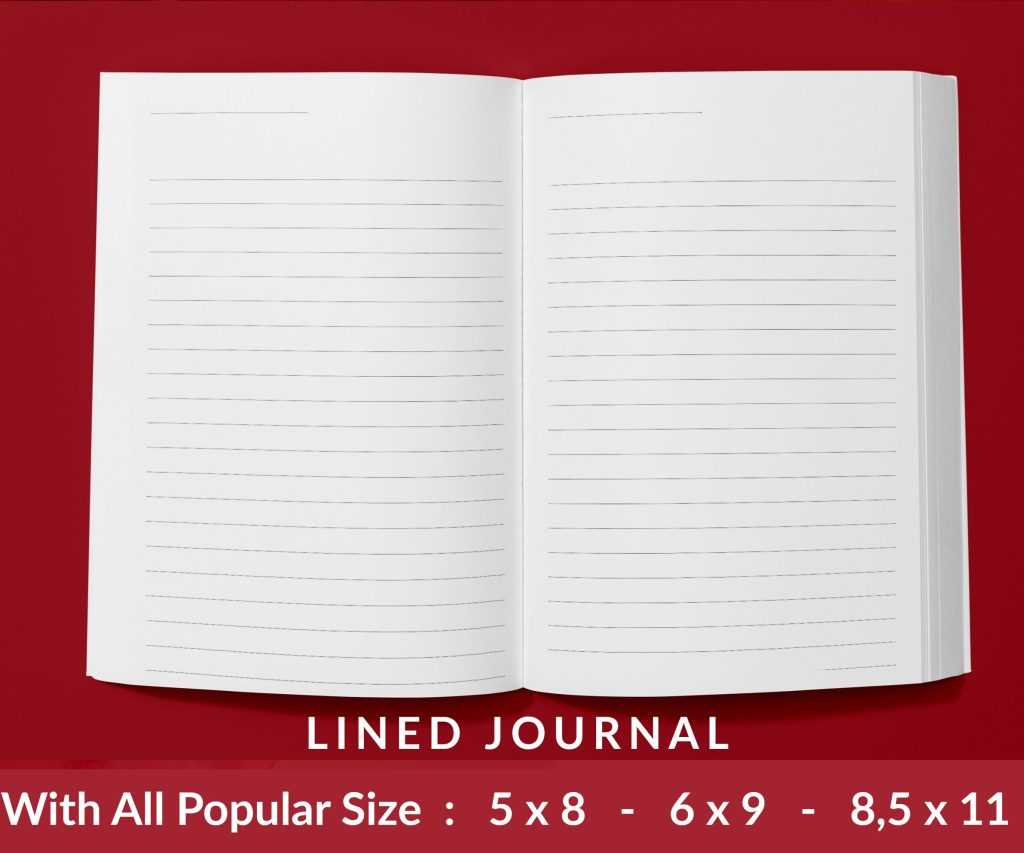 Lined Pages Journal 120 pages Ready to Upload PDF Commercial Use KDP Template 6x9 8.5x11 5x8 for Notebooks, Diaries, Low Content
1 × $0.00
Lined Pages Journal 120 pages Ready to Upload PDF Commercial Use KDP Template 6x9 8.5x11 5x8 for Notebooks, Diaries, Low Content
1 × $0.00
Subtotal: $0.00
Okay so I literally just walked someone through this yesterday while my cat was knocking over my coffee, so it’s fresh in my mind.
First thing – stop overthinking the trim size. Most people mess this up because they’re trying to be creative when you just gotta pick what sells. For low-content books, 6×9 is your baseline. It’s safe, it’s what people expect for journals and workbooks. 8.5×11 works if you’re doing activity books or planners where people need space to write.
Here’s what I use 90% of the time:
The dimensions need to be EXACT in your template. Not 5.98×8.95 or whatever Word decides to do. Exactly 6.00×9.00 inches. I’ve had books rejected for being off by like 0.05 inches because Amazon’s system is picky.
This is gonna sound annoying but you can’t just use the default margins. KDP has specific requirements and they change based on page count.
For books under 150 pages (which is most low-content stuff), you need:
Wait I forgot to mention – the inside margin is the one that gets bound. So left side for odd pages, right side for even pages. If your book is over 150 pages, that inside margin needs to be bigger. There’s a calculator on KDP’s site but honestly I just use 0.5 inches for anything over 100 pages to be safe.
Oh and another thing, if you’re doing bleed (graphics that go to the edge), you need to add 0.125 inches on ALL sides. So your document size becomes 6.125×9.125 for a 6×9 book. The bleed area gets trimmed off during printing.
I know Affinity Publisher and InDesign exist but most people starting out are using Word or Google Docs. In Word, go to Layout > Size > More Paper Sizes. Type in your exact dimensions. Then go to Layout > Margins > Custom Margins and put in your numbers.
Here’s the trick nobody tells you – under Layout > Margins, there’s a thing called “Mirror margins” or “Book fold” depending on your Word version. DO NOT use Book fold unless you’re doing a full book with actual chapters. For low-content, just set up the margins manually and keep them the same on every page.
Okay so funny story, I spent like three hours last month testing different line weights for journal pages because my client canceled a call. Turns out the sweet spot is between 0.5pt and 1pt lines. Thinner than 0.5pt looks too faint when printed, thicker than 1pt feels like a kids’ workbook.
For lined journals, I use 0.25 inch spacing between lines. College ruled is technically 0.28 inches but nobody’s measuring with a ruler when they buy a journal. Just keep it consistent.
If you’re doing dotted pages (bullet journals love these), make your dots about 2pt in size, spaced 0.2 inches apart. Light gray, like 40% black. Not too dark or it overwhelms the page.
KDP requires at least 24 pages for paperbacks. Most of my journals are between 100-120 pages because that’s the goldilocks zone – thick enough to look substantial, thin enough to keep printing costs low. Every page counts as a physical page, not like ebook pages.
This is gonna sound weird but don’t do odd numbers of total pages. Always make it even. Each sheet of paper is two pages (front and back), so if you upload 101 pages, KDP adds a blank page anyway. May as well control what that page looks like.
Black and white interior = grayscale color mode. Even if you’re just using black, you gotta set the color mode to grayscale in your export settings. I learned this the hard way when a book got rejected three times because I had it in RGB.
Standard color is RGB for the cover but grayscale for interior (unless you’re doing a premium color interior, which costs way more to print).
Export as PDF. Not Word doc, not PNG images smooshed into a PDF, actual PDF with text embedded. In Word, go to File > Export > Create PDF. Make sure “ISO 19005-1 compliant (PDF/A)” is unchecked – KDP doesn’t want PDF/A format.
If you have images or graphics, they need to be 300 DPI minimum. 150 DPI might look fine on screen but prints blurry. I use 300 DPI for everything just to avoid thinking about it.
When you’re placing images in Word, don’t just drag and drop. Right-click the image, go to Size and Position, and make sure “Lock aspect ratio” is checked. Also under Picture Format > Compress Pictures, choose “Use document resolution” not “Web.”
Print one page at home before you upload anything. Seriously. Set your home printer to “actual size” not “fit to page” and print page 1. Hold a ruler up to it. Does it measure exactly 6×9? Are the margins where you expect?
I’ve caught so many issues this way. Like last week I was watching that show on Netflix, the one about the chess players, and half paying attention to a template. Printed it and the margins were totally off because I forgot to turn off “scale to fit” in the print dialog when I set up the document.
You need a copyright page. Page 1 is usually blank or your title. Page 2 is copyright info. Just put:
Copyright © [Year] by [Your Name or Publishing Name] All rights reserved.
That’s it. Don’t overthink it. Some people add their website or “No part of this book may be reproduced” language but for low-content books it doesn’t really matter.
Headers and footers in journals. Don’t do it. Nobody wants “Page 47” at the bottom of their journal entry. Leave them blank.
Making the lines or dots too dark. I already mentioned this but it’s worth repeating. 40% gray maximum. Let the customer’s writing be the star.
Forgetting that KDP previewer shows compressed images. Your uploaded PDF might look crisp but the preview looks fuzzy. That’s normal. The actual printed book uses your full-quality file.
Using fancy fonts for lined journals. You barely have any text in a journal interior – maybe the copyright page. Just use Arial or Times New Roman. Save the fancy fonts for your cover.
I keep master templates for each size. 6×9 journal template, 8.5×11 activity book template, etc. When I start a new project, I duplicate the template file and just modify what needs changing. Saves so much time compared to setting up margins and page size every single time.
For the 6×9 journal template, I’ve got versions with different ruling – wide ruled, college ruled, dotted, blank. Just swap out the content pages and keep the same margins and page setup.
Oh wait, one more thing about bleed. If you’re NOT using bleed (most journals don’t need it), you can select “no bleed” during upload and your file dimensions are just the trim size. This is easier. Only use bleed if you’ve got background colors or images going to the edge.
Honestly the biggest thing is just being precise with measurements and testing your print file before going live. I still order author copies of new templates even after seven years of doing this because sometimes weird stuff happens in printing that doesn’t show on screen.
DISCOVER OUR FREE BEST SELLING PRODUCTS
Editable Canva Lined Journal: Express Your Thoughts – KDP Template
Lined Pages Journal 120 pages Ready to Upload PDF Commercial Use KDP Template 6×9 8.5×11 5×8 for Notebooks, Diaries, Low Content
Lined Pages Journal 120 pages Ready to Upload PDF Commercial Use KDP Template 6×9 8.5×11 5×8 for Notebooks, Diaries, Low Content
Cute Dogs Coloring Book for Kids | Activity Book | KDP Ready-To-Upload
Daily Planner Diary : Diary Planners for Everyday Productivity, 120 pages, 6×9 Size | Amazon KDP Interior
Wolf Coloring KDP interior For Adults, Used as Low Content Book, PDF Template Ready To Upload COMMERCIAL Use 8.5×11"
Coloring Animals Head Book for Kids, Perfect for ages 2-4, 4-8 | 8.5×11 PDF
Printable Blank Comic Book Pages PDF : Create Your Own Comics – 3 Available Sizes
Notes KDP interior Ready To Upload, Sizes 8.5×11 6×9 5×8 inch PDF FILE Used as Amazon KDP Paperback Low Content Book, journal, Notebook, Planner, COMMERCIAL Use
Black Lined Journal: 120 Pages of Black Lined Paper Perfect for Journaling, KDP Notebook Template – 6×9
Student Planner Journal 120 pages Ready to Upload PDF Commercial Use KDP Template 6×9" 8.5×11" for Low Content book
Recipe Journal Template – Editable Recipe Book Template, 120 Pages – Amazon KDP Interior