-
×
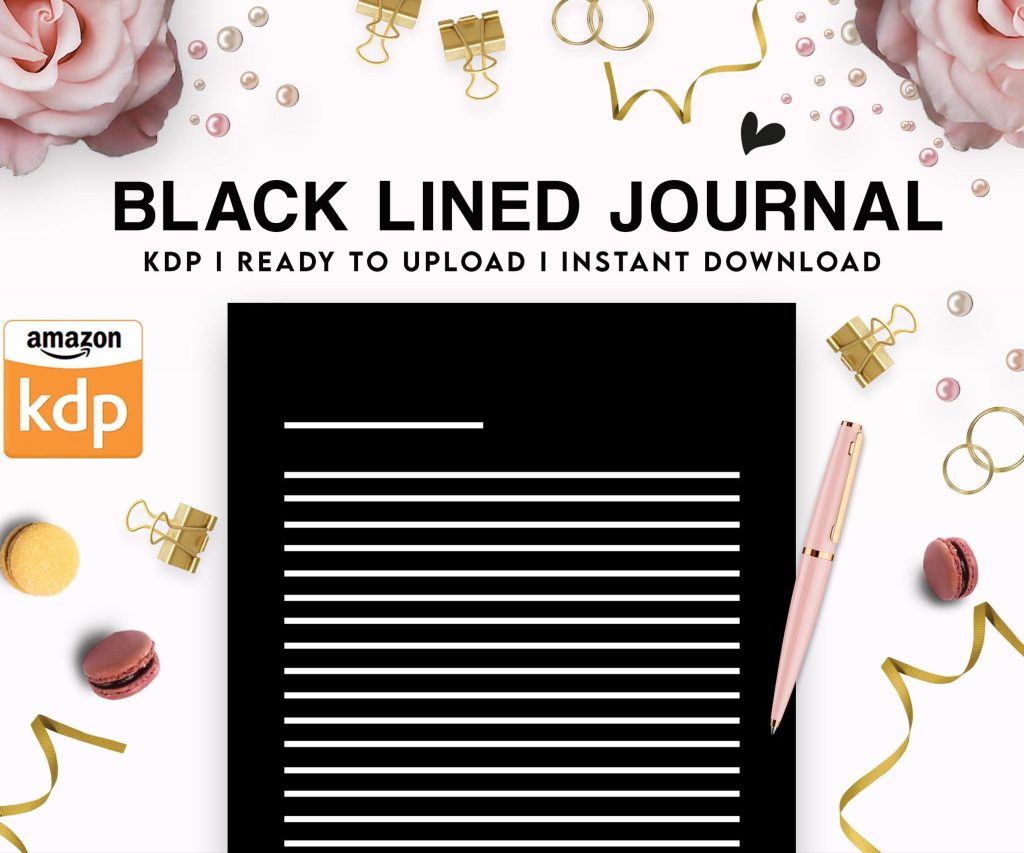 Black Lined Journal: 120 Pages of Black Lined Paper Perfect for Journaling, KDP Notebook Template - 6×9
1 × $0.00
Black Lined Journal: 120 Pages of Black Lined Paper Perfect for Journaling, KDP Notebook Template - 6×9
1 × $0.00
Subtotal: $0.00
 Black Lined Journal: 120 Pages of Black Lined Paper Perfect for Journaling, KDP Notebook Template - 6×9
1 × $0.00
Black Lined Journal: 120 Pages of Black Lined Paper Perfect for Journaling, KDP Notebook Template - 6×9
1 × $0.00 Subtotal: $0.00
Okay so the KDP dashboard has way more features than most people actually use and I’m gonna walk you through the stuff that actually matters. Like last week I was helping this author friend figure out why her book wasn’t showing up properly and realized she had no idea half these tools even existed.
The reports tab is honestly where I spend most of my time. You’ve got your standard sales dashboard which shows royalties by marketplace, but here’s what most people miss – you can filter by time period AND by marketplace separately. So like if you’re trying to figure out whether your book sells better in the UK or US during December, you can actually track that.
The month-to-date reports update with about a 24-hour delay which is annoying when you’re refreshing constantly after a promo. Been there, done that at 2am with coffee wondering why sales aren’t updating faster.
If you’re in KDP Select, the Kindle Edition Normalized Pages (KENP) thing shows how many pages people read through Kindle Unlimited. This updates separately from sales and honestly the math behind it is… nobody fully understands it? Amazon normalizes page counts so a page in your book equals roughly the same amount of text as other books.
What I do is track KENP trends month over month. If you see a sudden drop it usually means either the KU pot shrunk that month or your book fell off in rankings. Sometimes it means people are starting but not finishing and that’s when you gotta look at your content quality.
Your bookshelf is where all your books live but there’s hidden stuff here. The three dots next to each book title? That’s where the magic happens. You can:
That last one is huge because once you have a Kindle version up, creating a paperback takes like 15 minutes since most of the metadata carries over. I usually wait to see if the ebook gets any traction before bothering with paperback but that’s just me.
When you click edit on a book, you get three sections – Kindle eBook Details, Kindle eBook Content, and Kindle eBook Pricing. Here’s what people screw up constantly.
In the details section you can change your title, subtitle, description, keywords, and categories without losing reviews. But if you change the ISBN or significantly alter the content file itself, Amazon might treat it as a new book. I learned that the hard way with a planner that needed interior fixes – lost like two weeks of ranking momentum.
The description editor has this HTML option that nobody uses. You can bold text, add bullet points, make headers. Makes your description look way more professional than the plain text everyone defaults to. I’ve got a template I reuse with bold headers for key benefits and it definitely helps conversion.
You get seven keyword boxes and most people waste them. Each box can hold multiple words as a phrase – you don’t need to separate individual words. So instead of putting “weight” in one box and “loss” in another, you put “weight loss journal for women over 50” as one phrase.
Amazon indexes all the words anyway, so longer keyword phrases give you more combinations. I use Publisher Rocket to find these but you can also just search Amazon and see what autocomplete suggests.
Oh and another thing – you can use the same keywords across multiple books if they’re in the same niche. Amazon doesn’t penalize you for that. I’ve got probably 30 gratitude journals all using variations of the same core keywords.
You pick two categories during upload but you can contact KDP support to add up to eight more. Most people don’t know this exists. You email them through the contact form, give them your ASIN, and list the exact category paths you want.
The trick is finding low-competition categories where you can rank. Being #1 in “Books > Self-Help > Journaling > Gratitude > For Teens” is better than being #50,000 in “Books > Self-Help” because that #1 ranking shows up on your book page and gives you the orange bestseller flag.
I keep a spreadsheet of category paths that have under 5,000 books in them. You find these by browsing Amazon categories manually or using tools like KDP Spy. It’s tedious but worth it.
When you enroll in KDP Select, your ebook has to be exclusive to Amazon for 90 days. No selling it on your website, no Draft2Digital, nothing. In exchange you get:
It auto-renews unless you turn off renewal at least 48 hours before the period ends. I’ve accidentally let books renew when I wanted to go wide and had to wait another 90 days. Set a calendar reminder.
The free promo days are powerful for new launches. You can stack all five days in a row or spread them out. I usually do three days for launch, save two for later. During free promos you don’t make money but you get downloads that boost your ranking, and hopefully some reviews.
Countdown deals let you discount your book while still earning royalties and maintaining your 70% rate. The catch is your book has to be enrolled in Select, priced between $2.99-$9.99 normally, and you can’t run one within 30 days of the last one.
Free promos are better for visibility, countdown deals are better for actually making money during the promo. I use free promos for brand new books, countdown deals for books that already have reviews and ranking.
You can price your ebook between $0.99-$200 but the sweet spot for most books is $2.99-$9.99 because that’s where you get 70% royalty instead of 35%. Below $2.99 or above $9.99 you’re stuck at 35%.
But wait there’s more complications – the 70% rate requires your book to be at least 20% cheaper than the physical version if one exists. And Amazon charges delivery fees based on file size for 70% royalty books. It’s like $0.15 per MB or something.
For low-content books this doesn’t matter much but if you’ve got a 50MB ebook with tons of images, those delivery fees add up. I had a coloring book ebook that was costing me $7.50 in delivery fees per sale at 70% royalty. Switched to 35% royalty and actually made more money.
For paperbacks there’s this expanded distribution option that puts your book in libraries, academic institutions, and bookstores. Sounds great right? The problem is you earn way less – like 40% of list price minus printing costs instead of 60%.
And realistically those channels barely order self-published books anyway. I’ve had expanded distribution enabled on maybe 50 books and sold a grand total of… twelve copies through it in three years. Your mileage may vary but I don’t bother anymore.
Under the marketing tab in your bookshelf there’s A+ Content for books in brand registry. This is like enhanced product descriptions with images and formatted sections. It looks super professional but you need to be brand registered which requires a trademark.
I finally got brand registered last year for my main publishing imprint and the A+ content definitely helps conversion. You can add comparison charts, image galleries, author bios with photos. It’s the same system Amazon uses for physical products.
There’s also Author Central which is separate from KDP but linked. You set up an author profile, add a bio, connect your books, and track your Author Rank. The sales dashboard in Author Central is prettier than KDP’s but shows the same data with a delay.
You can launch sponsored product ads directly from your bookshelf now. Click the advertise button and it walks you through campaign setup. I run automatic campaigns for new books to see what keywords Amazon finds, then create manual campaigns based on what works.
The minimum daily budget is $1 which sounds low but can burn fast if your bids are too high. I start at $0.25 per click and adjust based on ACoS – that’s Advertising Cost of Sales, basically how much you spend versus what you make.
If you’re spending $10 in ads to make $8 in royalties, that’s bad math unless you’re trying to rank for long-term visibility. I aim for ACoS under 50% on established books, don’t worry about it on new launches.
There’s a content guidelines page buried in KDP help that explains what’s not allowed. Public domain books, overly short books, books that are just lists of things, poor quality interiors – Amazon’s cracking down on all of it.
They use automated checks now for low-content books. If your book is under a certain page count or has repetitive content, it might get flagged for manual review. I had a simple gratitude journal get stuck in review for three weeks because the interior was “too simple” according to the bot.
The solution was adding more variety to the pages – different prompts, some quote pages, section dividers. Resubmitted and it went live in 24 hours.
You can use public domain content but you gotta add value. Just reformatting a public domain book with a new cover isn’t enough anymore. Add commentary, illustrations, curated selections, something.
And for low-content books using PLR or templates, make sure you actually have rights for commercial use. Amazon asks you to prove it if they audit your account. I keep receipts and licenses for everything in a Google Drive folder organized by book.
When something goes wrong – and it will – you’ve got three contact options: phone, email, or chat. Phone is fastest for urgent stuff like account issues or books stuck in review. Chat is good for quick questions. Email is for detailed technical problems.
My cat just knocked over my water bottle… anyway, the support reps vary wildly in knowledge. Sometimes you get someone amazing who fixes your issue in five minutes, sometimes you get someone reading from a script who doesn’t understand your question. If you get a bad rep, try again later with someone else.
Always have your ASIN ready and be specific about the problem. “My book won’t publish” gets you nowhere. “My paperback ASIN B0XXXXXX shows ‘In Review’ for 72 hours after I updated the interior file” gets you actual help.
You gotta complete a tax interview before Amazon pays you. US authors fill out a W-9, international authors fill out a W-8BEN. It’s in your account settings under “Getting Paid” or something like that.
If you don’t do this, Amazon withholds 30% of your royalties. I put off doing mine when I first started because tax forms are intimidating and lost like $200 in withholdings before I figured it out.
For US authors it’s straightforward – enter your SSN or EIN, confirm your address, done. International authors deal with tax treaties and it’s more complicated but the form walks you through it.
Payment threshold is $10 for direct deposit, $100 for check. Obviously use direct deposit unless you enjoy waiting for checks. Payments go out around 60 days after month end, so January sales pay out in March.
Okay I think that covers the main stuff you actually need to know. There’s other random features like Kindle Create for formatting ebooks but honestly most people use Word or Atticus or Vellum. The KDP dashboard itself is more about managing what’s already published than creating content.
DISCOVER OUR FREE BEST SELLING PRODUCTS
Editable Canva Lined Journal: Express Your Thoughts – KDP Template
Lined Pages Journal 120 pages Ready to Upload PDF Commercial Use KDP Template 6×9 8.5×11 5×8 for Notebooks, Diaries, Low Content
Lined Pages Journal 120 pages Ready to Upload PDF Commercial Use KDP Template 6×9 8.5×11 5×8 for Notebooks, Diaries, Low Content
Cute Dogs Coloring Book for Kids | Activity Book | KDP Ready-To-Upload
Daily Planner Diary : Diary Planners for Everyday Productivity, 120 pages, 6×9 Size | Amazon KDP Interior
Wolf Coloring KDP interior For Adults, Used as Low Content Book, PDF Template Ready To Upload COMMERCIAL Use 8.5×11"
Coloring Animals Head Book for Kids, Perfect for ages 2-4, 4-8 | 8.5×11 PDF
Printable Blank Comic Book Pages PDF : Create Your Own Comics – 3 Available Sizes
Notes KDP interior Ready To Upload, Sizes 8.5×11 6×9 5×8 inch PDF FILE Used as Amazon KDP Paperback Low Content Book, journal, Notebook, Planner, COMMERCIAL Use
Black Lined Journal: 120 Pages of Black Lined Paper Perfect for Journaling, KDP Notebook Template – 6×9
Student Planner Journal 120 pages Ready to Upload PDF Commercial Use KDP Template 6×9" 8.5×11" for Low Content book
Recipe Journal Template – Editable Recipe Book Template, 120 Pages – Amazon KDP Interior