-
×
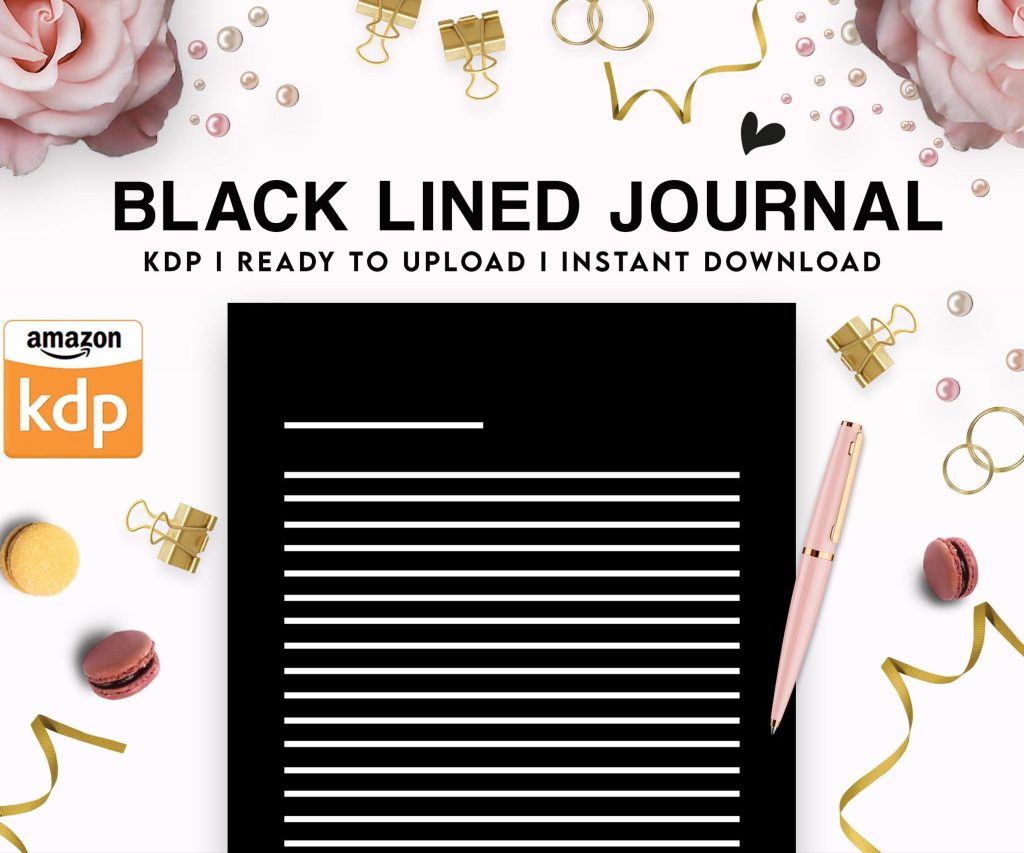 Black Lined Journal: 120 Pages of Black Lined Paper Perfect for Journaling, KDP Notebook Template - 6×9
1 × $0.00
Black Lined Journal: 120 Pages of Black Lined Paper Perfect for Journaling, KDP Notebook Template - 6×9
1 × $0.00
Subtotal: $0.00
 Black Lined Journal: 120 Pages of Black Lined Paper Perfect for Journaling, KDP Notebook Template - 6×9
1 × $0.00
Black Lined Journal: 120 Pages of Black Lined Paper Perfect for Journaling, KDP Notebook Template - 6×9
1 × $0.00 Subtotal: $0.00
I just spent like three hours yesterday fixing a client’s manuscript that was completely borked because they tried to convert a PDF directly and honestly, don’t do that. Just don’t. Start with a Word doc or even better, a clean text file if you can.
The thing nobody tells you is that Kindle’s conversion process is weirdly picky about styles. Like you’d think it wouldn’t matter but it does. I learned this the hard way back in 2017 when I uploaded my first planner and the whole thing came out looking like a ransom note because I had like fifteen different font styles mixed together.
So first thing – you gotta clean up your Word doc before you even think about conversion. Go to the Home tab and look at your styles. You want to use Heading 1, Heading 2, Normal text and that’s basically it. Don’t manually bold things or change fonts everywhere because Kindle Preview will just ignore half of it anyway.
Oh and another thing – page breaks. Use actual page breaks (Insert > Page Break) not just hitting Enter a bunch of times. I still see people doing this and it makes me wanna cry because it’ll look totally different on every device size.
Remove headers and footers entirely. Kindle doesn’t use them and they’ll just show up as weird random text floating around. Trust me on this one.
Okay so you want your chapter headings to be Heading 1 style. This is important because Kindle will auto-generate your table of contents from these. Well, it will if you set it up right which I’ll get to in a sec.
For regular paragraphs, first line indent should be like 0.3 inches. Don’t use tab key for indents because… actually I don’t know why exactly but Amazon‘s help docs say not to and I stopped questioning it after my 50th book or something. Format > Paragraph > Indentation > Special > First Line.
Scene breaks are tricky. I use three asterisks centered (***) with a blank line before and after. Some people use fancy symbols but keep it simple because fancy doesn’t always translate well.
Wait I forgot to mention – you’re gonna be working with either MOBI or KPF files but honestly these days you just upload a Word doc or EPUB directly to KDP and let Amazon convert it. The old Kindle Create tool is kinda obsolete now but some people still swear by it.
I usually go the direct Word upload route because it’s faster and I’ve done this enough times that I know my doc is clean. But if you’re new or paranoid (valid), use Kindle Create because it shows you exactly what you’re getting.
Download it from Amazon – it’s free. Import your Word doc. It’ll ask you what type of book – reflowable is what you want for normal text books. Fixed layout is for children’s books or graphic novels where the design matters more than the text.
The preview panel on the right shows you what it’ll look like on different devices. Check every single page because sometimes random formatting gremlins appear. My cat walked across my keyboard last week while I was doing this and somehow added a bunch of weird characters I didn’t catch until later.
For your table of contents – Kindle Create should auto-detect your chapter headings if you formatted them right. If it doesn’t, you can manually add them by clicking the three dots next to each chapter. Don’t skip the TOC because readers actually use it more than you’d think and reviews will call you out if it’s missing.
This is gonna sound weird but I actually convert to EPUB first using Calibre, then upload that to KDP instead of Word. More steps but you get way more control over the final output.
Calibre is free and looks like software from 2005 but it works great. Open your Word doc in Calibre, convert to EPUB, then edit the EPUB with the built-in editor if you need to tweak anything. You can mess with the CSS and HTML directly which is overkill for most people but sometimes you need it.
The metadata stuff in Calibre is also useful – you can add your book description, author name, ISBN if you have one, all that stuff before conversion.
Okay so funny story – I spent an entire afternoon once trying to figure out why images kept showing up blurry in my cookbook. Turns out Kindle compresses images automatically and if your original image is low quality, it’ll look even worse after compression.
Use JPG for photos, PNG for graphics with text or transparent backgrounds. Size them at least 600 pixels on the smallest side. Amazon recommends 300 DPI but honestly I’ve used 72 DPI images that looked fine on devices.
Don’t wrap text around images unless you really know what you’re doing. Just center the image on its own line with maybe a caption below. Way less headache.
Drop caps at chapter starts – possible but finicky. Kindle Create has an option for it. Personally I skip them because they break on some older Kindles.
Fonts – don’t specify fonts in your Word doc. Let Kindle use its default fonts because readers can change them anyway. If you force a font, it might not display right and you can’t control it.
Hyperlinks work fine. Link your table of contents, link to websites, whatever. Just make sure you test them in Kindle Preview before publishing.
Use Kindle Previewer which is different from Kindle Create even though the names are confusing. Download it from Amazon’s website. Open your converted file and check it on every device type they show – phone, tablet, e-reader, whatever.
Things to look for: weird page breaks in the middle of paragraphs, missing images, screwed up formatting on chapter headings, broken table of contents links. I usually watch TV while doing this because it’s boring but necessary. Was watching that new season of whatever show and almost missed a huge formatting error because I wasn’t paying attention.
Send a test file to your actual Kindle device using Send to Kindle. The previewer is good but nothing beats seeing it on the actual hardware you’ll be reading on.
Indents disappearing – usually because you used tabs instead of paragraph formatting. Fix it in your source doc and reconvert.
TOC not working – your headings aren’t formatted as actual heading styles. They’re just bold text that looks like headings.
Weird symbols showing up – usually smart quotes or em dashes that didn’t convert right. Do a find and replace in Word before converting.
Different spacing between paragraphs – you’ve got manual line breaks mixed with paragraph breaks. Show formatting marks in Word (that backwards P button) and clean it up.
Login to your KDP account, create new title, fill in all the metadata stuff. For the manuscript upload, I usually just drag and drop my Word file or EPUB right there. Takes like 30 seconds to process.
Amazon shows you a preview after upload – check it again even though you already checked it locally. Sometimes the conversion does weird stuff. You can approve it or upload a different file if something’s wrong.
My client canceled a call last week so I spent like two hours comparing the difference between uploading Word versus EPUB and honestly couldn’t find much difference in the final output. Both work fine if your source file is clean.
Oh wait – one more thing. If you’re doing a series, make sure your formatting is consistent across all books. Readers notice when Book 1 has a certain style and Book 2 looks completely different. Keep a template Word doc with your preferred styles and use it for every book.
The BISAC categories and keywords are on a different page but they matter for discoverability. Don’t just pick random categories – actually look at where similar books are ranked. But that’s kinda a whole different topic from formatting so I’ll stop here before this turns into a novel itself.
DISCOVER OUR FREE BEST SELLING PRODUCTS
Editable Canva Lined Journal: Express Your Thoughts – KDP Template
Lined Pages Journal 120 pages Ready to Upload PDF Commercial Use KDP Template 6×9 8.5×11 5×8 for Notebooks, Diaries, Low Content
Lined Pages Journal 120 pages Ready to Upload PDF Commercial Use KDP Template 6×9 8.5×11 5×8 for Notebooks, Diaries, Low Content
Cute Dogs Coloring Book for Kids | Activity Book | KDP Ready-To-Upload
Daily Planner Diary : Diary Planners for Everyday Productivity, 120 pages, 6×9 Size | Amazon KDP Interior
Wolf Coloring KDP interior For Adults, Used as Low Content Book, PDF Template Ready To Upload COMMERCIAL Use 8.5×11"
Coloring Animals Head Book for Kids, Perfect for ages 2-4, 4-8 | 8.5×11 PDF
Printable Blank Comic Book Pages PDF : Create Your Own Comics – 3 Available Sizes
Notes KDP interior Ready To Upload, Sizes 8.5×11 6×9 5×8 inch PDF FILE Used as Amazon KDP Paperback Low Content Book, journal, Notebook, Planner, COMMERCIAL Use
Black Lined Journal: 120 Pages of Black Lined Paper Perfect for Journaling, KDP Notebook Template – 6×9
Student Planner Journal 120 pages Ready to Upload PDF Commercial Use KDP Template 6×9" 8.5×11" for Low Content book
Recipe Journal Template – Editable Recipe Book Template, 120 Pages – Amazon KDP Interior