Okay so I just spent like three hours last week reformatting an ebook that someone completely butchered with the wrong template and here’s what you actually need to know about Kindle formats because Amazon doesn’t make this as clear as they should.
The Two Main Format Options You Actually Have
Right so there’s really only two formats you should be thinking about for Kindle: EPUB and KPF. Most people still use DOC or DOCX files but honestly that’s… it works but it’s not ideal anymore. Amazon’s whole system has shifted and if you’re starting fresh in 2024, you gotta understand what each one does.
EPUB is basically the standard ebook format everywhere except it used to be that Amazon was all proprietary with MOBI files but they finally gave up on that. Now they convert everything to their own format anyway but EPUB uploads work perfectly fine. I use EPUB probably 80% of the time now because it gives you way more control over formatting and it’s what every other platform uses too if you’re going wide.
KPF is Kindle Create’s format and honestly it’s pretty decent if you don’t want to mess with code at all. Kindle Create is Amazon’s free tool and it exports as KPF which keeps all your formatting intact. The problem is you’re kinda locked into their ecosystem but for simple books it’s actually faster.
When I Actually Use Each Format
So here’s my real workflow. If it’s a straightforward book – like a novel, memoir, something without complicated layouts – I’m doing EPUB through Calibre or Vellum if I’m feeling fancy. Fiction is easy, you just need clean chapter breaks and maybe some basic styling.
But wait I forgot to mention… if you’ve got a non-fiction book with images, sidebars, tables, any of that stuff, Kindle Create actually handles it better than manually coding an EPUB. I learned this the hard way with a cookbook project where I spent days getting the EPUB perfect and then Amazon’s conversion just destroyed half the image placements. Used Kindle Create the second time and it was done in like an hour.
The DOC/DOCX Route That Everyone Still Uses
Look, Microsoft Word files still work. Amazon accepts them. But you’re basically trusting Amazon’s automatic conversion and sometimes it does weird things. I had a client upload a DOCX last month and somehow all the scene breaks turned into page breaks and the whole book was a mess.
If you’re gonna use Word here’s what actually matters:
- Use actual heading styles not just bold text that looks like headings
- Don’t manually add page breaks everywhere thinking it’ll control the layout because it won’t
- Keep formatting super simple – the fancier you get the more likely something breaks
- Use a proper table of contents with hyperlinks not just a list of chapter names
The hyperlinked TOC is huge because Kindle readers expect to tap and jump around. If your TOC doesn’t work it looks amateur even if the rest of the book is perfect.
EPUB Creation and Why It’s Actually Not That Hard
Okay so EPUB sounds technical but it’s literally just HTML and CSS in a zip file with a different extension. You don’t need to know that to make one though. I use Calibre which is free and does like 90% of what the expensive tools do.
Here’s my actual process when I’m making an EPUB:
Start with a clean Word doc or Google Doc with proper heading styles. Export as DOCX. Open Calibre, import the DOCX, and let it convert to EPUB. Then – and this is the part people skip – you edit the EPUB in Calibre’s editor to fix all the weird spacing and formatting that the conversion messed up.
The Calibre editor looks scary at first because you’re seeing HTML but you don’t really need to code. You can just click around and adjust things visually. I usually fix paragraph spacing, make sure chapter headings look consistent, and check that images are positioned right.
Oh and another thing, if you’re doing this for the first time just download a professionally made ebook from Amazon, open it in Calibre, and look at how it’s structured. That’s literally how I learned. Found a traditionally published thriller that had clean formatting and reverse-engineered it.
The CSS Part That Everyone Overthinks
You don’t need fancy CSS. Amazon strips out a lot of it anyway. I have like a basic stylesheet I reuse for every book:
- Font size settings (but readers override this anyway)
- Paragraph spacing and indentation
- Chapter heading styles
- Maybe some text alignment for centered text or quotes
That’s it. People try to get all creative with custom fonts and elaborate designs and Amazon just… ignores most of it. Keep it simple, make sure it’s readable, move on.
Kindle Create Which I Avoided For Years But Actually Doesn’t Suck
This is gonna sound weird but I used to hate Kindle Create because it felt like Amazon trying to lock you in. But after using it on a few projects I get why it exists. It’s basically foolproof for people who aren’t technical.
You import your Word doc, Kindle Create detects chapters automatically (usually), you can add images and it handles the positioning, you preview it right there, and export as KPF. The KPF file uploads to KDP and everything just works because it’s Amazon’s own format.
The downside is you can’t really use that file anywhere else. If you’re publishing wide to Apple Books or Kobo or whatever, you need an EPUB anyway. So I only use Kindle Create for Amazon-exclusive stuff or when I’m helping someone who’s completely non-technical.
Wait I forgot to mention the preview feature in Kindle Create is actually really good. It shows you what the book looks like on different devices – phone, tablet, e-reader. Way better than trying to sideload files to your actual Kindle to test.
When Kindle Create Breaks Down
It’s not perfect though. I had this memoir project with a lot of pull quotes and text boxes and Kindle Create just could not handle the layout the author wanted. It kept trying to force everything into a linear flow which makes sense for ebooks but wasn’t what we needed.
That’s when you gotta go manual EPUB and actually code the layout. Or honestly sometimes you just need to tell the author “ebooks don’t work like print books, we need to simplify this.”
Fixed Layout vs Reflowable and Why This Matters
Okay so most ebooks are reflowable which means the text adjusts to whatever screen size and font settings the reader picks. That’s normal. That’s what you want for 95% of books.
But then there’s fixed layout which is like… the pages are images basically. Every page looks exactly the same on every device. You use this for children’s books with illustrations, cookbooks, comics, anything where the design is critical.
Fixed layout is way more complicated to create. You’re basically designing every single page spread. I use InDesign for this and export as fixed-layout EPUB but honestly unless you’re doing a highly visual book just don’t bother. Reflowable is easier and readers prefer it anyway because they can adjust text size.
The Actual Technical Specs Amazon Wants
Amazon has like a million guidelines but here’s what actually matters in practice:
- Cover image needs to be at least 2560 pixels on the longest side – I usually do 2560×1600 for horizontal or 1600×2560 for vertical
- Interior images should be 300 DPI if possible but honestly 150 DPI works fine for most stuff
- File size under 650 MB but I’ve never even come close to that unless you’re doing a photo book
- Fonts need to be embedded if you use custom ones but just use standard fonts and let readers pick their own
The cover size thing trips people up. Amazon will accept smaller covers but they look terrible on high-res devices and in search results. Just make it big enough from the start.
Testing Before You Publish
So Amazon has this Kindle Previewer tool which is free and you should 100% use it before uploading anything. It shows you what your book looks like on different devices and catches a lot of formatting issues.
I usually check:
- Does the TOC work and jump to the right chapters
- Are images showing up and not weirdly sized
- Do chapter breaks look clean
- Is there weird spacing anywhere
Oh and send the file to your own Kindle email and read a few pages on your actual device. The previewer is good but nothing beats seeing it on real hardware. I’ve caught typos this way that I missed on the computer screen too.
Common Formatting Mistakes I See All The Time
Okay so after doing this for 200+ books here’s what people constantly mess up:
Double spacing between paragraphs when they should be using first-line indent. Pick one style and stick with it. Most fiction uses indent, most non-fiction uses block paragraphs with space between.
Not setting up front matter correctly. You need a title page, copyright page, and TOC at minimum. Amazon expects these and readers do too.
Manually formatting everything instead of using styles. This makes your life so much harder when you need to change something. Use heading styles, use paragraph styles, let the software do the work.
Images that aren’t anchored properly so they float around randomly in the text. In Word you gotta set image wrapping to “in line with text” or they go crazy in the conversion.
The Metadata Thing Nobody Talks About
Your EPUB file has metadata embedded in it – title, author, description, all that. Make sure it matches what you’re putting on the KDP dashboard or Amazon gets confused sometimes. I use Calibre to edit metadata before uploading.
This is gonna sound paranoid but I swear Amazon’s system works better when everything matches perfectly. I’ve had books take longer to go live when the metadata was inconsistent.
My Current Template Setup
So I’ve got like three template files I reuse for everything:
One Word template for fiction with chapter heading styles, paragraph styles, front matter pages. I just dump the manuscript text in and apply styles and it’s formatted in minutes.
One EPUB template that’s basically an empty book structure with my standard CSS. I replace the content but keep the styling framework.
One Kindle Create project template for non-fiction with image placeholders and section breaks already set up.
Having templates saves so much time. You’re not starting from scratch every book figuring out margins and spacing and all that boring stuff.
My cat just jumped on my keyboard but anyway the point is you don’t need to reinvent the wheel each time. Find what works, save it, reuse it.
Converting Between Formats When You Need To
Sometimes you’ve got an EPUB and need a MOBI or vice versa or whatever. Calibre does all this. Just import the file and convert to whatever format. It’s not always perfect – complicated layouts might break – but for standard books it works fine.
Amazon doesn’t even use MOBI anymore technically, they use KFX or AZW3 or something proprietary but they convert whatever you upload automatically. You don’t really need to worry about it.
The only time I manually create multiple formats is when I’m going wide to other platforms. Then I make one master EPUB and use that everywhere. Apple Books, Kobo, Google Play all take EPUB directly.
When To Just Hire Someone
Look if you’ve got a complex book with lots of images, tables, footnotes, whatever… and you’re not technical… just hire a formatter. It’ll cost you $50-200 depending on complexity and you’ll save hours of frustration.
I still do my own formatting because I’ve done it so many times but for my first like 20 books I paid someone because I didn’t know what I was doing yet. Nothing wrong with outsourcing the technical stuff so you can focus on writing and marketing.
Just make sure whoever you hire gives you both EPUB and the source files so you can make edits later if needed. Don’t be dependent on them for every tiny change.
Anyway that’s basically everything I wish someone had told me when I started. The formats aren’t as complicated as they seem once you do a few books. Start simple, use templates, test everything before publishing, and don’t stress about making it perfect because readers mostly just care about the content anyway.

 Notes KDP interior Ready To Upload, Sizes 8.5x11 6x9 5x8 inch PDF FILE Used as Amazon KDP Paperback Low Content Book, journal, Notebook, Planner, COMMERCIAL Use
1 × $0.00
Notes KDP interior Ready To Upload, Sizes 8.5x11 6x9 5x8 inch PDF FILE Used as Amazon KDP Paperback Low Content Book, journal, Notebook, Planner, COMMERCIAL Use
1 × $0.00 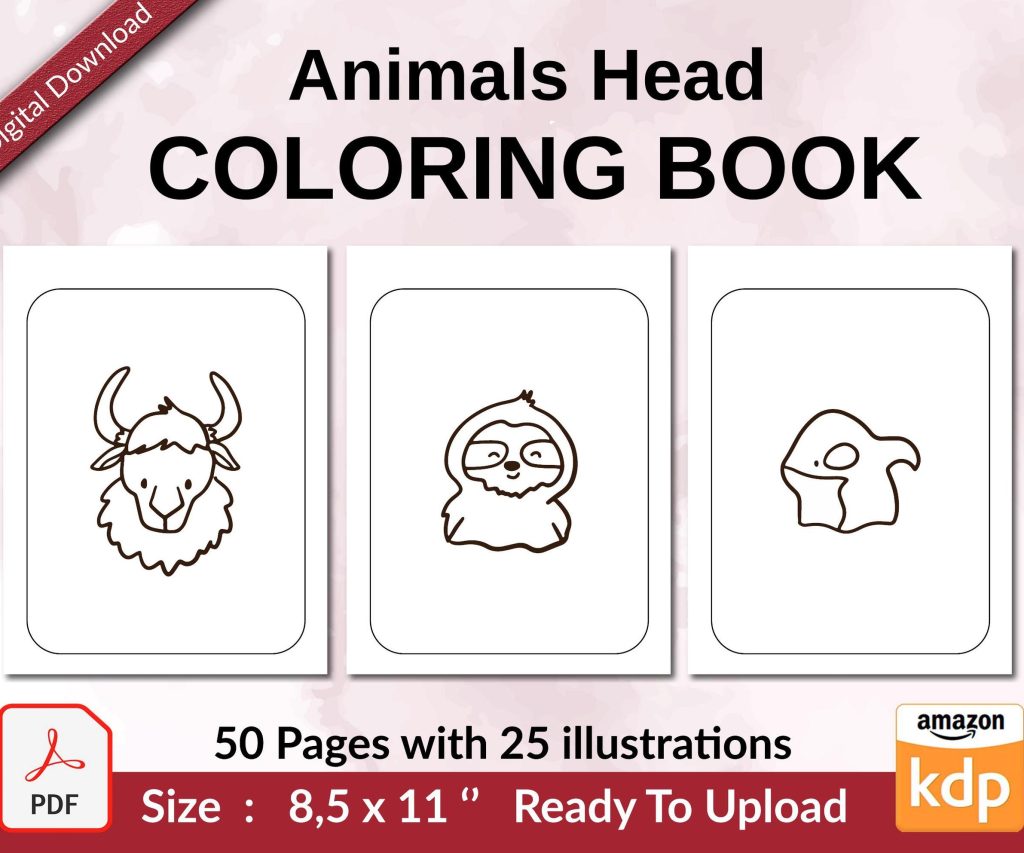 Coloring Animals Head Book for Kids, Perfect for ages 2-4, 4-8 | 8.5x11 PDF
1 × $0.00
Coloring Animals Head Book for Kids, Perfect for ages 2-4, 4-8 | 8.5x11 PDF
1 × $0.00 
DISCOVER OUR FREE BEST SELLING PRODUCTS
Editable Canva Lined Journal: Express Your Thoughts – KDP Template
Lined Pages Journal 120 pages Ready to Upload PDF Commercial Use KDP Template 6×9 8.5×11 5×8 for Notebooks, Diaries, Low Content
Lined Pages Journal 120 pages Ready to Upload PDF Commercial Use KDP Template 6×9 8.5×11 5×8 for Notebooks, Diaries, Low Content
Cute Dogs Coloring Book for Kids | Activity Book | KDP Ready-To-Upload
Daily Planner Diary : Diary Planners for Everyday Productivity, 120 pages, 6×9 Size | Amazon KDP Interior
Wolf Coloring KDP interior For Adults, Used as Low Content Book, PDF Template Ready To Upload COMMERCIAL Use 8.5×11"
Coloring Animals Head Book for Kids, Perfect for ages 2-4, 4-8 | 8.5×11 PDF
Printable Blank Comic Book Pages PDF : Create Your Own Comics – 3 Available Sizes
Notes KDP interior Ready To Upload, Sizes 8.5×11 6×9 5×8 inch PDF FILE Used as Amazon KDP Paperback Low Content Book, journal, Notebook, Planner, COMMERCIAL Use
Black Lined Journal: 120 Pages of Black Lined Paper Perfect for Journaling, KDP Notebook Template – 6×9
Student Planner Journal 120 pages Ready to Upload PDF Commercial Use KDP Template 6×9" 8.5×11" for Low Content book
Recipe Journal Template – Editable Recipe Book Template, 120 Pages – Amazon KDP Interior